
# Getting Started

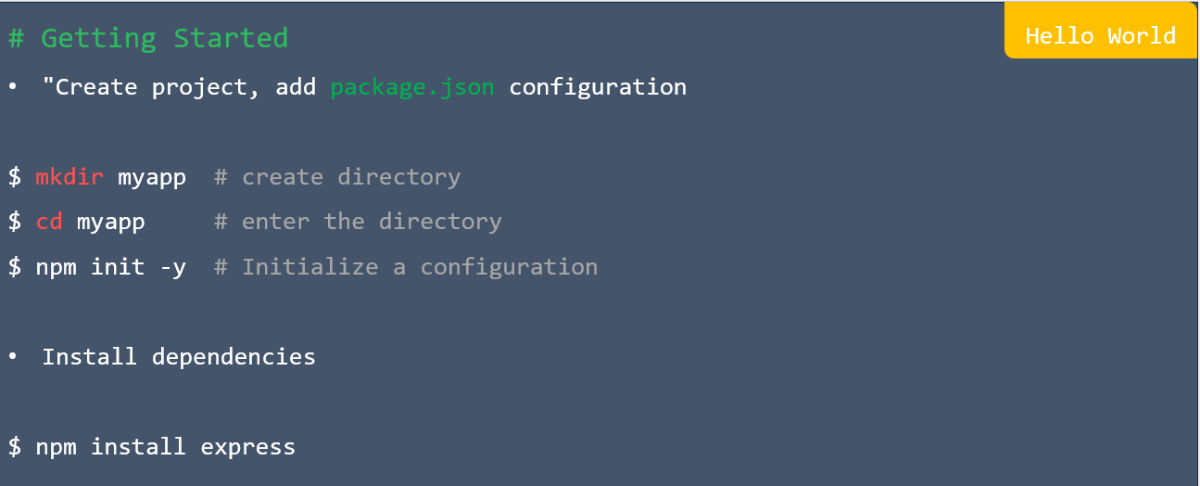
Hello world in express

Hello world in express

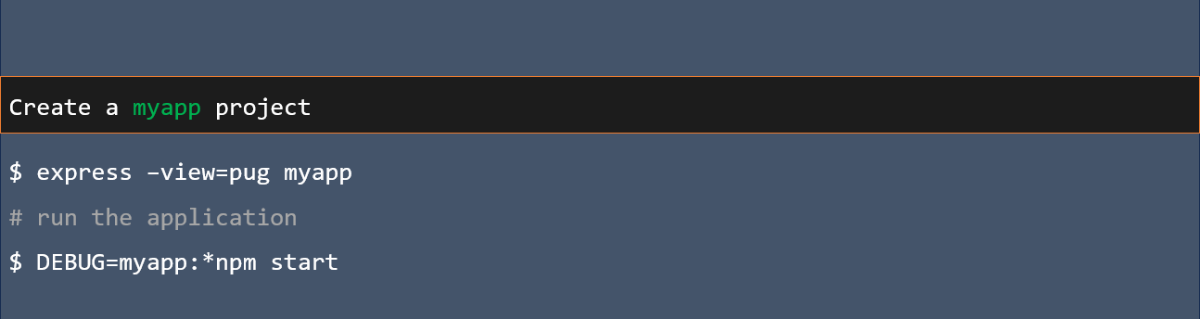
Express-h

Express-h

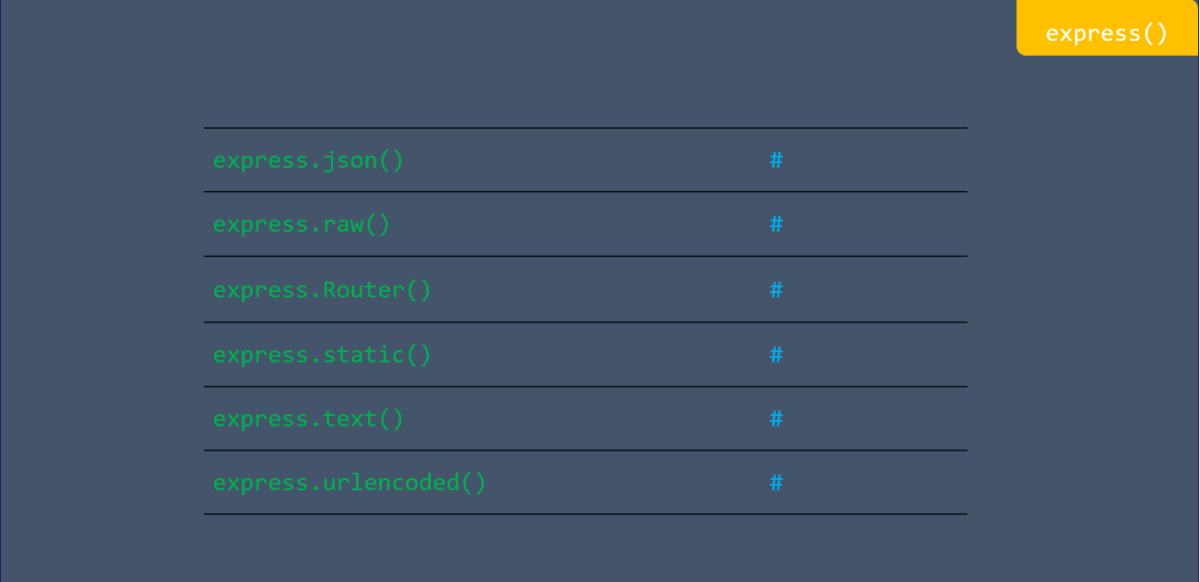
Express()

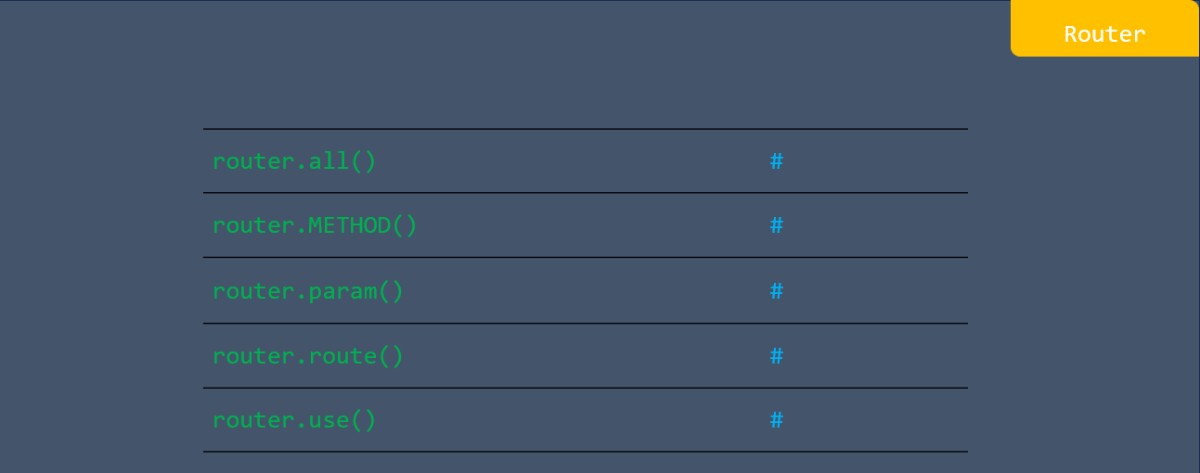
Router in express

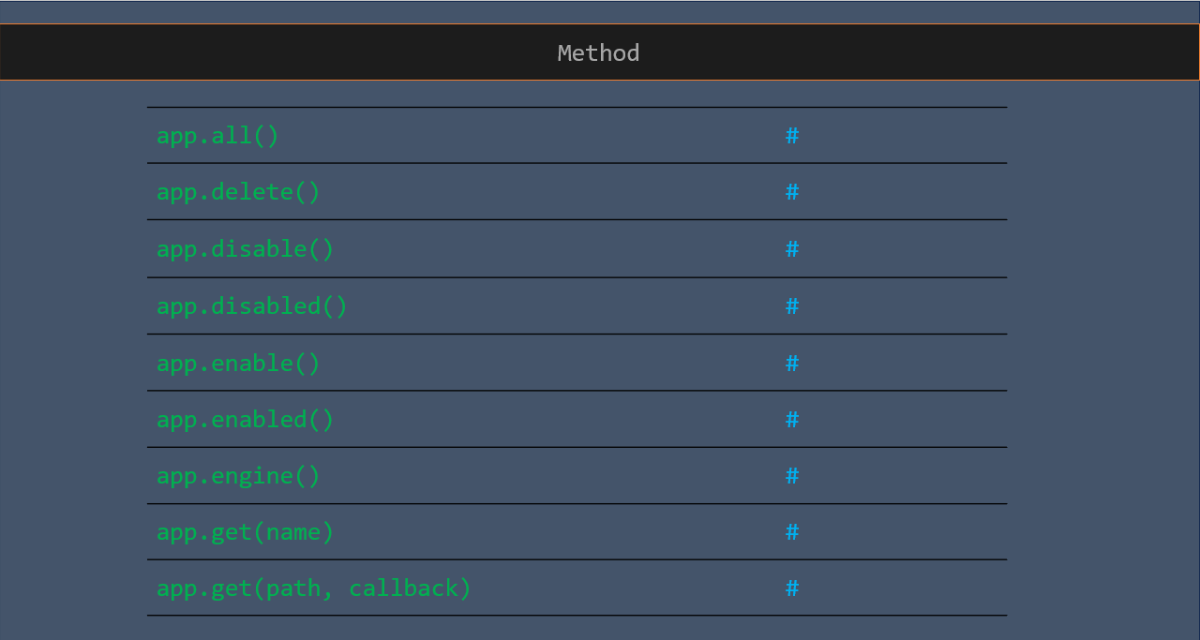
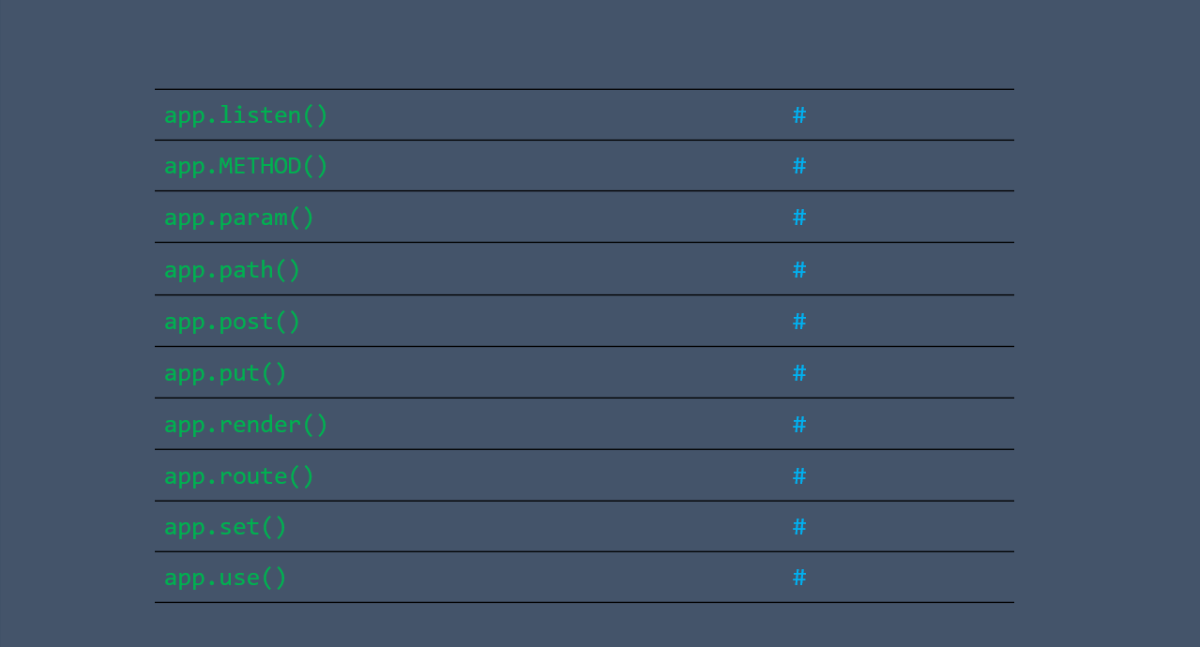
Application in express

Application in express

Application in express

Request attribute in express

Request attribute in express

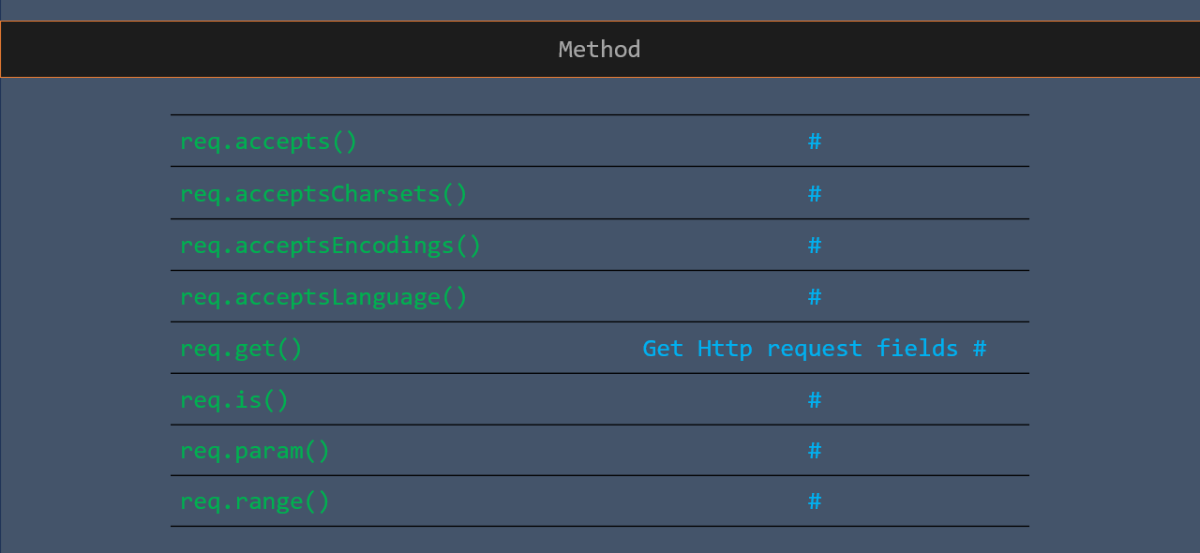
Request method in express

Response attribute in express

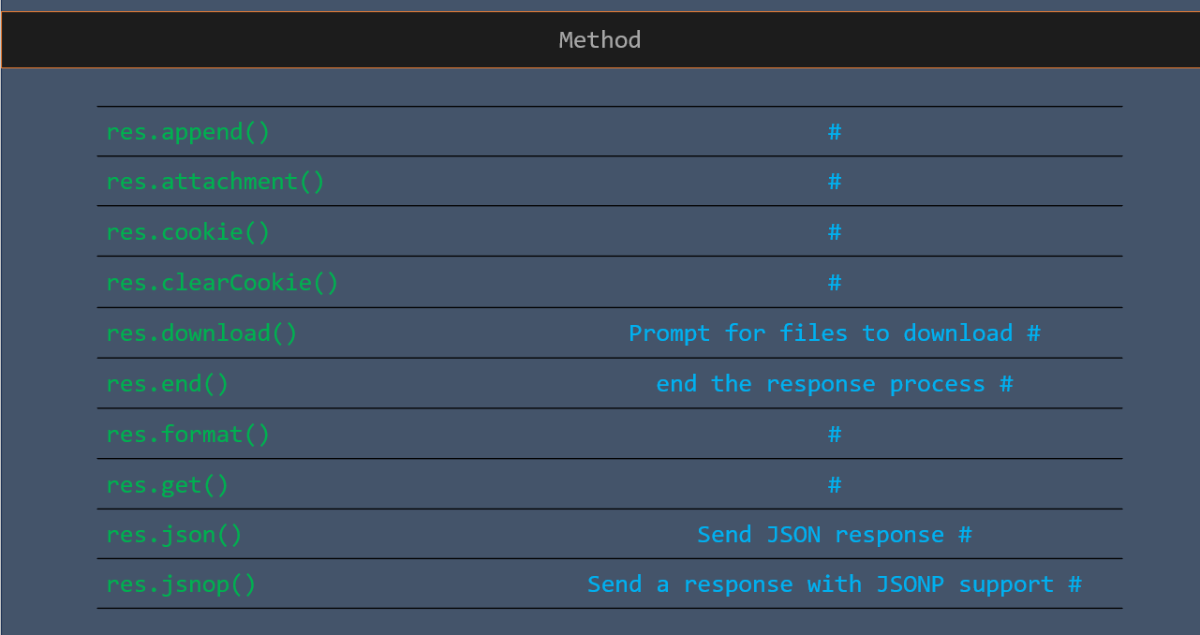
Response method in express

Response method in express

Router example in express

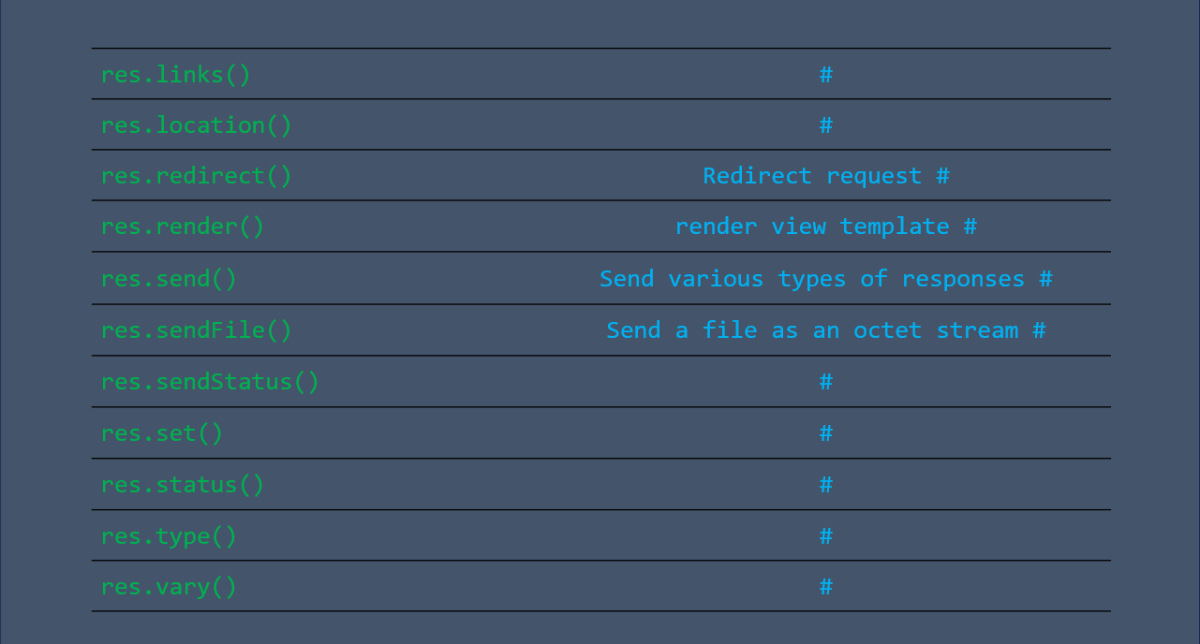
Response in express

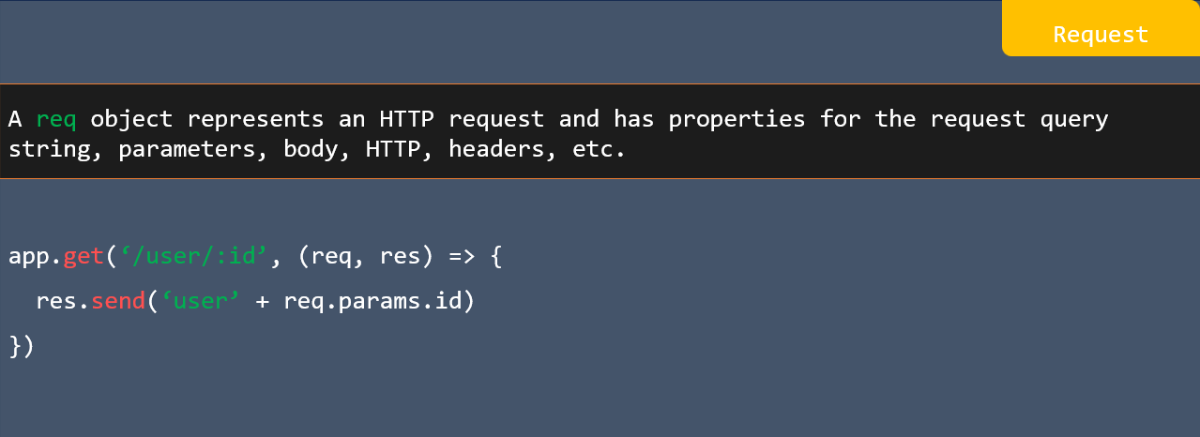
Request in express

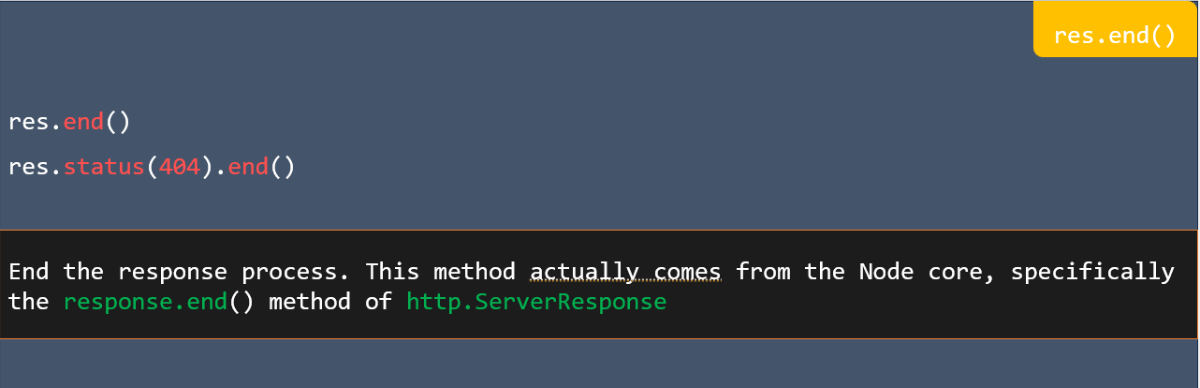
res.end () in express
res.json ([body]) in express

app.all in express

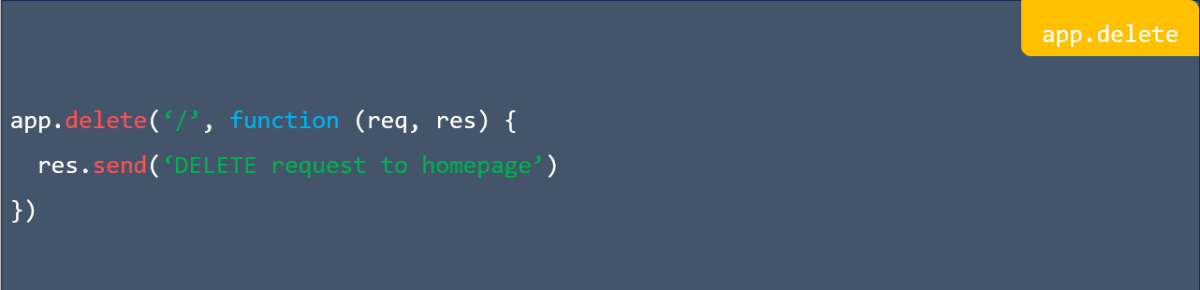
app.delete in express

app.disable (name) in express

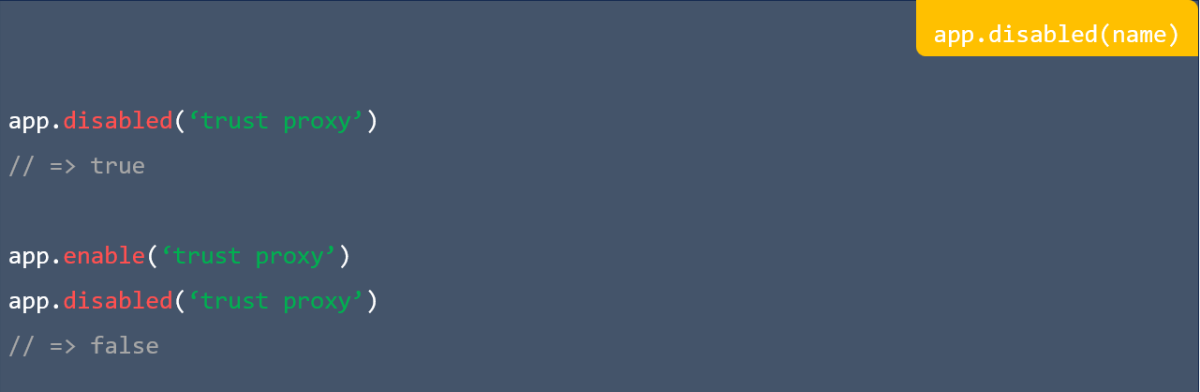
app.disabled(name) in express

app.engine (ext, callback) in express

app.listen ([port[, host[, backlog]]][, callback]) in express

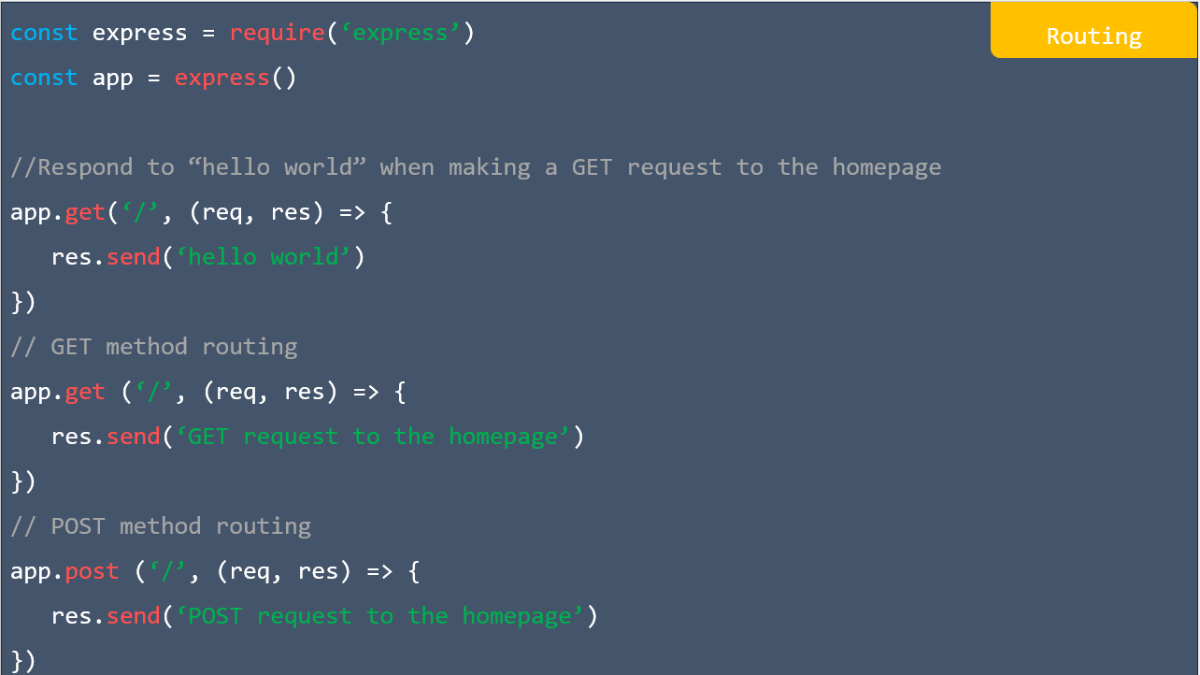
Routing in express

Middleware in express

Using templates in express

Using templates in express

# Getting Started

Including jQuery

jQuery syntax

jQuery document ready

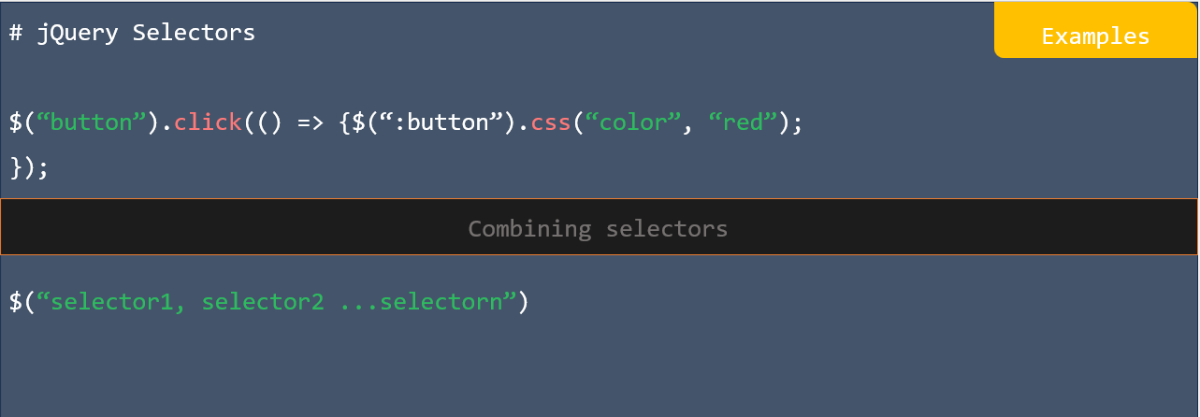
Examples in jQuery

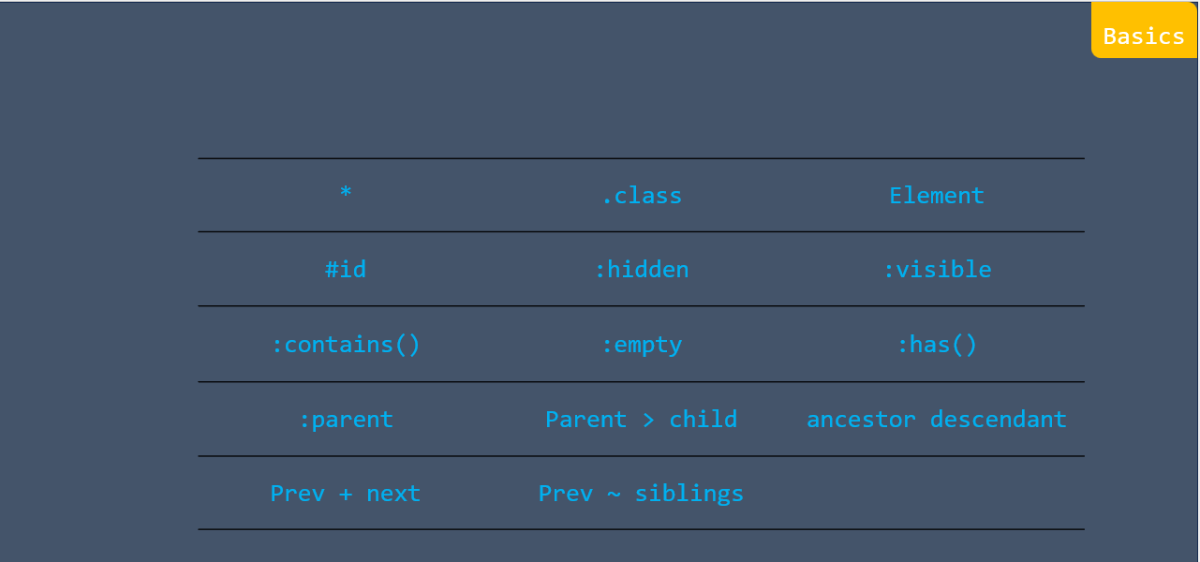
Basics in jQuery

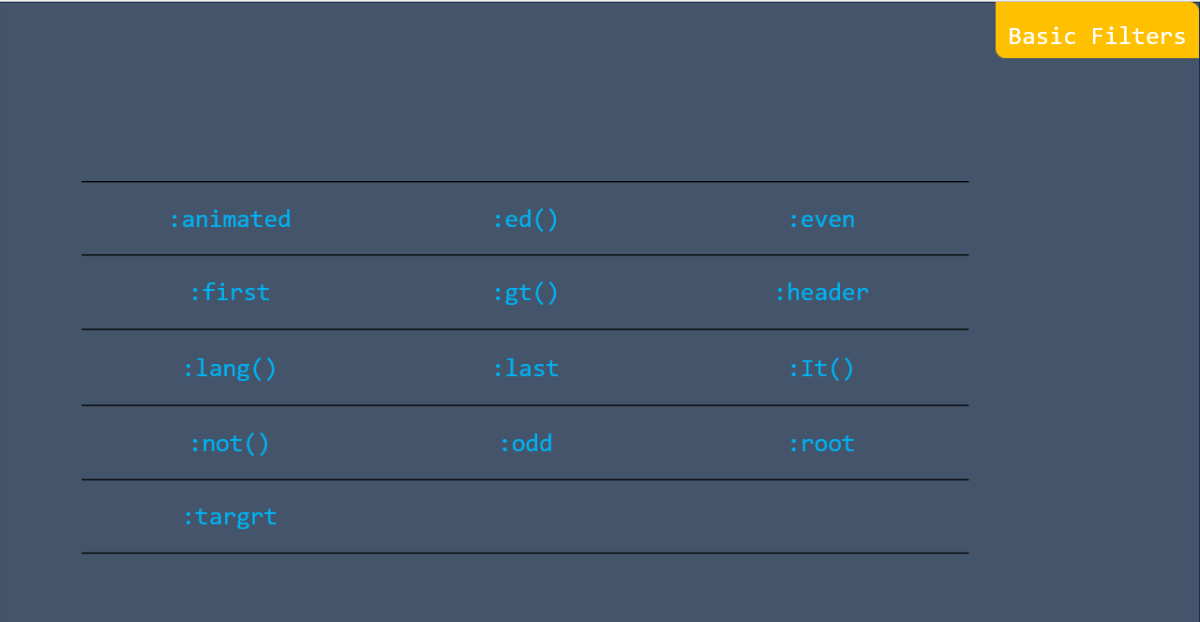
Basic filters in jQuery

Attribute in jQuery

Child filters in jQuery

Forms in jQuery

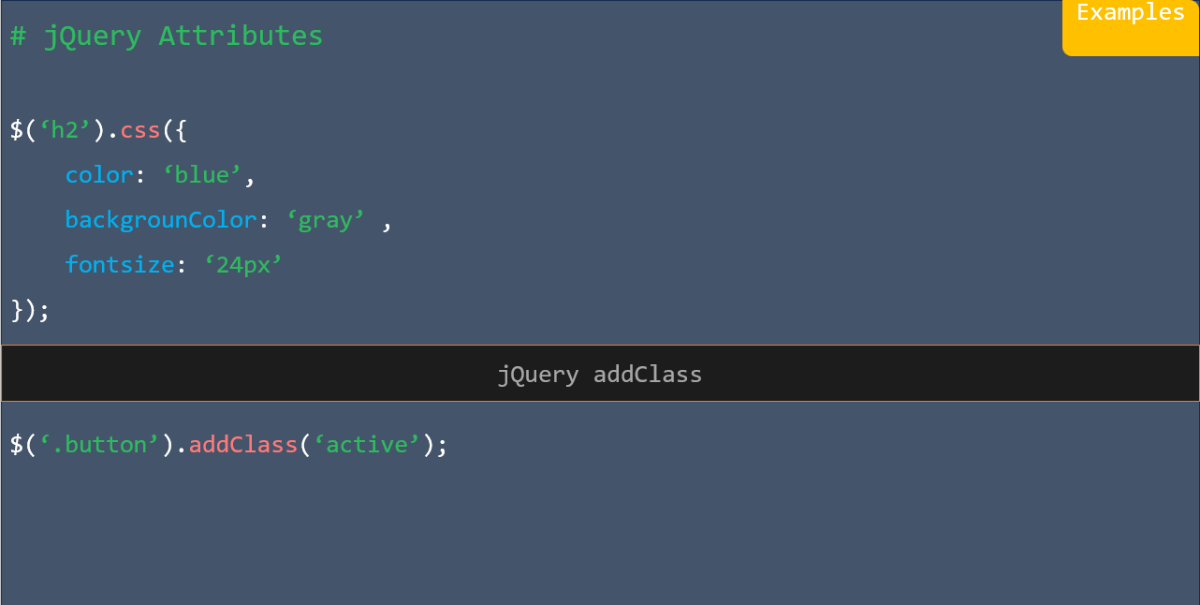
Examples jQuery addclass

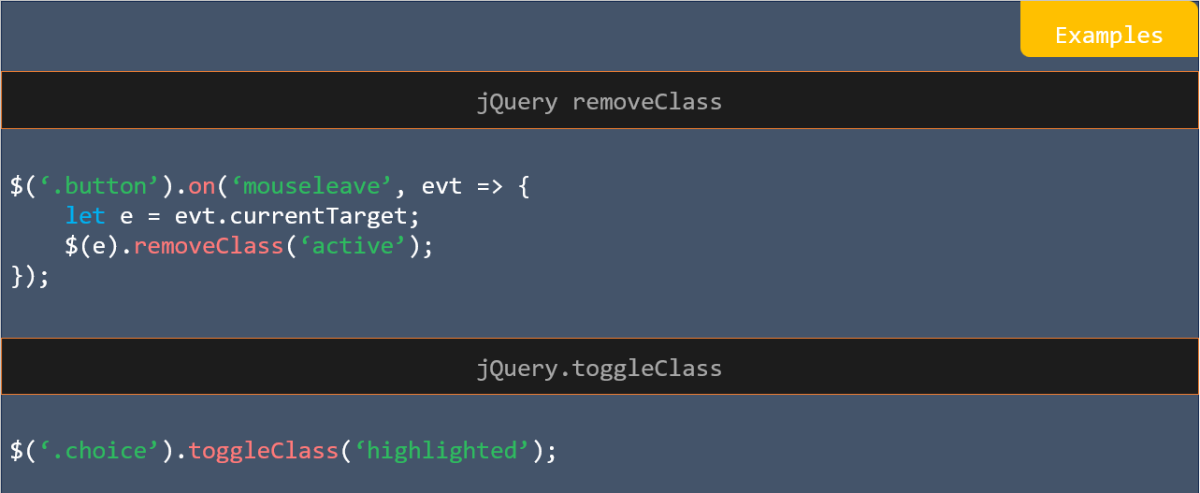
Example jQuery removeclass

Attributes data in jQuery

CSS in jQuery

Dimension in jQuery

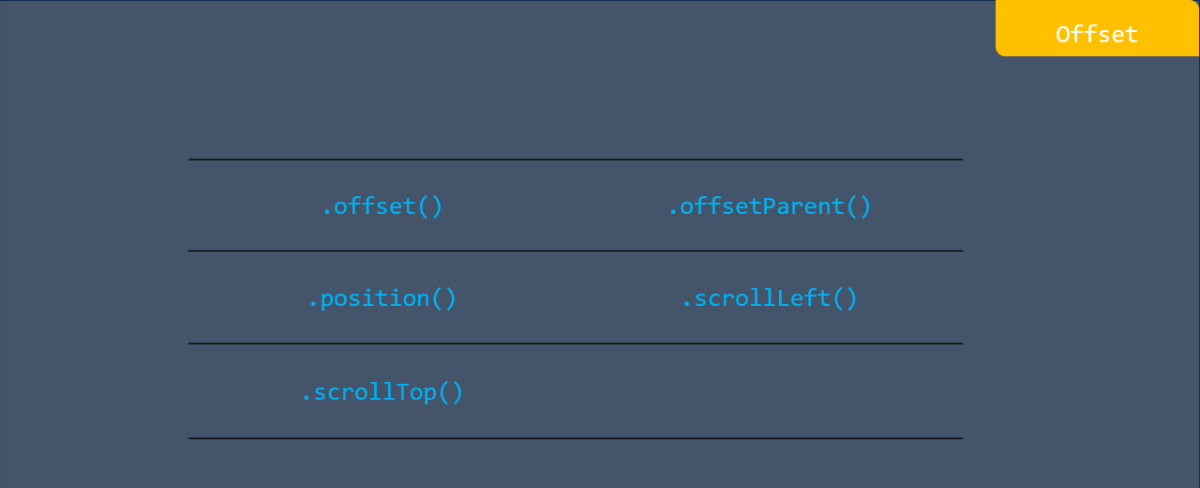
Offset in jQuery

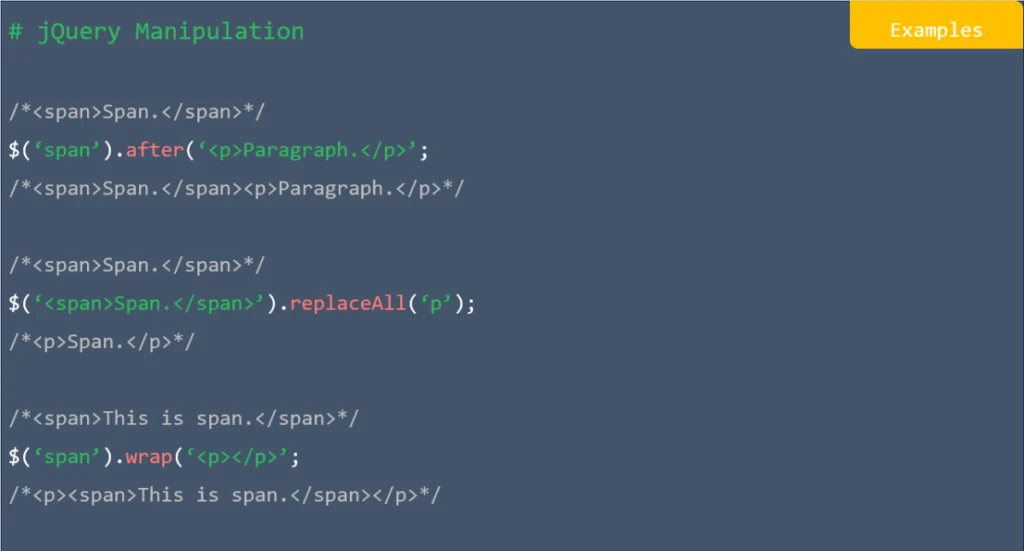
Examples jQuery manipulation

Copying in jQuery

DOM insertion, inside in jQuery

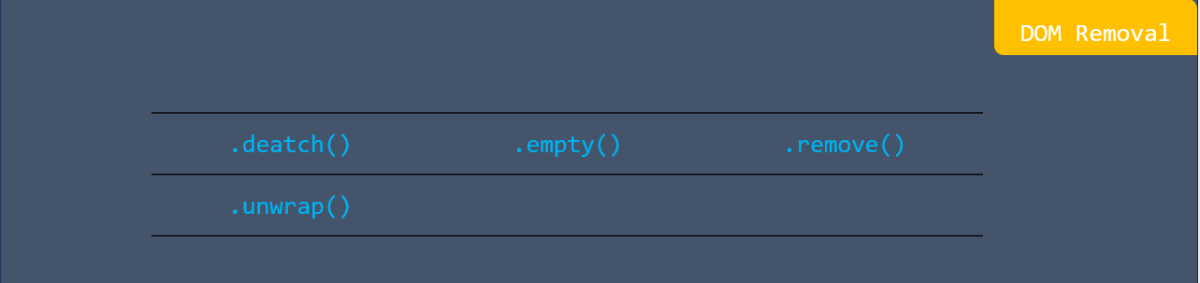
DOM removal in jQuery

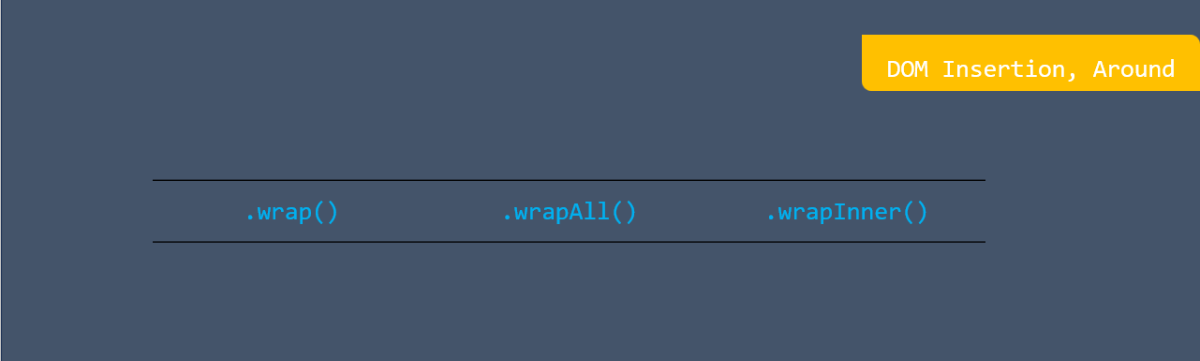
DOM insertion, around in jQuery

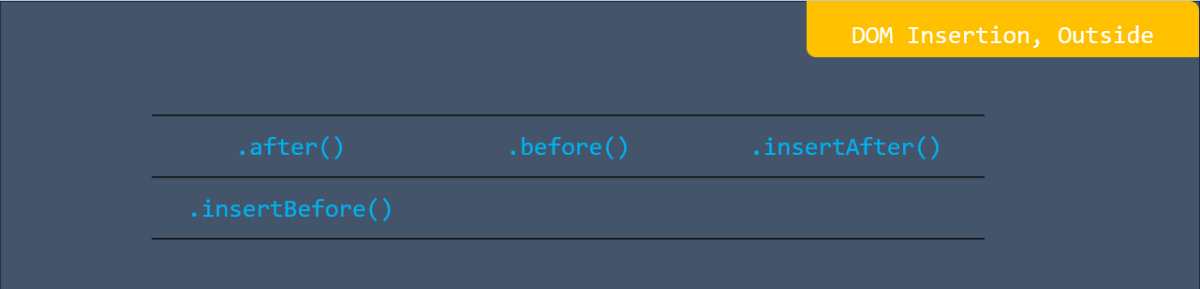
DOM insertion, outside in jQuery

DOM replacement in jQuery

Examples a mouse event in jQuery

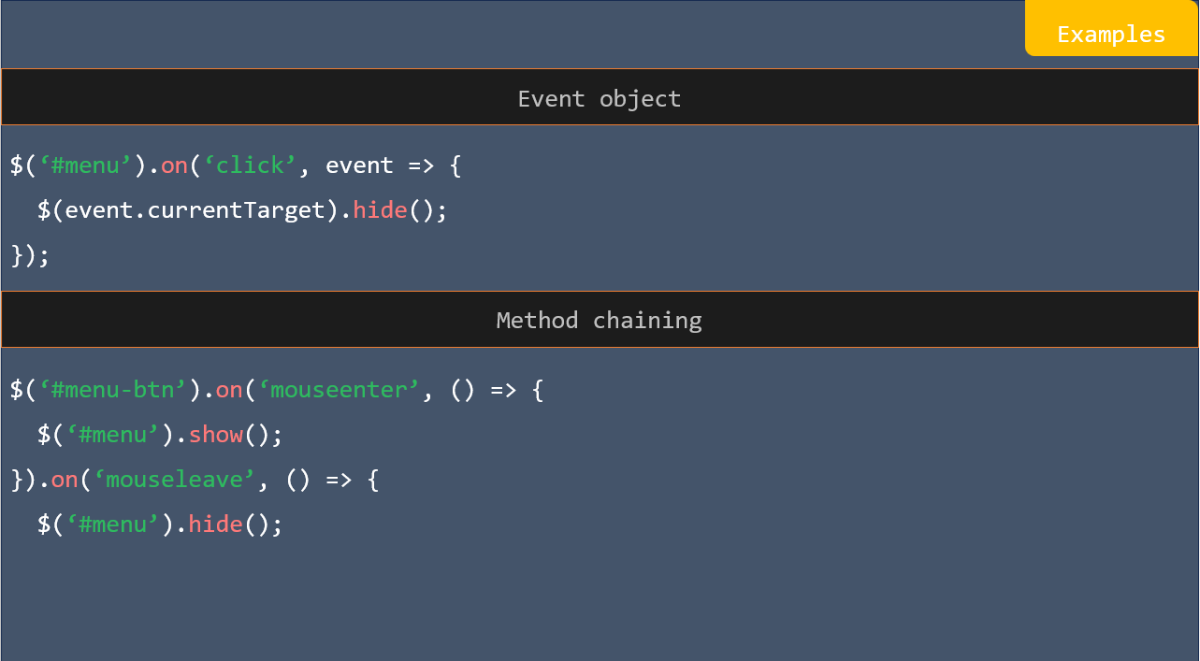
Examples event object in jQuery

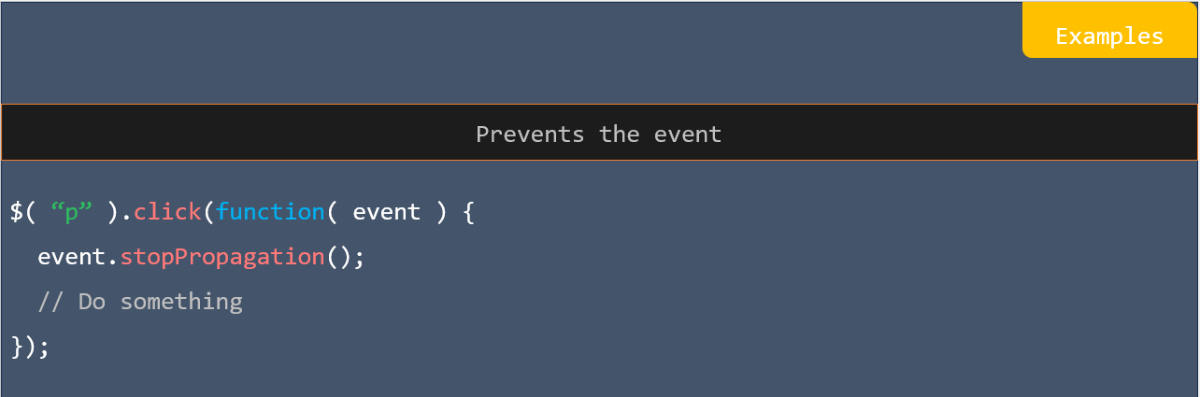
Examples prevent the event in jQuery

Browser events in jQuery

Document loading in jQuery

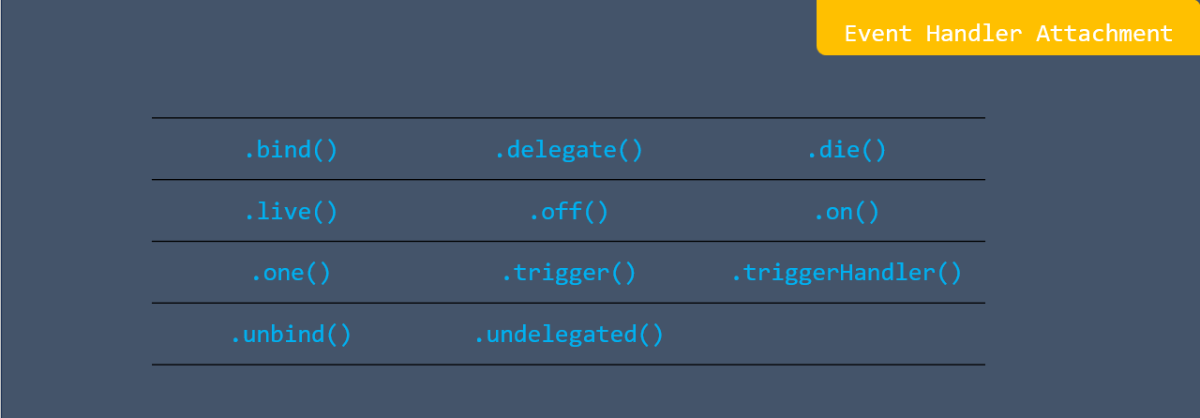
Event handler attachment in jQuery

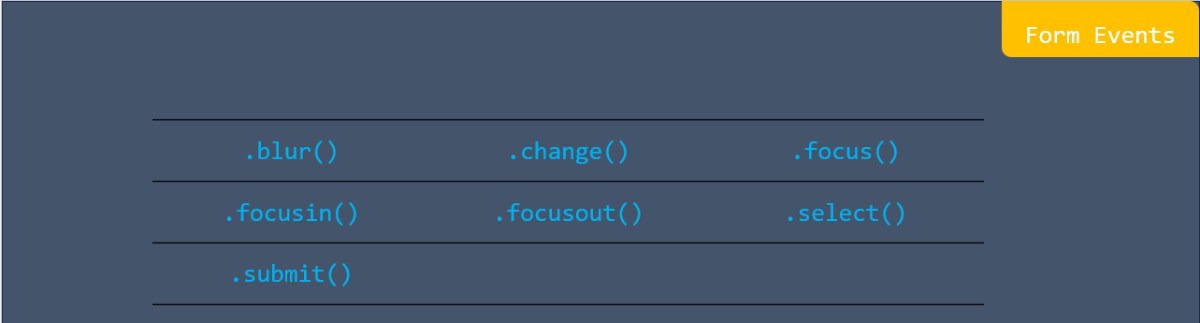
Form events in jQuery

Keyboard events in jQuery

Mouse events in jQuery

Event object in jQuery

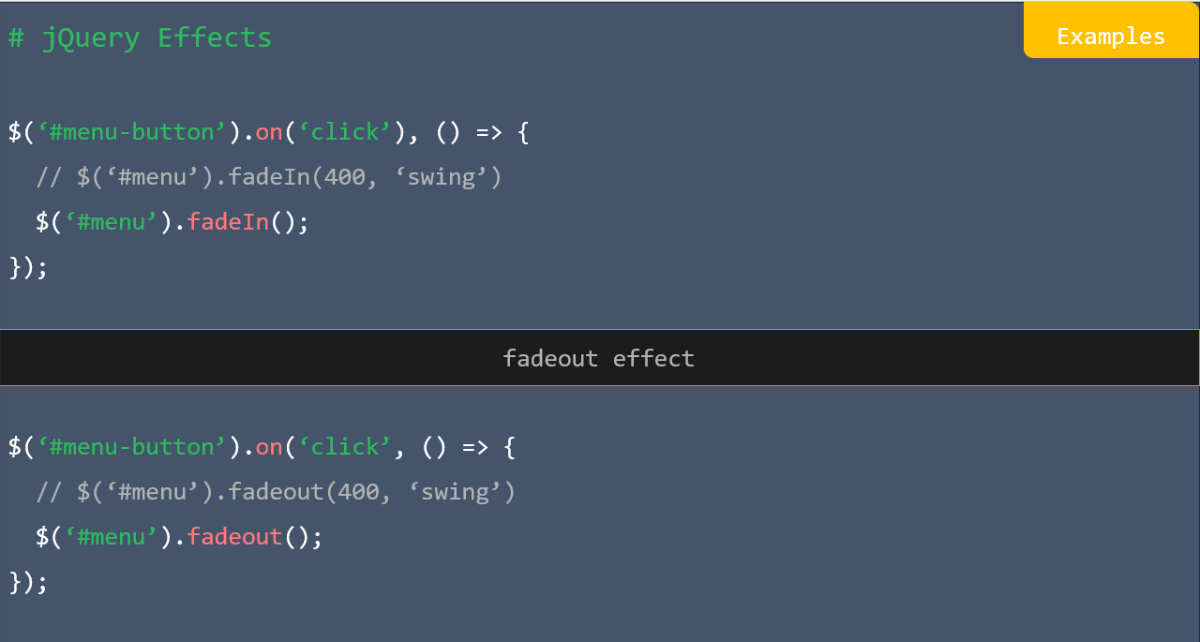
Examples jQuery effects

Basics jQuery

Custom jQuery

Sliding in jQuery

Fading in jQuery

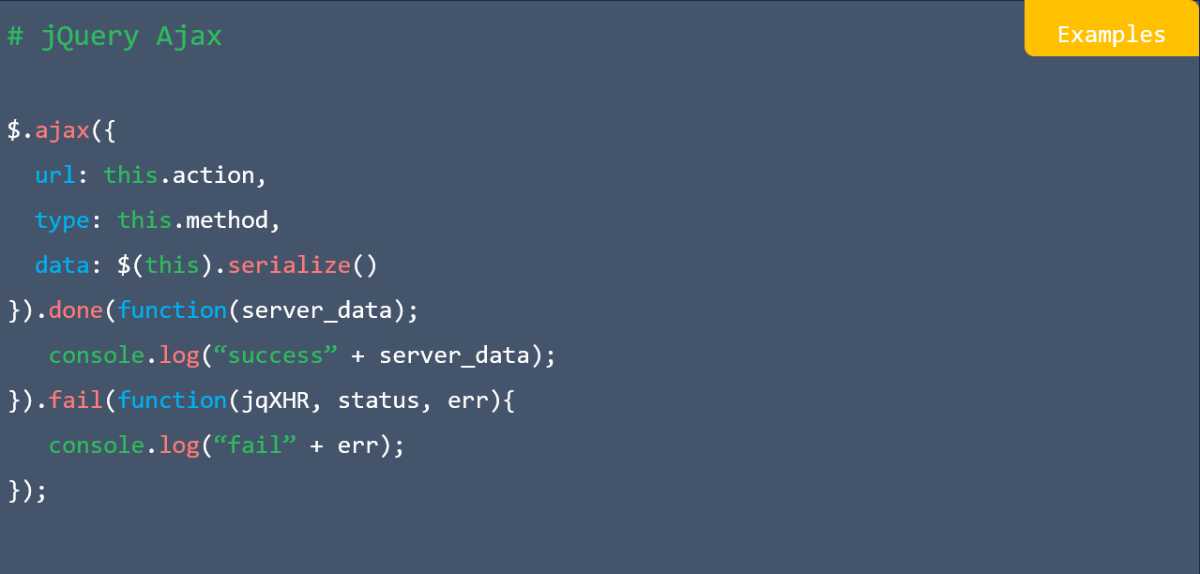
Examples jQuery ajax

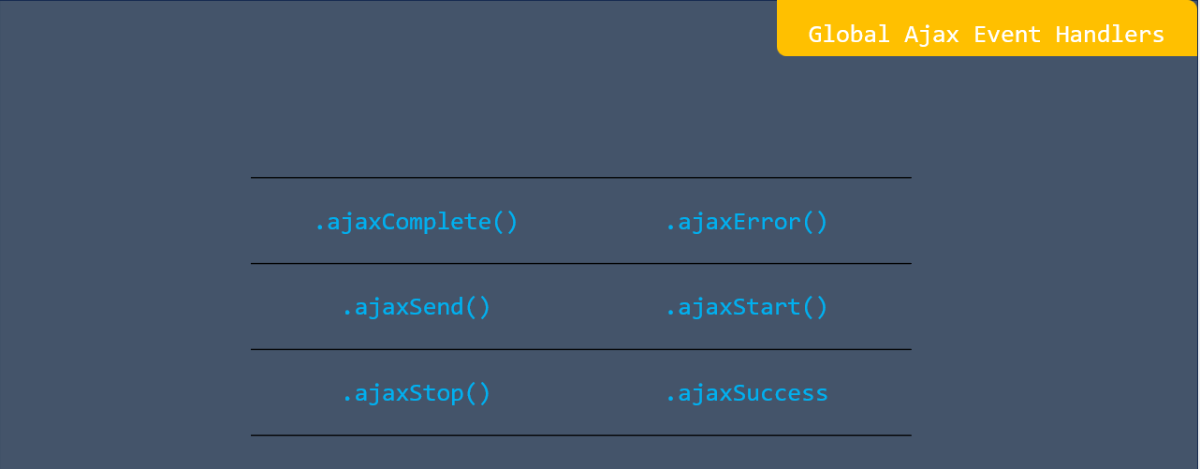
Global ajax event handler in jQuery

Low level interface in jQuery

Helper function in jQuery

Shorthand methods in jQuery

jQuery object

DOM element methods in jQuery

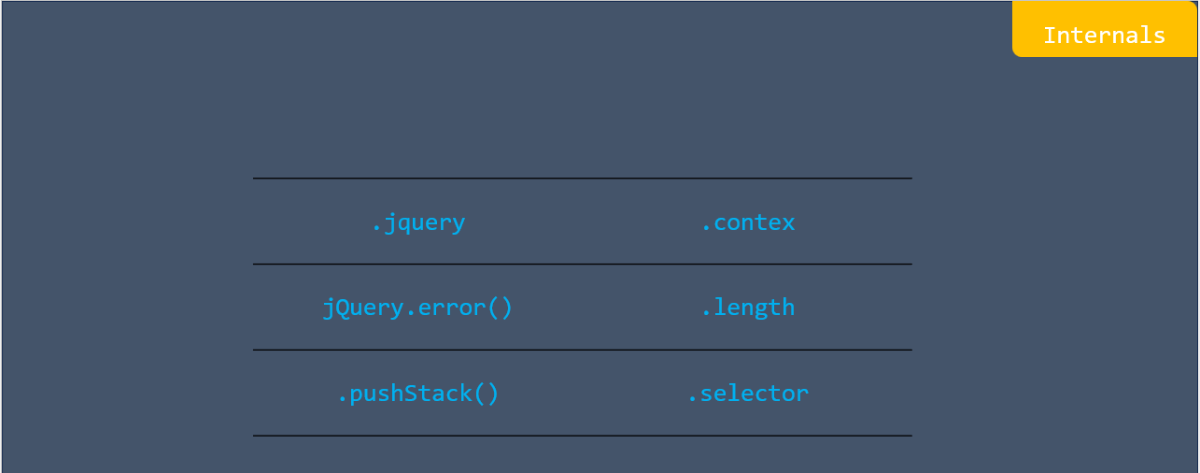
Internals in jQuery

Deferred object in jQuery

Callbacks object in jQuery

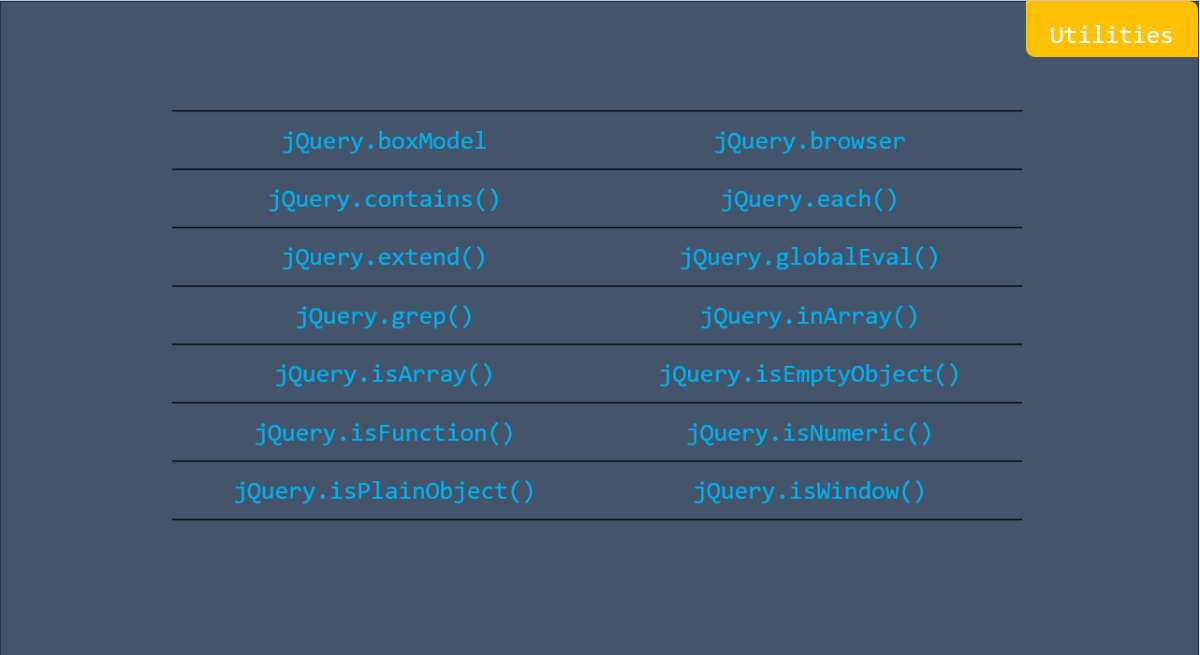
Utilities in jQuery

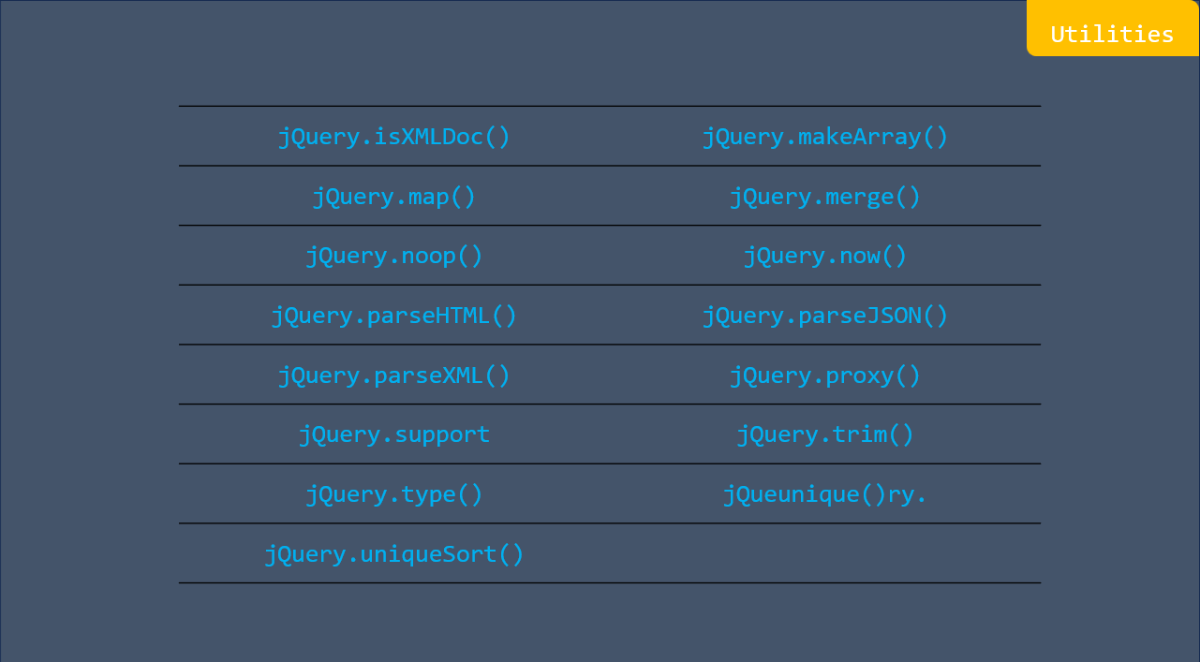
Utilities in jQuery


# Getting Started

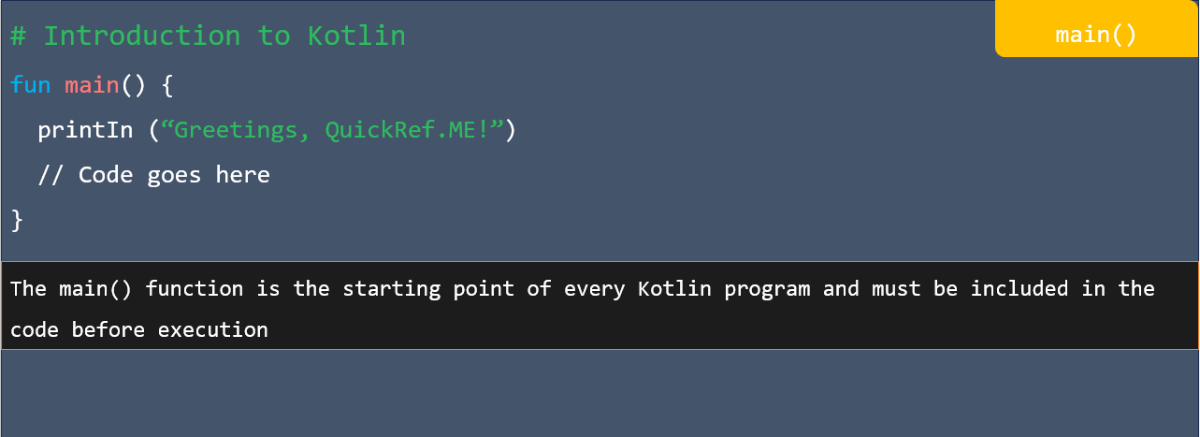
main () in kotlin

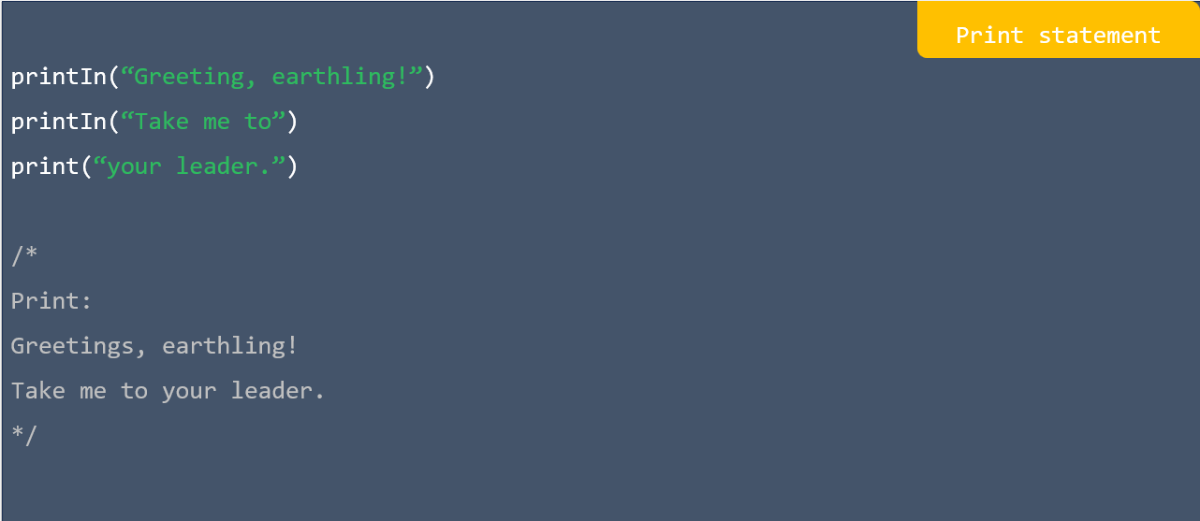
Print Statement in kotlin

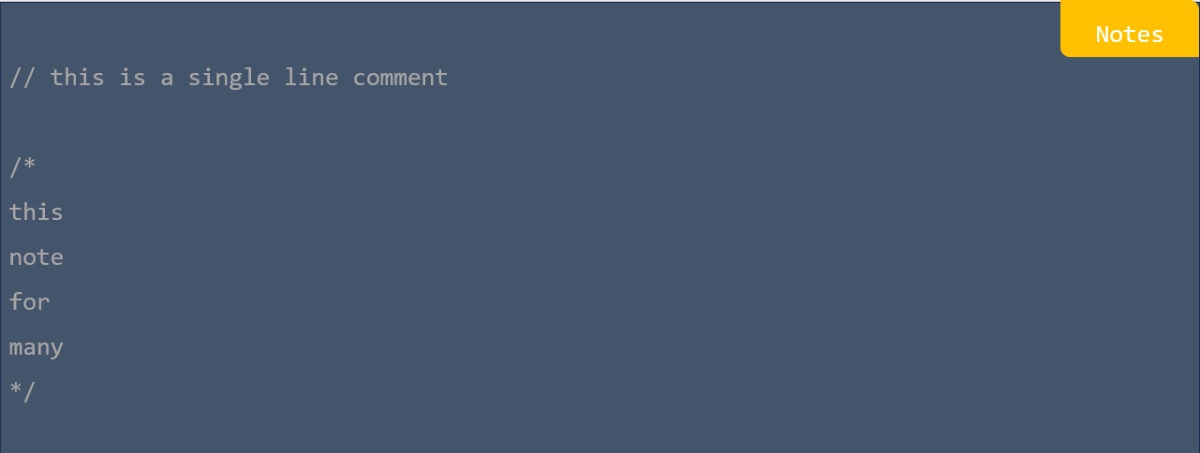
Notes in kotlin

Execution order in kotlin

Mutable variables in kotlin

Immutable variables in kotlin

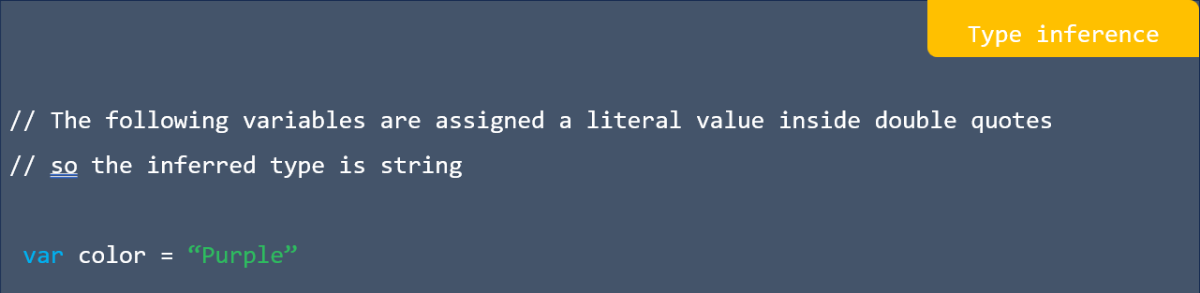
Type inference in kotlin

String concatenation in kotlin

String templates in kotlin

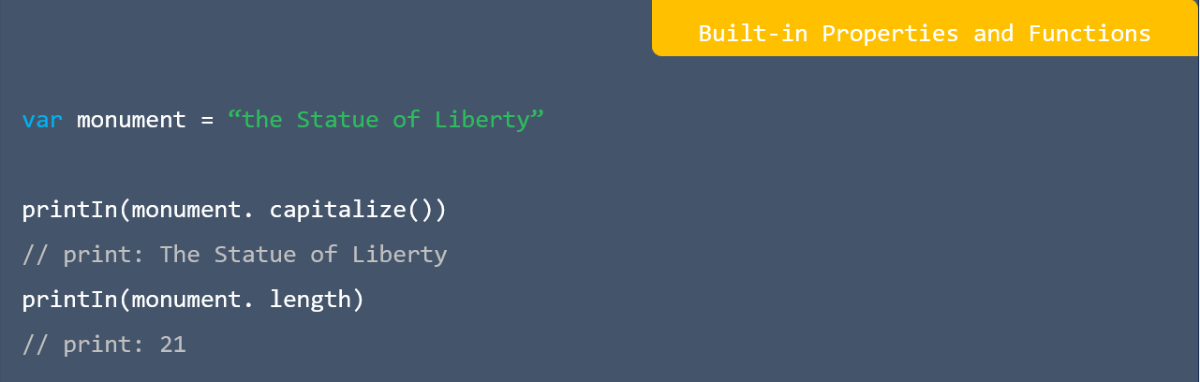
Built-in properties and function in kotlin

Character escape in kotlin

Arithmetic operators in kotlin

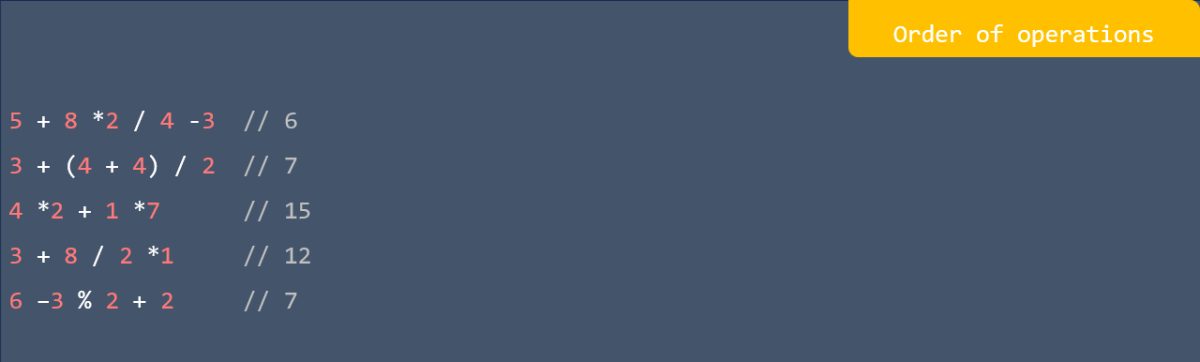
Order of operations in kotlin

Enhanced assignment operator in kotlin

Increment and decrement operators in kotlin

Math library in kotlin

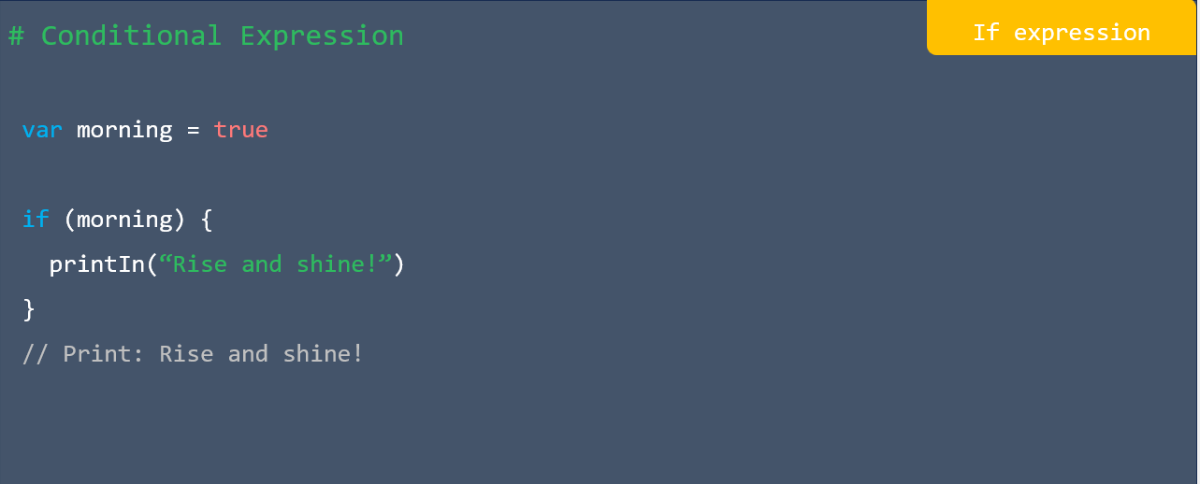
If expression in kotlin

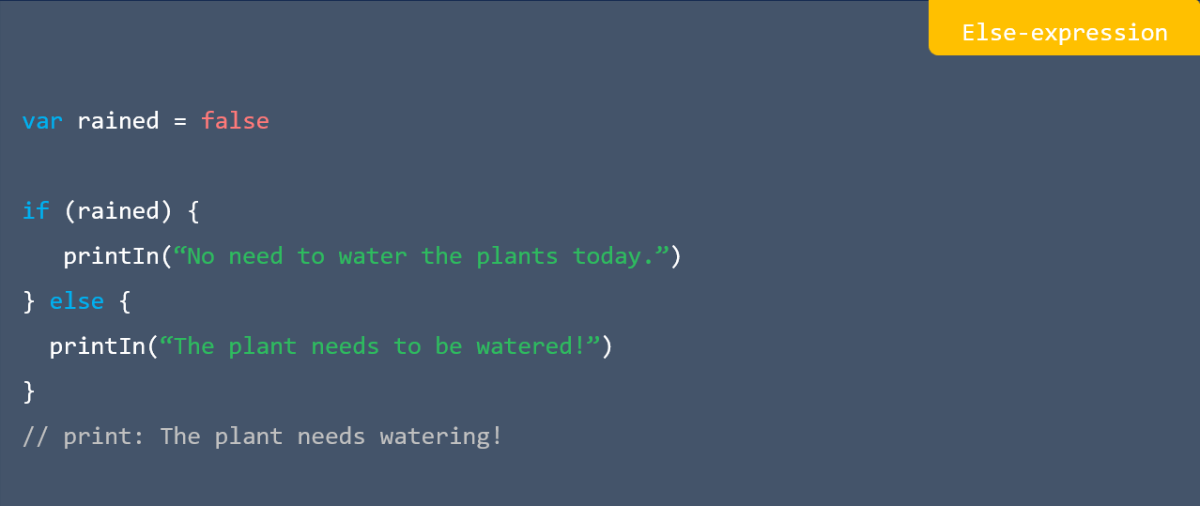
Else-expression in kotlin

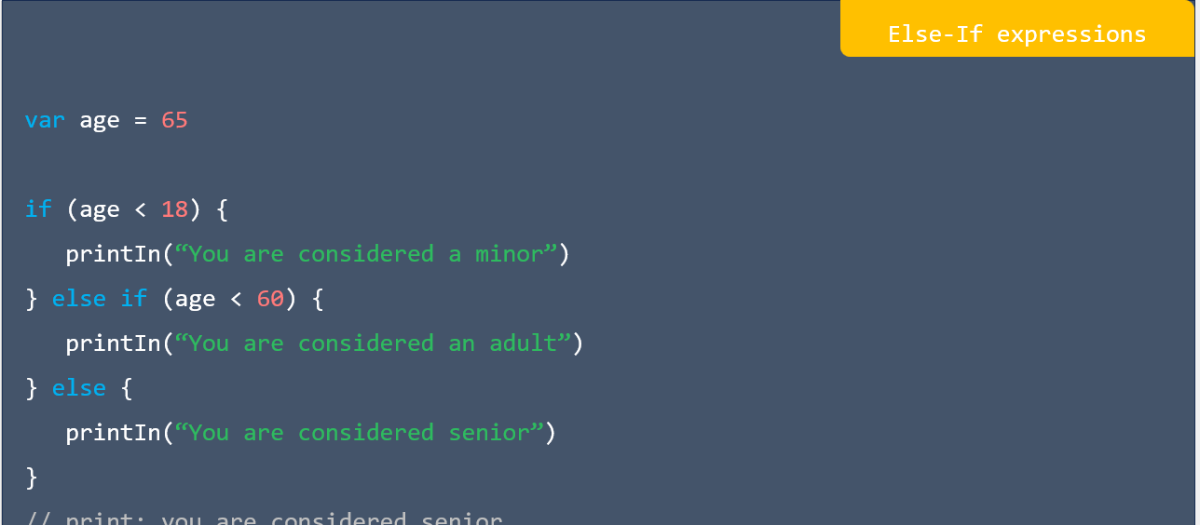
Else-if expression in kotlin

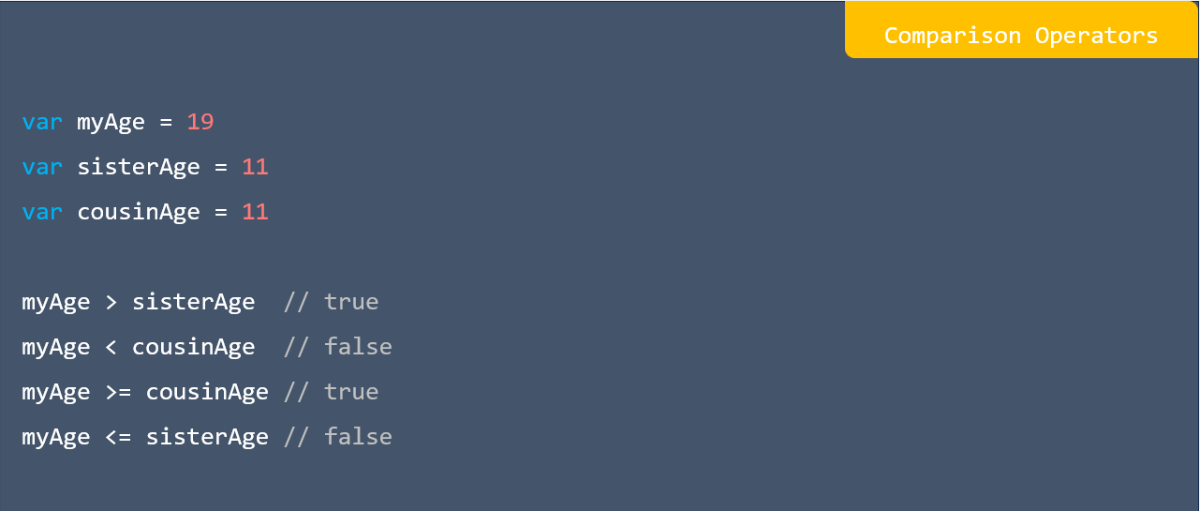
Comparison operators in kotlin

Logical operators in kotlin

AND operator - && in kotlin

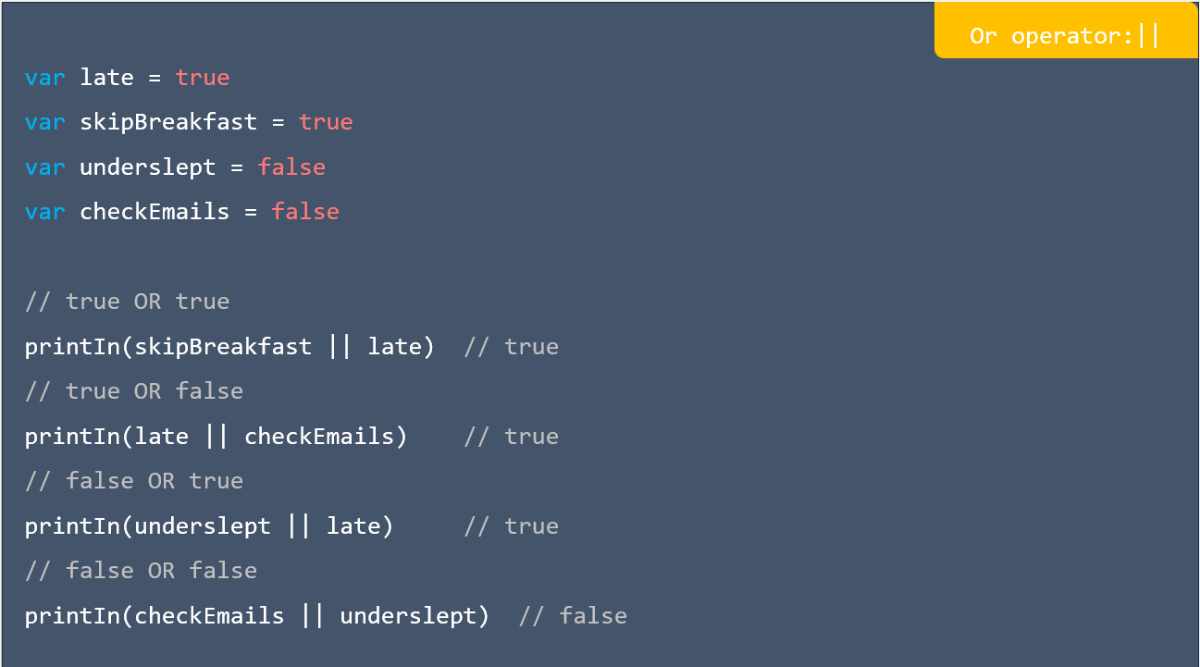
Or operator in kotlin

NOT operator in kotlin

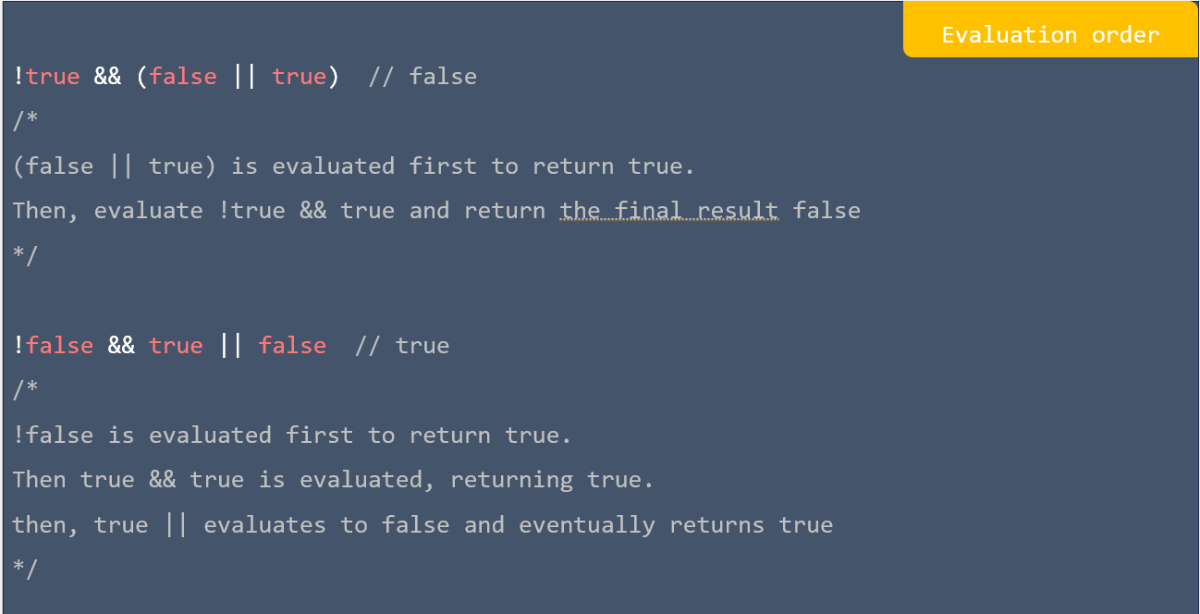
Evaluation order in kotlin

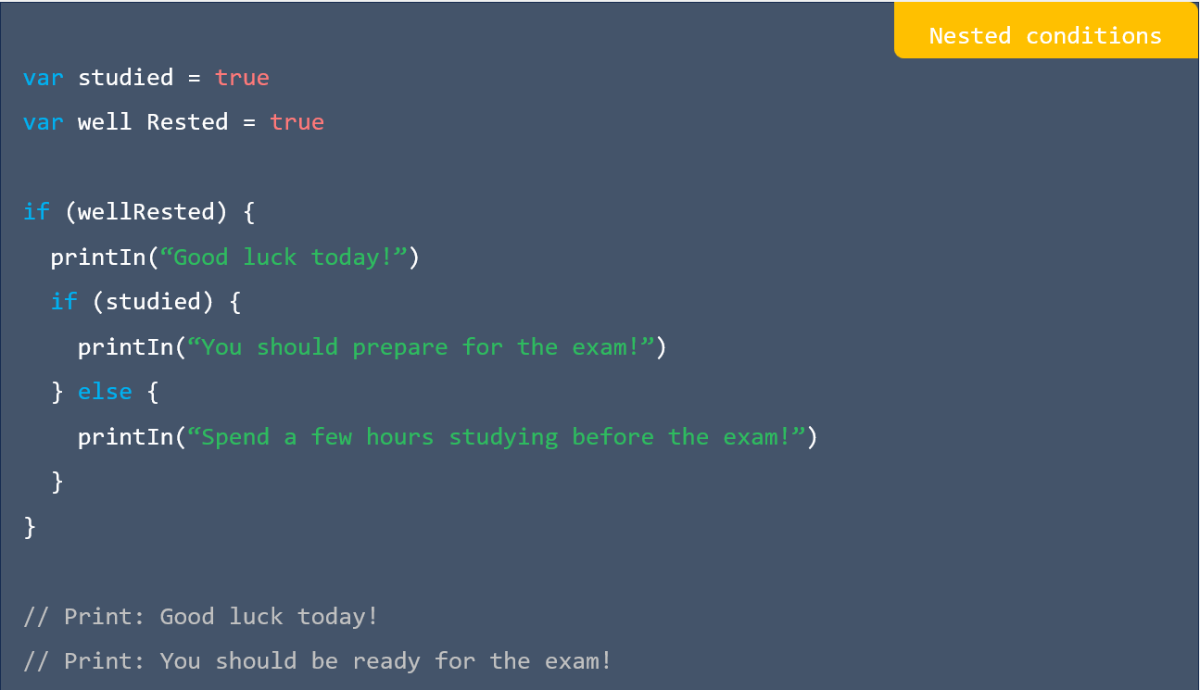
Nested conditions in kotlin

When expression in kotlin

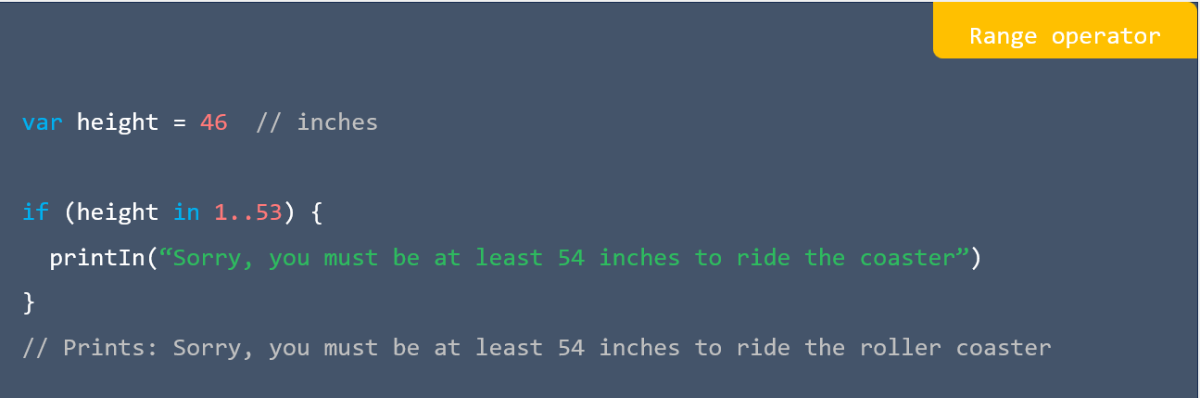
Range operator in kotlin

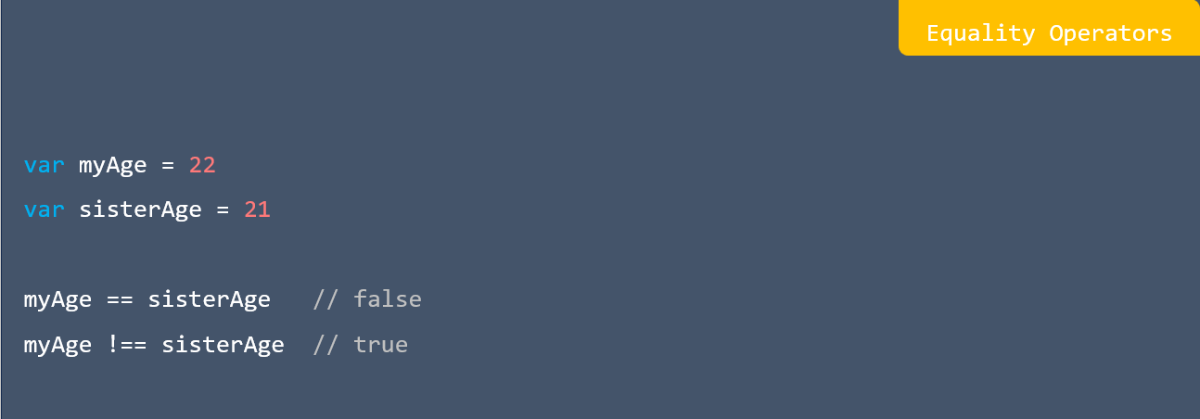
Equality operators in kotlin

Immutable list in kotlin

Mutable list in kotlin

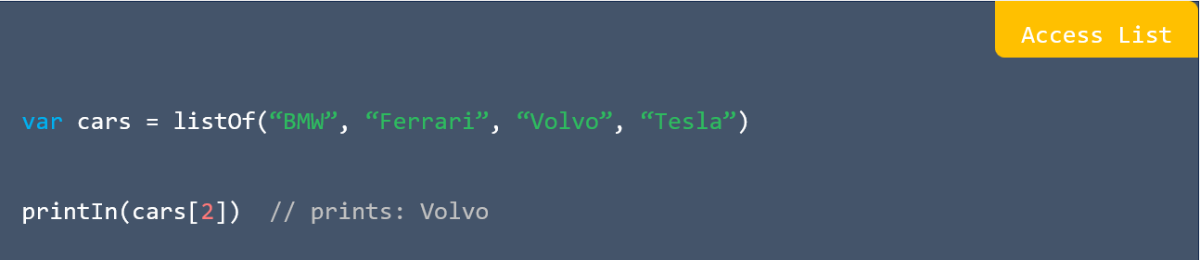
Access list in kotlin

Size Attribute in kotlin

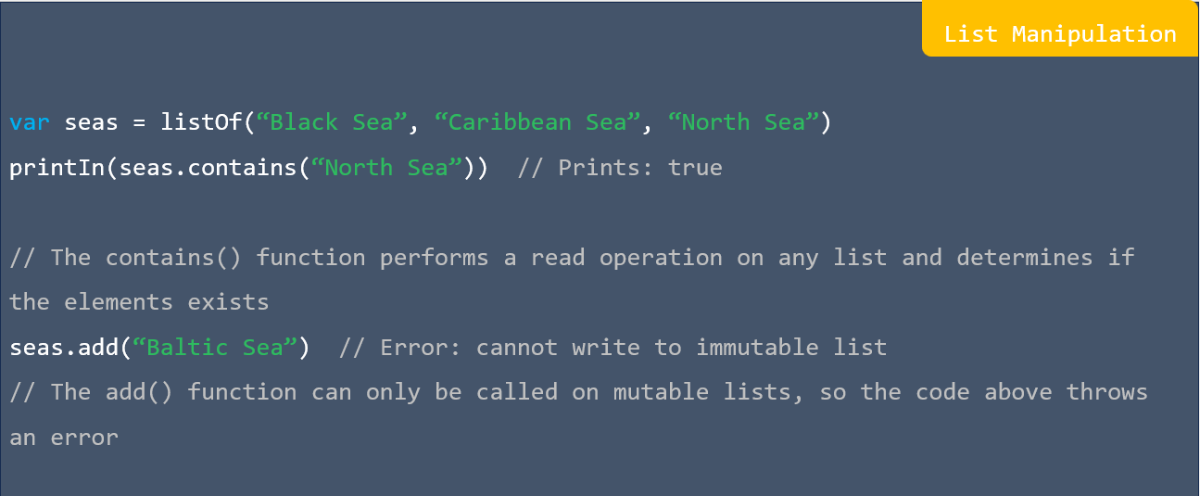
List manipulation in kotlin

Immutable sets in kotlin

Mutable Sets in kotlin

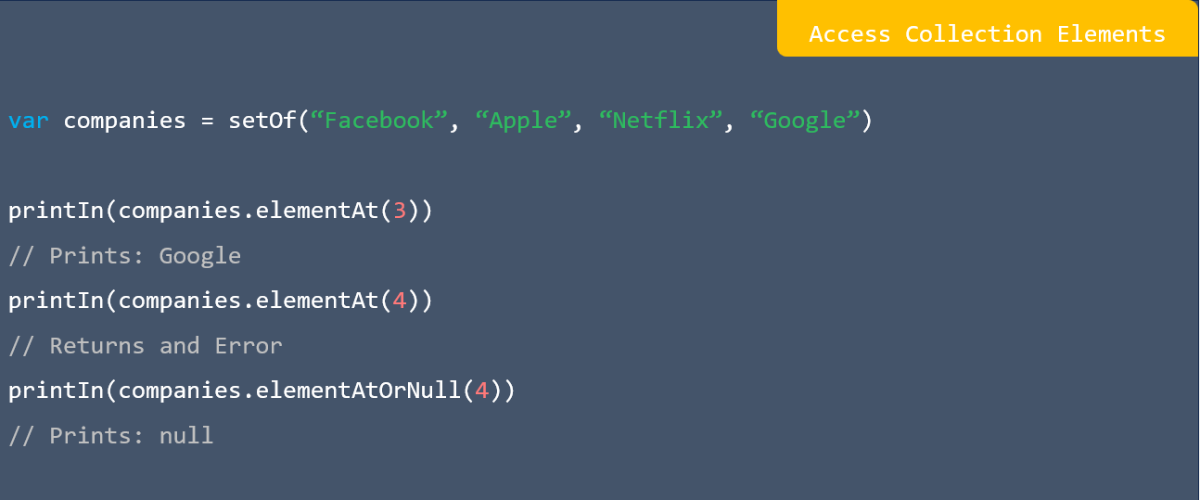
Access collection elements in kotlin

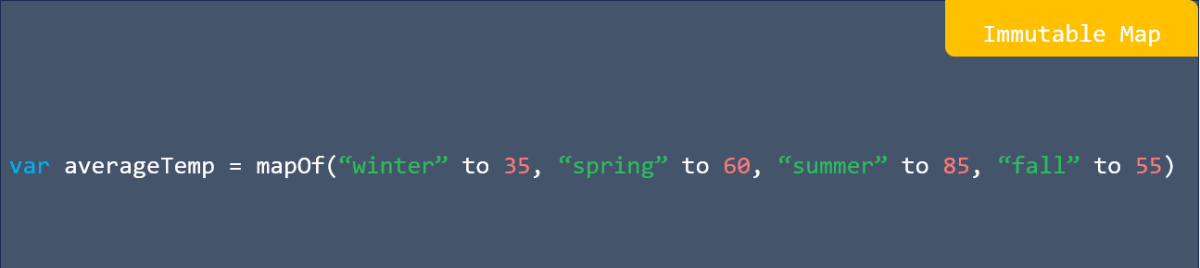
Immutable map in kotlin

Mutable mapping in kotlin.

Retrieve map keys and values in kotlin

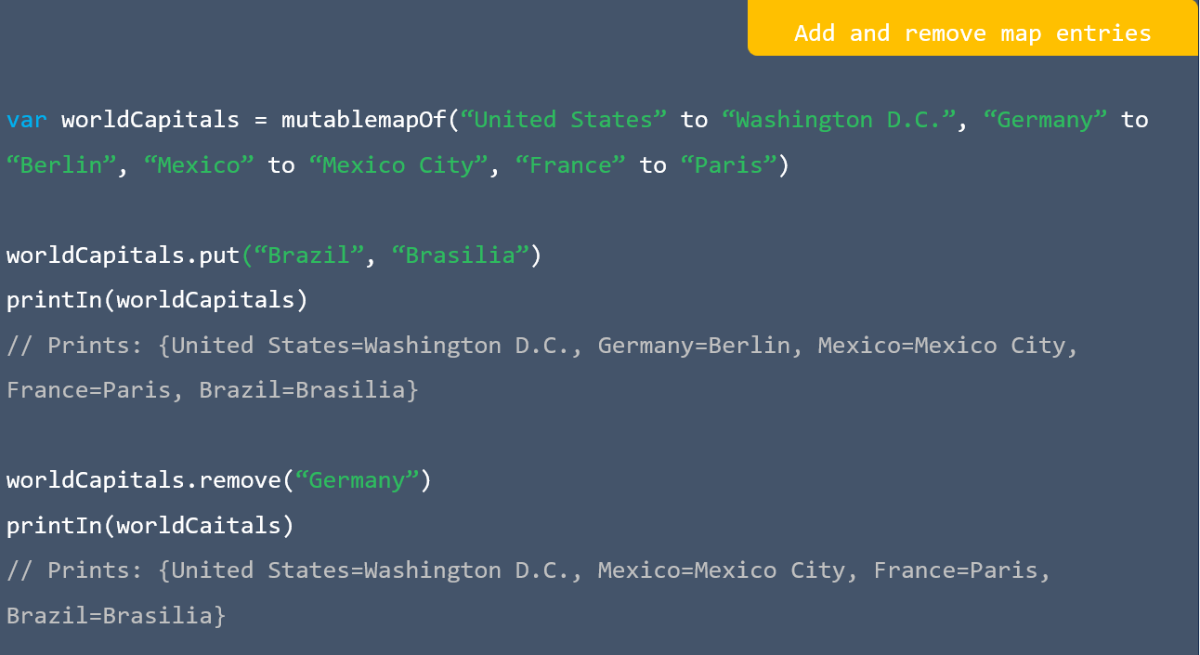
Add and remove map entries in kotlin

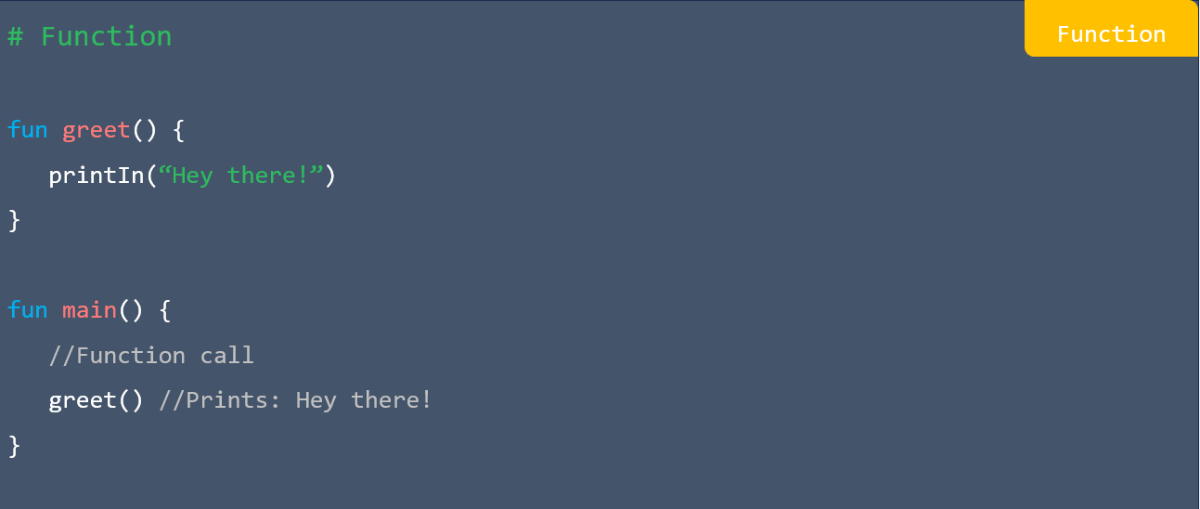
Function in kotlin

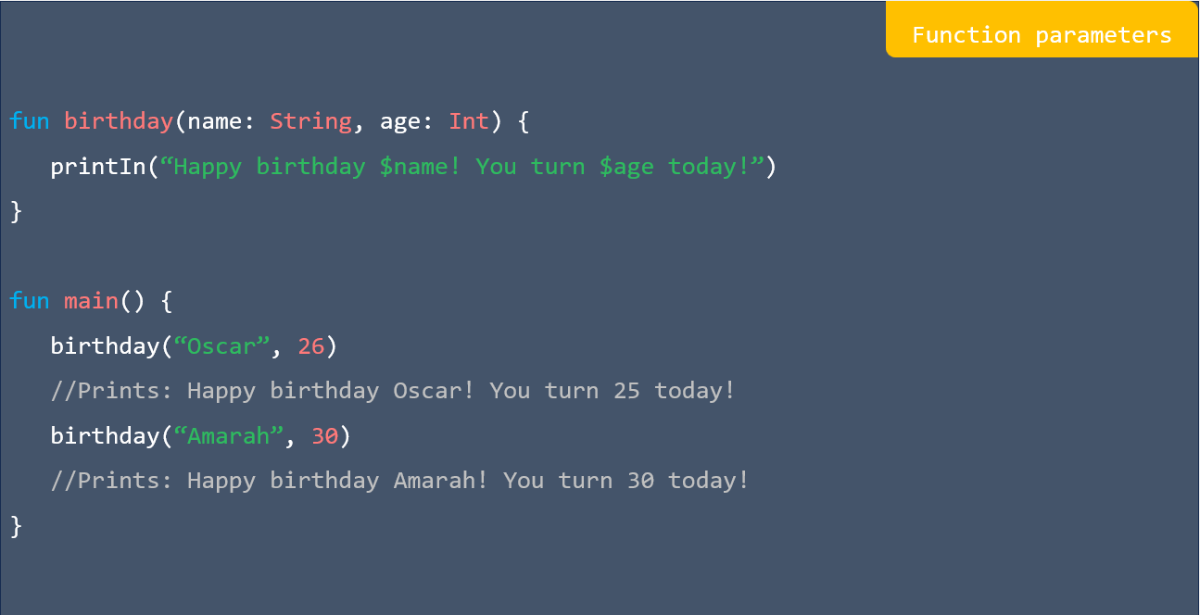
Function parameters in kotlin

Default parameters in kotlin

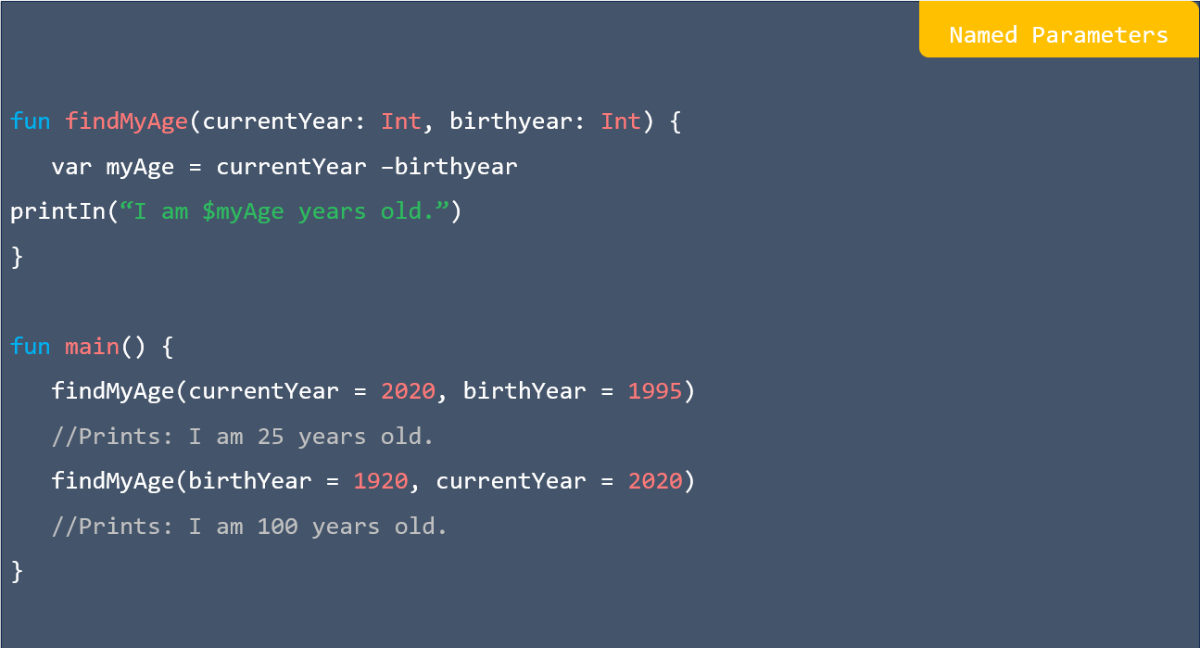
Named parameters in kotlin

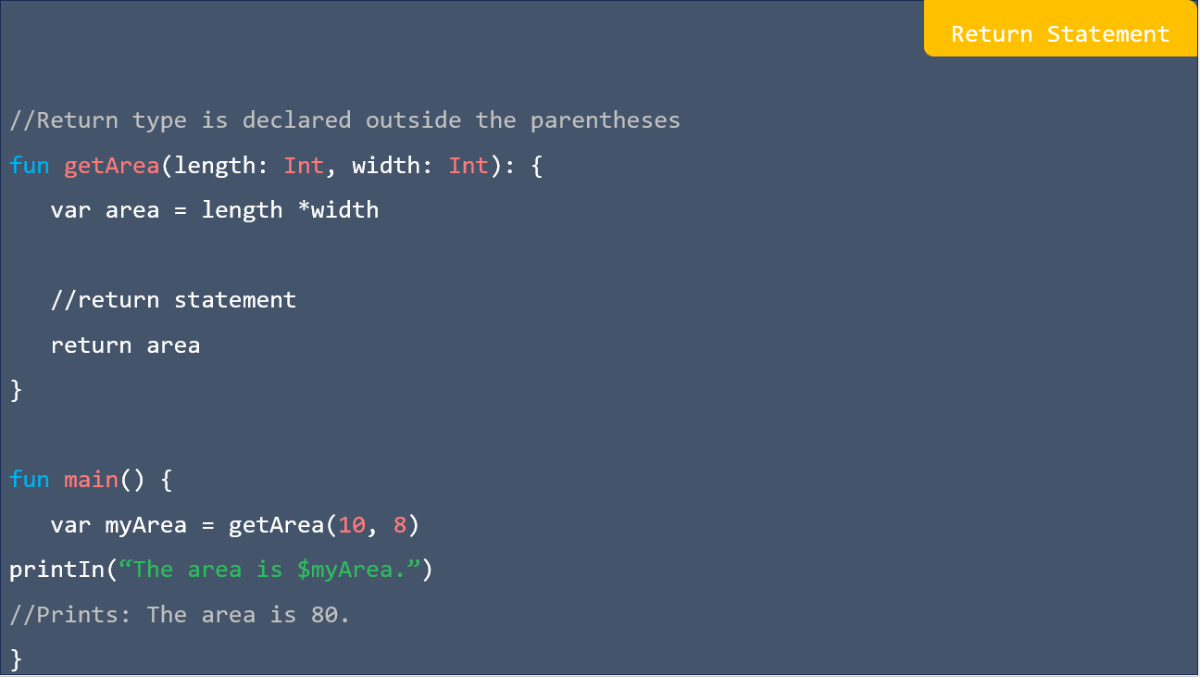
Return statement in kotlin

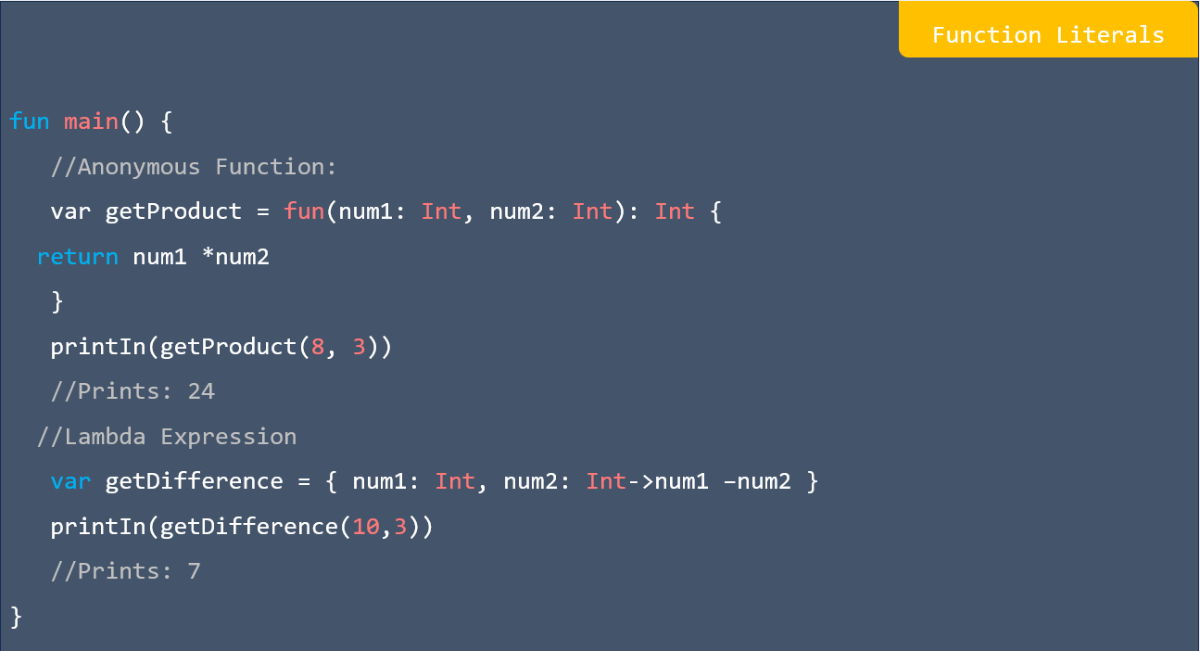
Function literals in kotlin

Class example in kotlin

Class instance in kotlin

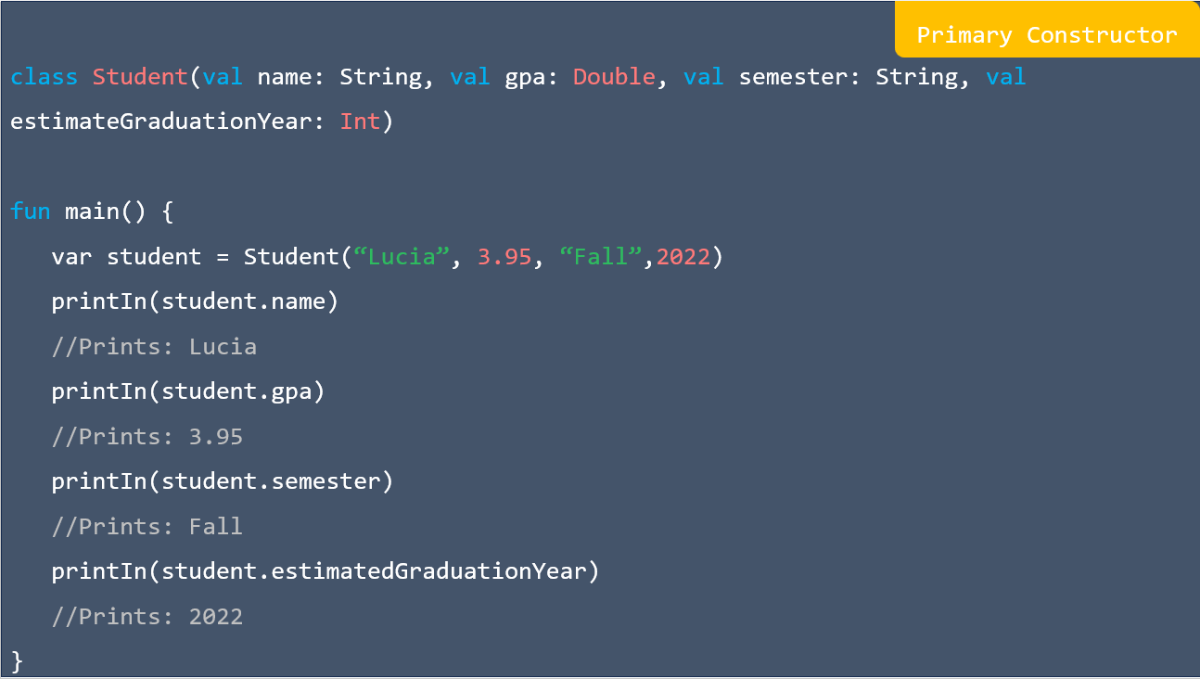
Primary constructor in kotlin

Initialization block in kotlin

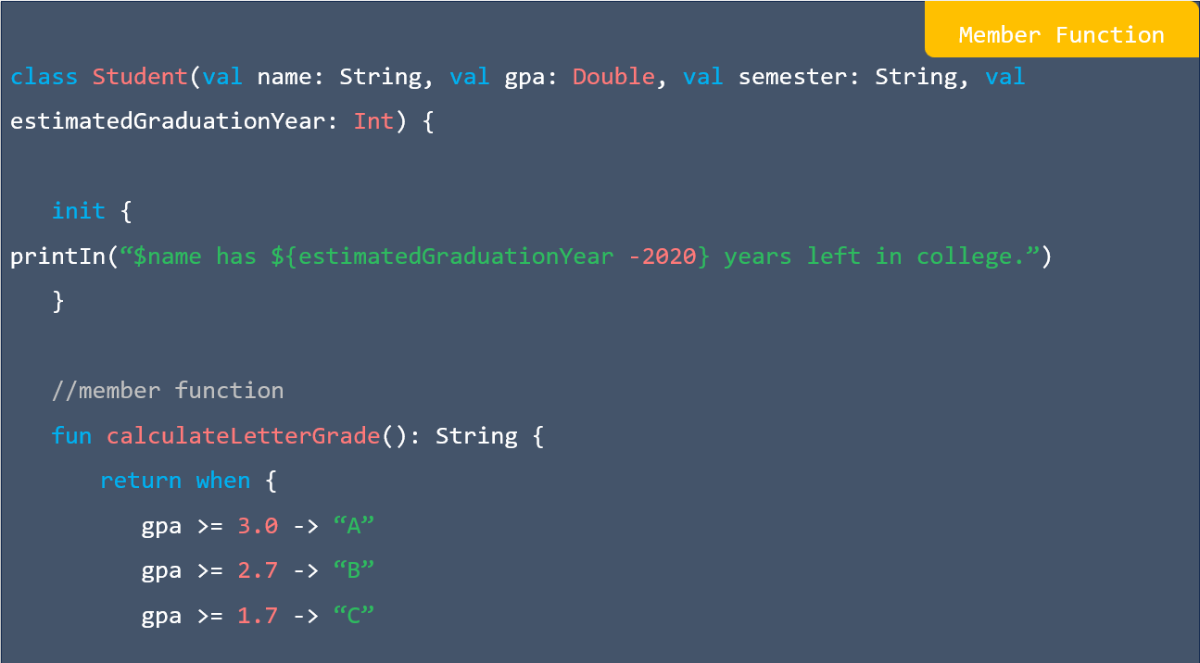
Member function in kotlin

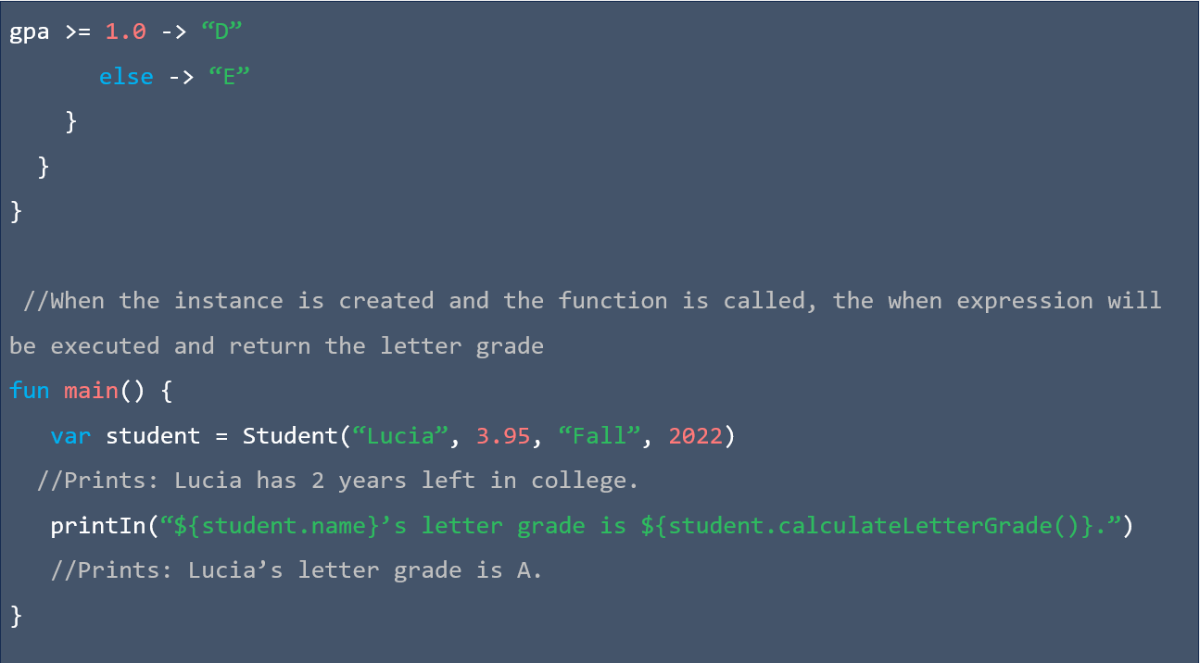
Member function in kotlin

# Getting Started

Connect MongoDB shell

Helpers in MongoDB

Create in MongoDB

Delete in MongoDB

Update in MongoDB

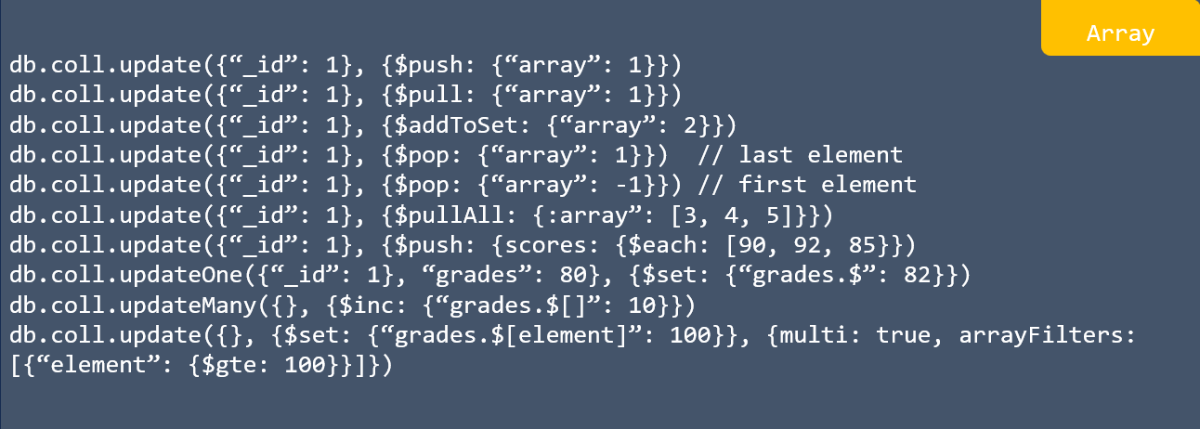
Array in MongoDB

Update many in MongoDB

FindOneAndUpdate in MongoDB

Upsert in MongoDB

Replace in MongoDB

Save in MongoDB

Write concern in MongoDB

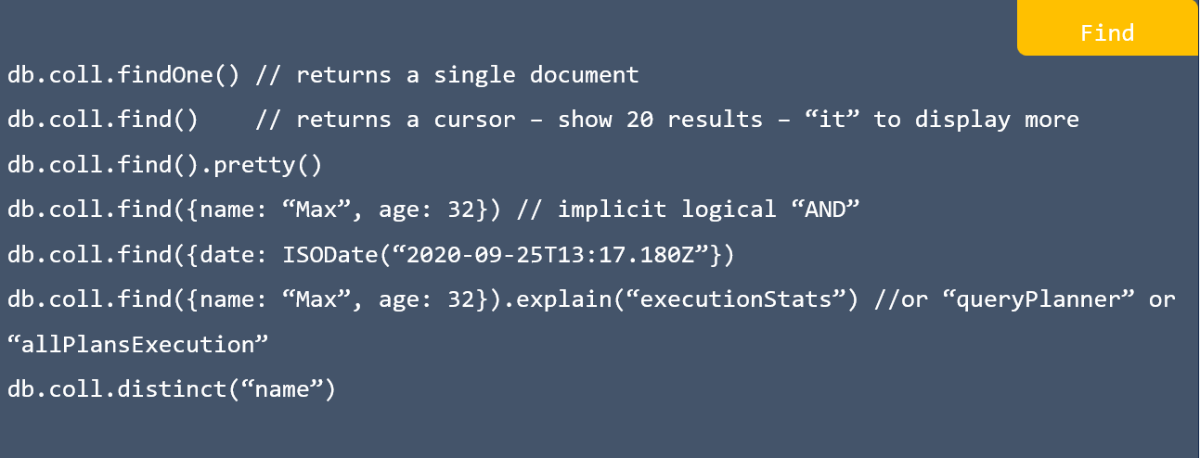
Find in MongoDB

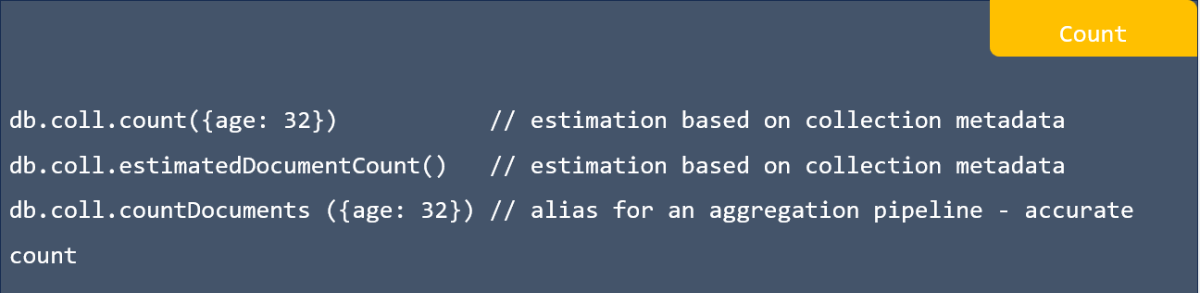
Count in MongoDB

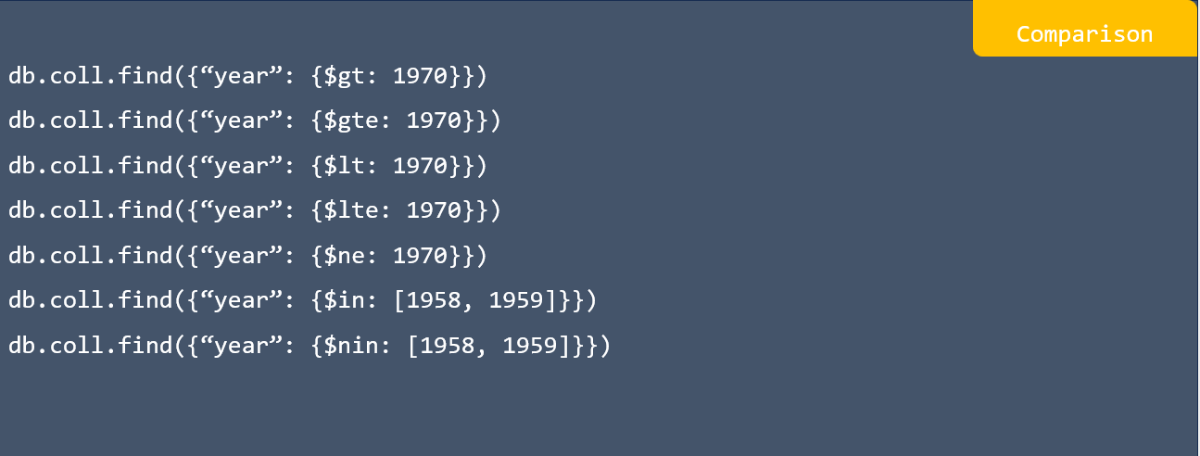
Comparison in MongoDB

Logical in MongoDB

Element in MongoDB

Aggregation pipeline in MongoDB

Texr search with a (text) index in MongoDB

Regex in MongoDB

Array in MongoDB

Projections in MongoDB

Sort, skip, limit in MongoDB

Drop in MongoDB

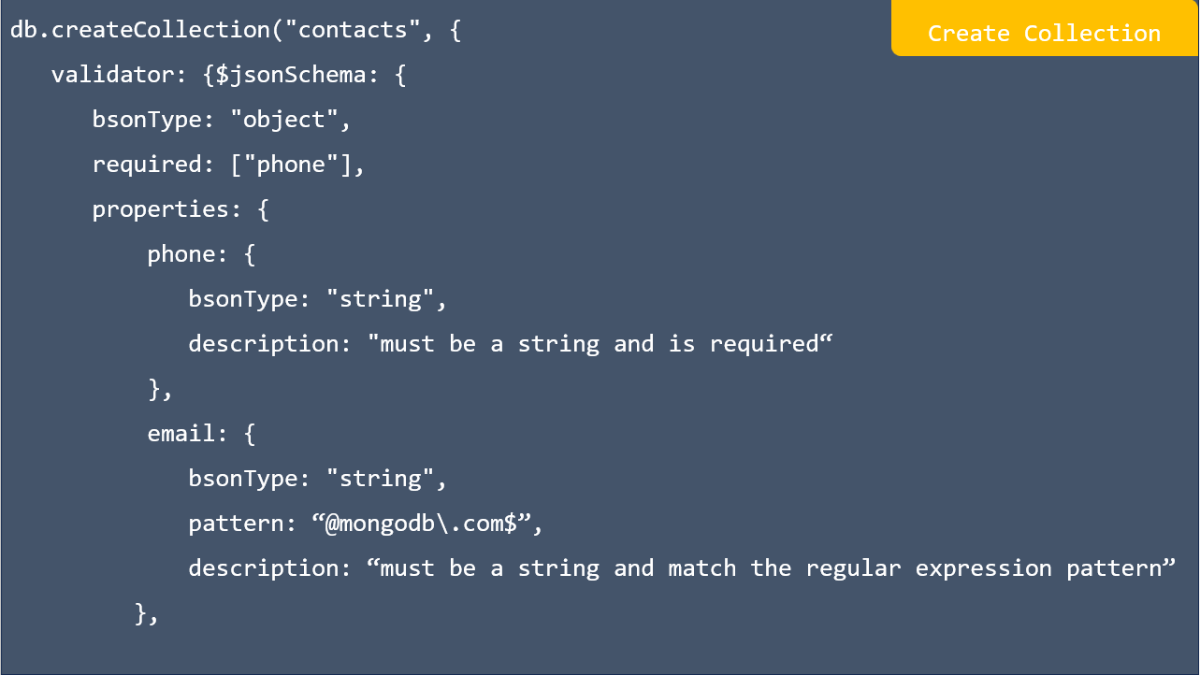
Create collection in MongoDB

Other collection functions in MongoDB

Basic index in MongoDB

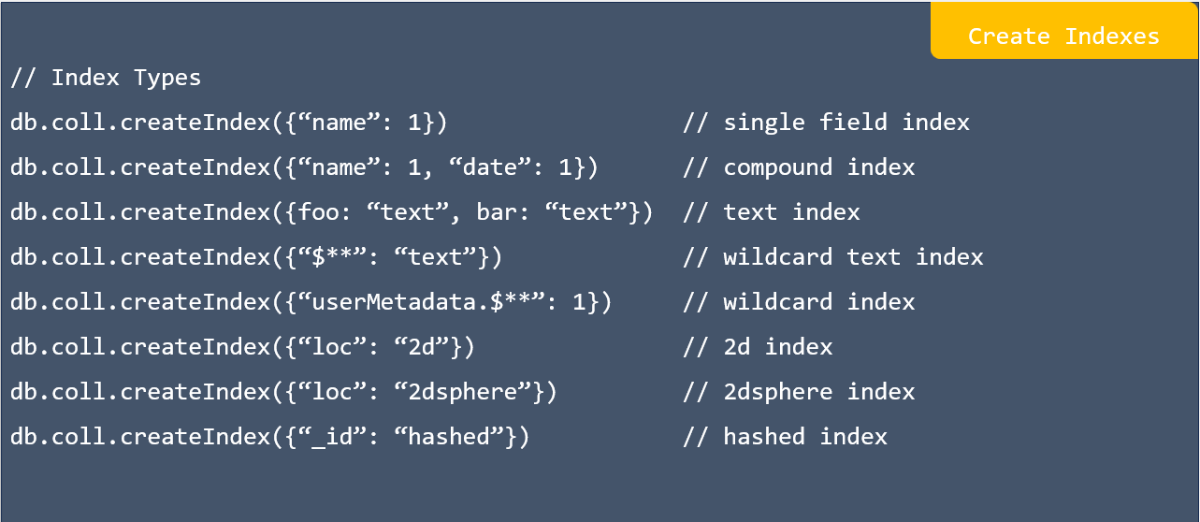
Create indexes type in MongoDB

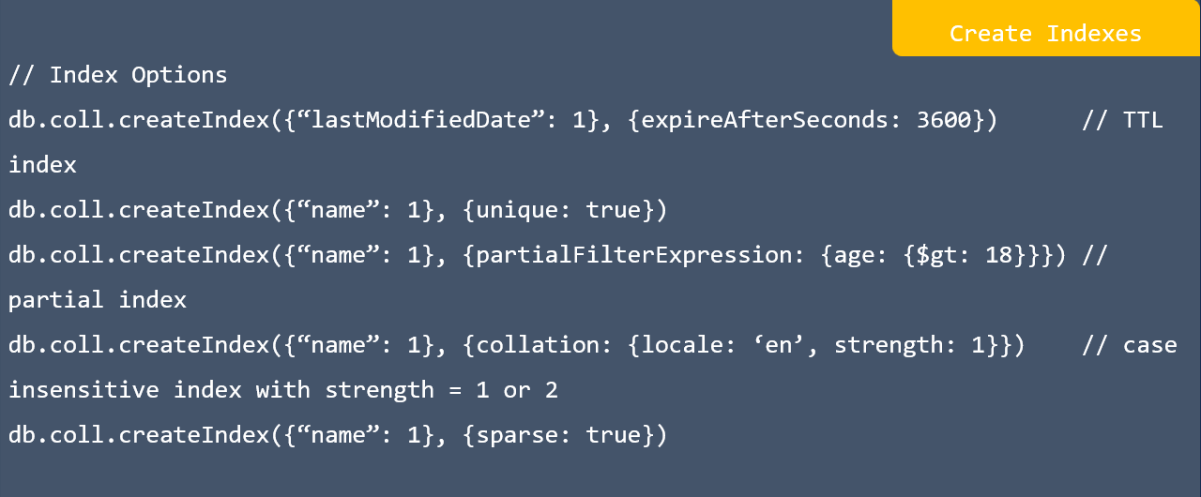
Create indexes option in MongoDB

Handy commands in MongoDB

Handy commands in MongoDB

Handy commands in MongoDB

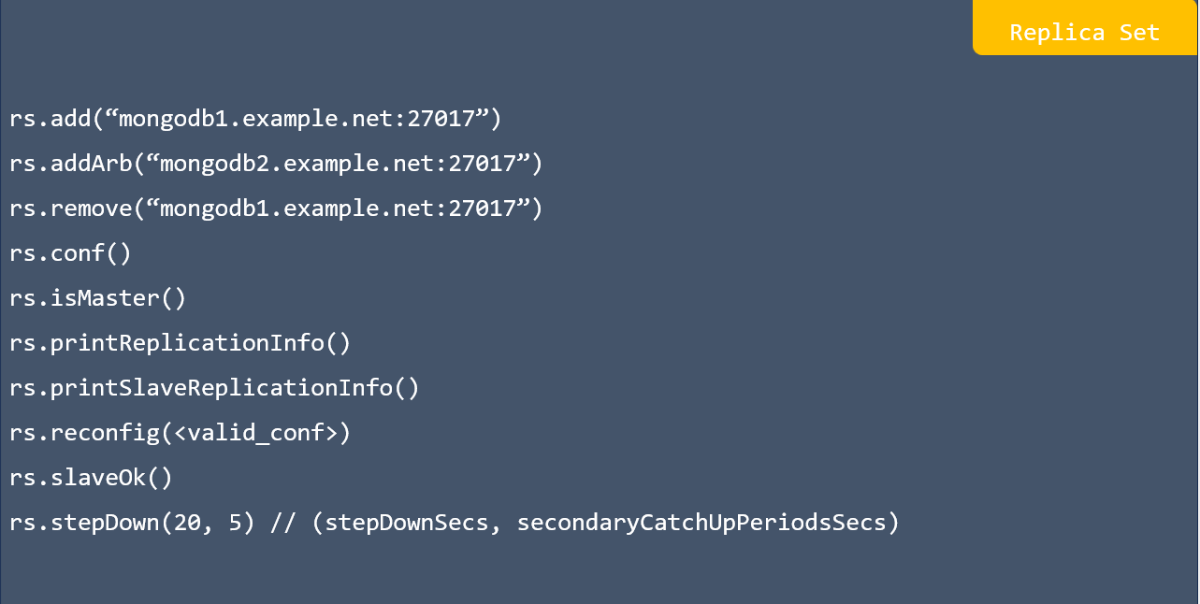
Replica Set in MongoDB

Replica Set in MongoDB

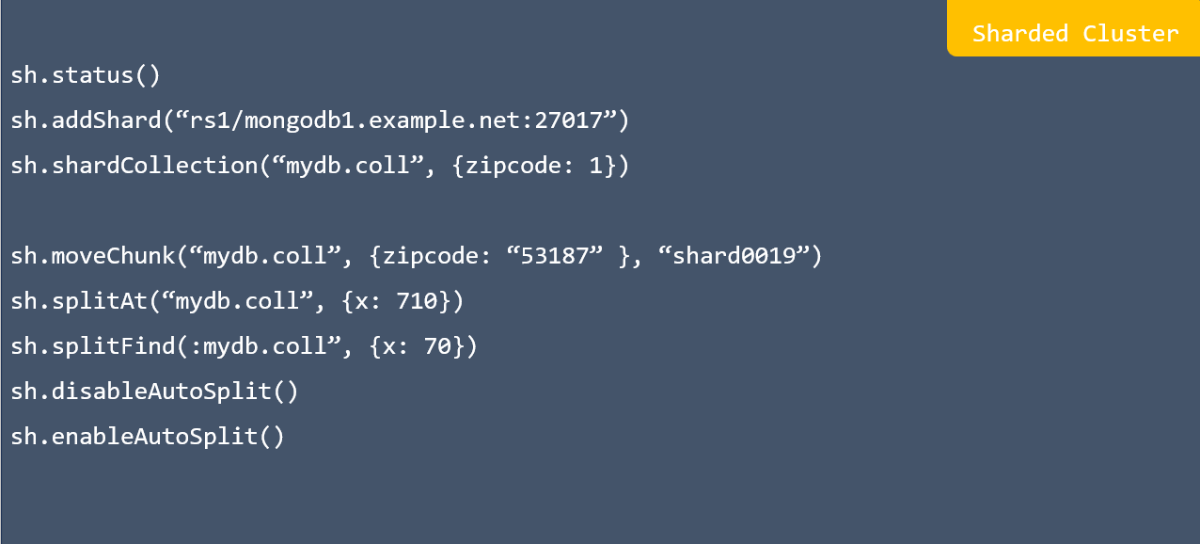
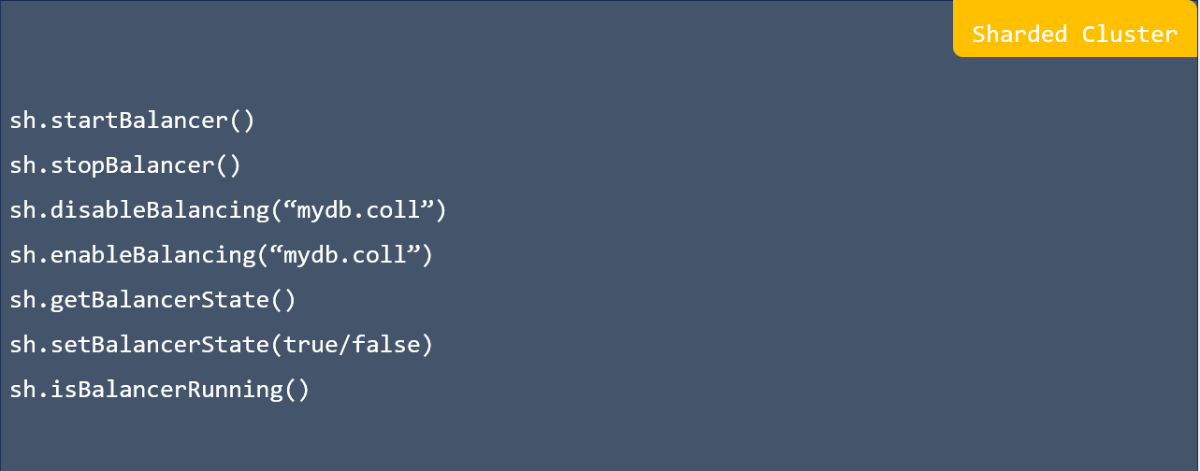
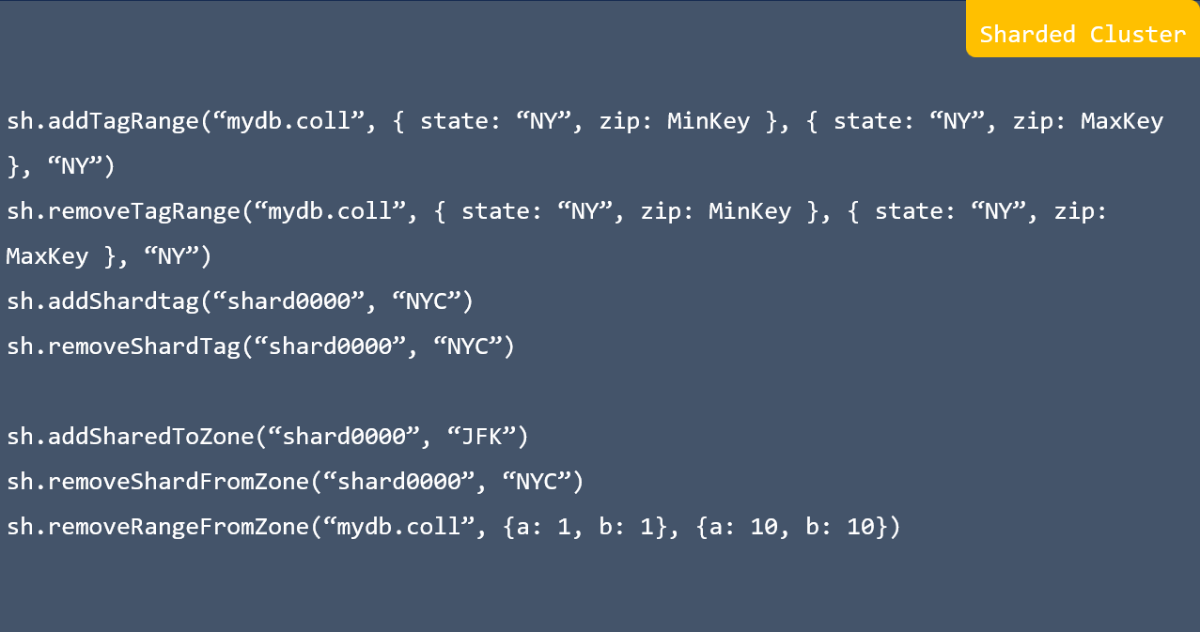
Sharded cluster in MongoDB

Sharded cluster in MongoDB

Sharded cluster in MongoDB

Change streams in MongoDB

# Getting Started

Hello.cpp in C++

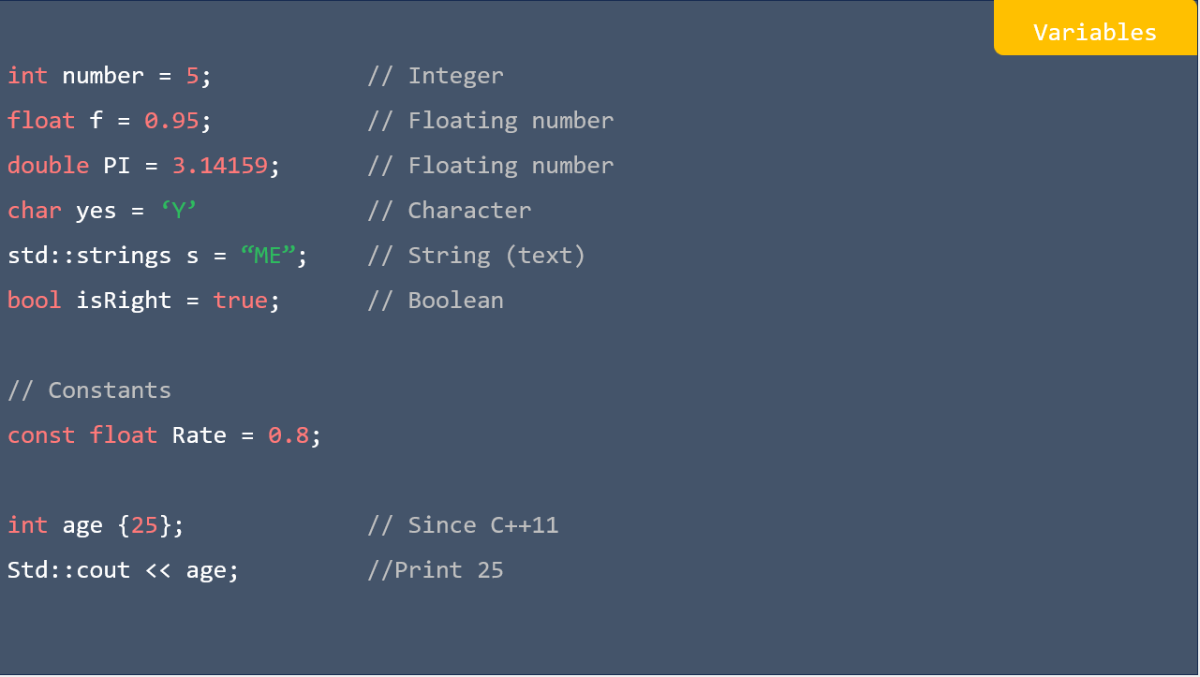
variables in C++

Primitive data types in C++

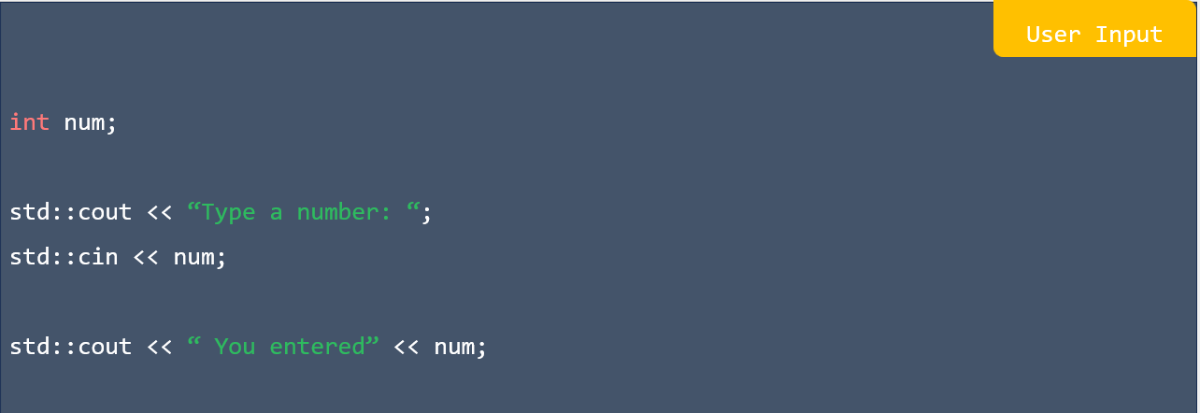
User input in C++

Swap in C++

Comments in C++

If Statement in C++

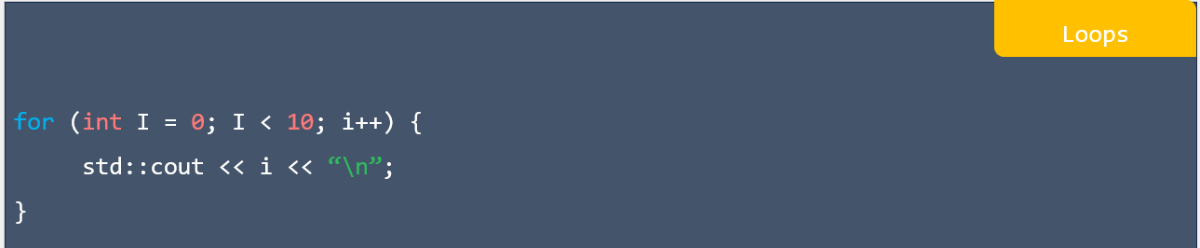
Loops in C++

Functions in C++

References in C++

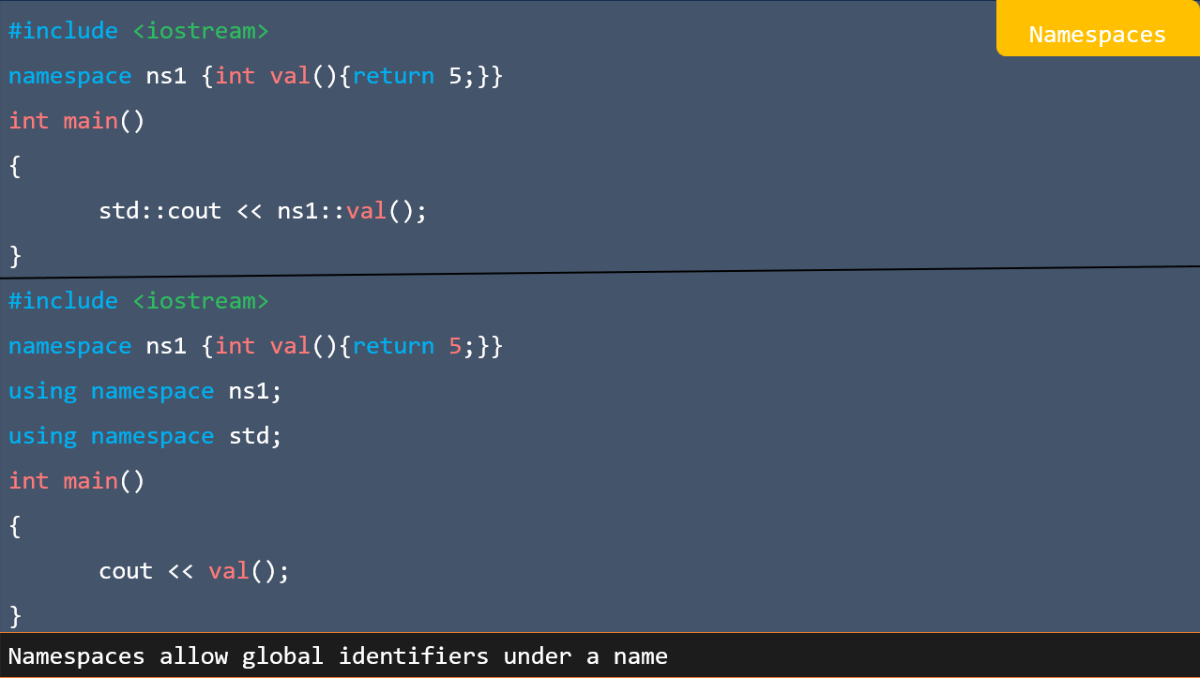
Namespaces in C++

Declaration in C++

Manipulation in C++

Displaying in C++

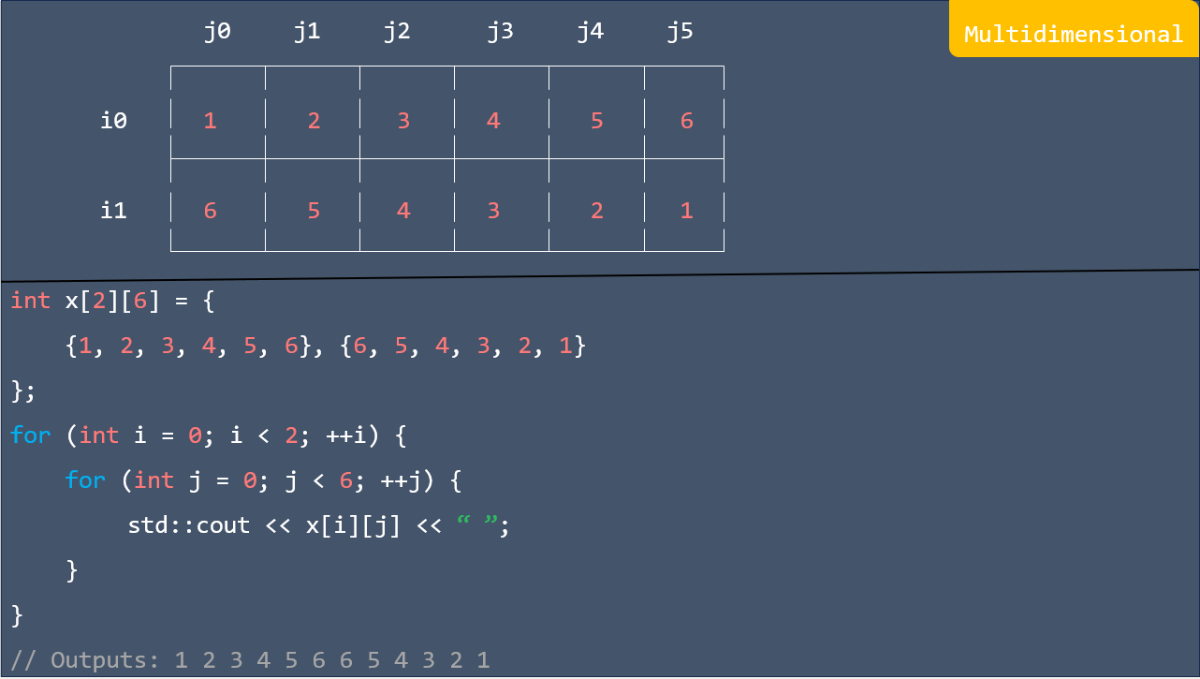
Multidimensional in C++

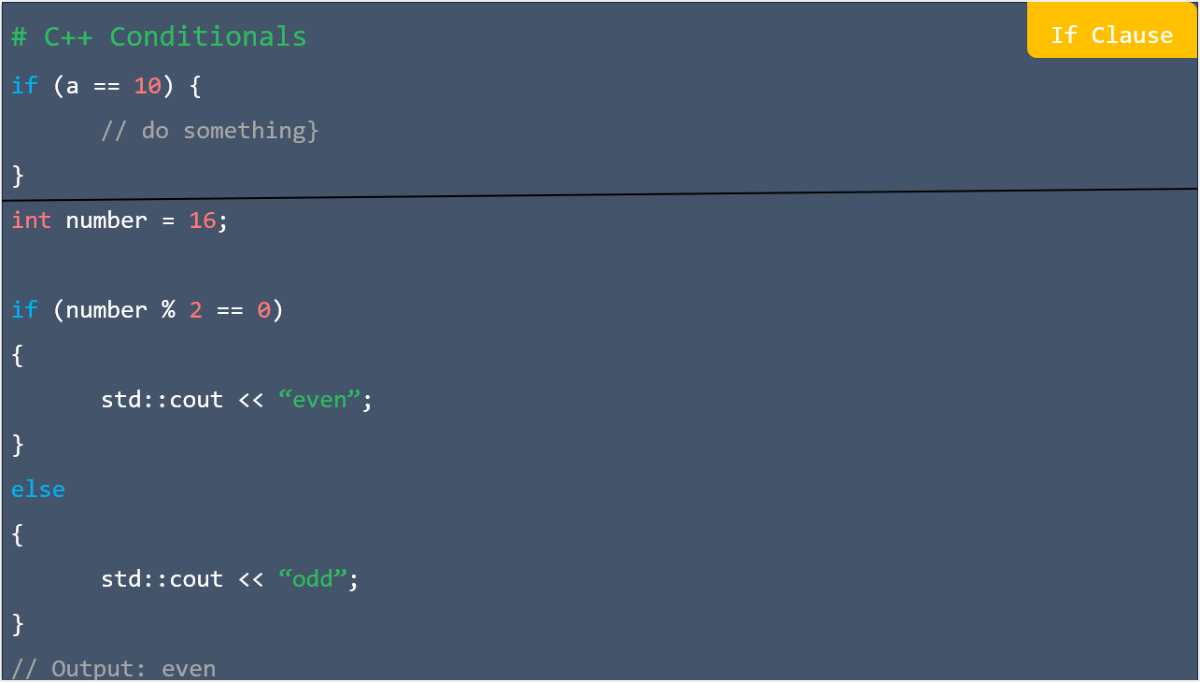
If clause in C++

Else if statement in C++

Relational operetors in C++

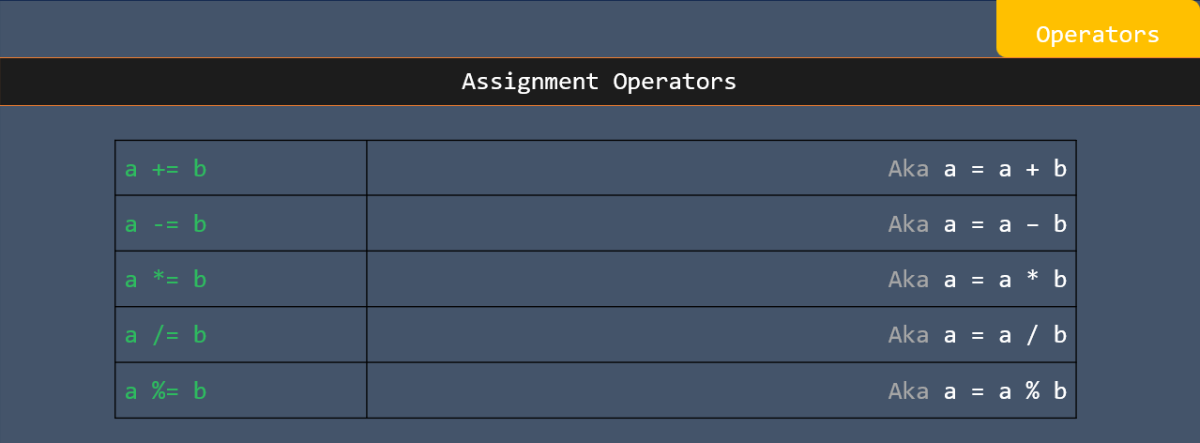
Assignment operators in C++

Logical operators in C++

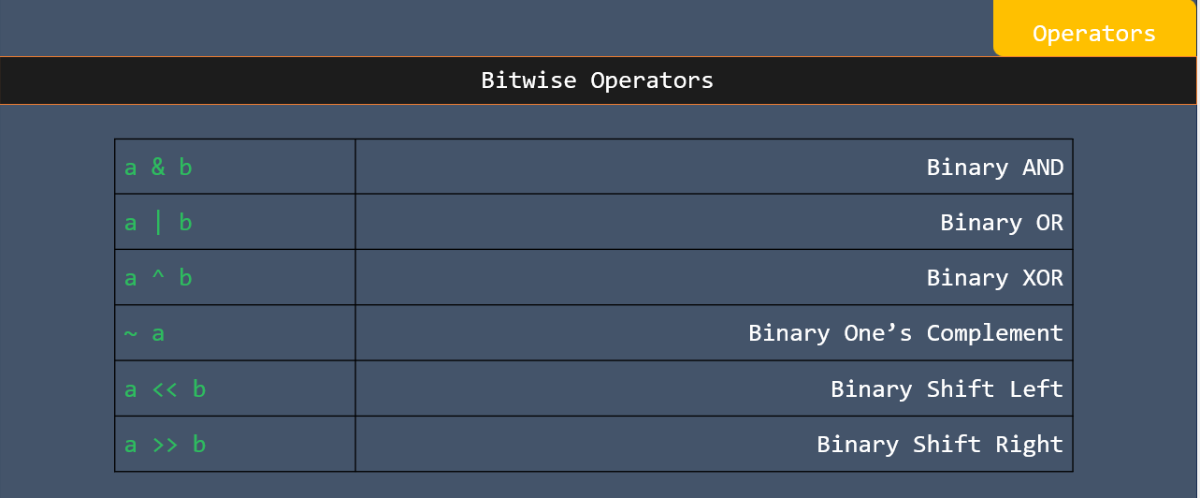
Bitwise operators in C++

Switch statement in C++

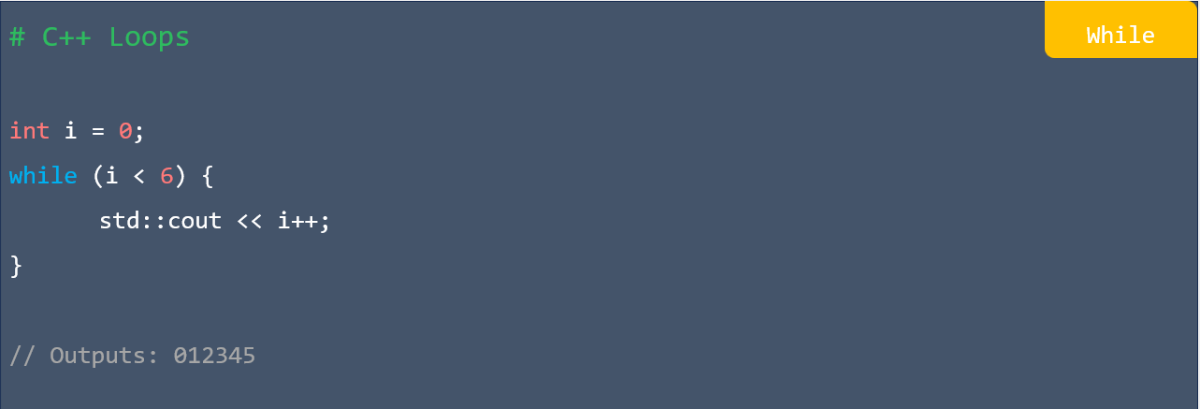
While in C++

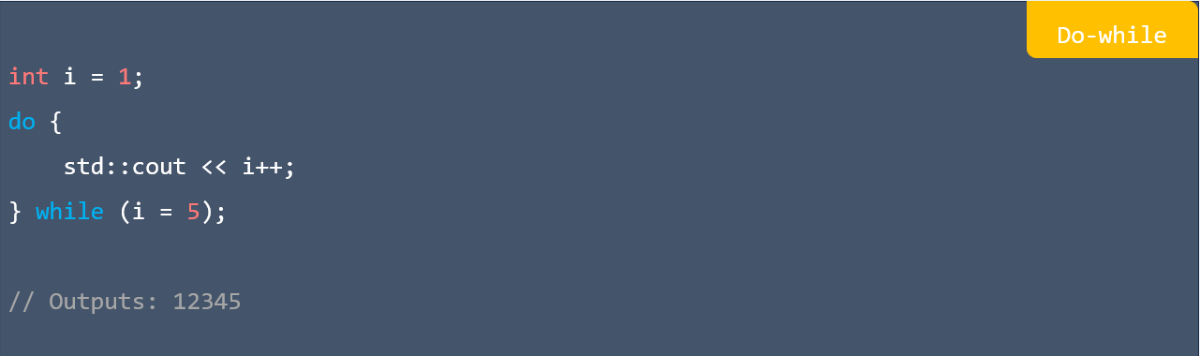
Do-while in C++

Continue statements in C++

Infinite loop in C++

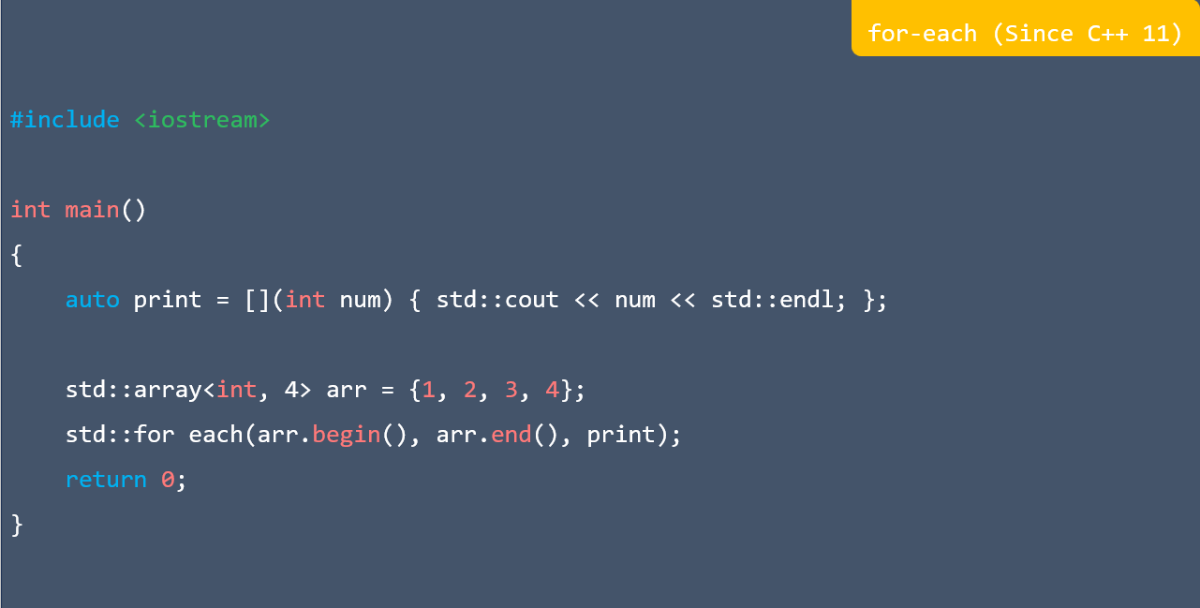
for-each (since C++ 11) in C++

Range-based (since C++ 11) in C++

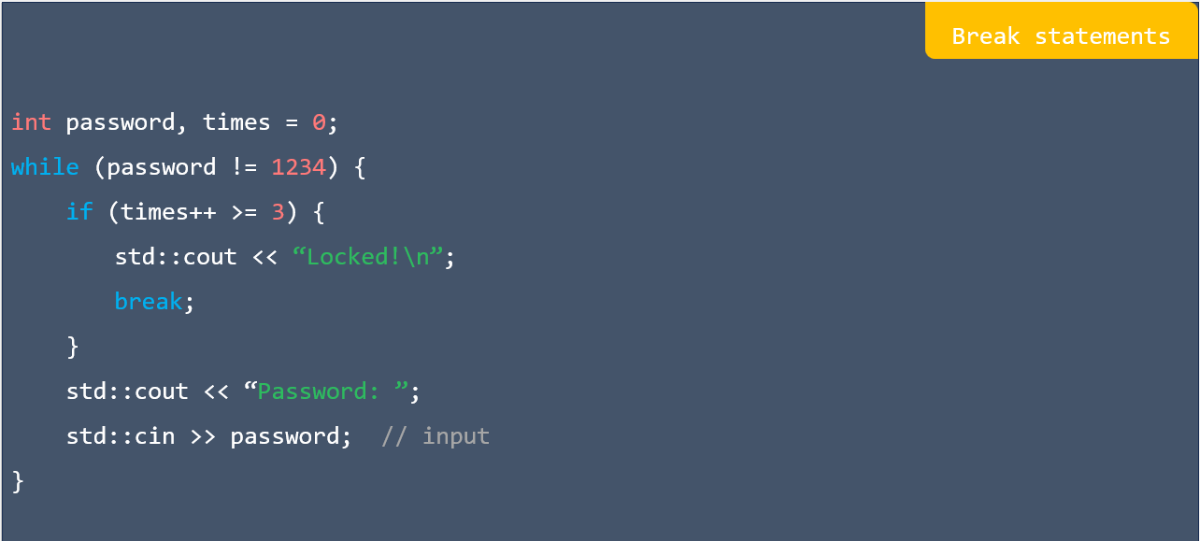
Break statements in C++

Several variations in C++

Arguments & returns in C++

Overloading in C++

Built-in functions in C++

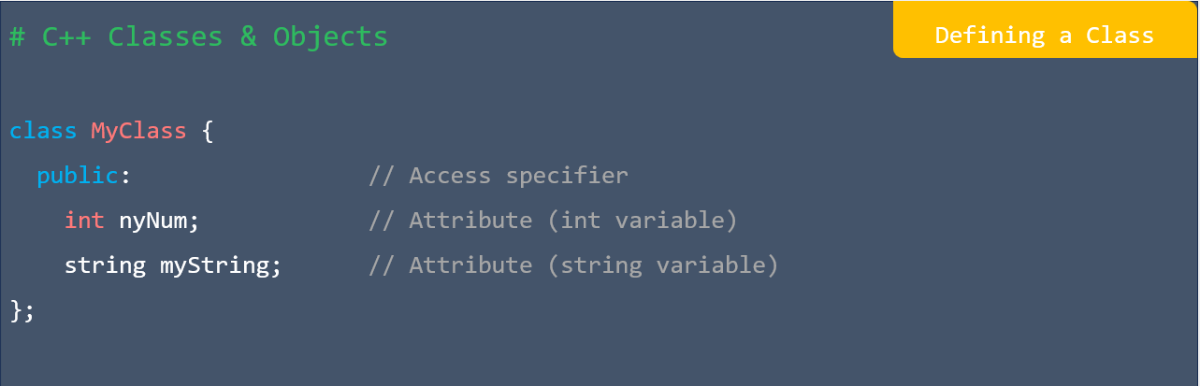
Defining a class in C++

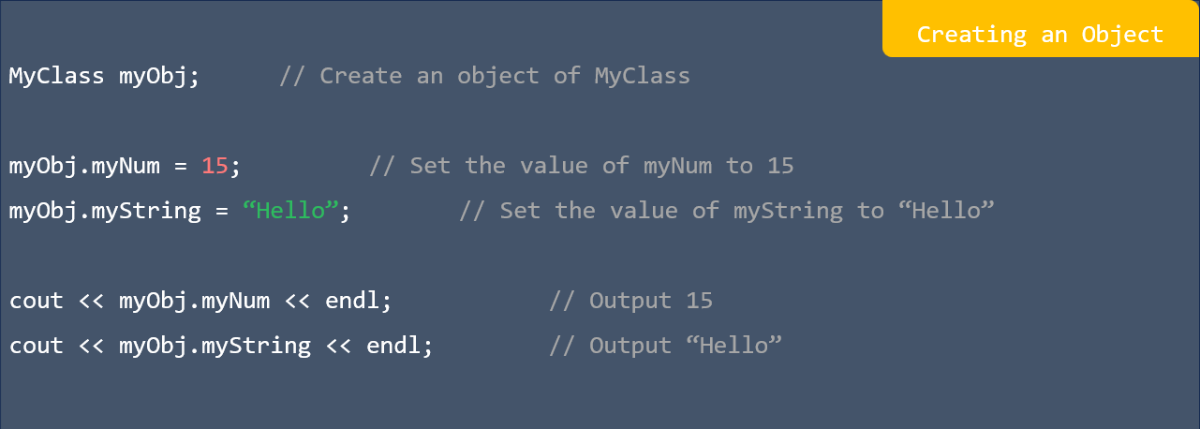
Creating an object in C++

Constructors in C++

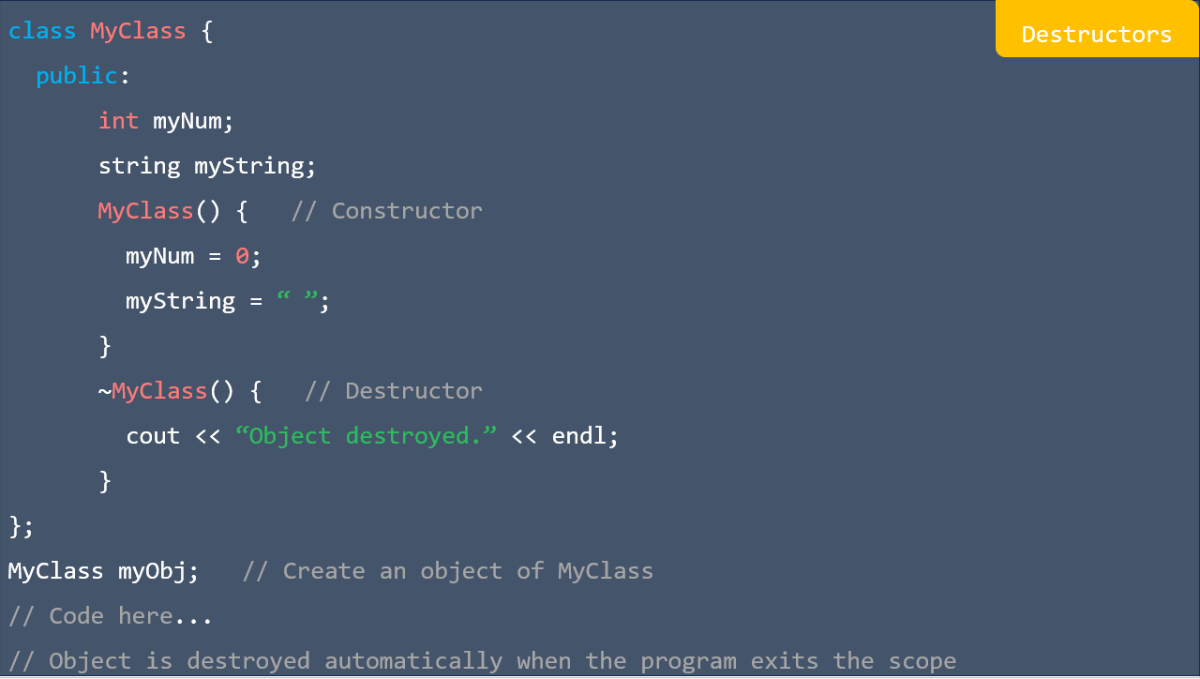
Destructors in C++

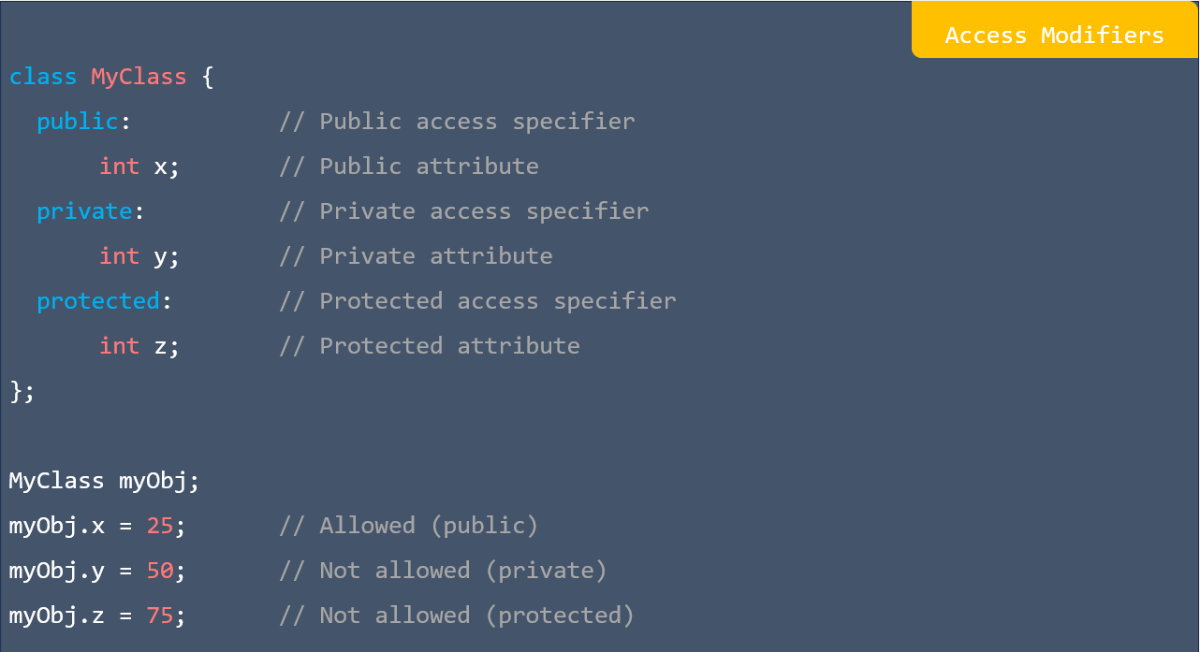
Access modifiers in C++

Class methods in C++

Access modifiers in C++

Getters and setters in C++

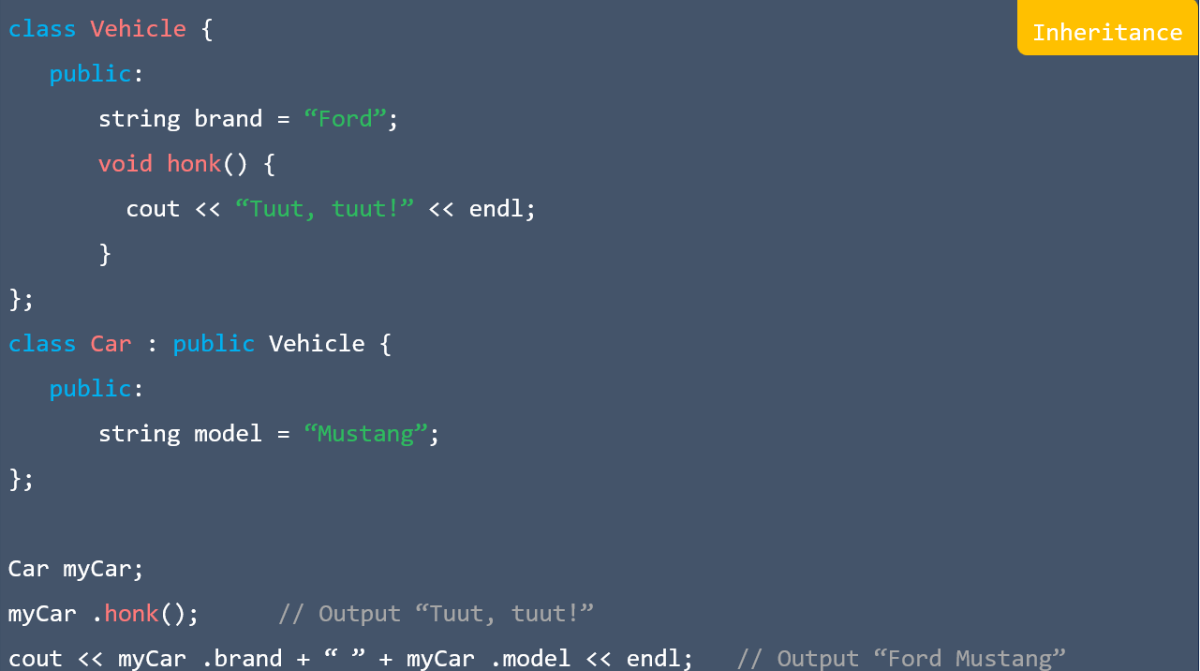
Inheritance in C++

Preprocessor in C++

Includes in C++

Defines in C++

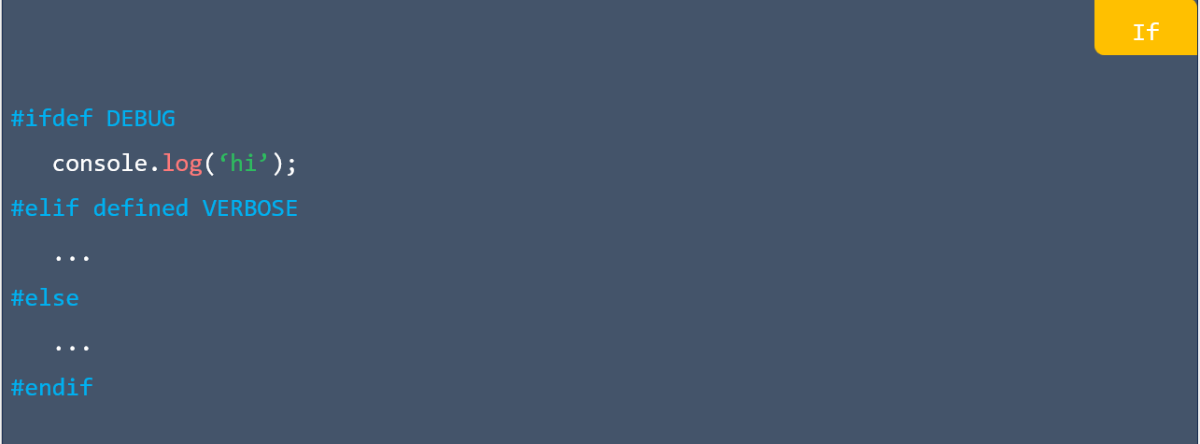
If in C++

Error in C++

macro in C++

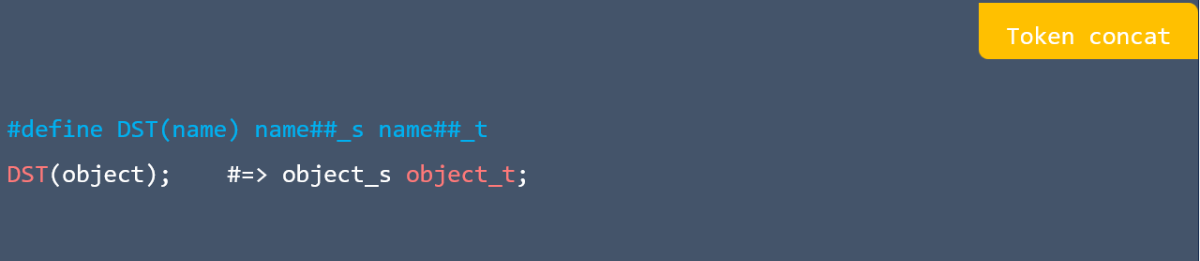
Token concat in C++

Stringfication in C++

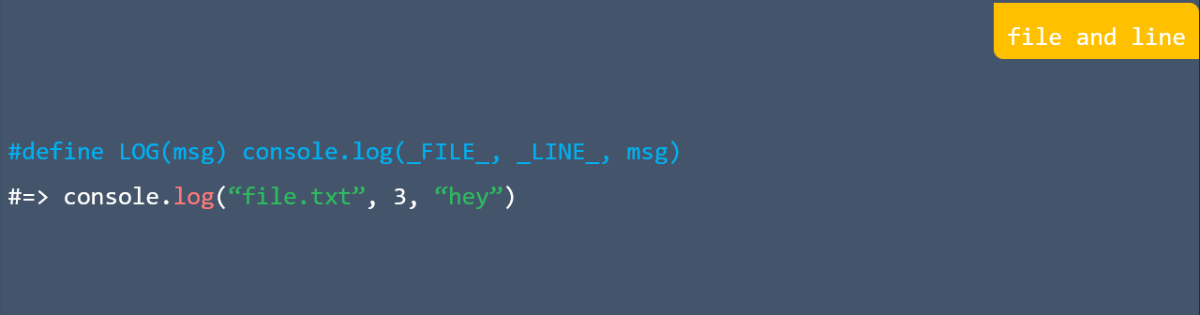
File and line in C++

Escape sequences in C++

Preprocessor in C++

Keywords in C++

Keywords in C++

 #Getting Started

Hello. in Java

Variables in java

Primitive data types in Java

Strings in java

Loops in Java

Arrays in Java

Swap in Java

Type Casting in Java

Conditionals in Java

User Input in Java

Basic Java Strings in Java

Concatenation in Java

StringBuilder in Java

StringBuilder in Java

StringBuilder in Java

Comparison in Java

Manipulation in Java

Information in Java

Immutable in Java

Declare Java Array in Java

Modify in Java

Loop (read & Modify) in Java

Loop (Read) in Java

Multidimensional Array in Java

Sort in Java

Operators in Java

Switch in Java

Ternary operator in Java

For Loop in Java

Enhanced For Loop in Java

While Loop in Java

Do While Loop in Java

Continue Statement in Java

Break Statement in Java

Java Collection in Java

Java Collection in Java

Java Collection in Java

Java Collection in Java

ArrayList in Java

HashMap in Java

HashSet in Java

ArrayDeque in Java

Access Modifiers in Java

Regular expression in Java

Comment in Java

Keywords in Java

Math methods in Java

Math methods in Java 1

Try-Catch-Finally in Java

# Getting Started

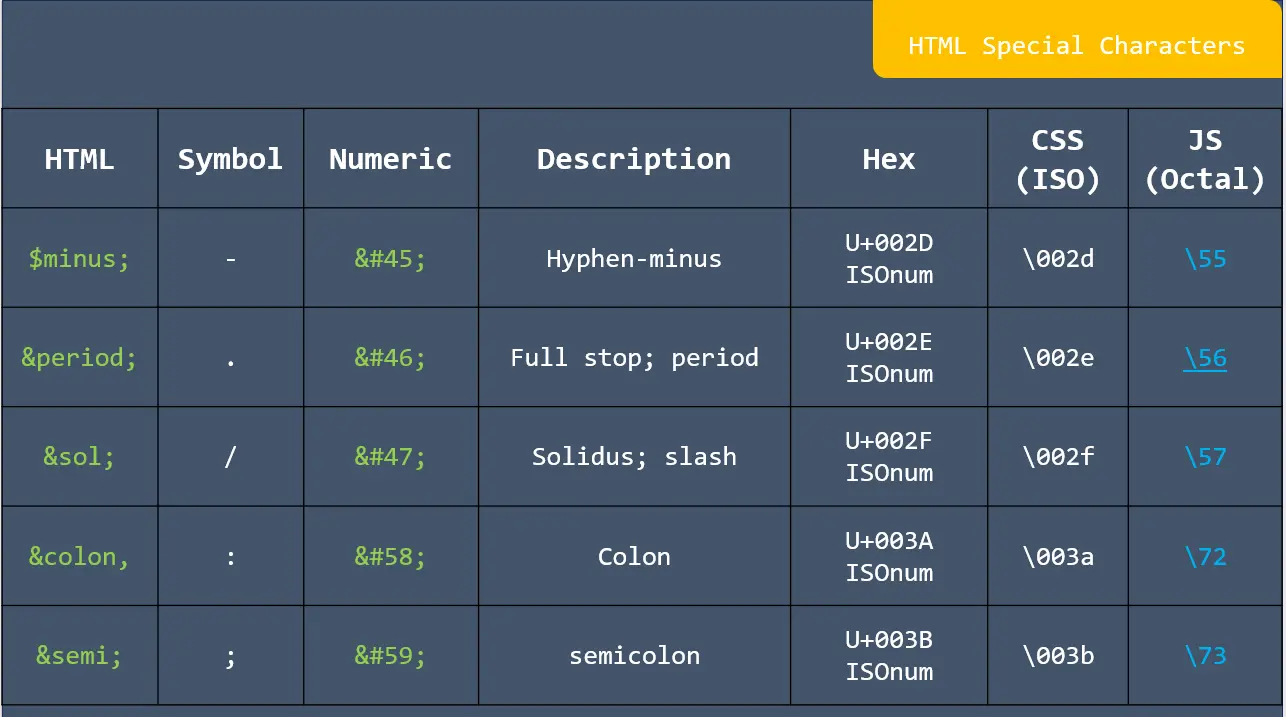
HTML special characters

HTML special characters

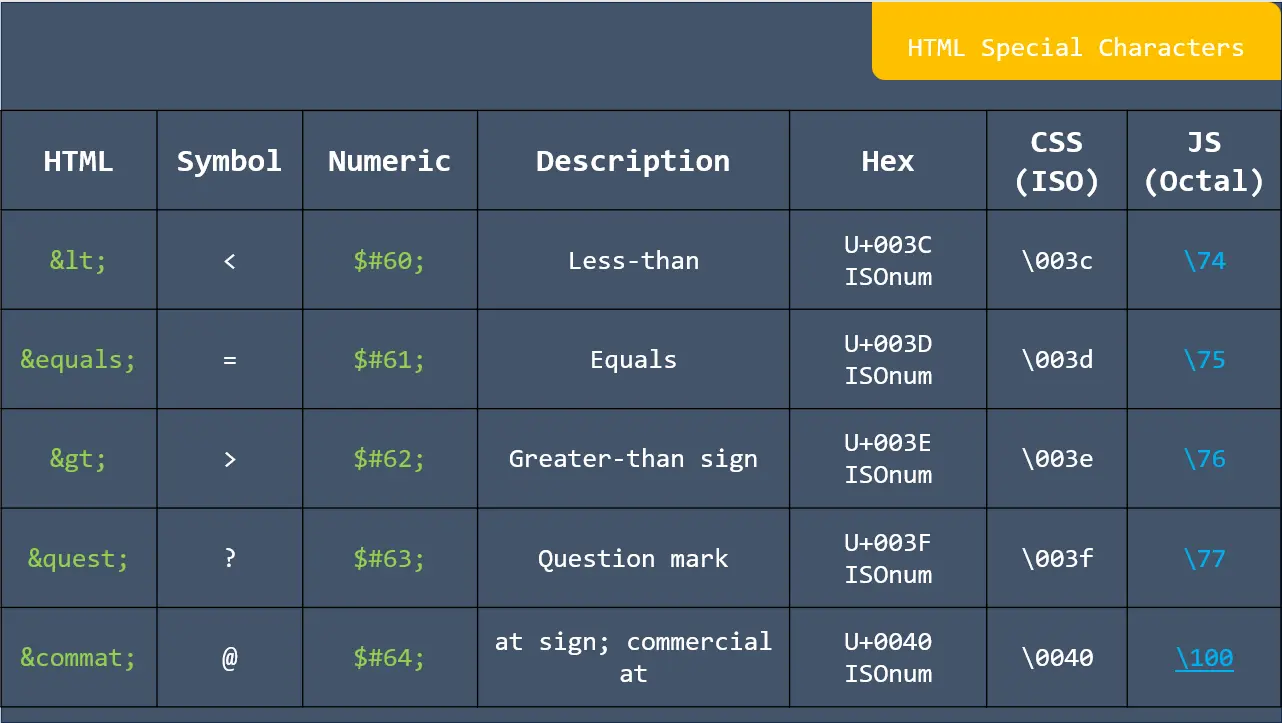
HTML special characters

HTML special characters

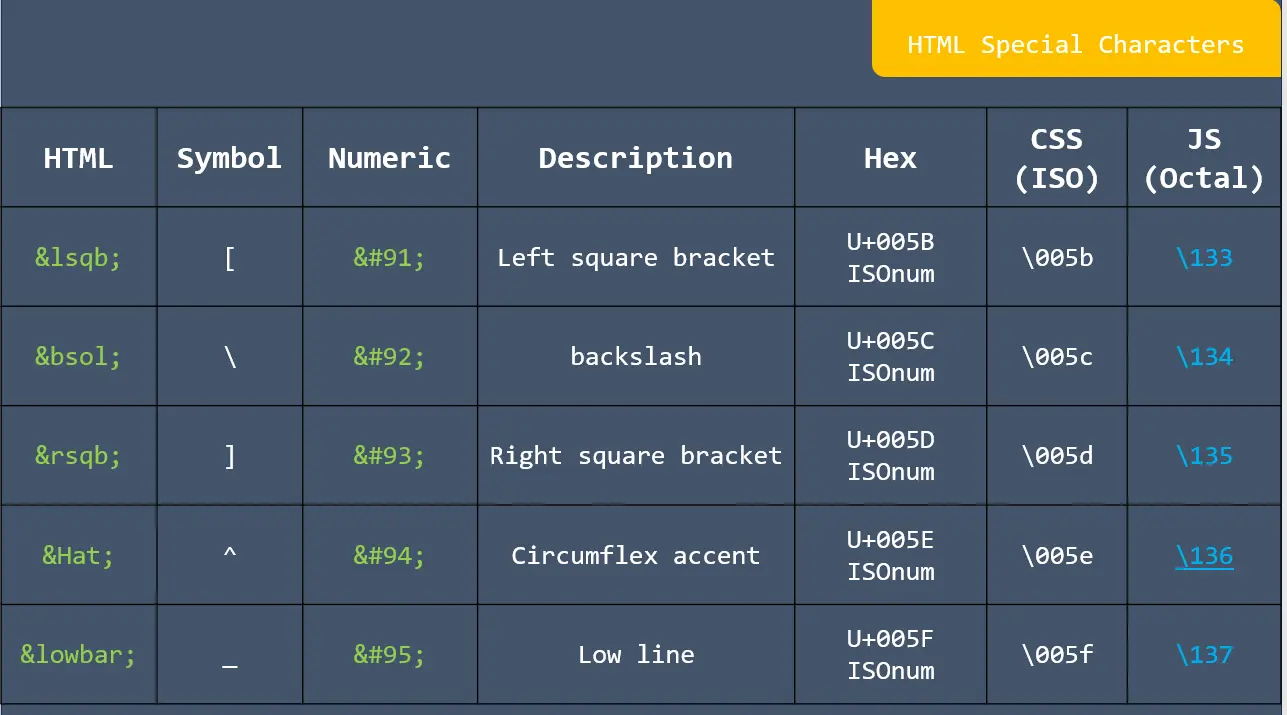
HTML special characters

HTML special characters

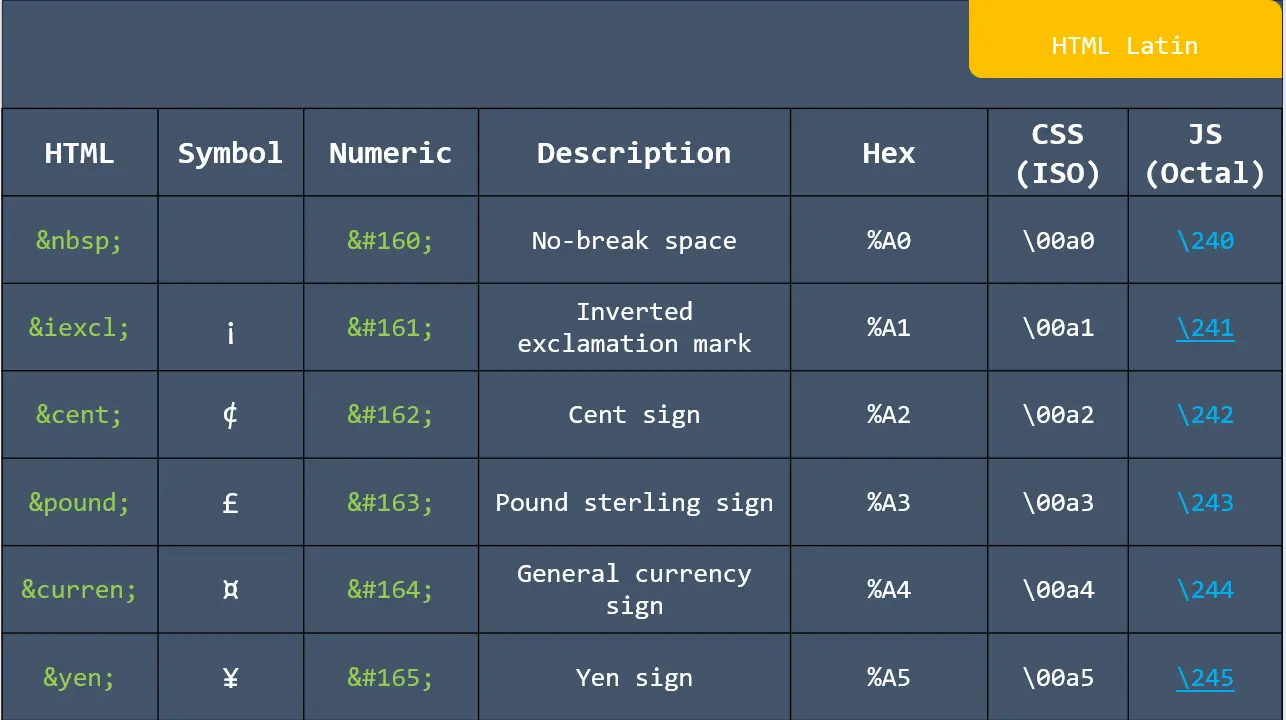
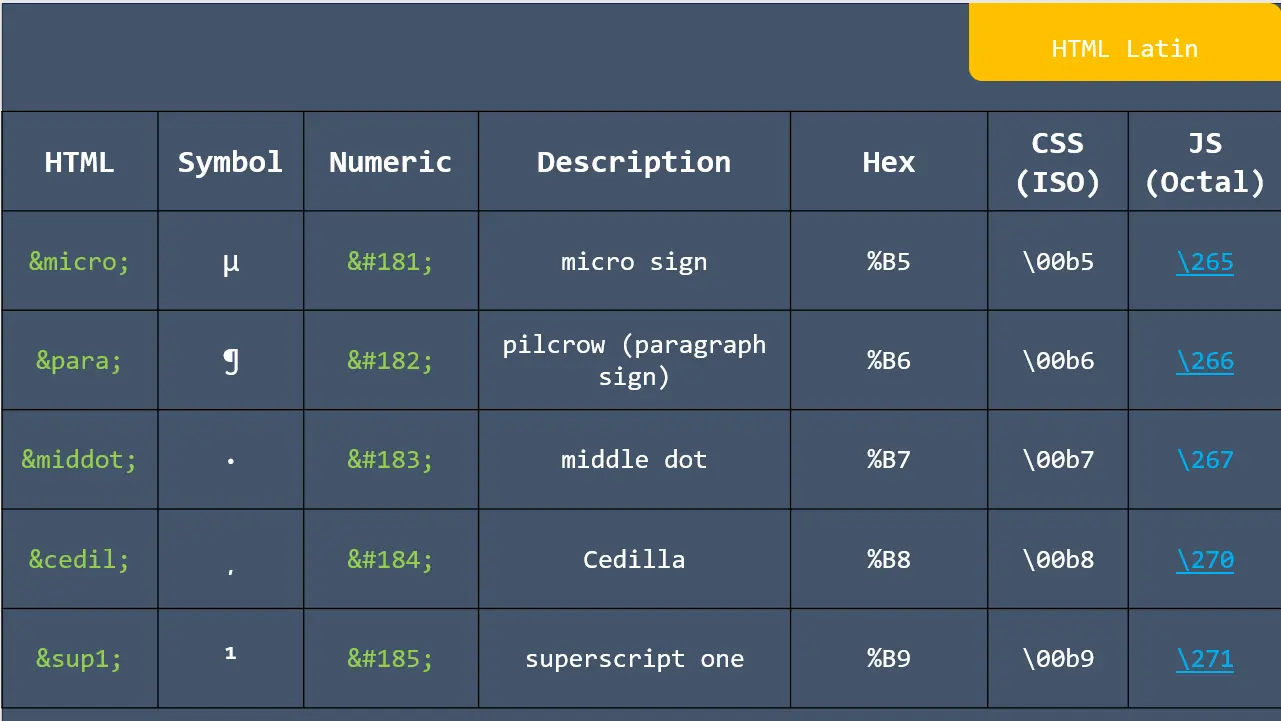
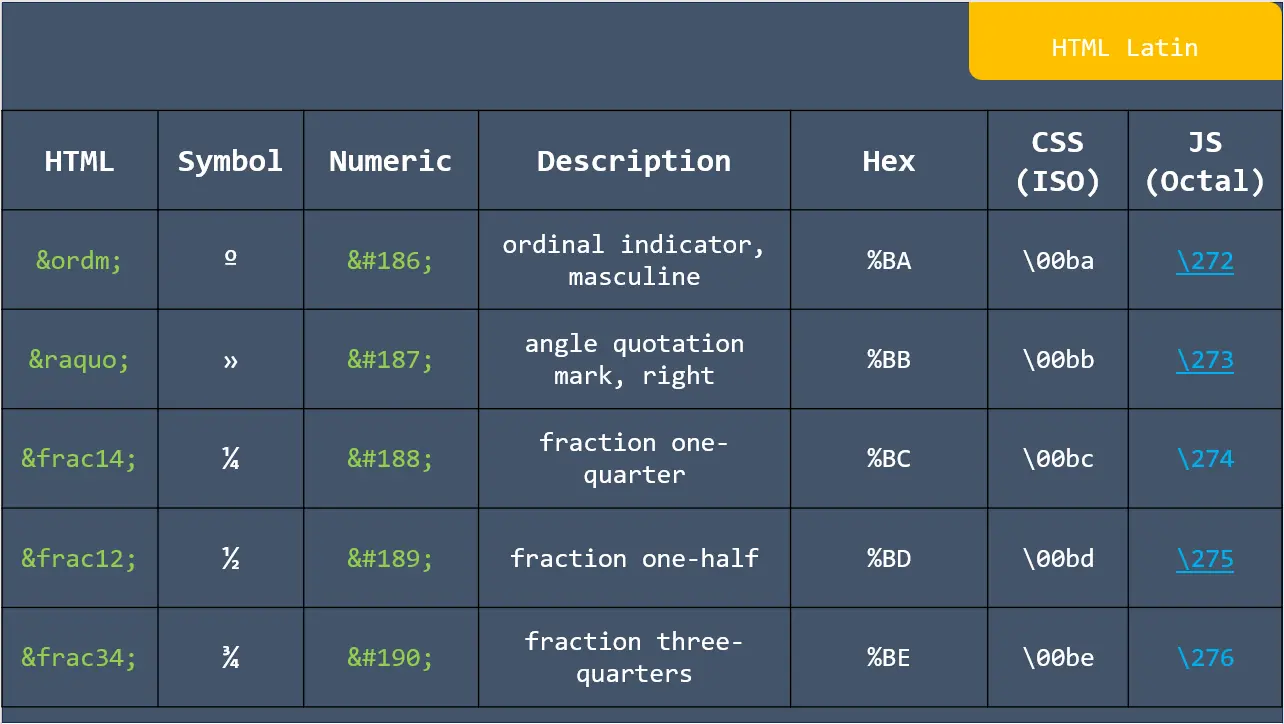
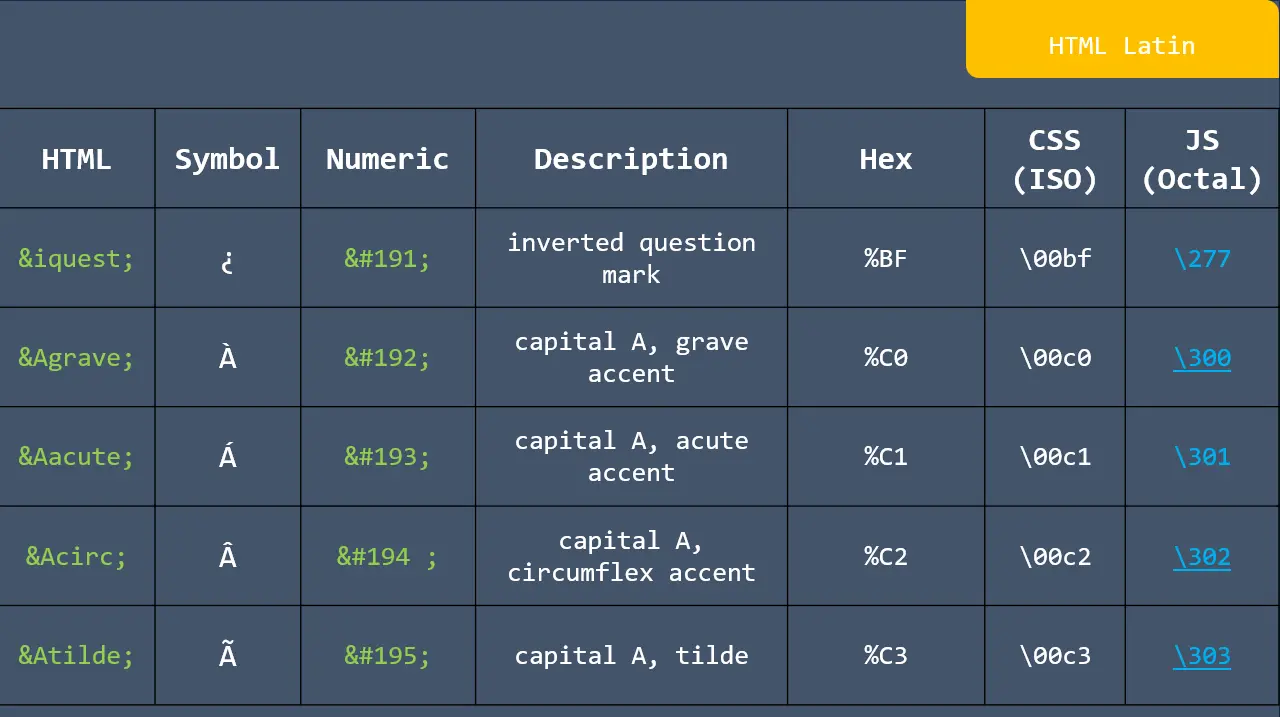
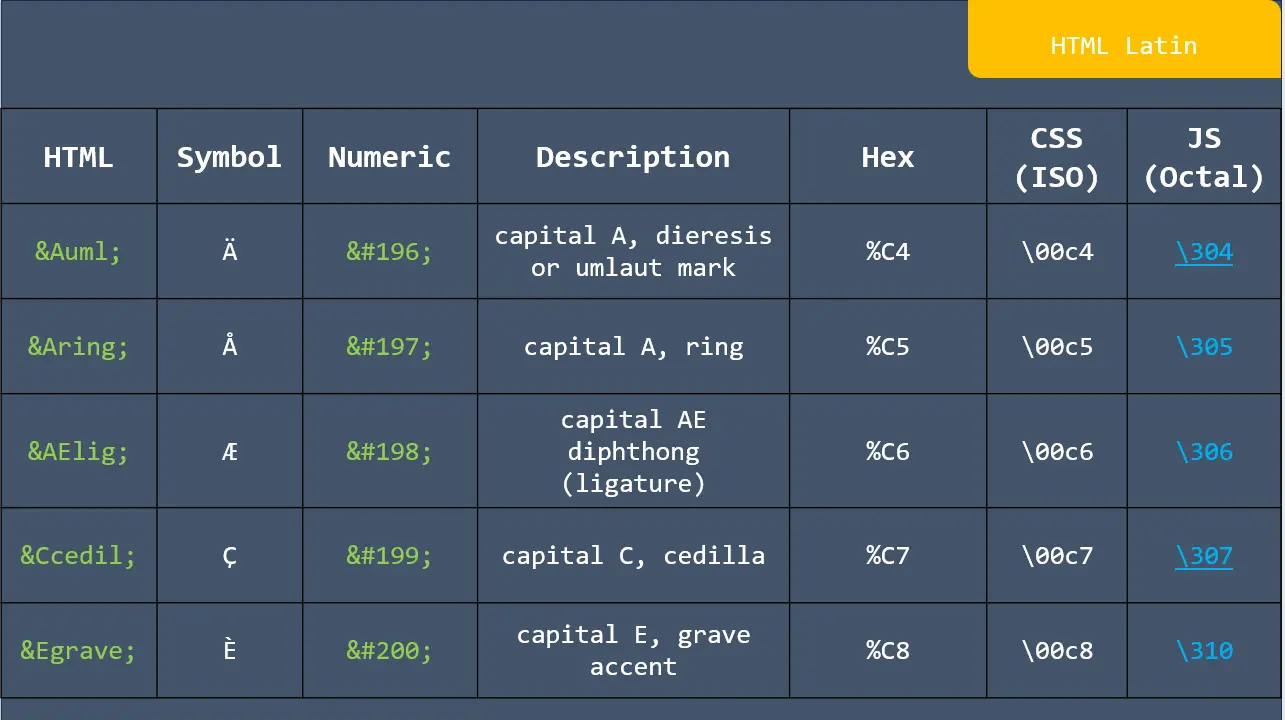
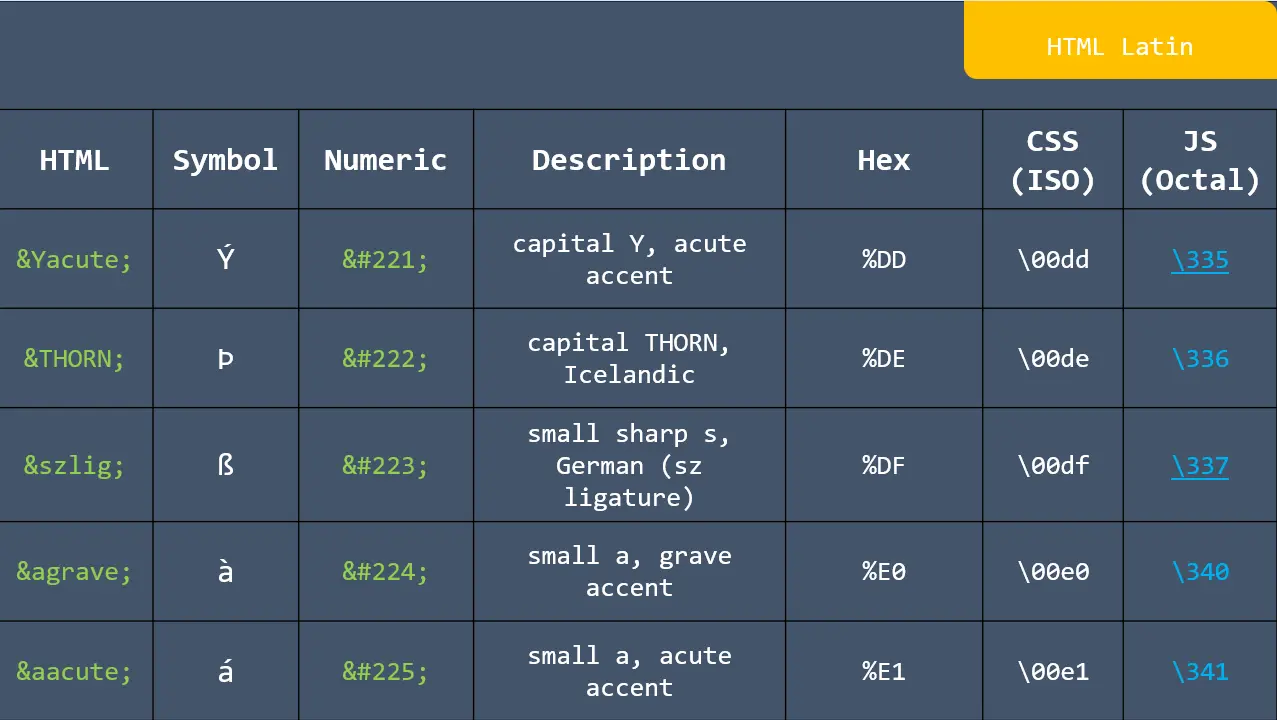
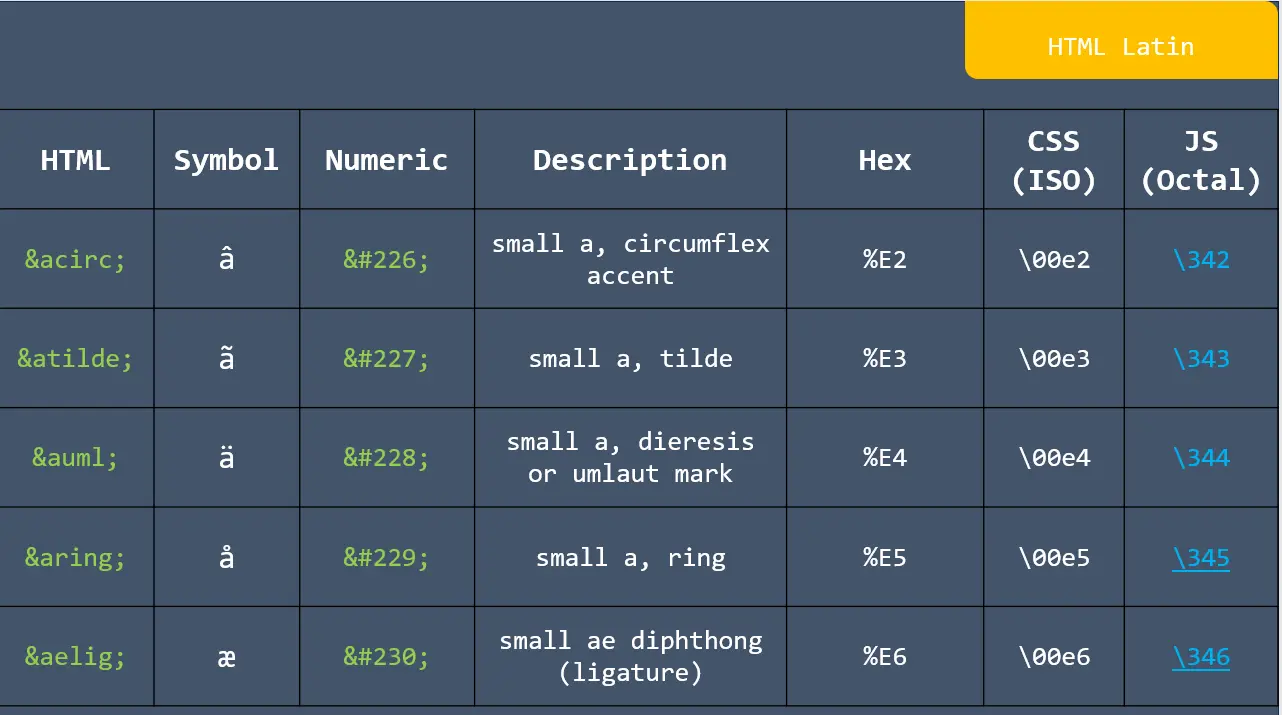
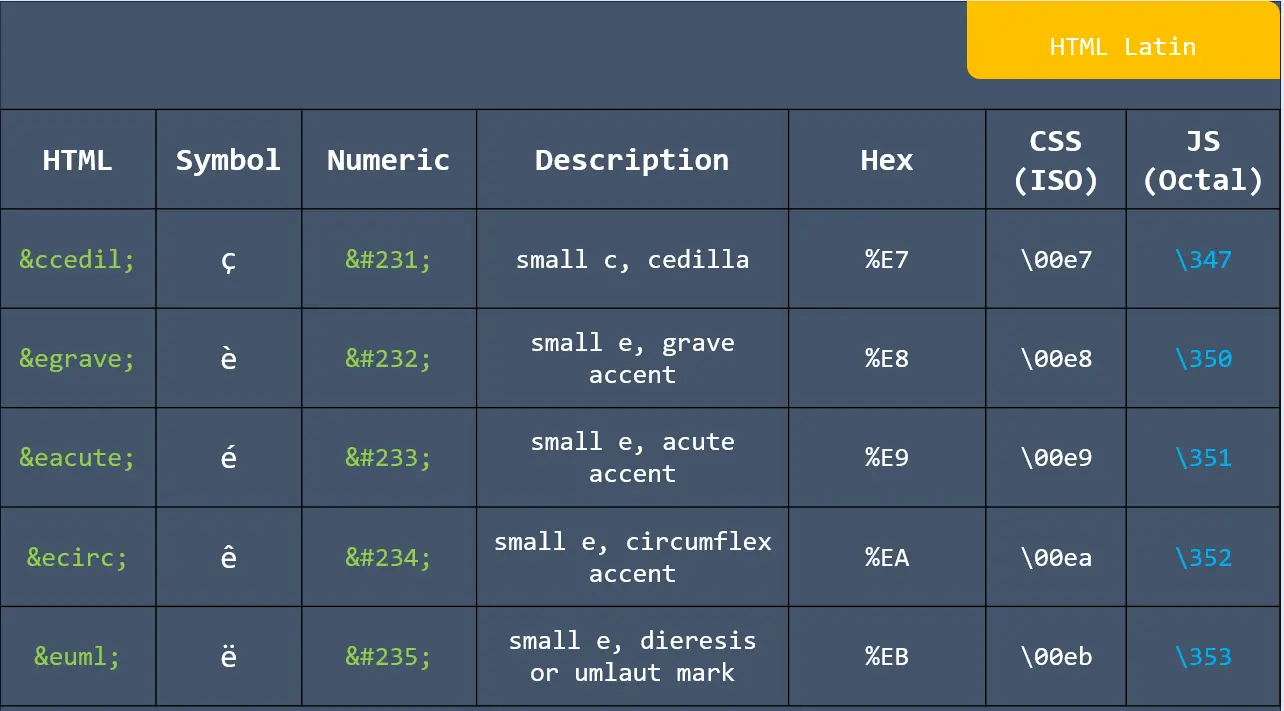
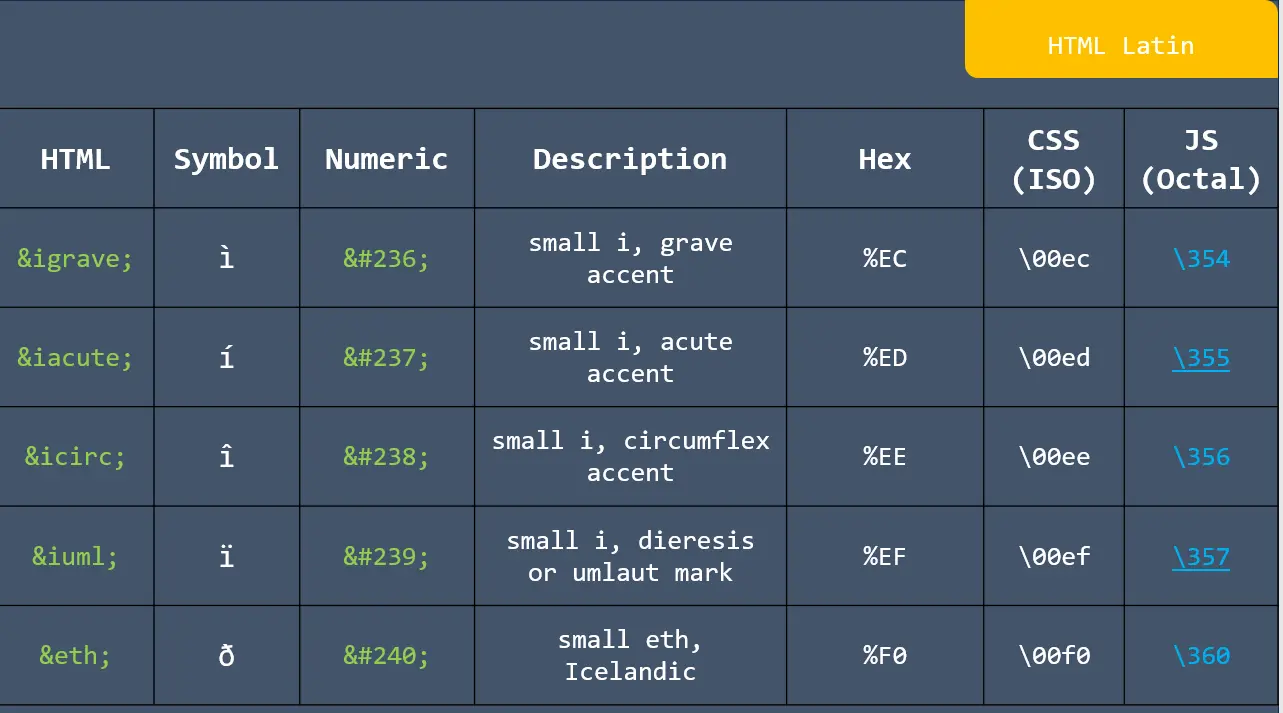
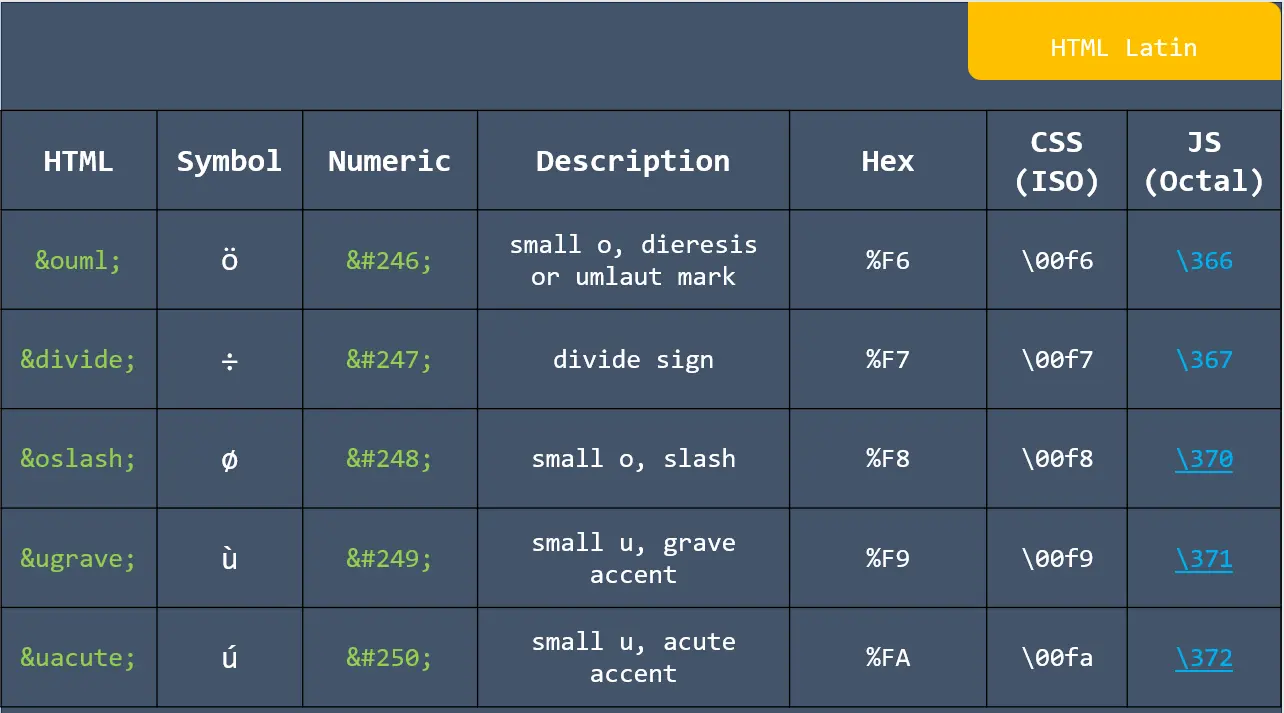
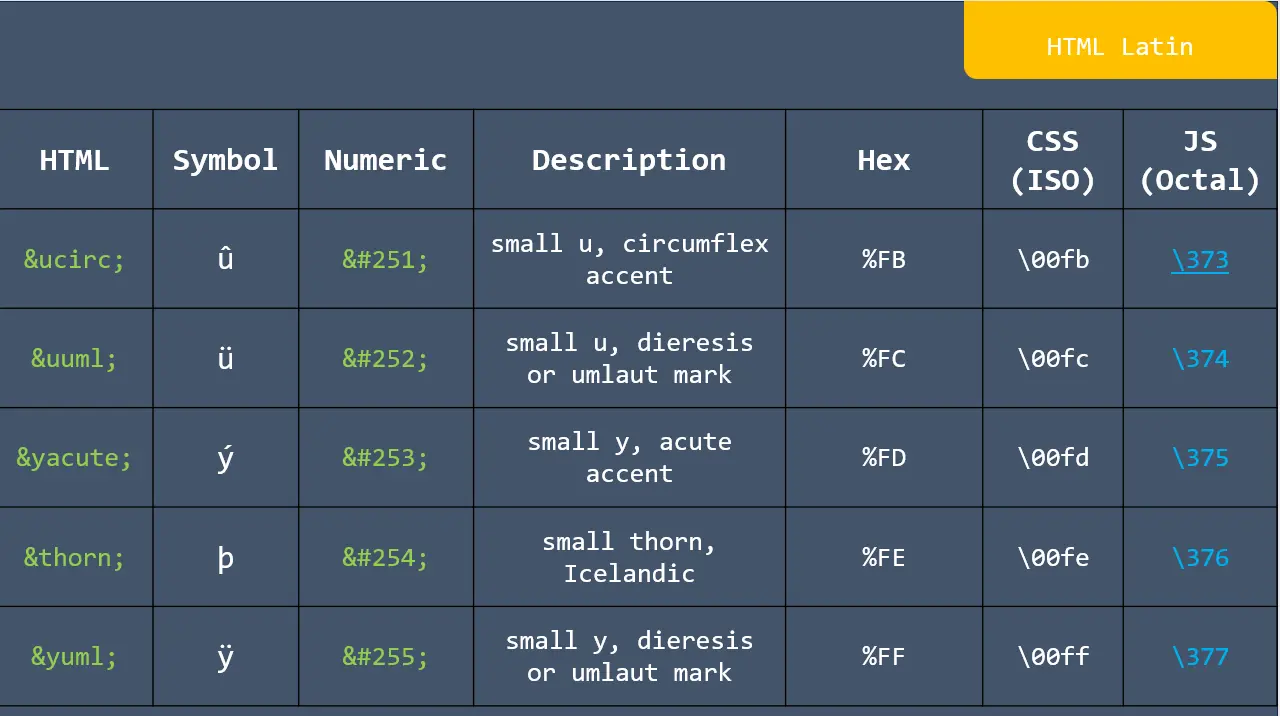
HTML Latin

HTML Latin

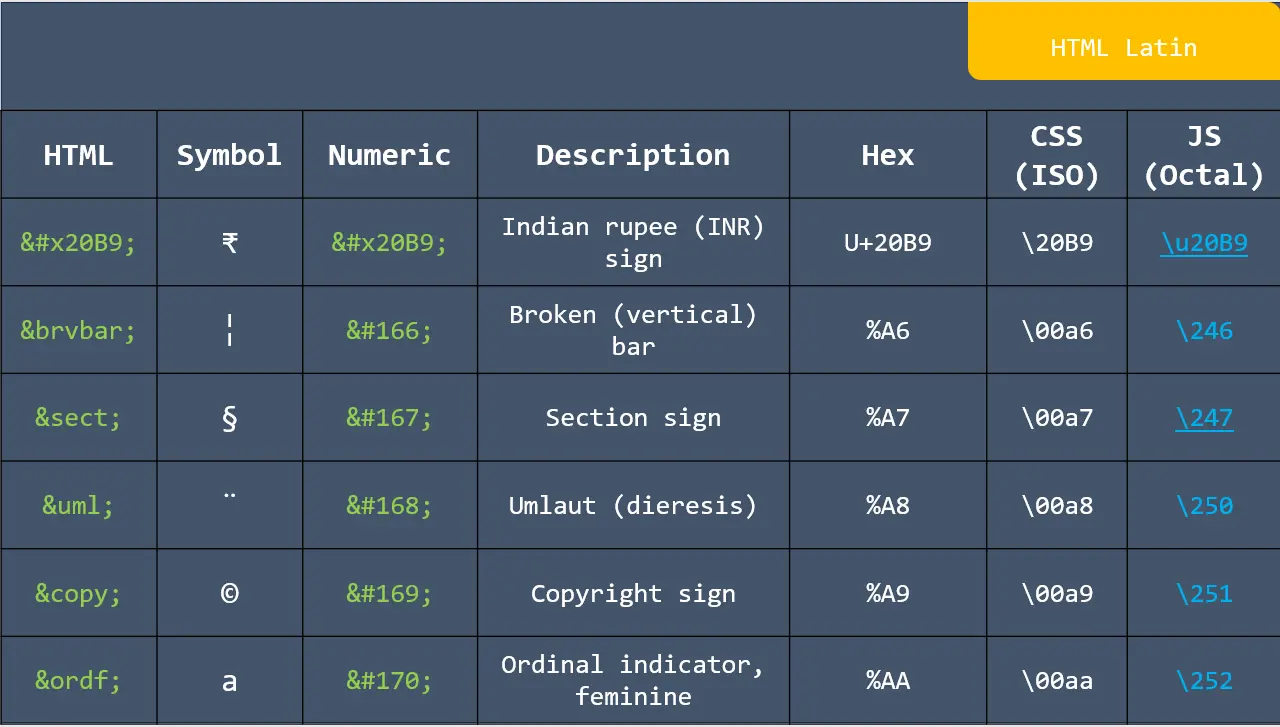
HTML Latin

HTML Latin

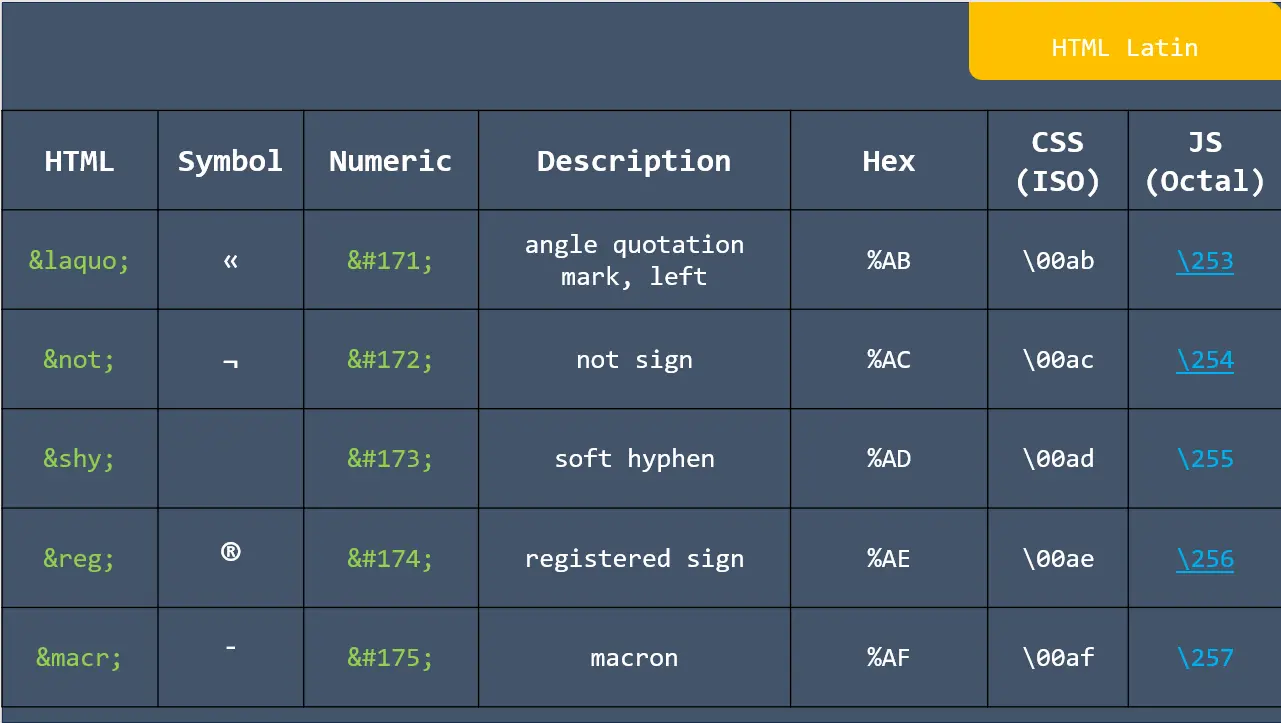
HTML Latin

HTML Latin

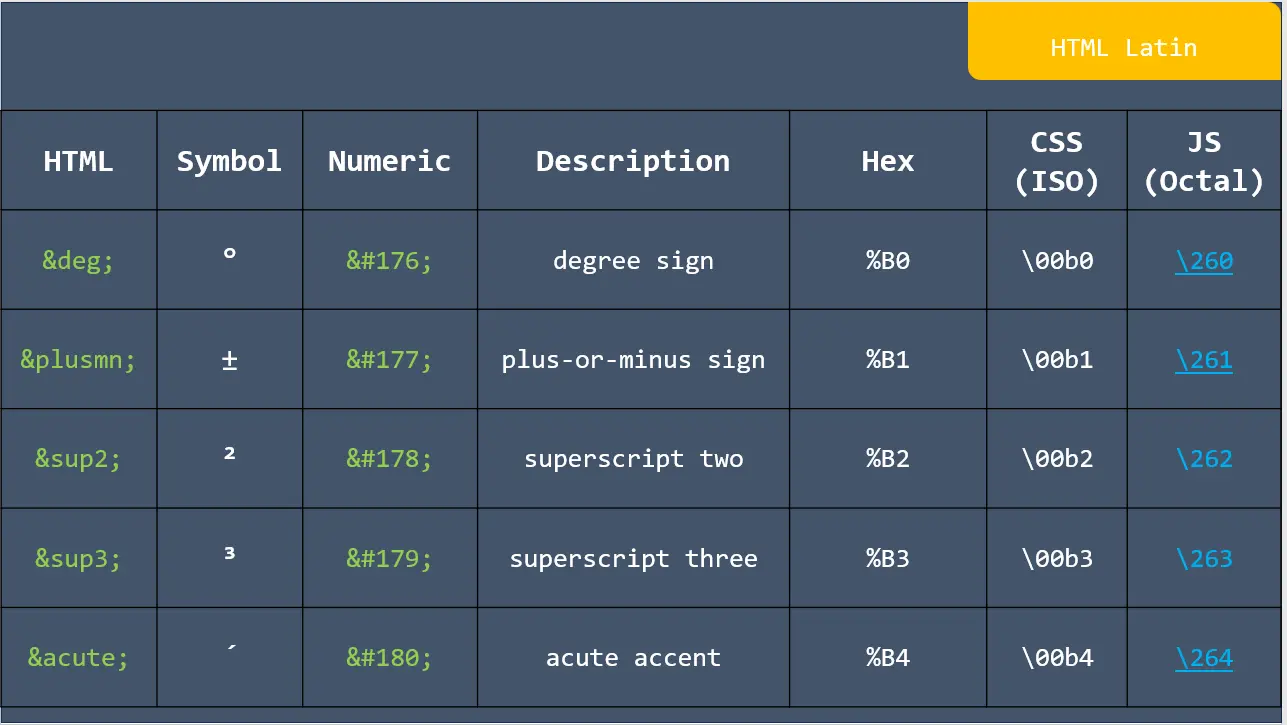
HTML Latin

HTML Latin

HTML Latin

HTML Latin

HTML Latin

HTML Latin

HTML Latin

HTML Latin

HTML Latin

HTML Latin

HTML Latin

HTML Latin

HTML Latin

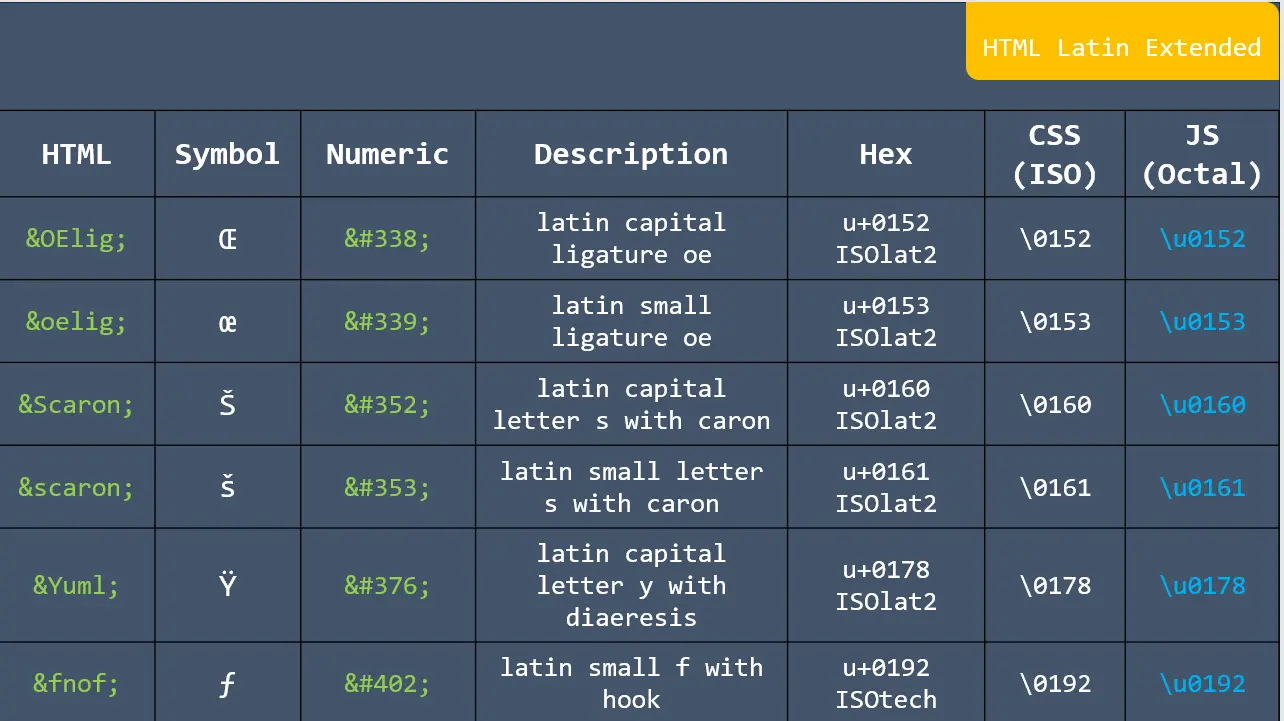
HTML Latin Extended

HTML Spacing Modifier Letters

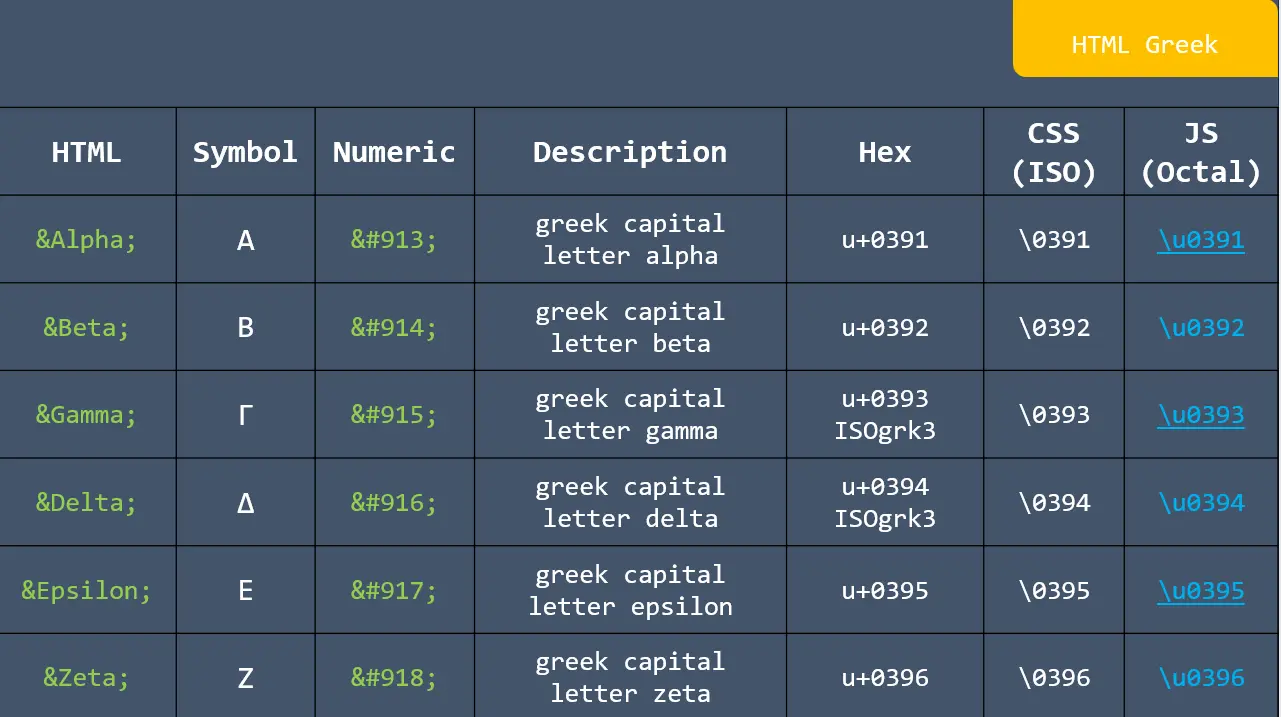
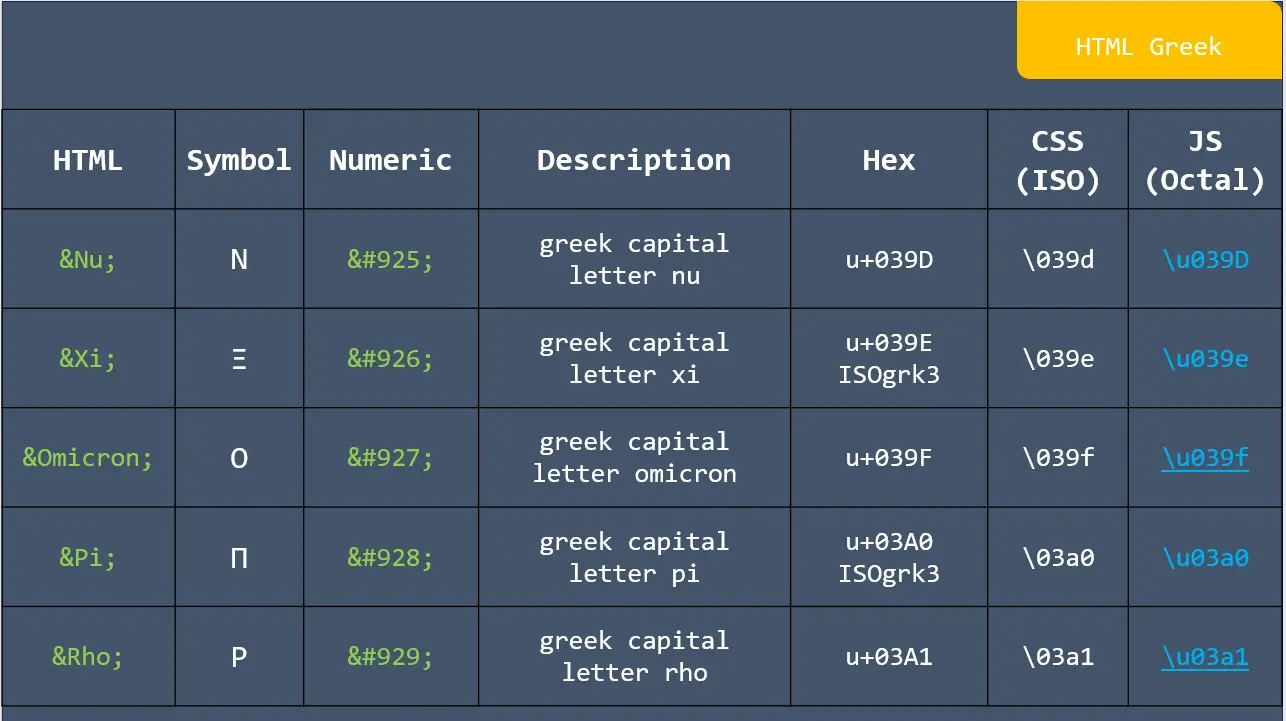
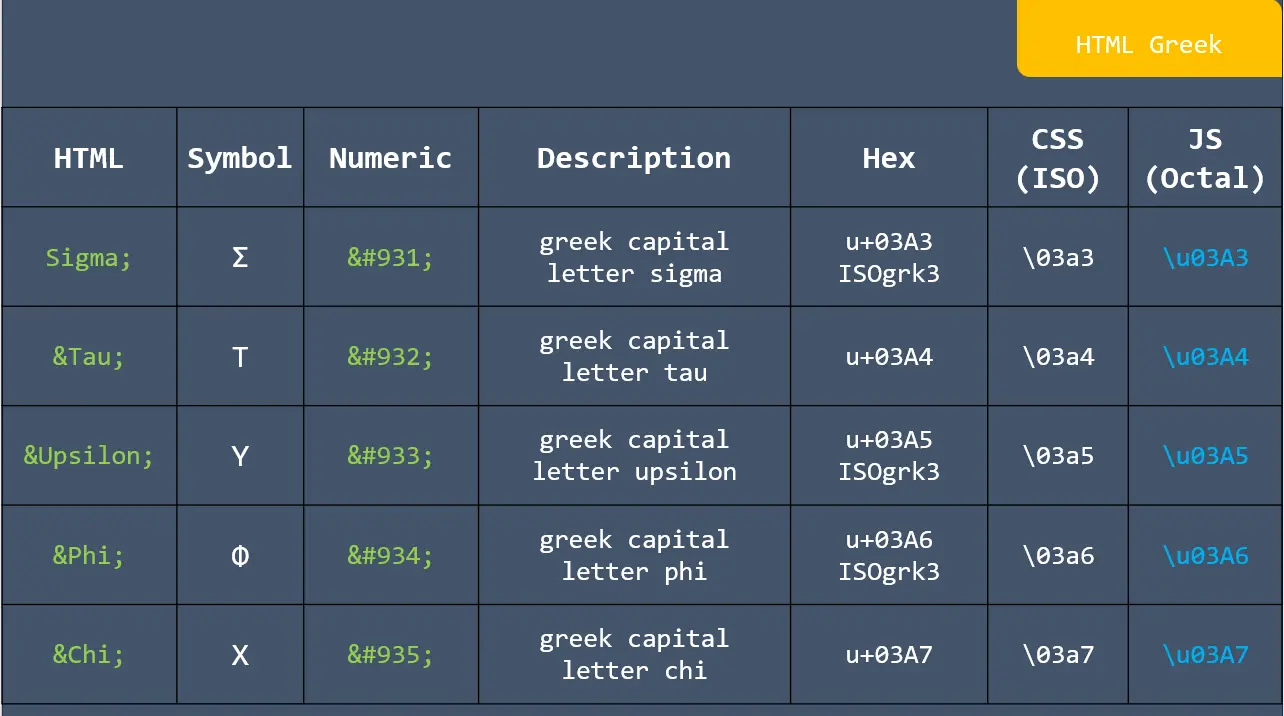
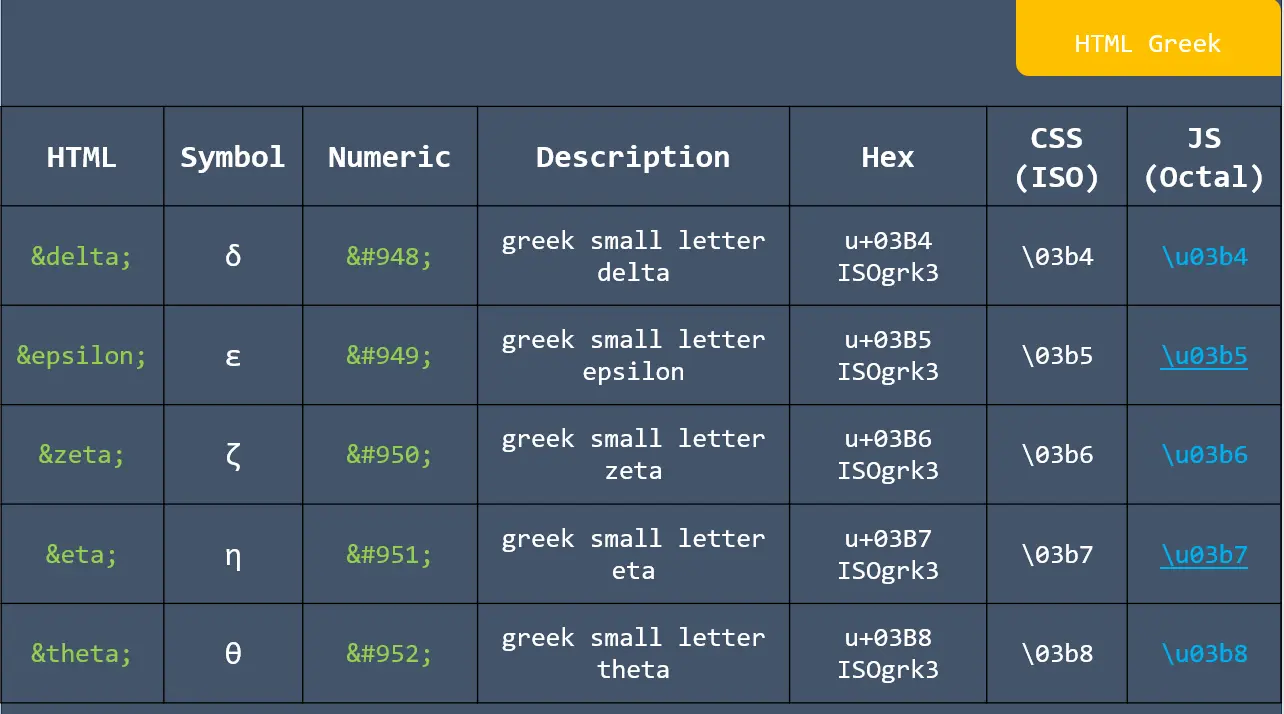
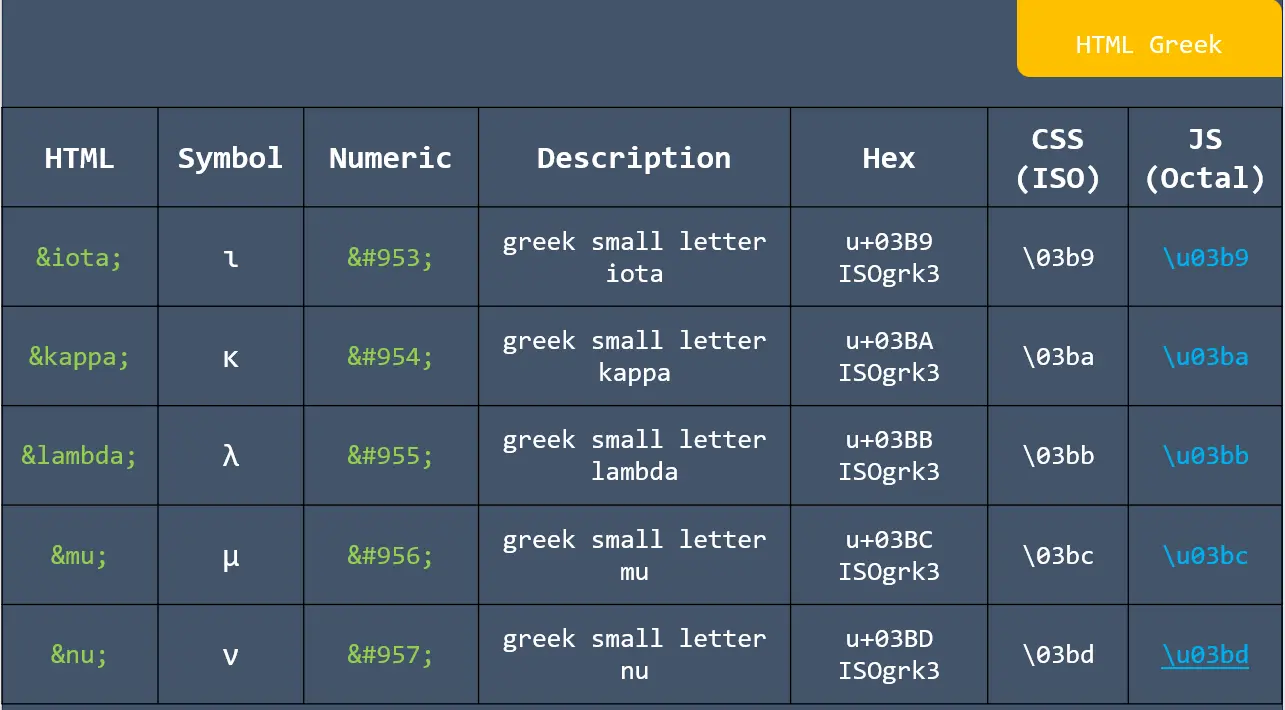
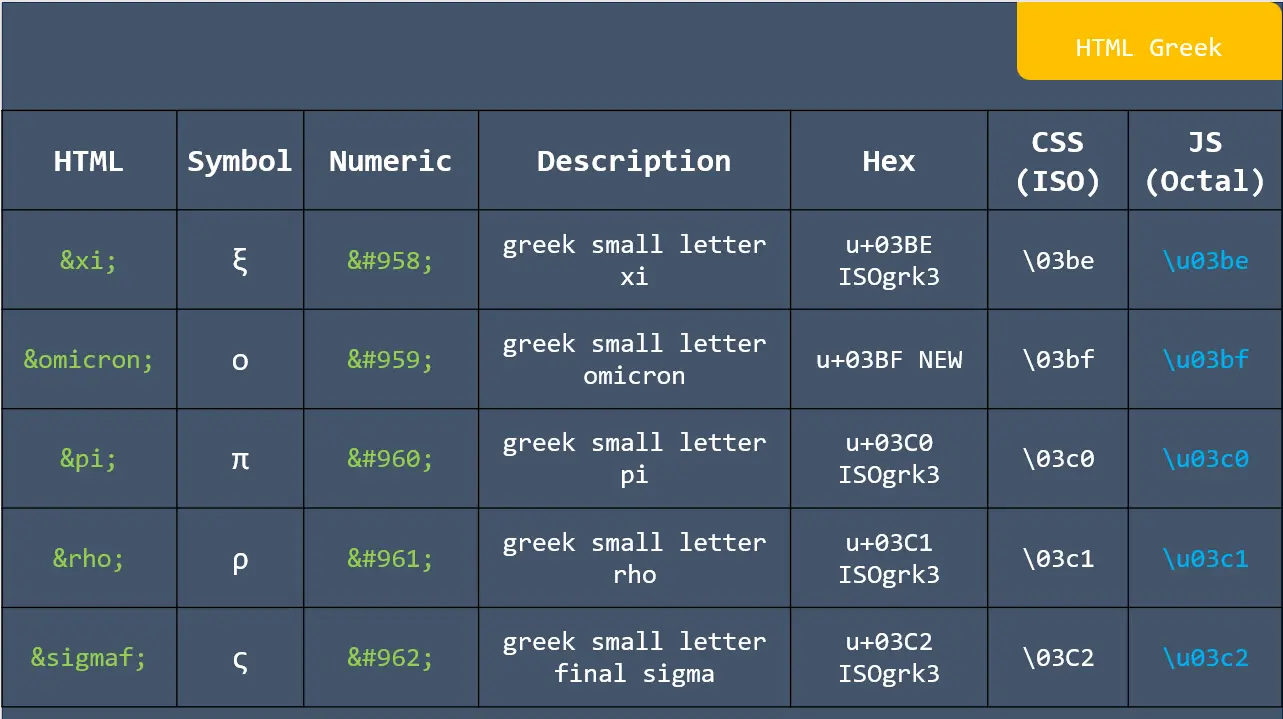
HTML Greek

HTML Greek

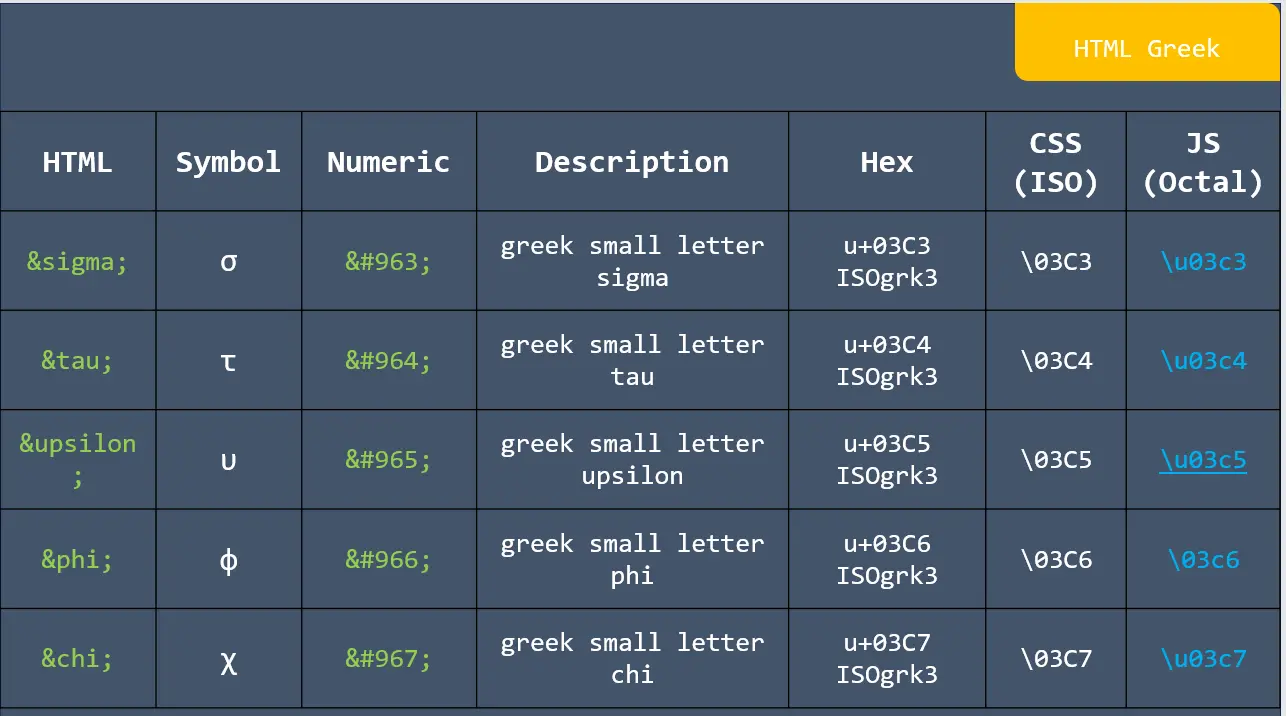
HTML Greek

HTML Greek

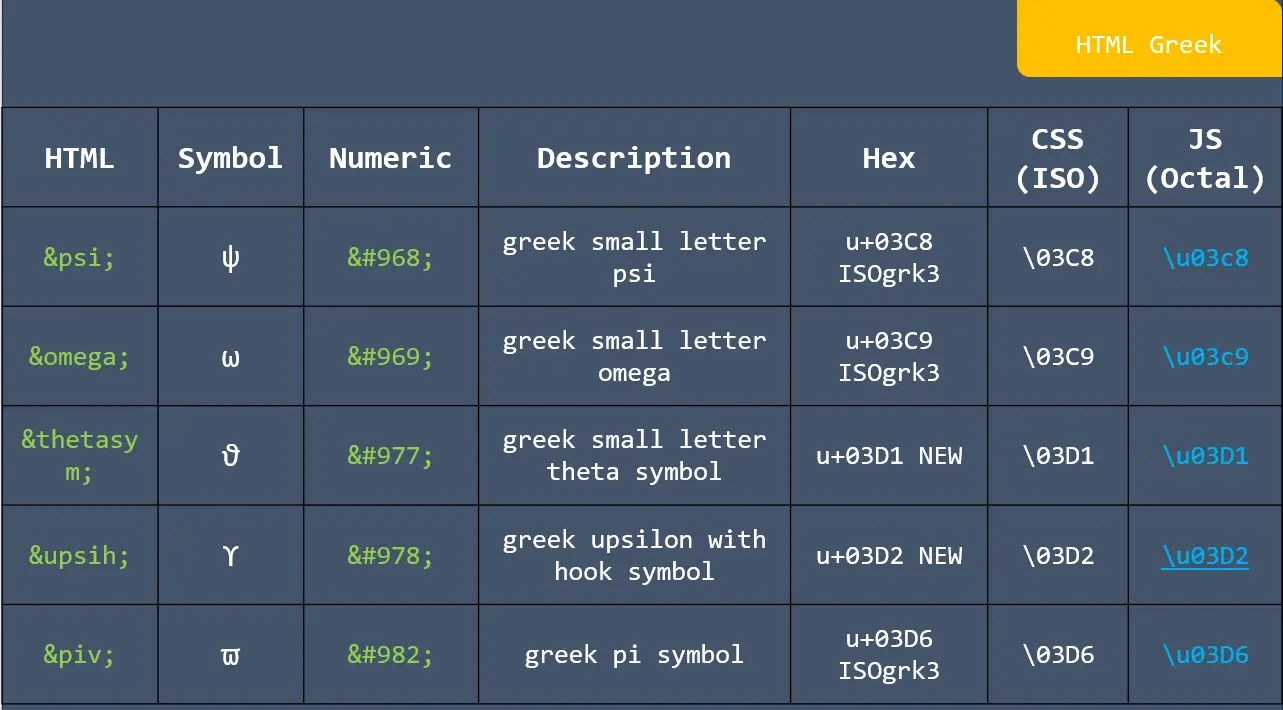
HTML Greek

HTML Greek

HTML Greek

HTML Greek

HTML Greek

HTML Greek

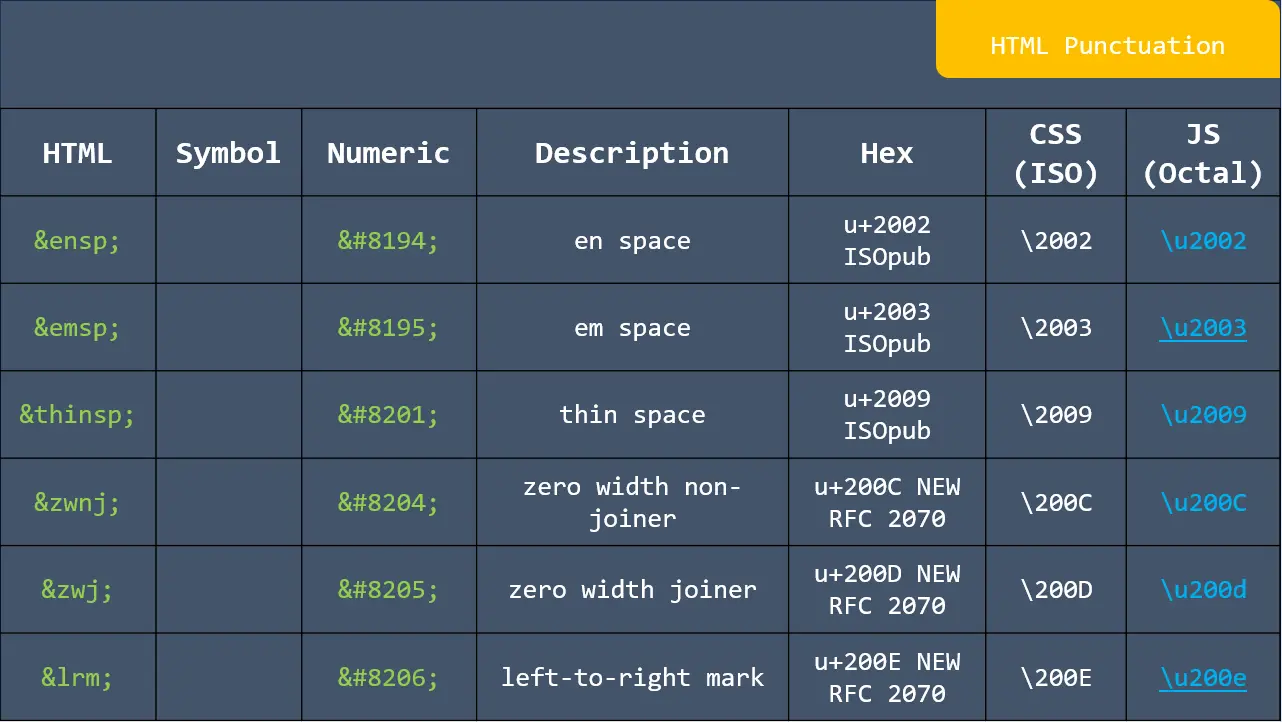
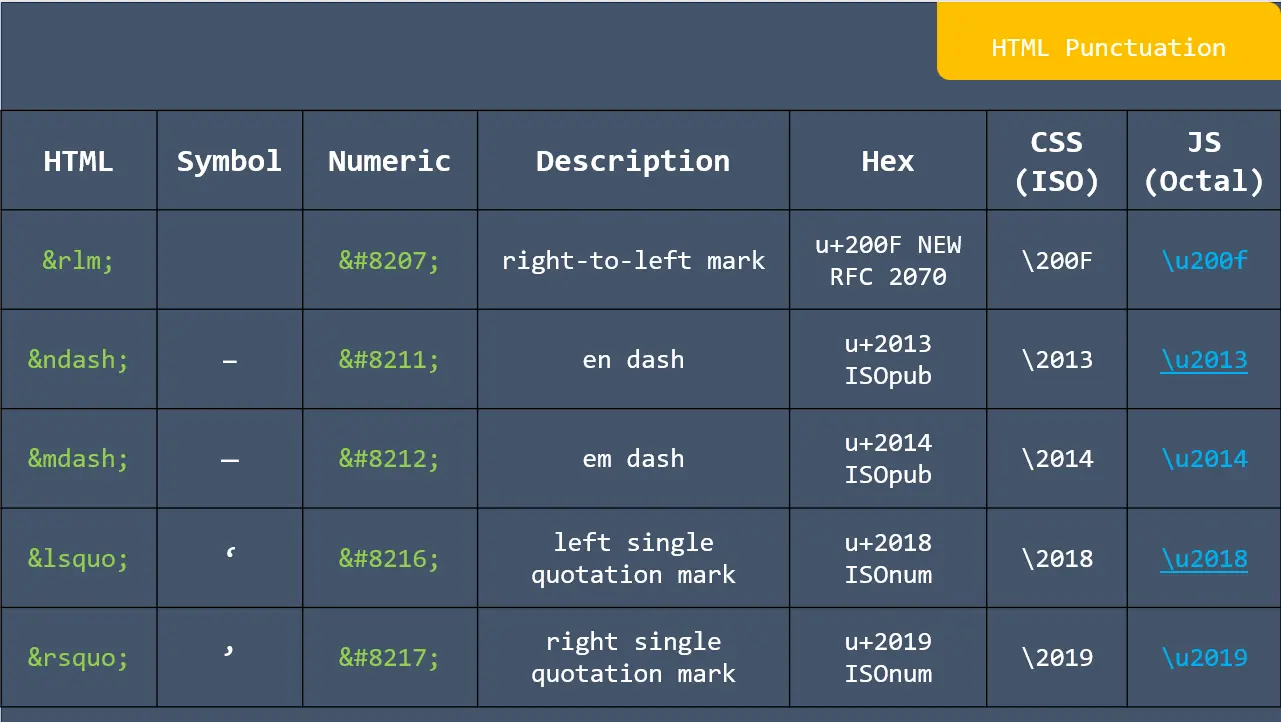
HTML Punctuation

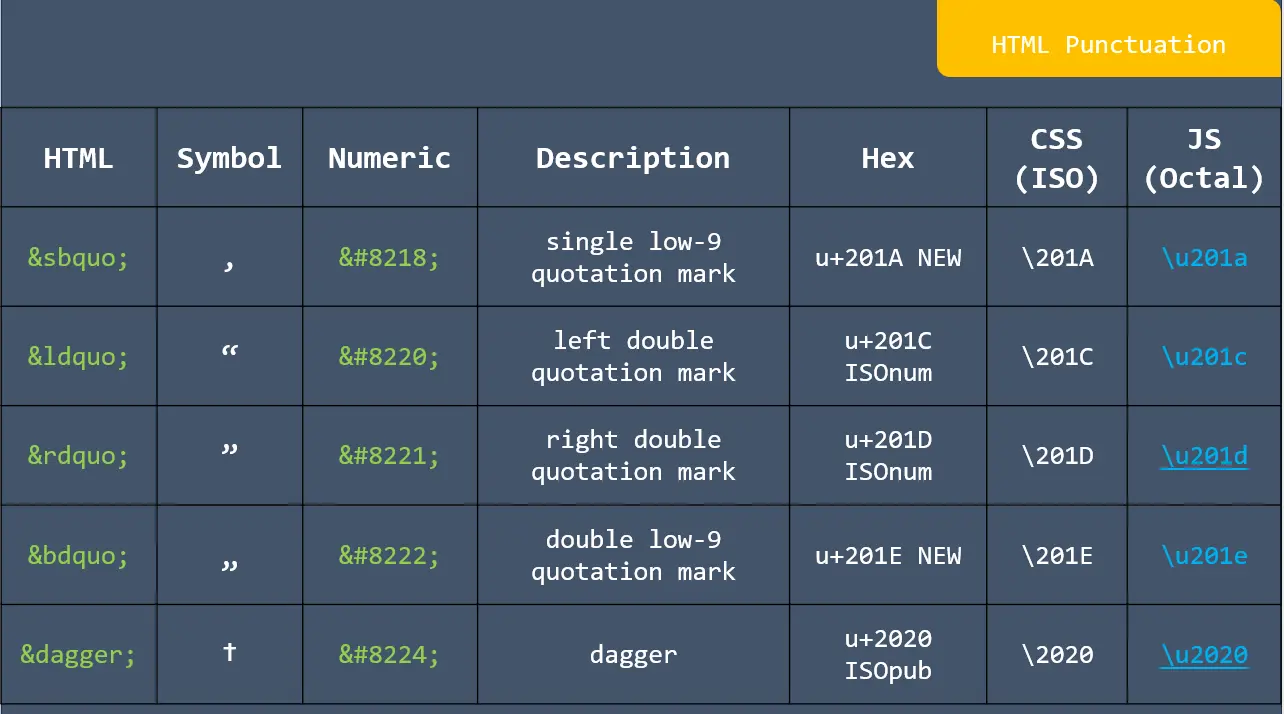
HTML Punctuation

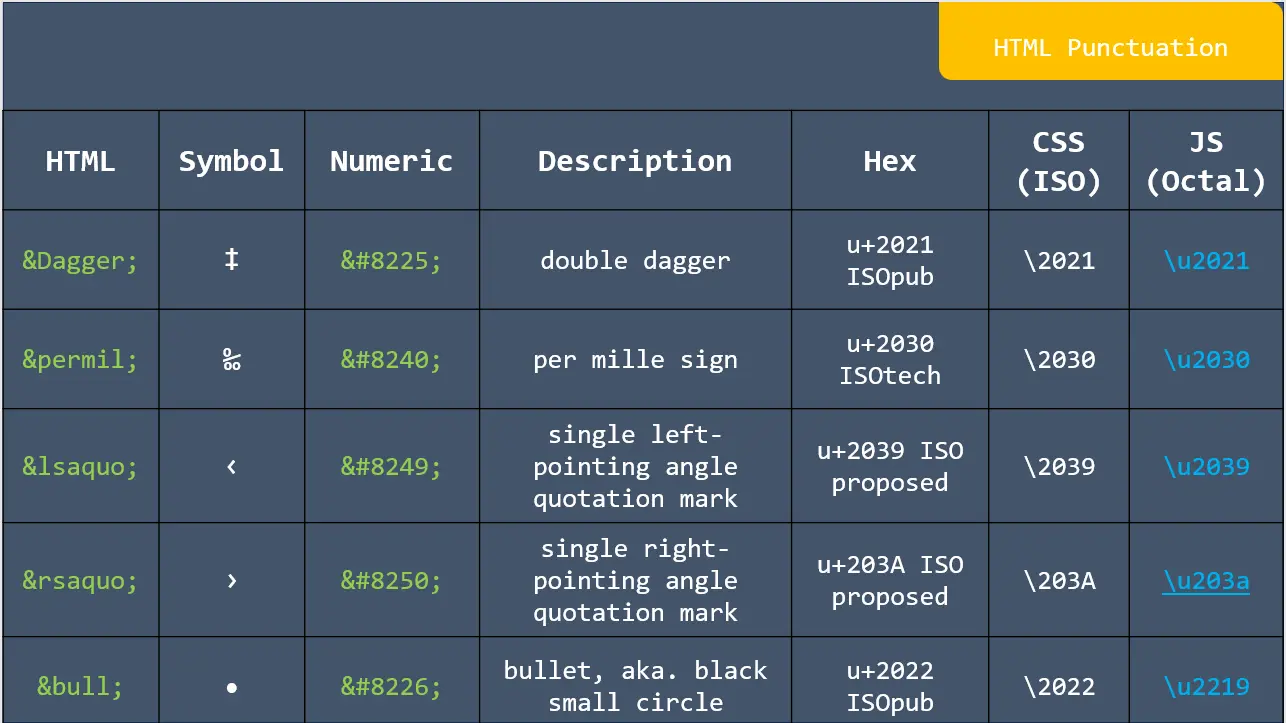
HTML Punctuation

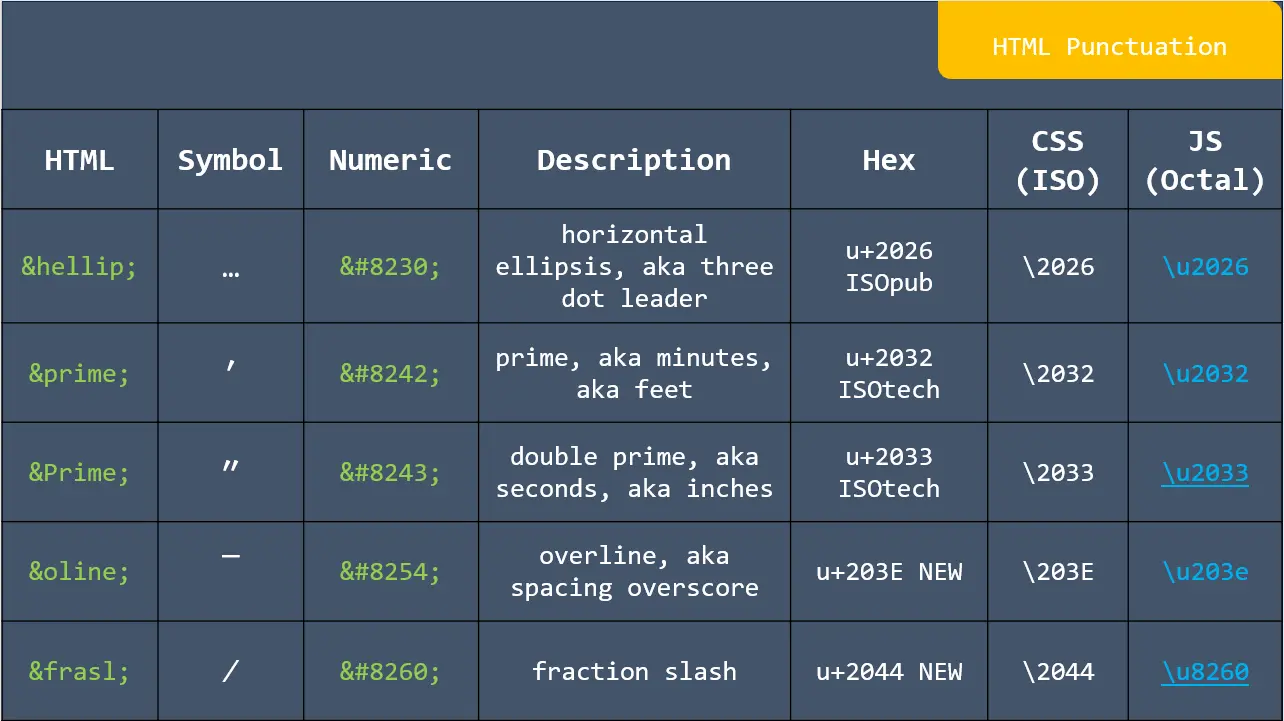
HTML Punctuation

HTML Punctuation

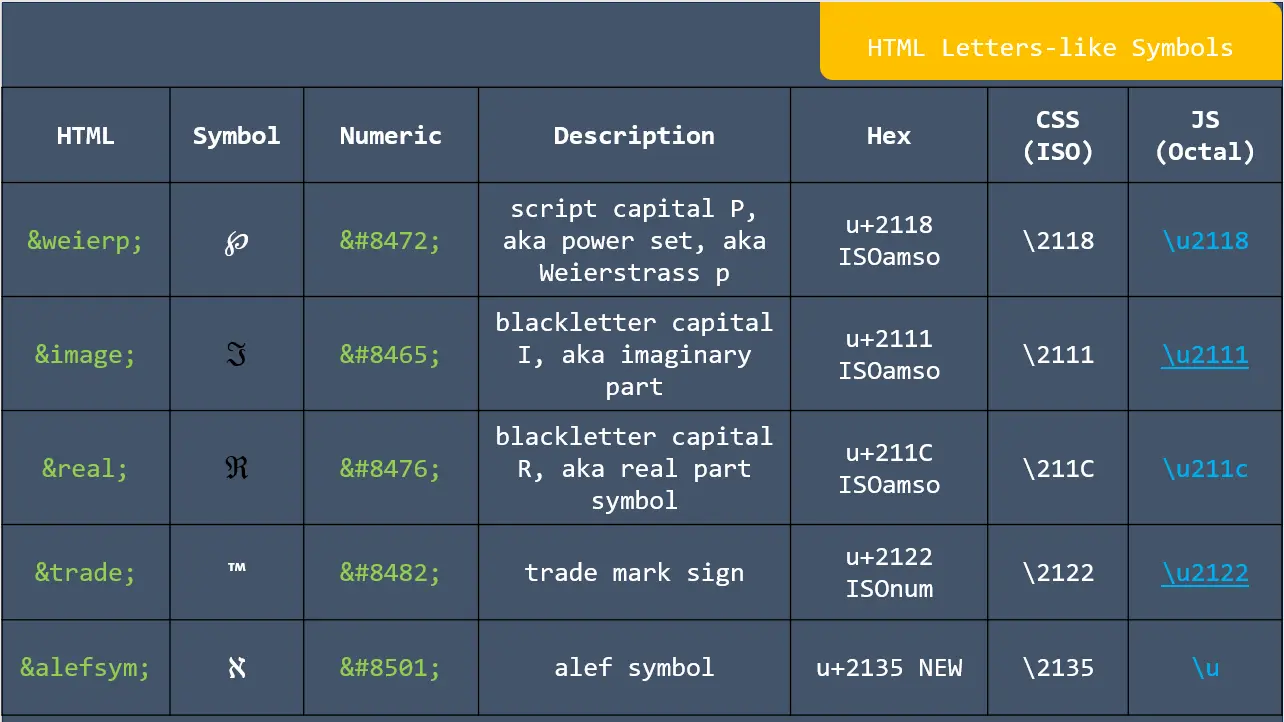
HTML letters like symbols

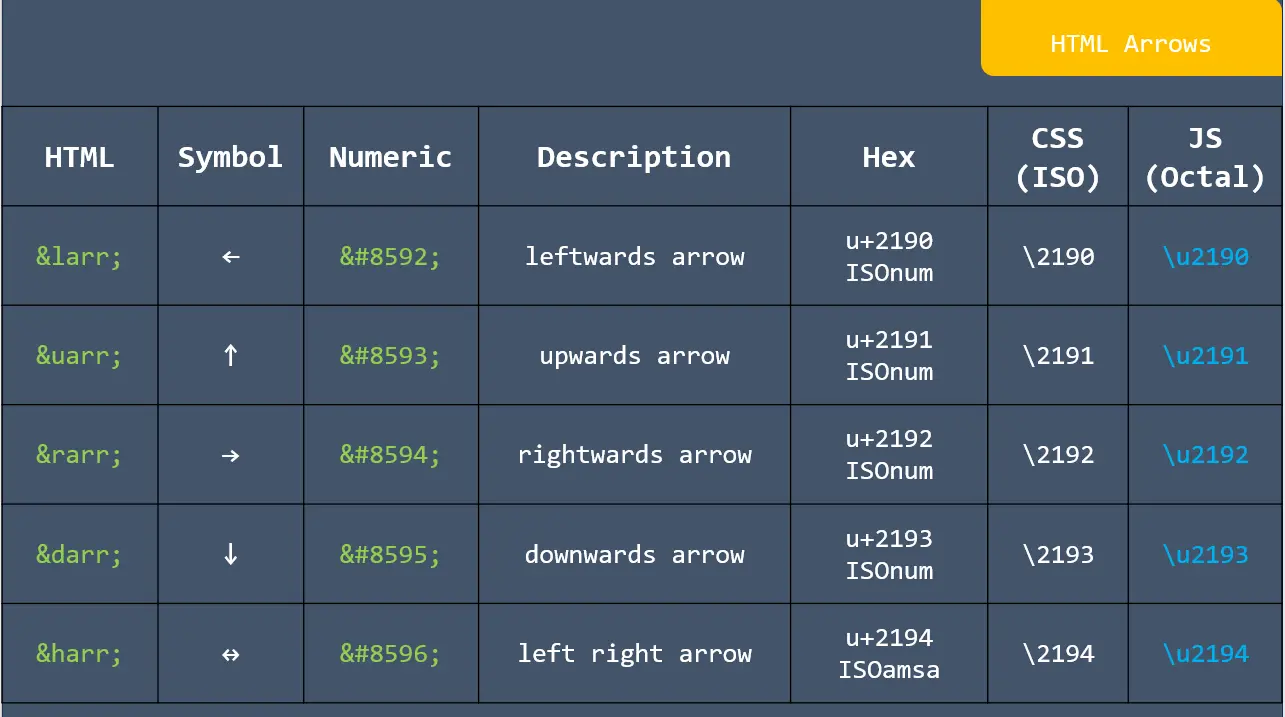
HTML Arrows

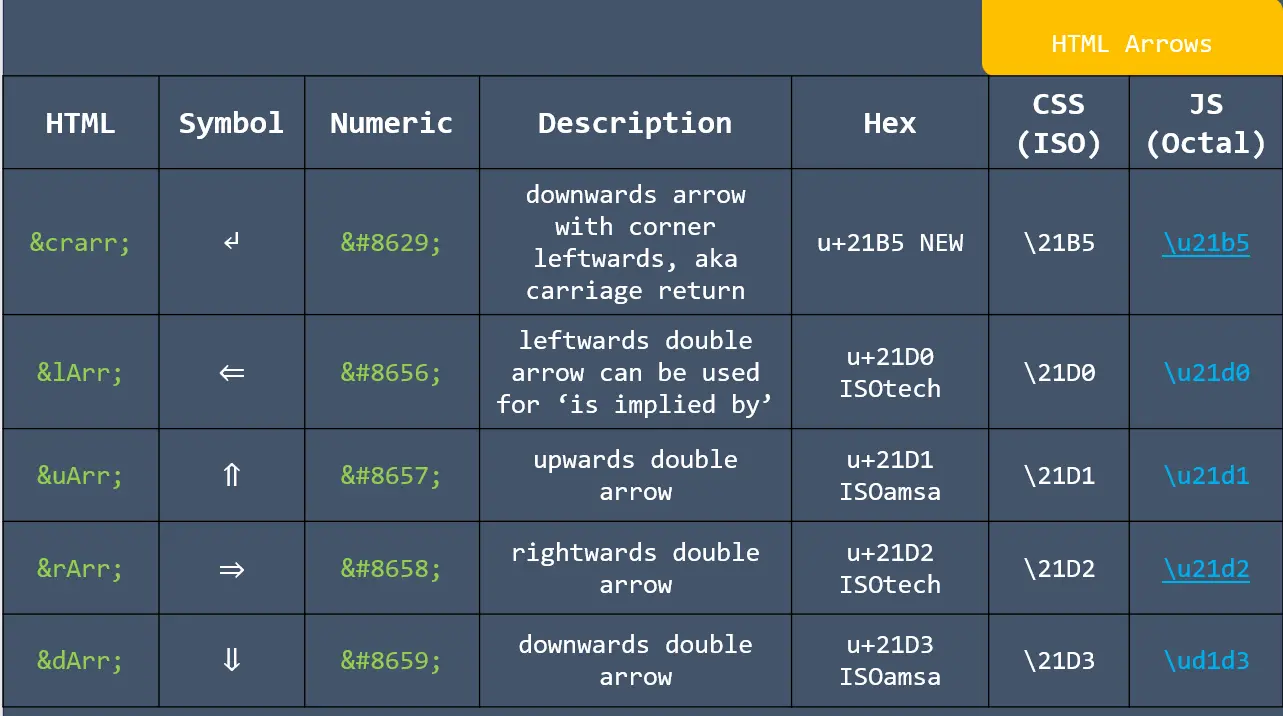
HTML Arrows

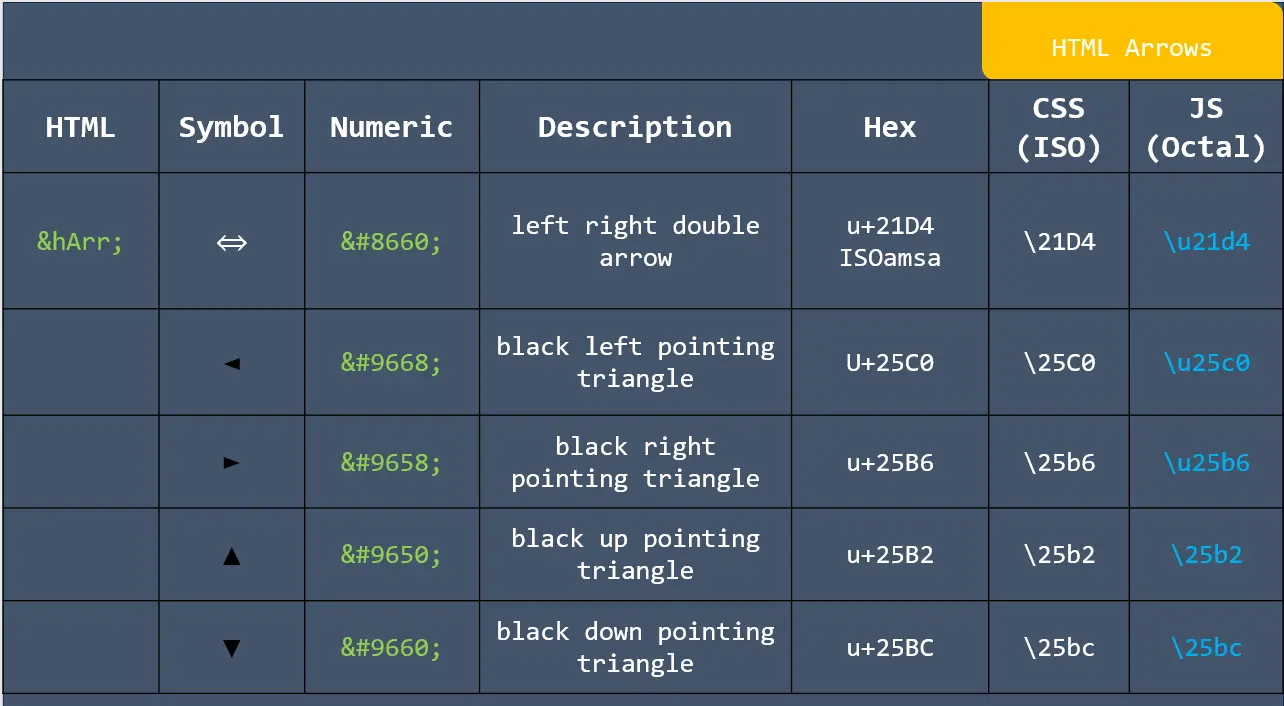
HTML Arrows

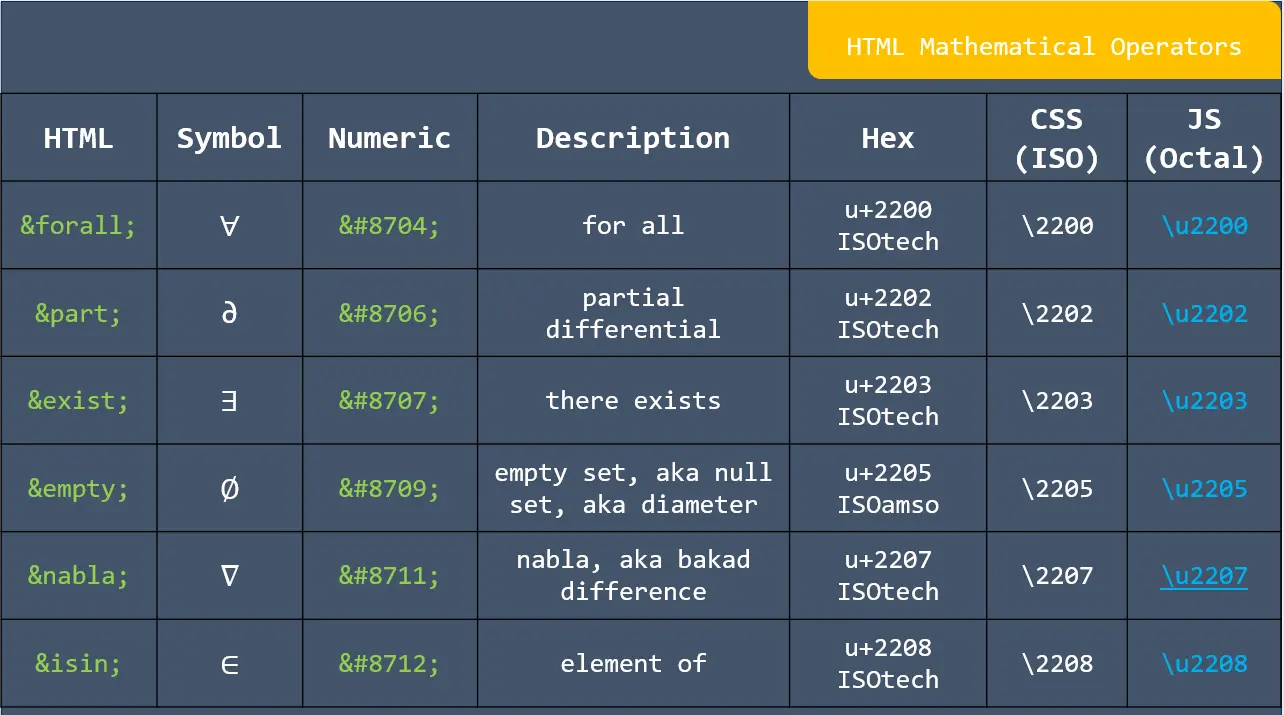
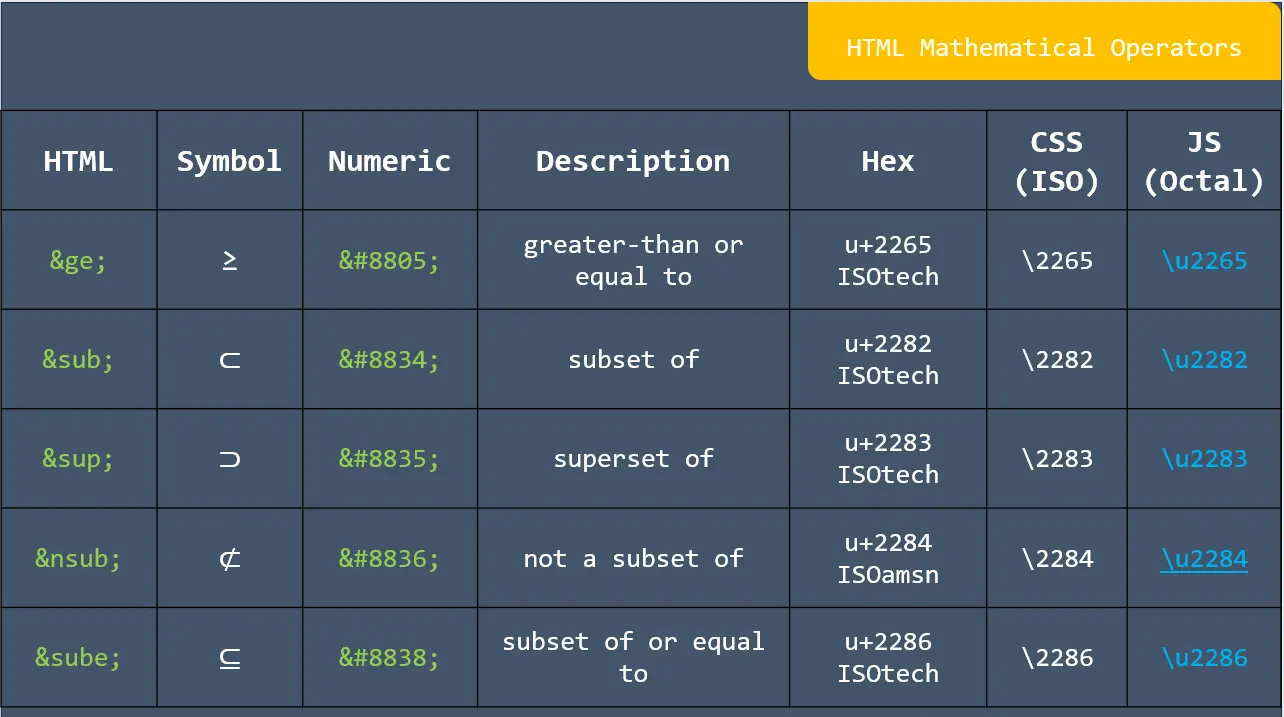
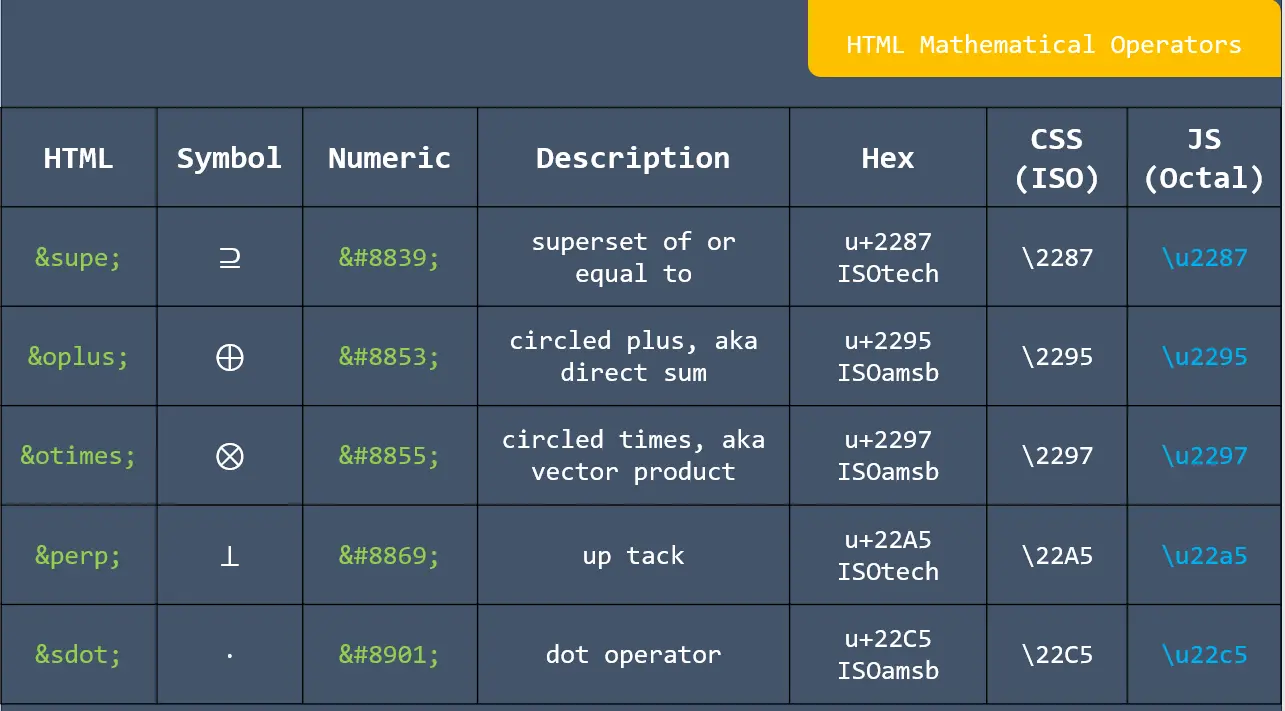
HTML mathematical operators

HTML mathematical operators

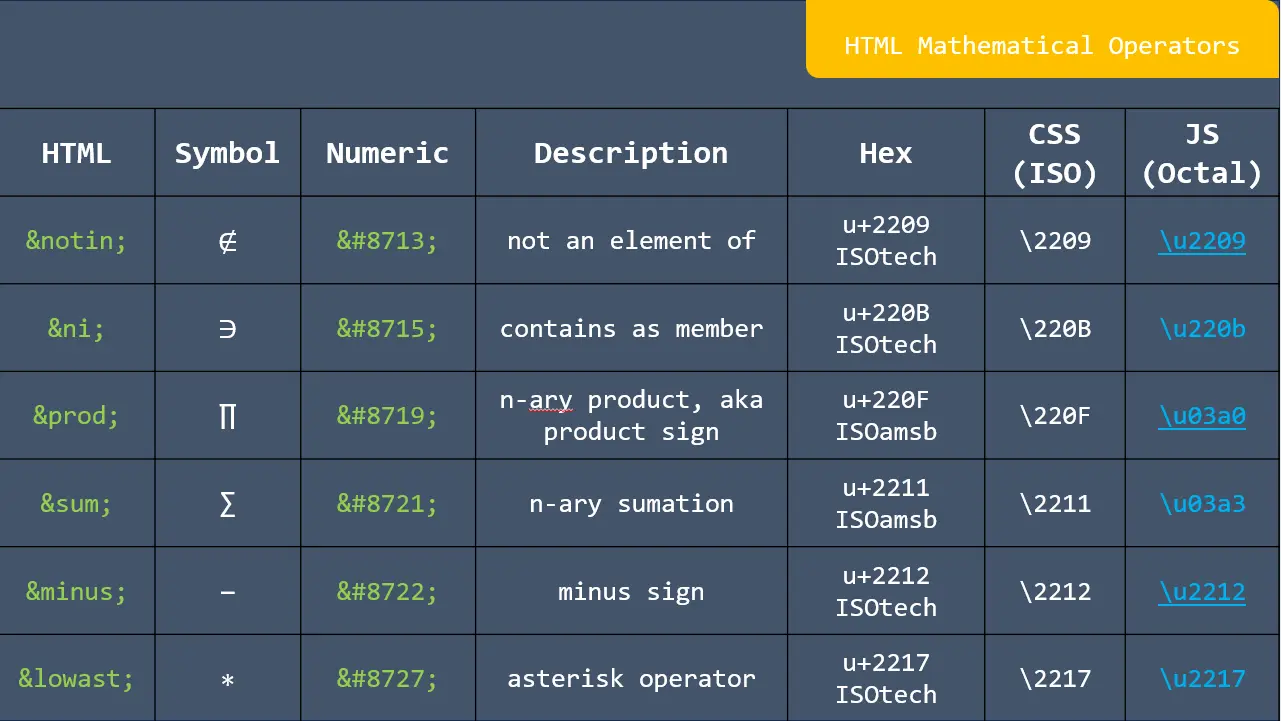
HTML mathematical operators

HTML mathematical operators

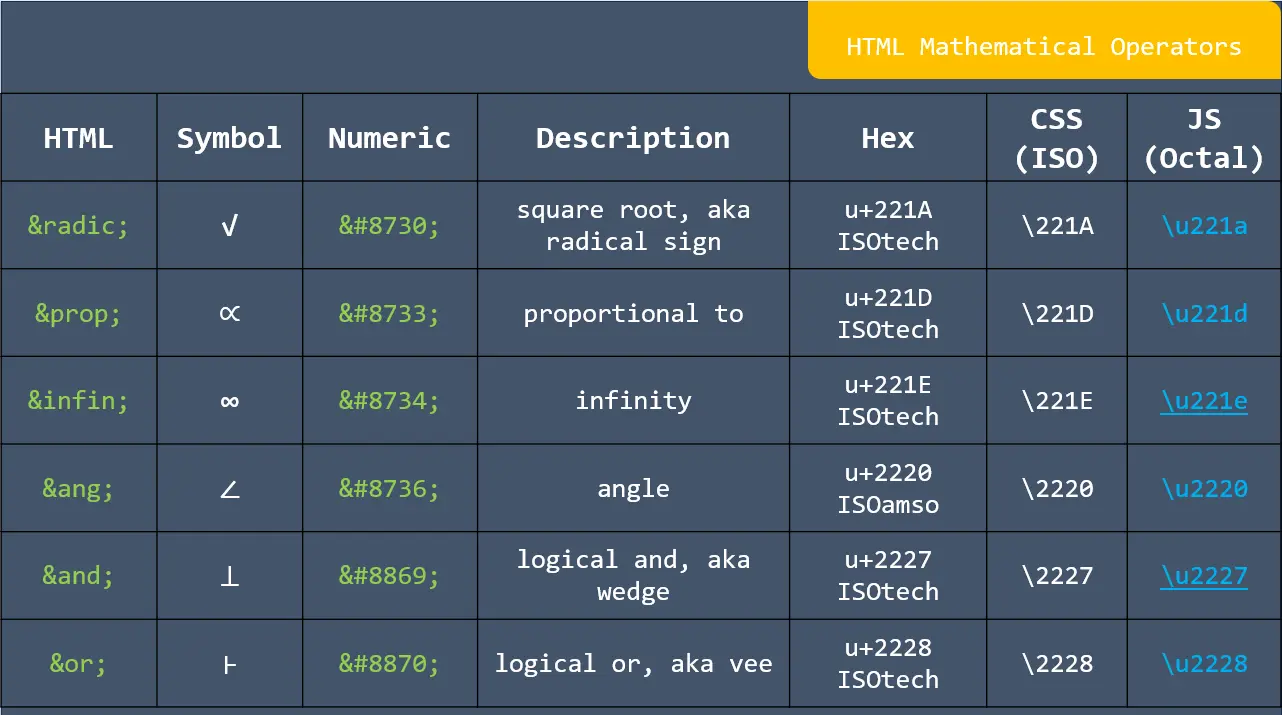
HTML mathematical operators

HTML mathematical operators

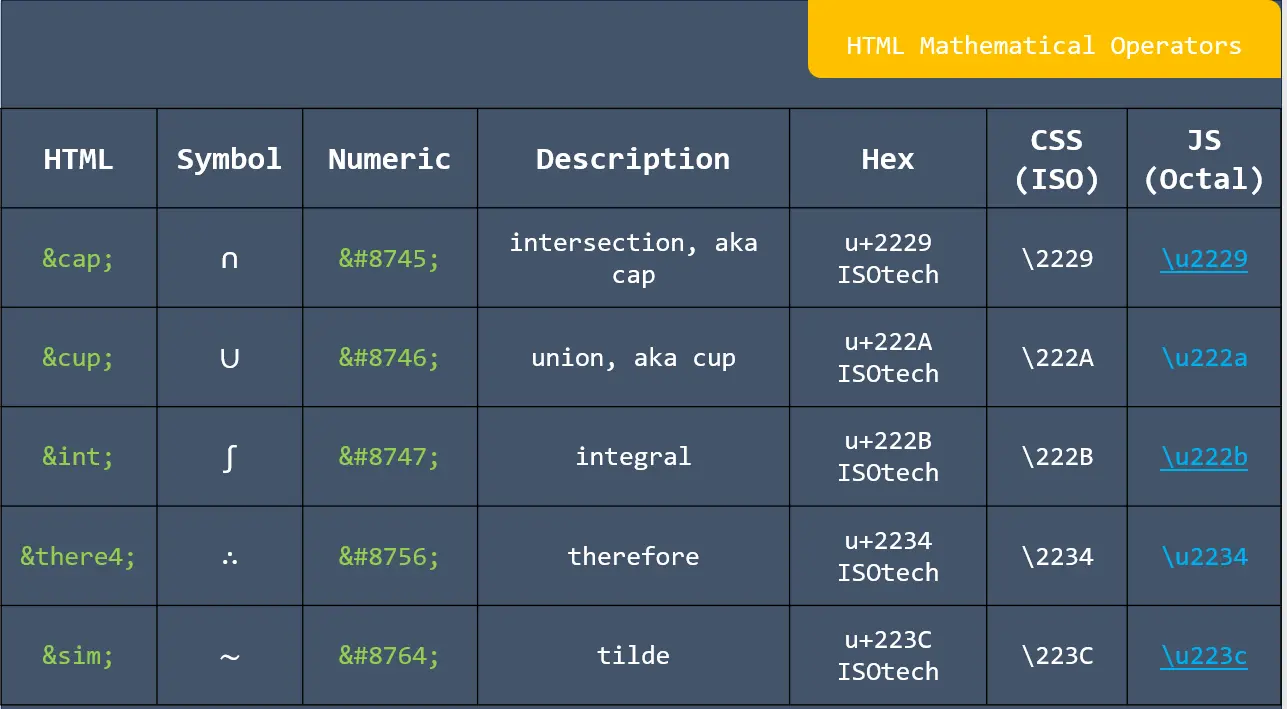
HTML mathematical operators

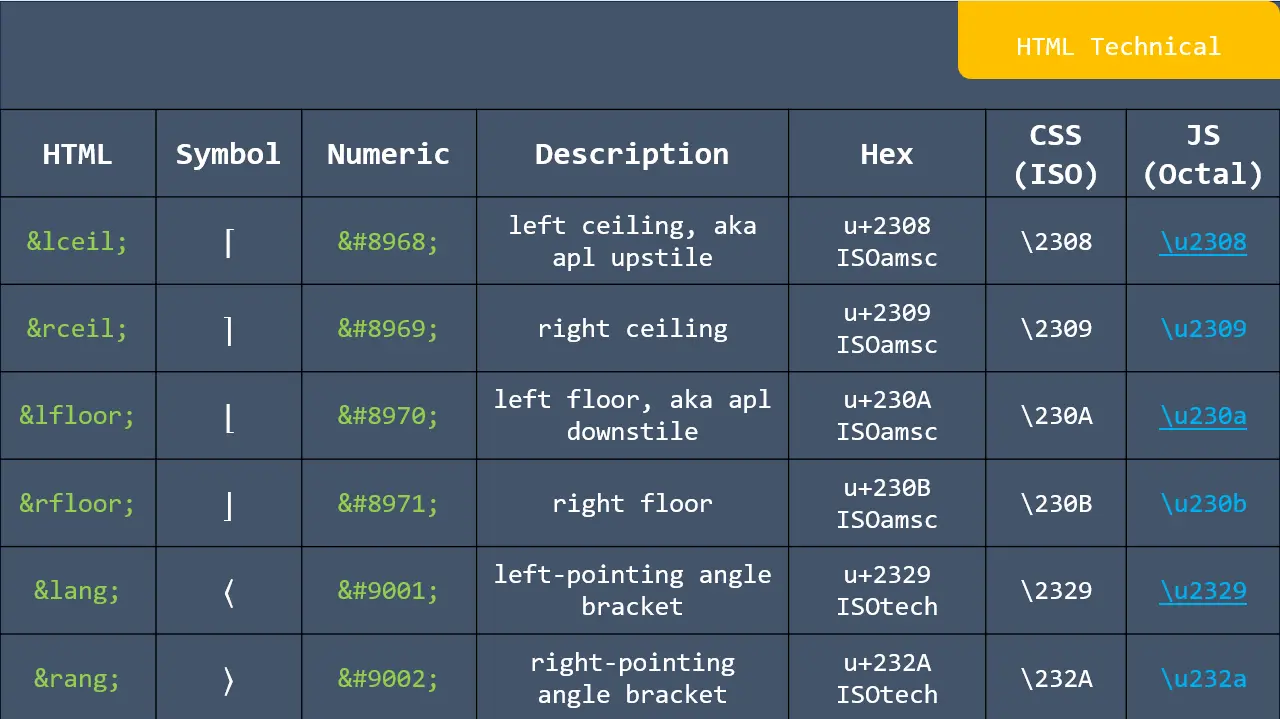
HTML Technical

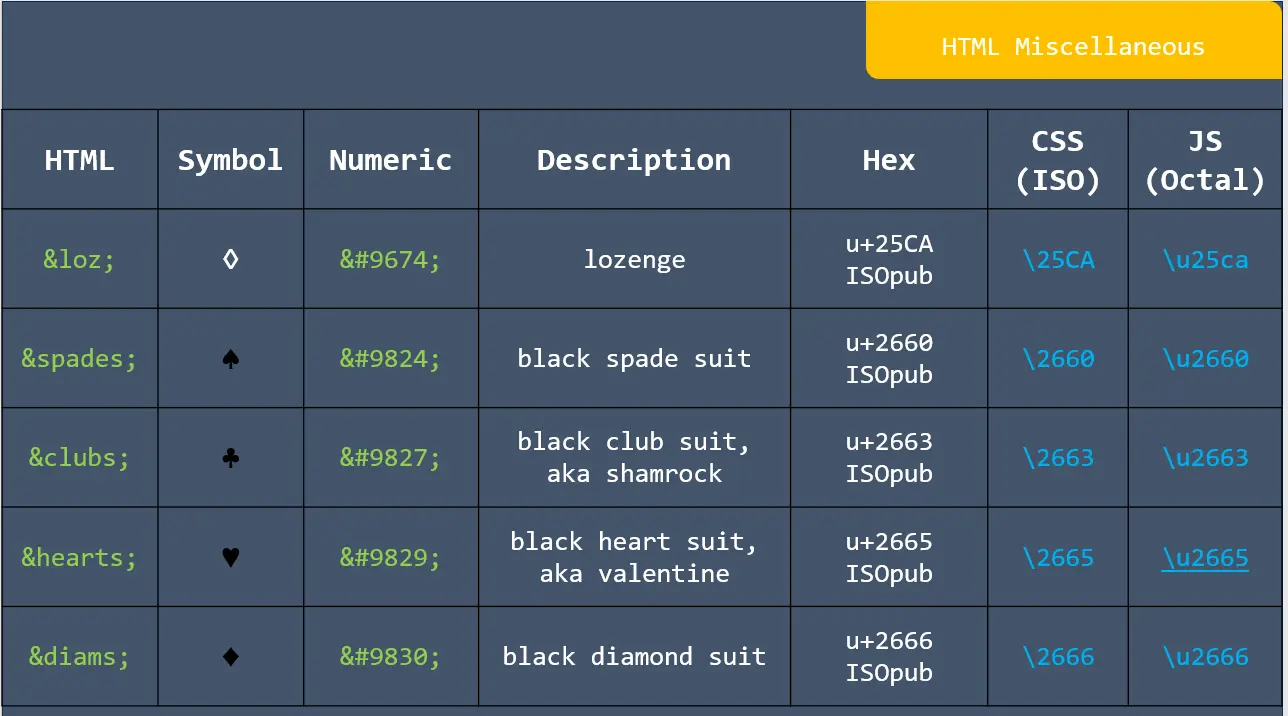
HTML Miscellaneous

# Getting Started

What is Conditional Formatting?

Conditional formatting in Excel is a feature that allows you to automatically apply formatting—like colors, icons, or data bars—to cells based on their values. This makes it easier to quickly identify trends, patterns, or outliers in your data.

You can highlight all the sales figures above a certain number, flag overdue tasks, or even color-code data trends.

If you’re analyzing monthly sales data, for example, you can instantly see which months are performing well against your targets.

Example of conditional formatting

Example of conditional formatting

How it works: The Basics of Conditional Formatting in Excel

First select the cell you want to format. Then, go to the home tab of the ribbon and click on “Conditional Formatting”.

Location of conditional formatting

Location of conditional formatting

A drop-down menu will appear where you can choose from various rule types (styles of conditional formatting), such as highlighting cells that contain specific text, values above or below a certain threshold, duplicate values, etc.

Once you’ve selected a rule type, you can then define the specific criteria for your rule. When you’re done, click OK, and the formatting will be applied to the cells that meet your criteria.

Conditional Formatting Styles in Excel

There are a range of conditional formatting styles in this section:

Highlight cells rules

The highlight cell style is highly versatile, allowing you to apply formatting to a variety of different data types.

You can emphasize specific cells based on criteria you set, such as values greater than a certain number, text that contains specific keywords, or dates within a particular range.

Highlight cell rule

Highlight cell rules

Top/Bottom rules

This style automatically identifies the top or bottom values in a range of data. While 10 is the default value, you can adjust this to show any number of the top or bottom data points.

Top or bottom rules

Top/Bottom rules

In the example below, we use the Top 10 and Bottom 10 styles to show just the top 3 and bottom 3 salespersons in our data.

Example of applying the top and bottom 10 style

Example of applying the top and bottom 10 style

Color Scales

The color scales style allows you to format a table of data as a heatmap. You can highlight the range of data points from lowest to highest using the color gradient of your choice.

Color scales

Color Scales

The style is very useful for quickly making sense of a table that contains a lot of numbers.

In the example below, we show each salesperson’s monthly sales. Without the color scale formatting applied, this would look like a confusing sea of numbers, and it would take more than a few minutes to figure out what’s important.

Instead, applying the color scale makes it much easier to identify the highest and lowest performing salesperson and month.

Example of applying color scales in conditional formatting

Example of applying color scales

Data Bars

This style adds horizontal bars within cells to visually represent the relative value of each cell, making it easy to compare data at a glance.

This style has quite a few options for changing how it looks and behaves. You can customize colors and choose whether to display the bar only or include the cell’s numerical value.

Data Bars

Data Bars

In the example below, we add data bars instead of the sales values. These bars make it quick and easy to identify the highest and lowest performing months.

Example of applying Data Bars in conditional formatting

 Example of applying Data Bars

Icon Sets

Lastly, there is the icon set style. These are similar to the data bars in that you have quite a few customization options, such as whether to display the icon only or both the icon and value.

Icon sets

Icon sets

Formula-Driven Conditional Formatting

If your conditions are straightforward, like highlighting cells greater than a specific value or finding duplicates, predefined rules are quick and easy.

However, when your conditions depend on changing values or more complex logic, formulas provide a lot more flexibility. If you need to combine multiple conditions or custom rules, such as highlighting cells that are above average and also below a certain threshold, formulas can handle this complexity.

Simple example: highlight rows based on sales targets

Let’s say you have a list of regions in column B with their associated sales values in column C and a sales target in cell $C$7.

We want to highlight any sales figure above or below this target. To do this, we’ll need to apply two rules.

First, select the cell in  column C to apply the rule.

In the conditional formatting drop-down menu, select “Greater than” and enter the cell that contains the target ($C$7). This formula checks if the value in each cell of column C is greater than the value in cell $C$7.

Example of formula driven conditional formatting

Simple example of formula-driven conditional formatting

Choose the green color format to apply to the cell that meets the condition. Then, repeat this process with the “Less than” formatting option in the conditional formatting drop-down menu and apply the blue color format.

we can quickly see which regions hit their target and which did not.

Formula driven conditional formatting

Formula driven conditional formatting

Whenever you change the sales target in cell $C$7, the conditional formatting will automatically update to reflect the new target. This makes your formatting dynamic and responsive to change in your data without the need to adjust the rule manually each time.

Advanced example: highlight cells based on average sales

Suppose we have a table showing the total sales by salesperson, and we want to identify the top performers based on the average for the group.

Our data is structured as follows:

First, select the first cell in the range to which you want to apply the formatting. In this example, it is C3.

Select “New Rule” from the conditional formatting dropdown menu. Then, select the rule type “Use a formula to determine which cells to format”.

Here, we must enter a formula that compares each cell to the average of the sales data.

The formula should be =C2<AVERAGE($C$2:$C$10).

Advance example of formula driven conditional formatting

Advanced example of formula-driven conditional formatting

Then, choose how you would like the cells that meet the criteria to be formatted, such as a fill color or font color. Click OK to apply the rule.

Lastly, copy the formatting from this first cell and paste it onto each subsequent cell in the range. This will automatically adjust the relative cell reference in our formula so that the correct cell is used for each calculation.

Below is the result. We can see that three out of eight salespeople performed above the average.

Advance formula driven conditional formatting

Advance formula driven conditional formatting

How to use Conditional Formatting as a Data Analysis Tool

Using conditional formatting in Excel helps you quickly spot important information without needing advanced analysis skills, making it easier to understand and communicate your data insights.

This tool simplifies data interpretation, saving you time and effort in identifying critical areas that need attention.

Conditional formatting as data analysis tool

Conditional formatting as data analysis tool

Conditional Formatting Best Practices

Start simple

When you’re new to conditional formatting, start with basic rules before experimenting with more complex formulas and conditions.

Begin by applying simple highlight rules, such as formatting cells that are greater than a specific value or highlighting duplicates. This approach helps you understand the impact of conditional formatting on your data.

Use consistent colors

Using consistent colors across your conditional formatting rules keeps your spreadsheets clear and consistent.

For example, use green to indicate positive performance, red for negative, and yellow for warnings or alerts.

This consistency in color schemes makes it easier for you and others to interpret the data quickly, reducing confusion and ambiguity later on.

Avoid overuse

While conditional formatting is a powerful tool, overusing it can make your data harder to read and understand. Applying too many rules or overly complex formatting can make your spreadsheet look cluttered, which will only lead to confusion.

Use dynamic named ranges

Dynamic named ranges are a great way to ensure your conditional formatting rules adapt to changes in your data. A dynamic named range automatically adjusts its size as data is added or removed, ensuring your formatting remains relevant as things change.

The easiest way to create a dynamic range is to format your data as a table. This way, your formulas and conditional formatting rules will use table and column names instead of referring to their column or row letters and numbers.

Conclusion

Conditional formatting is a great tool for creating rules that highlight the most important data in your spreadsheets.

It’s really easy to get started with conditional formatting in Excel, and there are many pre-built formatting styles to choose from, such as highlighting cells, using color scales, adding data bars, and more.

#Getting started

 Excel Formulas: Your Powerful Tools For Calculation

Formula: A piece of code to perform a calculation. Formulas start with an equals sign (=) and contain functions, mathematical operators, values, and cell references.

Basic arithmetic Excel formulas are simple expressions that are mathematical operators to do the mathematical operations like addition, subtraction, multiplication, and division within your spreadsheet.


1. SUM: This function adds the total of a series of numbers.
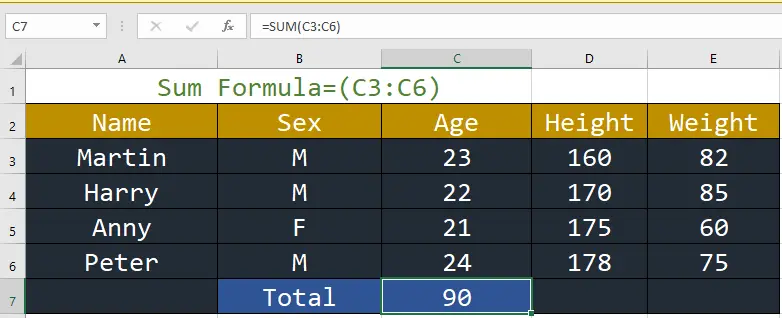
Sum formula in excel


2. AVERAGE: This function calculates the average of a series of numbers.
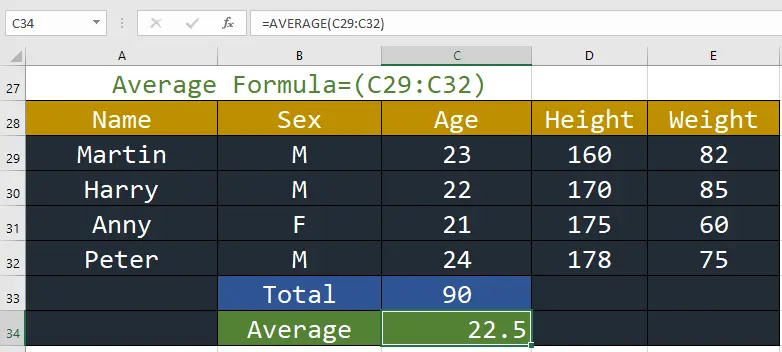
Average formula in excel


3. MEDIAN: This function returns the median average number of a series.
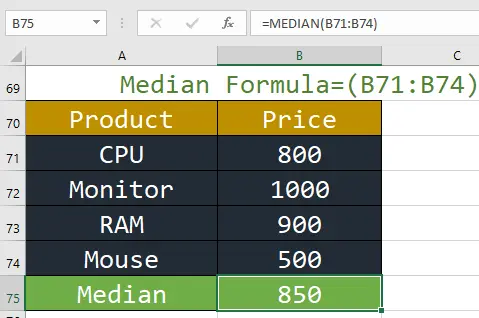
Median formula in excel


4. SUMPRODUCT: This function calculates the weighted average, which is very useful for financial analysis.
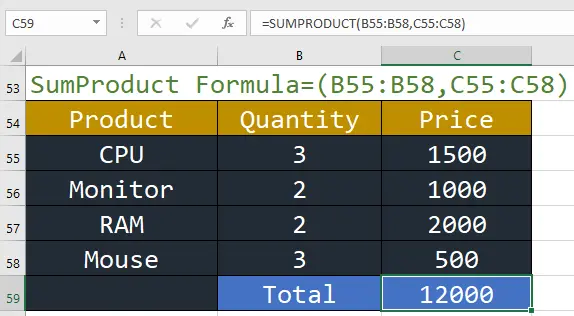
 Sum Product formula in excel


5. PRODUCT: This function multiplies all of a series of numbers.
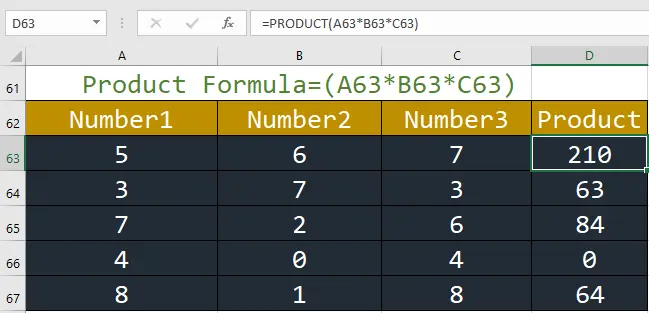
Product formula in excel


6. MAX: This function returns the largest value in all cell ranges or values.
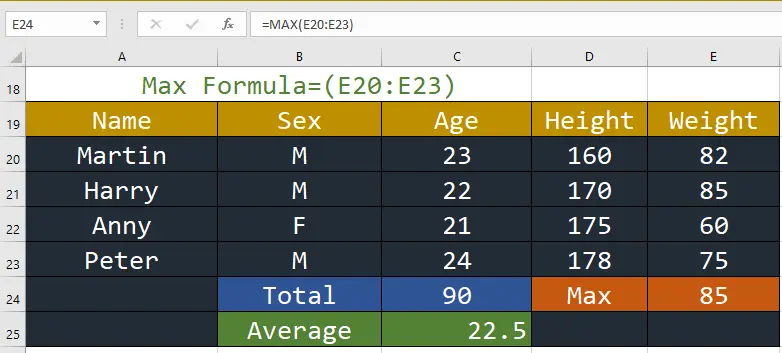
Max formula in excel


7. MIN: This function returns the smallest value in all cell ranges or values.
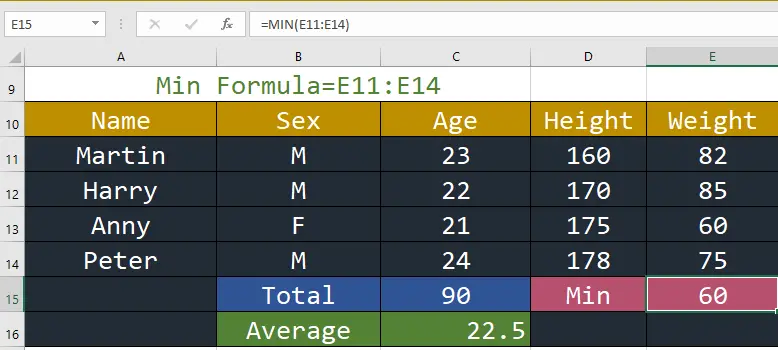
Min formula in excel


8. SUMIF: This function sums values in a range based on a specific condition.
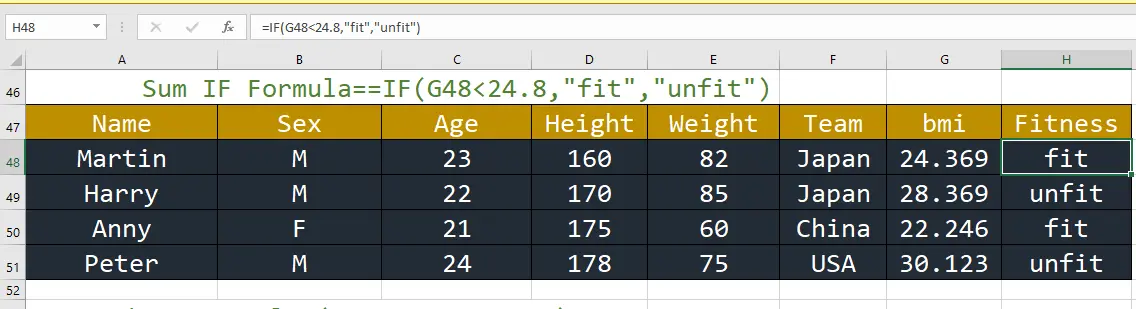
Sum if formula in excel


9. Quotient: This function sums values in a range based on a specific condition.
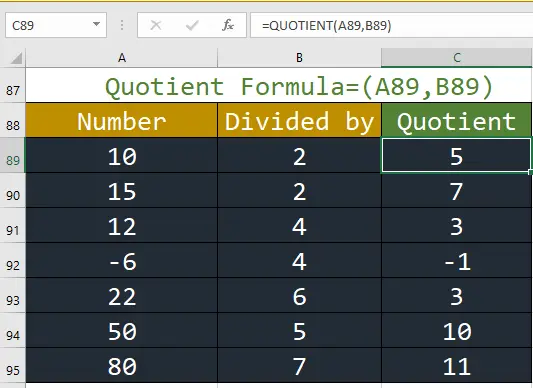
Quotient formula in excel


10. MOD: This function returns the remainder of a division operation.
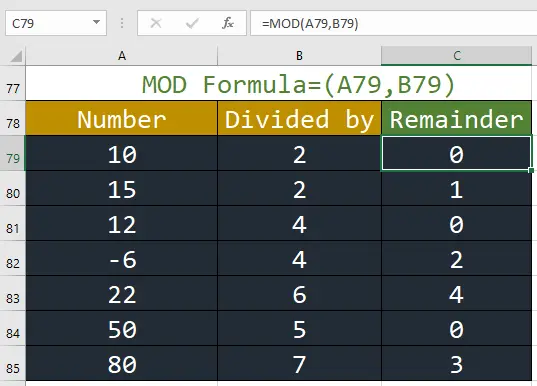
MOD formula in excel


11. COUNT: This function counts the number of cells in a range.
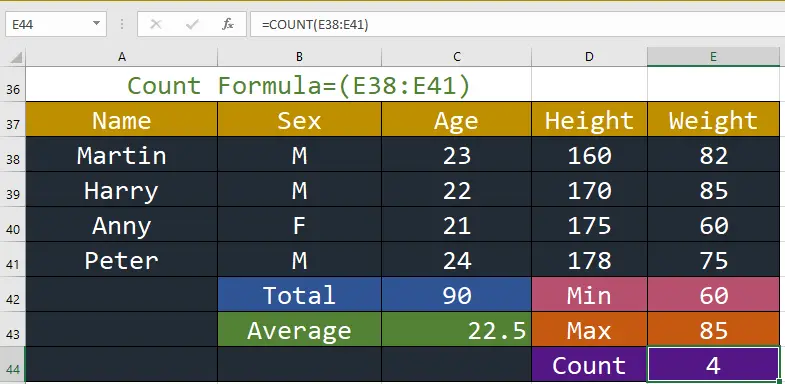
Count formula in excel

#Getting Started

keyboard shortcuts editor in WordPress

keyboard shortcuts editor in WordPress

keyboard shortcuts editor in WordPress

keyboard shortcuts editor in WordPress

#Getting Started

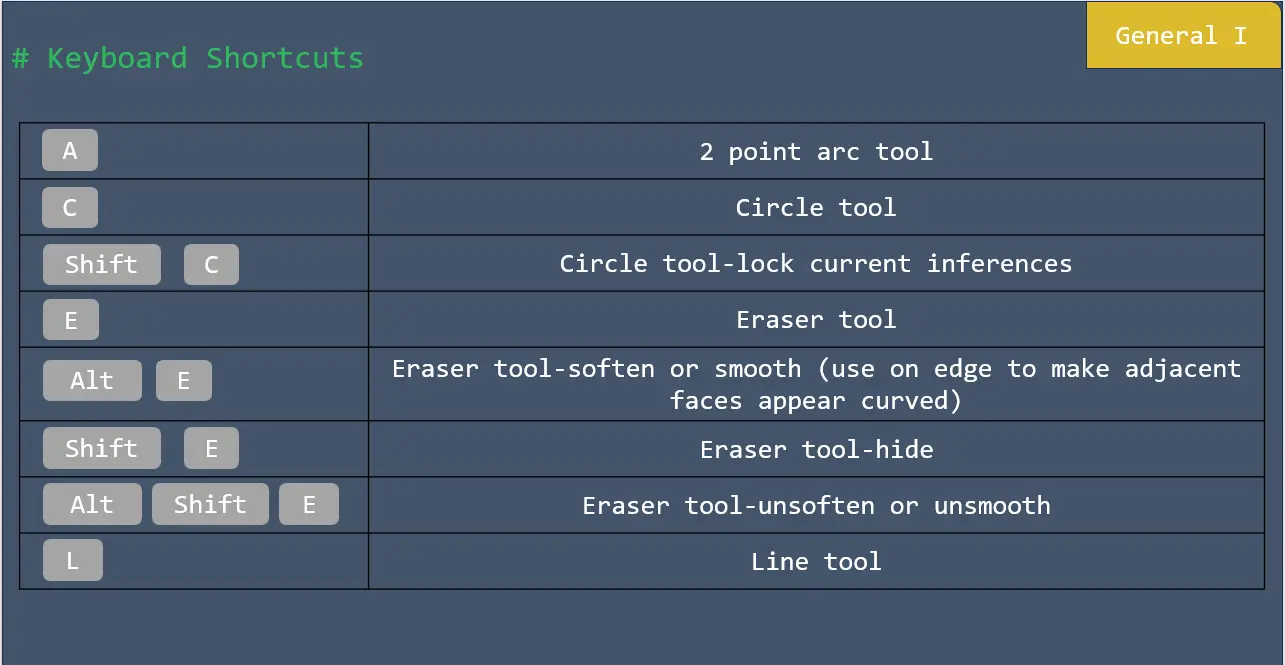
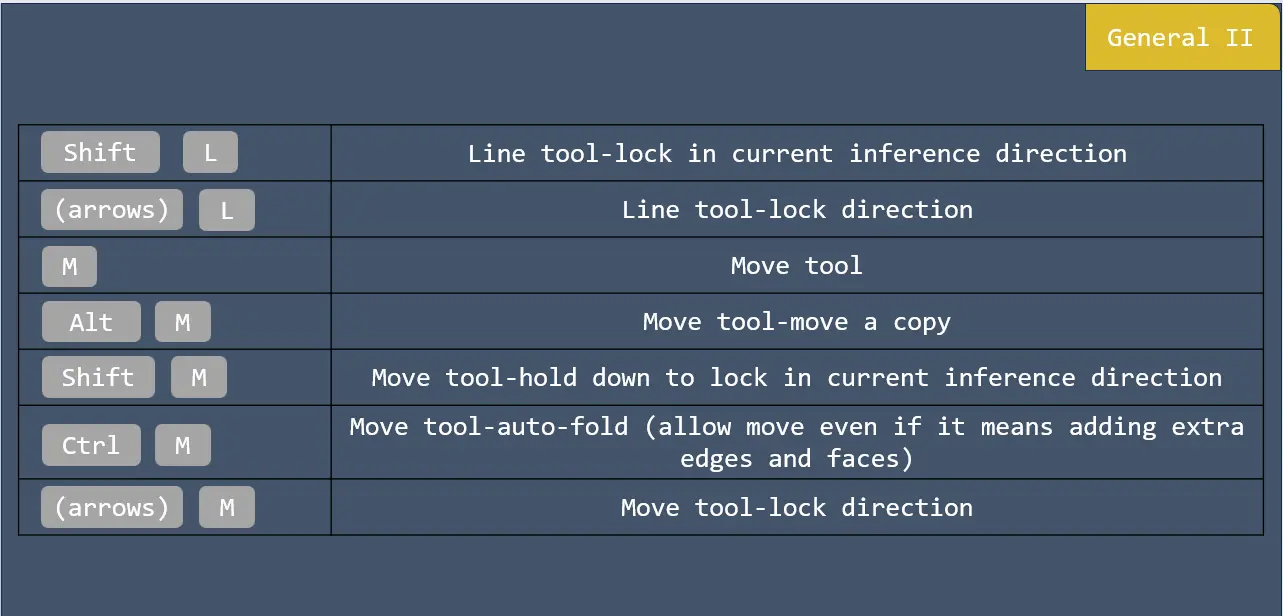
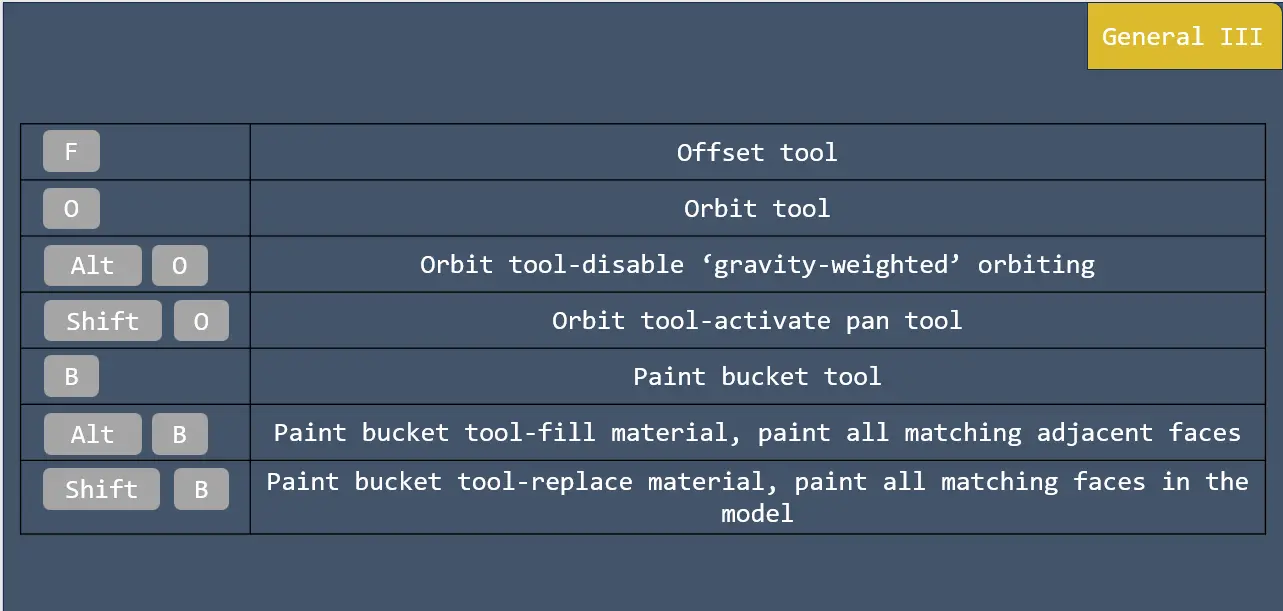
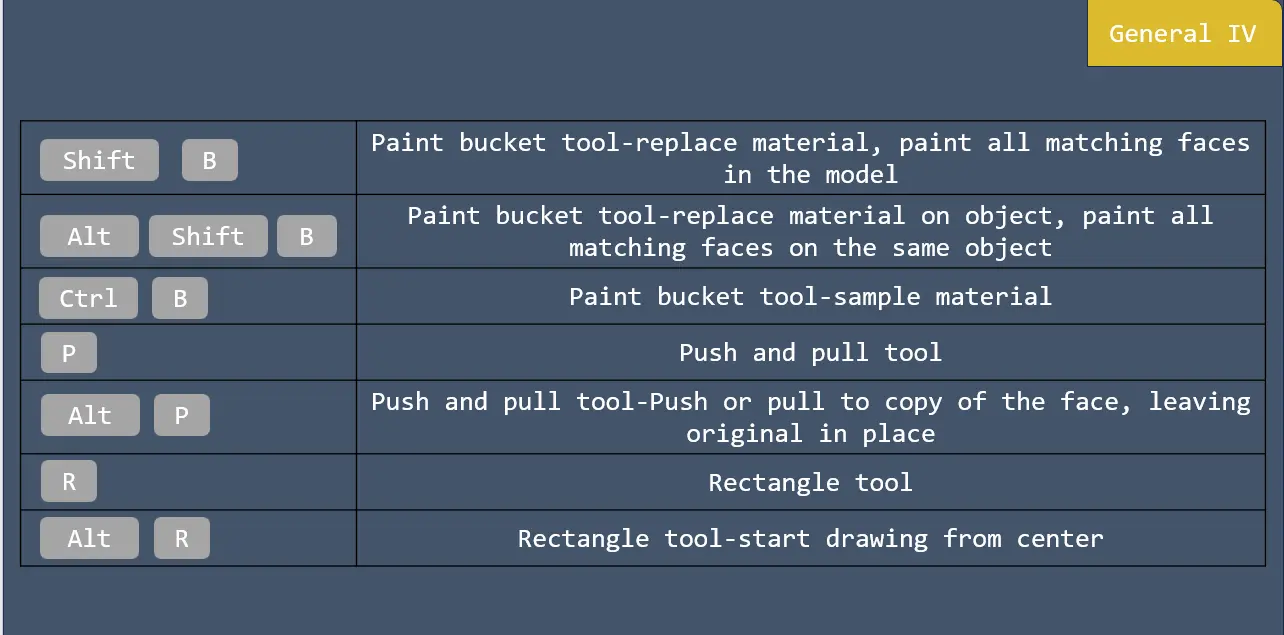
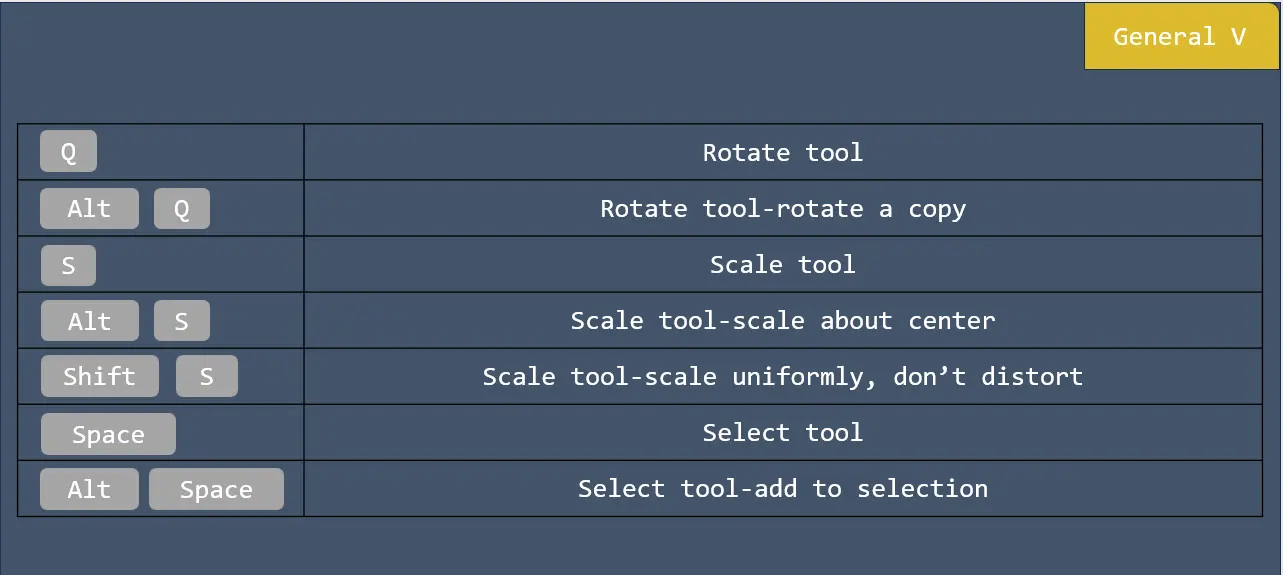
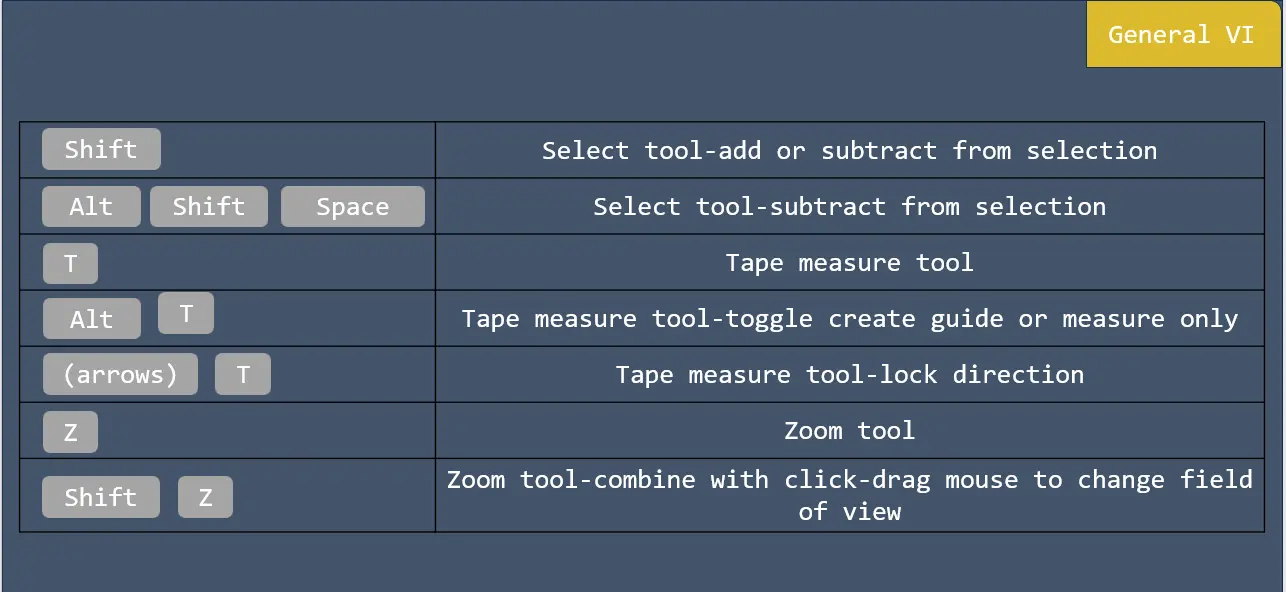
keyboard shortcuts General in SketchUp Pro

keyboard shortcuts General in SketchUp Pro

keyboard shortcuts General in SketchUp Pro

keyboard shortcuts General in SketchUp Pro

keyboard shortcuts General in SketchUp Pro

keyboard shortcuts General in SketchUp Pro

#Getting Started

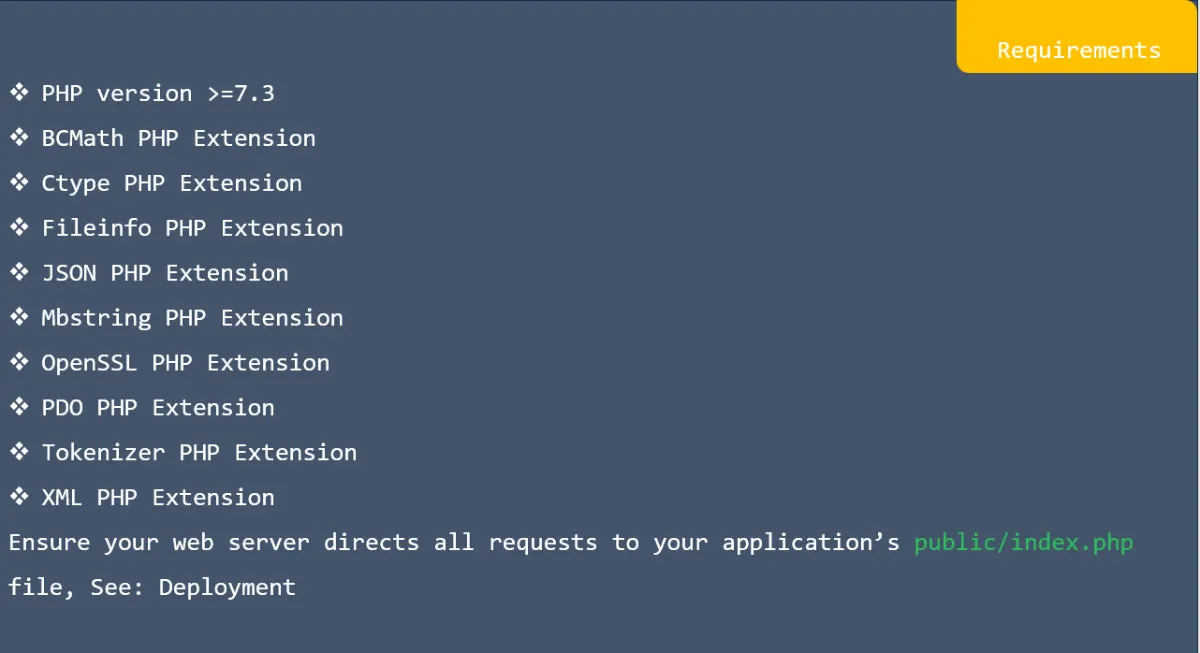
Requirements in laravel

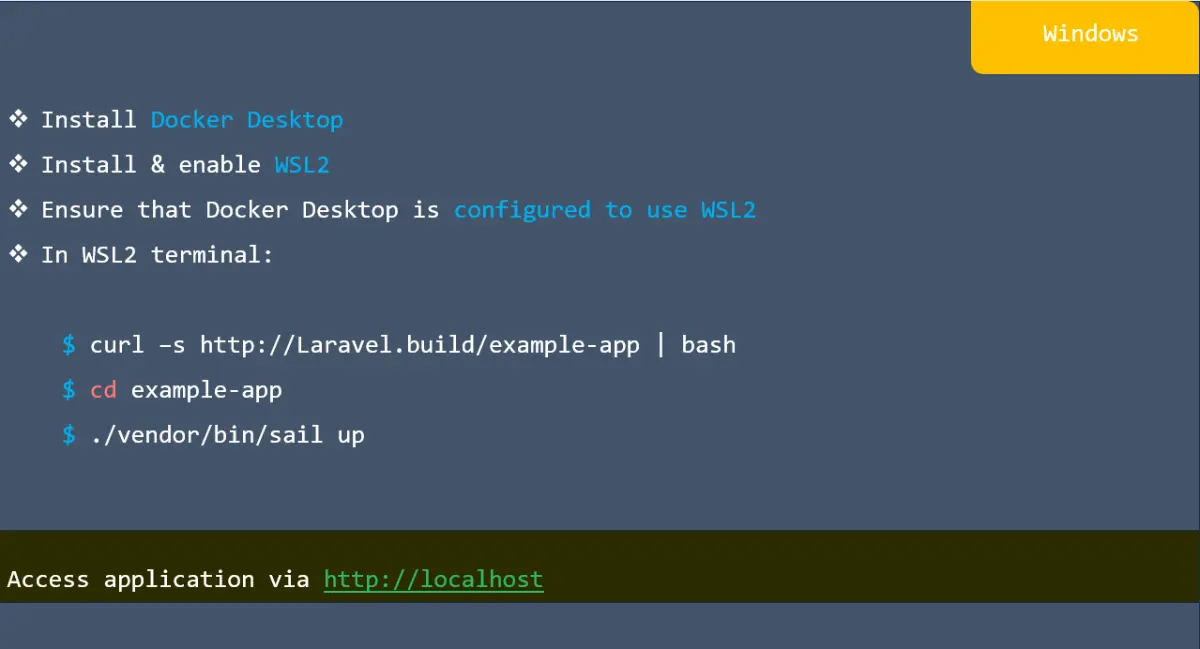
Installing Laravel in Windows

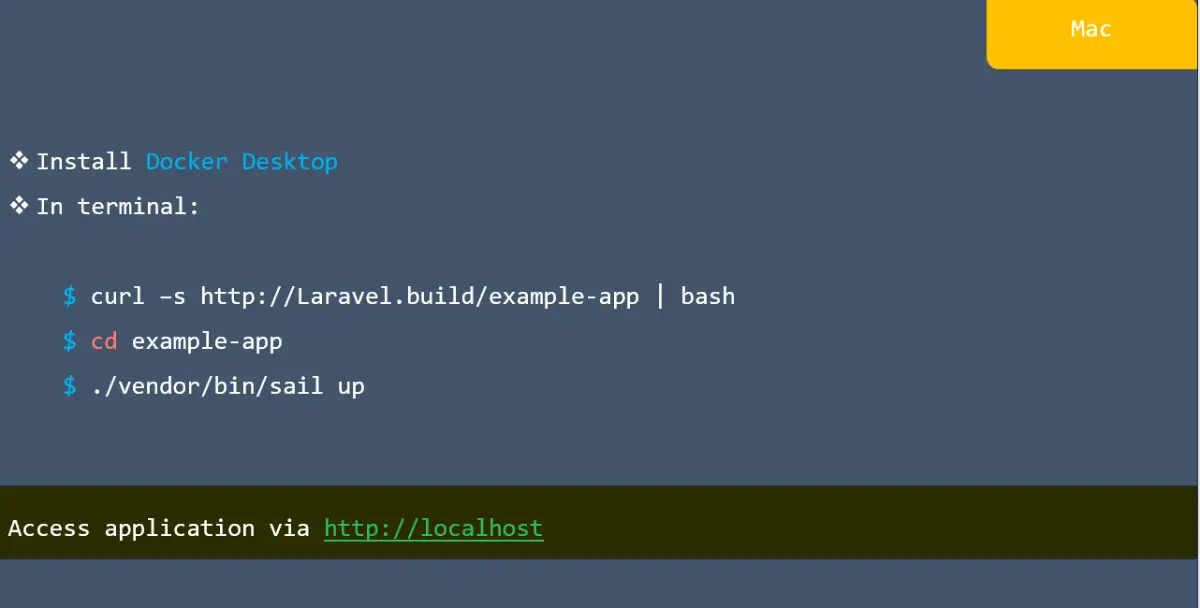
Installing Laravel in Mac

Linux in laravel

Environment setup for laravel

Environment setup for laravel

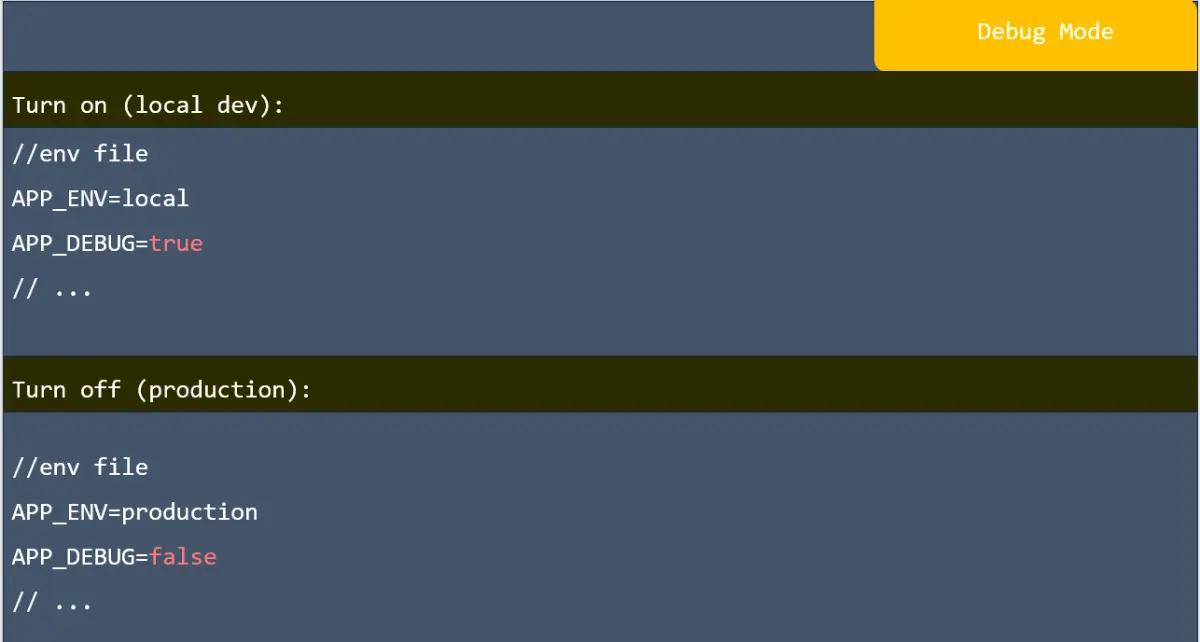
Debug mode in laravel

Maintenance mode in laravel

Router HTTP method in laravel

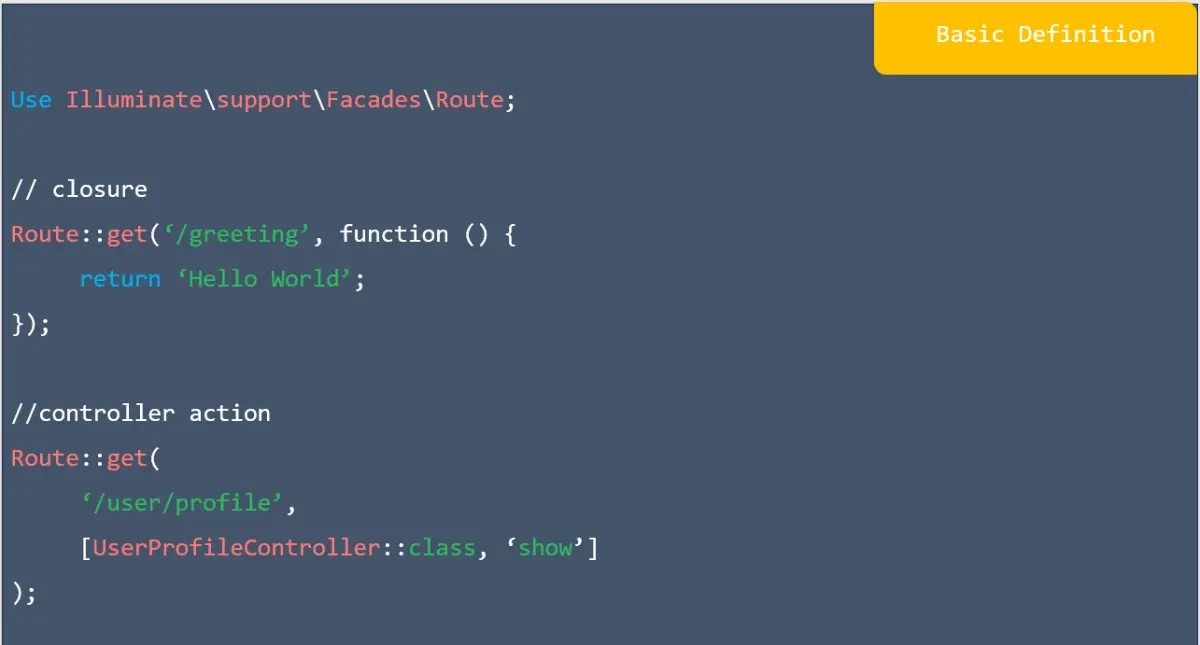
Basic defination in laravel

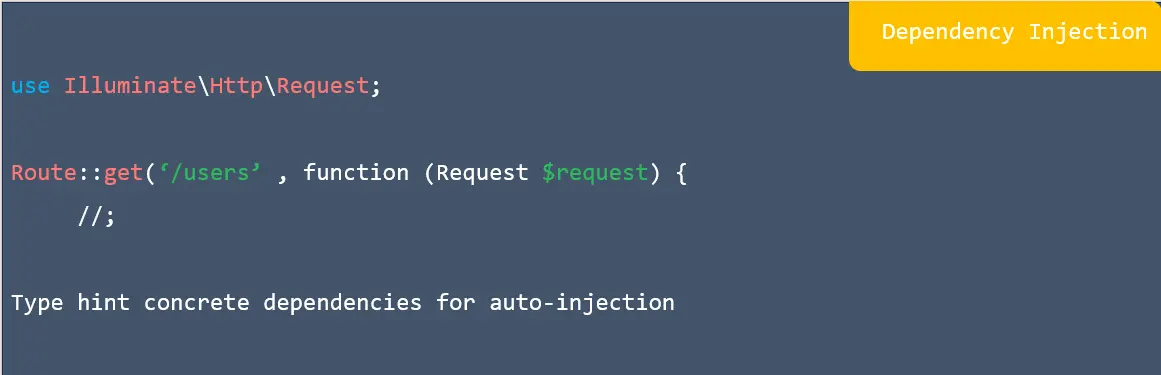
Dependency injection in laravel

View routes in laravel

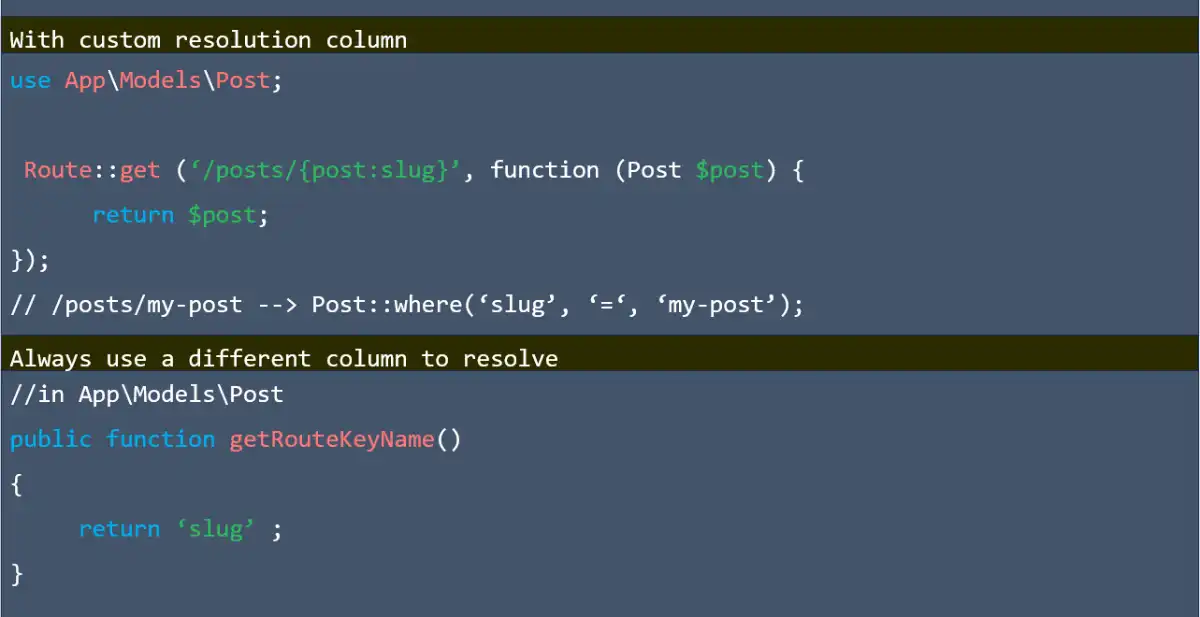
Route model binding in laravel

Route model binding in laravel

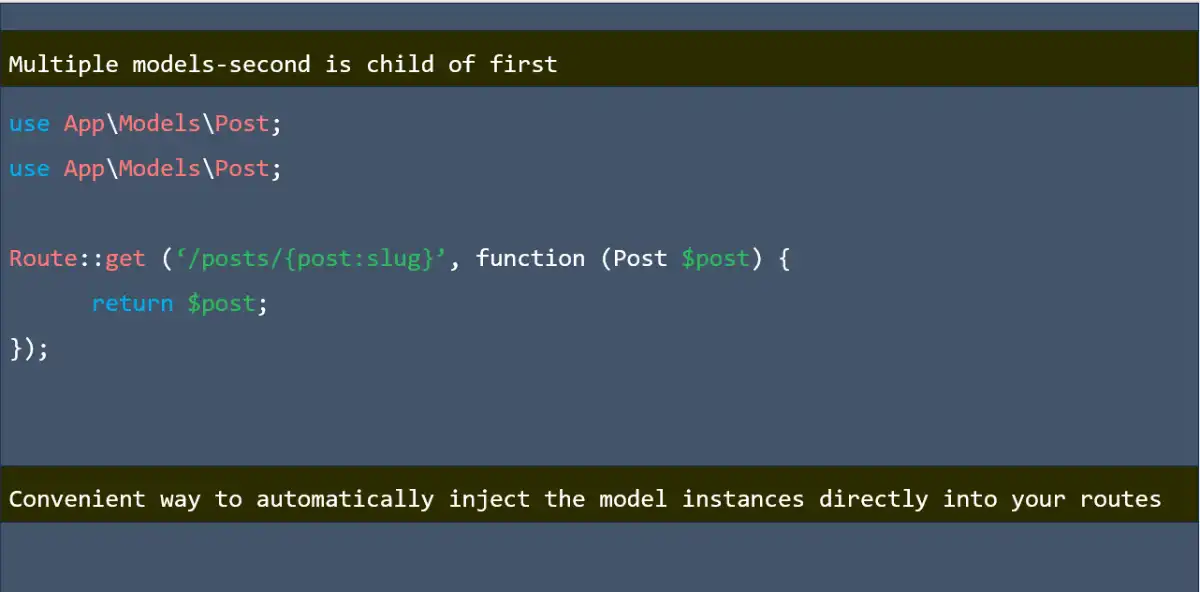
Route model binding in laravel

Route model binding in laravel

Route parameters in laravel

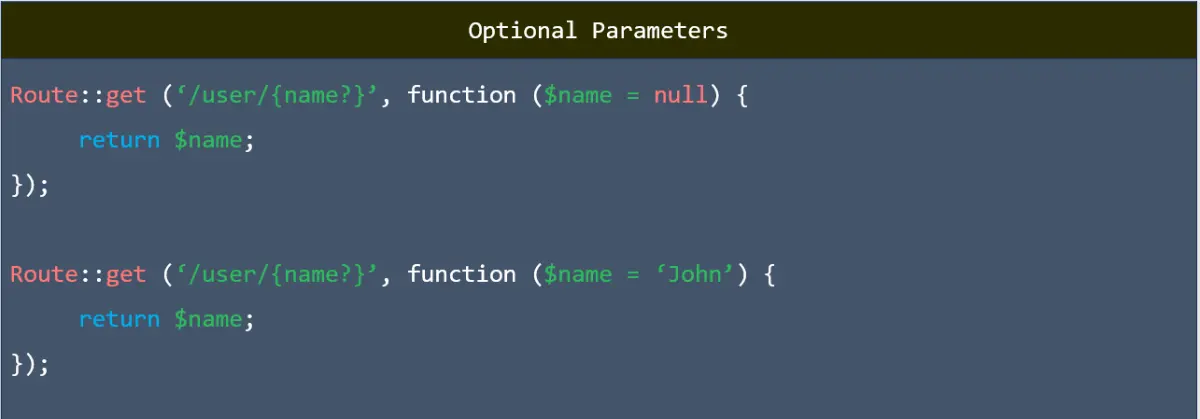
optional parameter in laravel

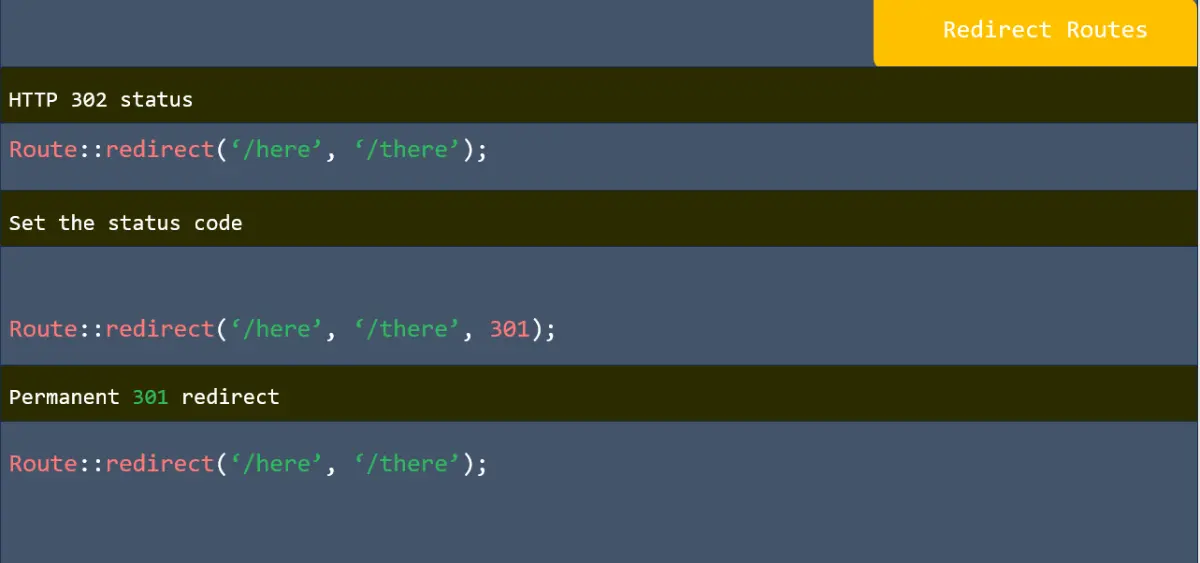
Redirect routes in laravel

Regular expression constraints in laravel

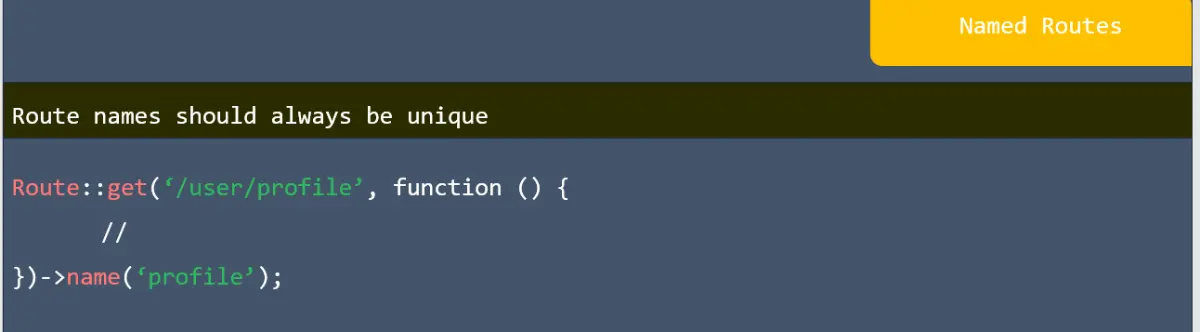
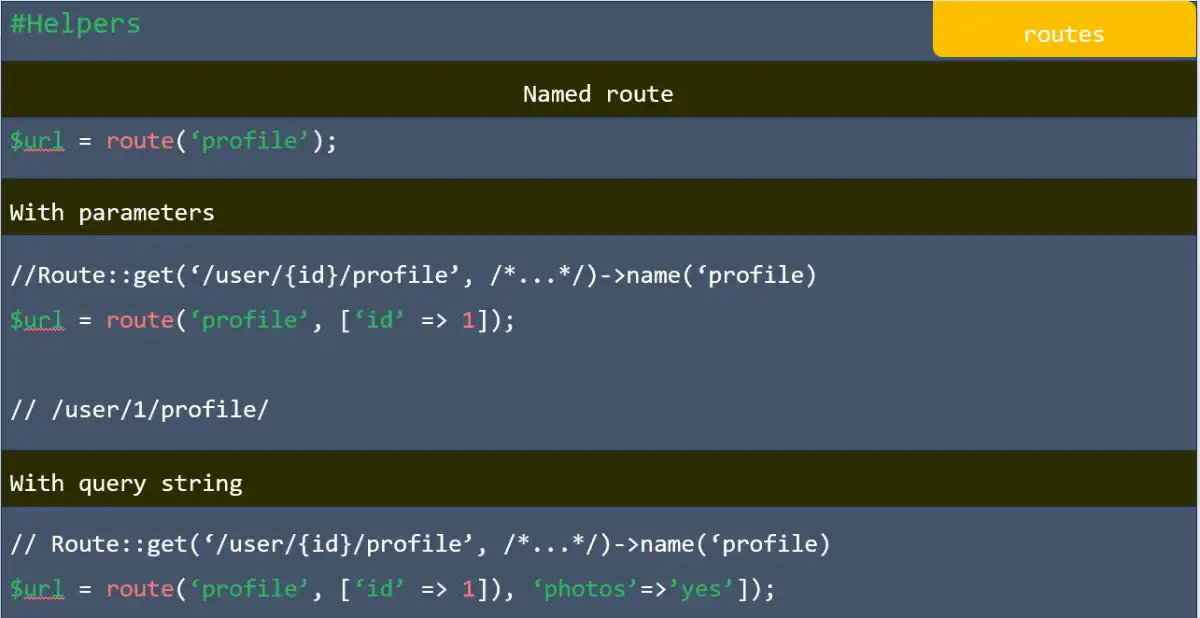
Named routes in laravel

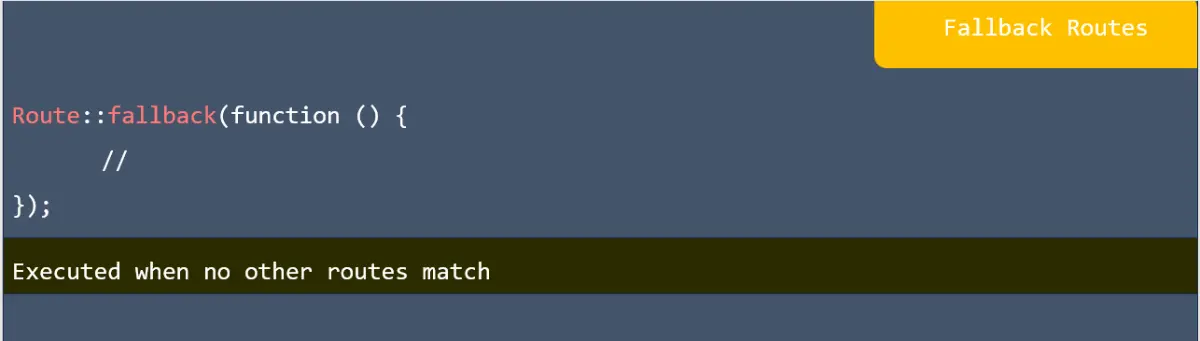
Fallback routes in laravel

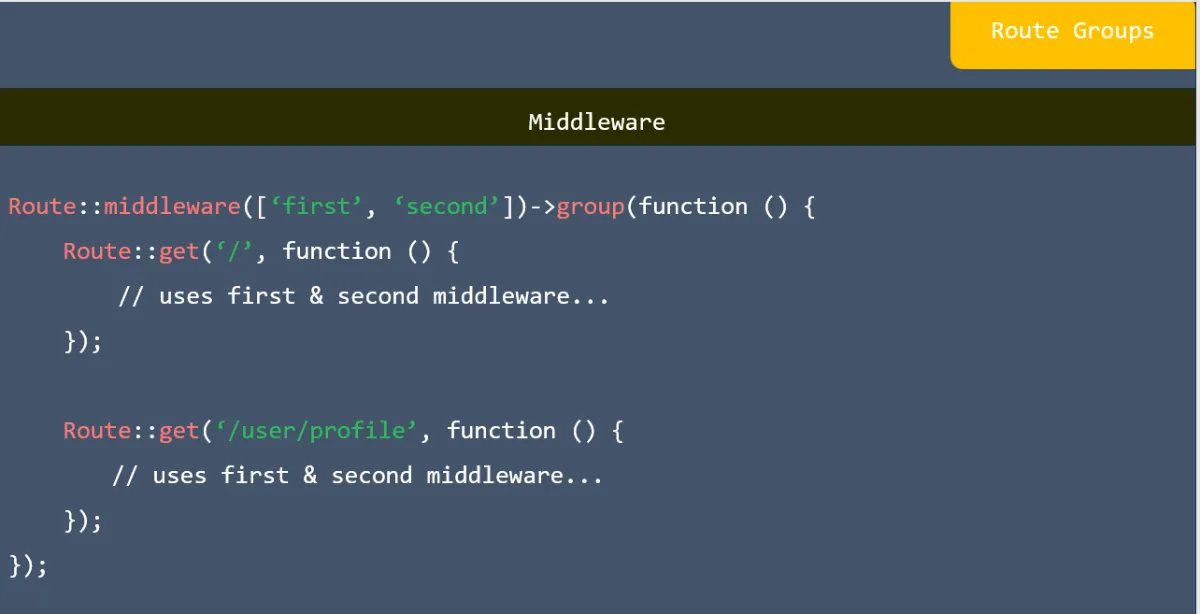
Route groups in laravel

Uri And name Prefix in laravel

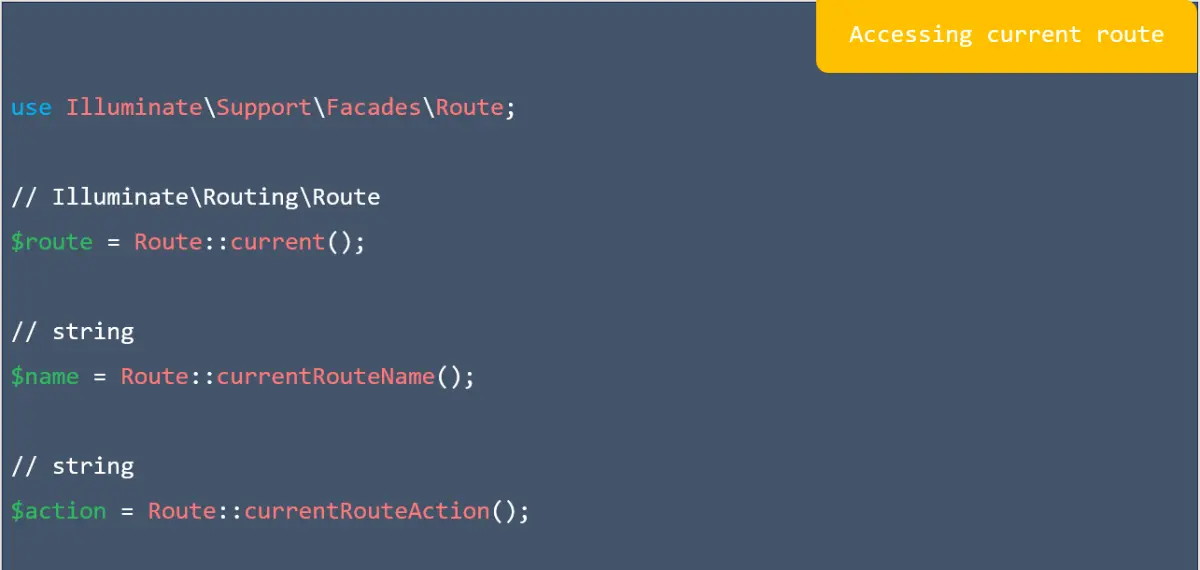
Accessing current route in laravel

Routes in laravel

Redirects & Eloquent model in laravel

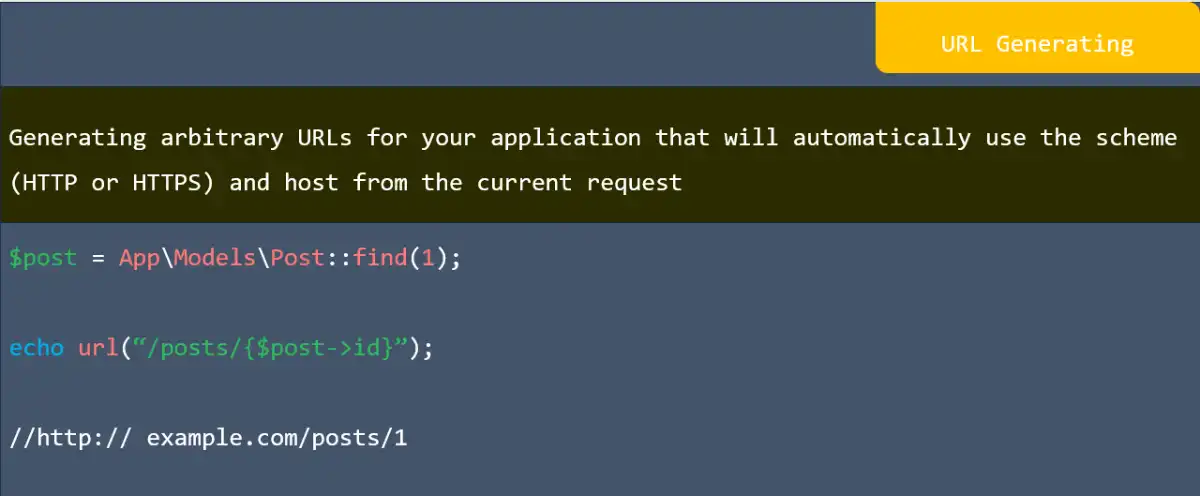
URL Generating in laravel

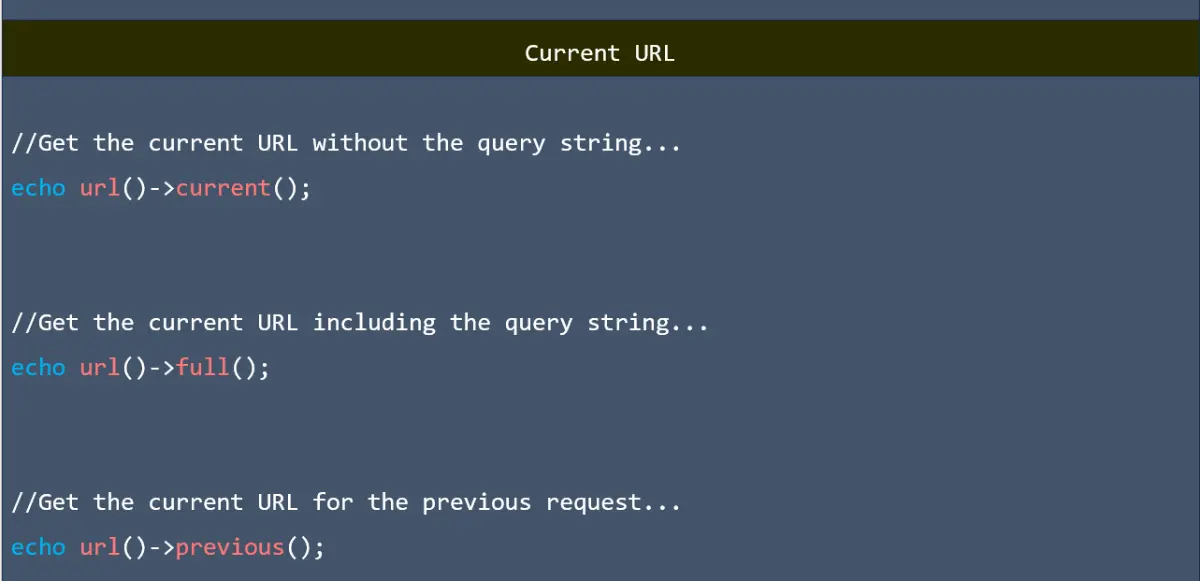
Current URL in laravel

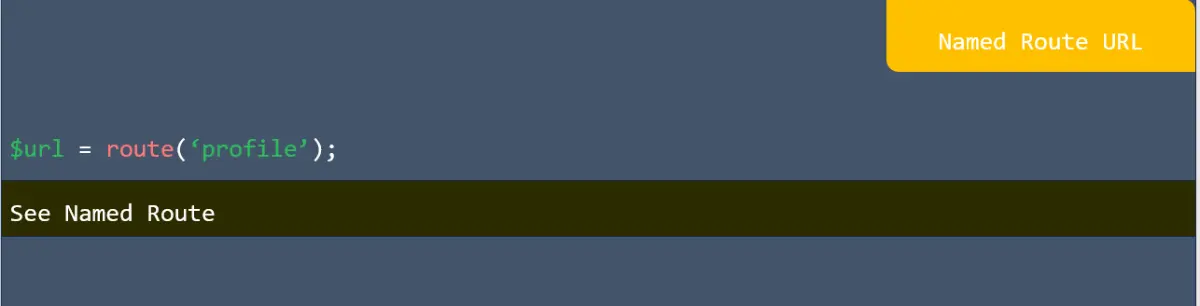
Named route URL in laravel

Error Handling in laravel

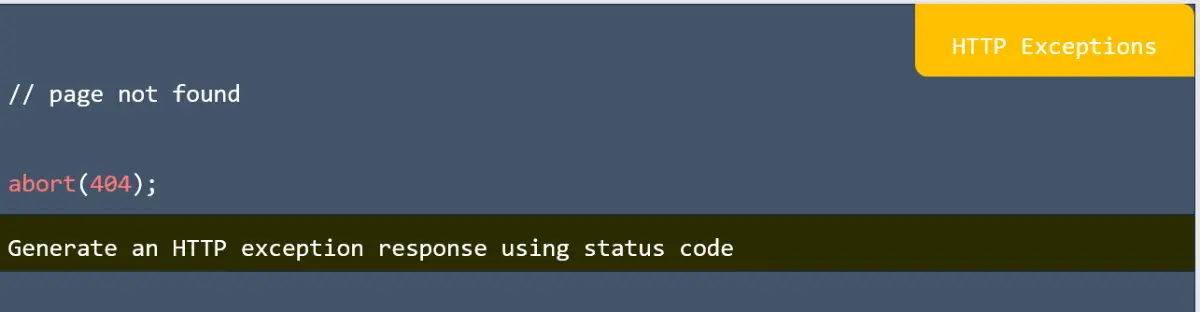
HTTP Exceptions in laravel

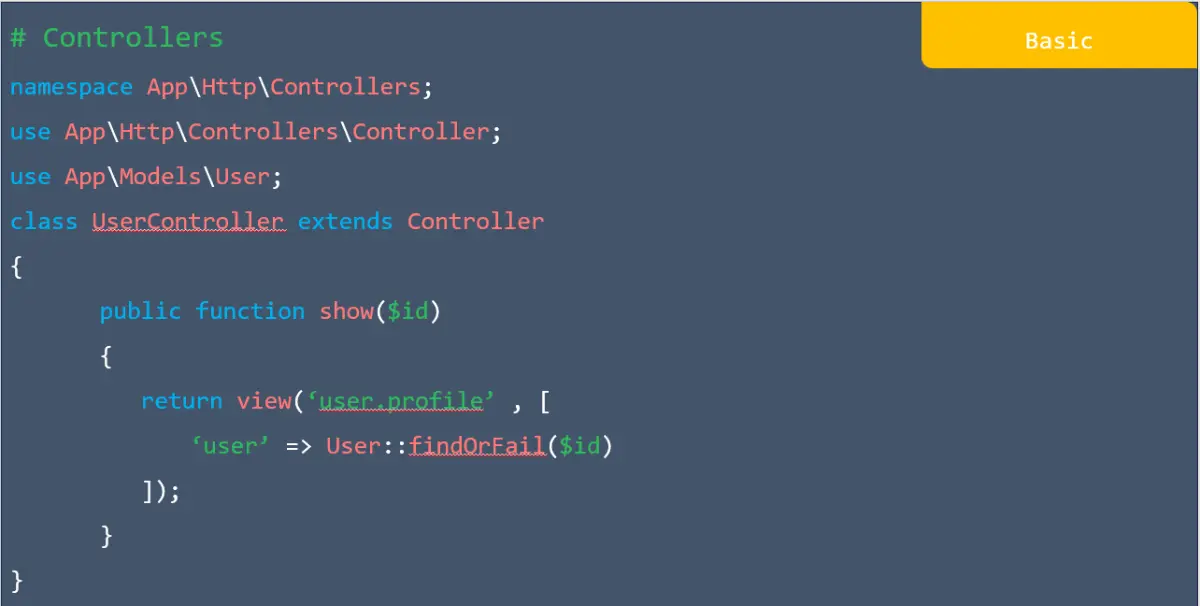
Basic in laravel

Controller method in laravel

CSRF Protection in laravel

CSRF Protection in laravel

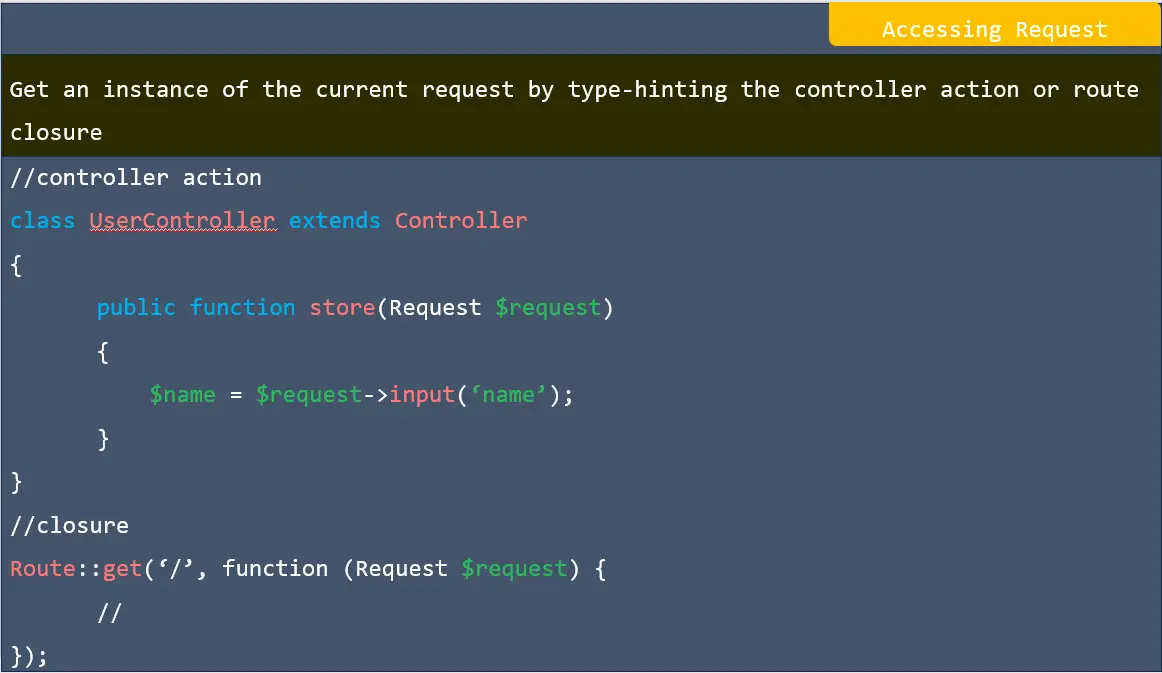
Accessing request in laravel

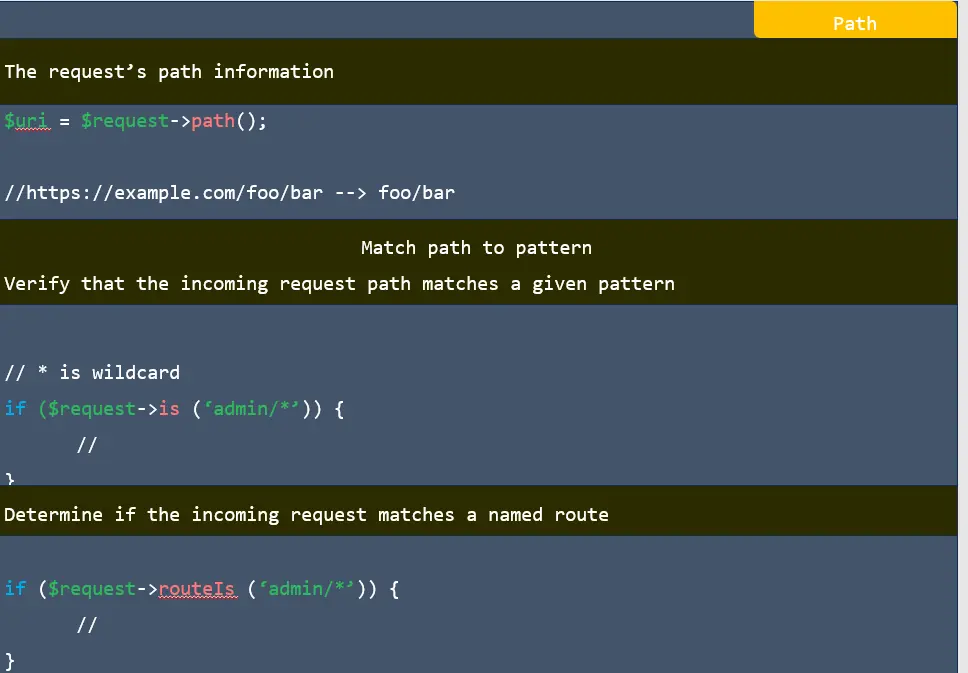
Path in laravel

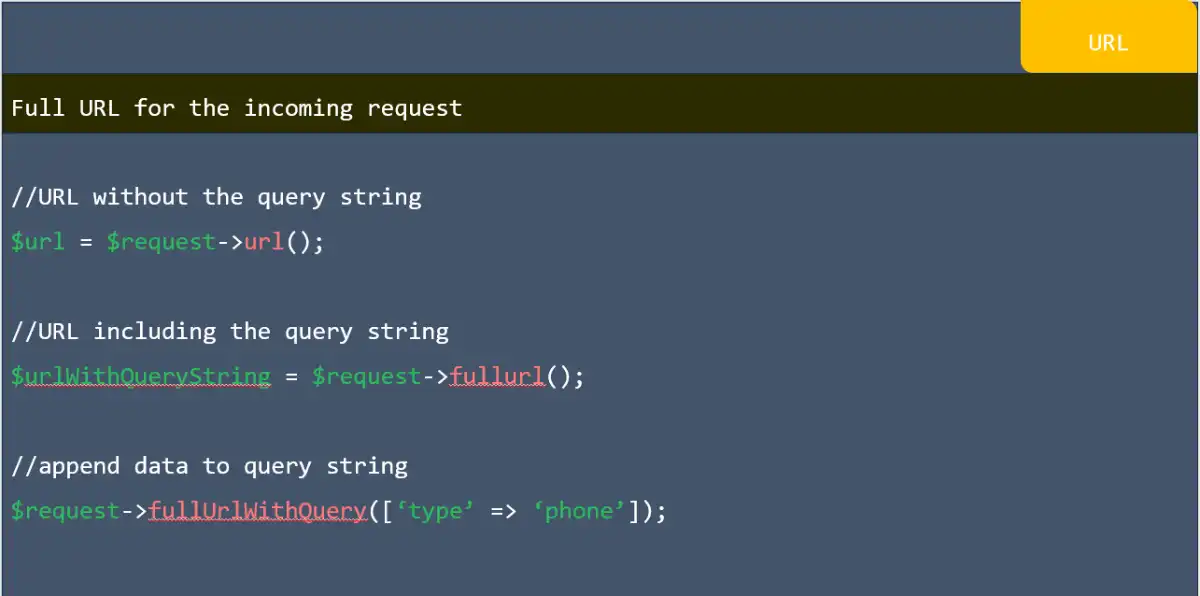
URL in laravel

Request method in laravel

Client IP in laravel

Headers in laravel

content type in laravel

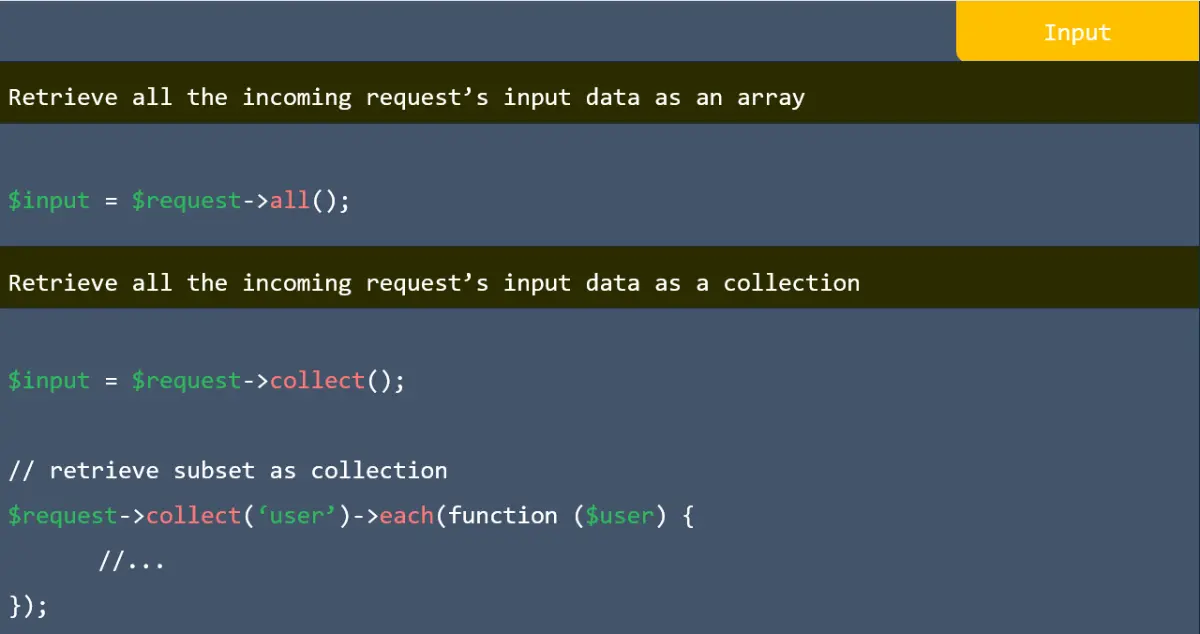
Input in laravel

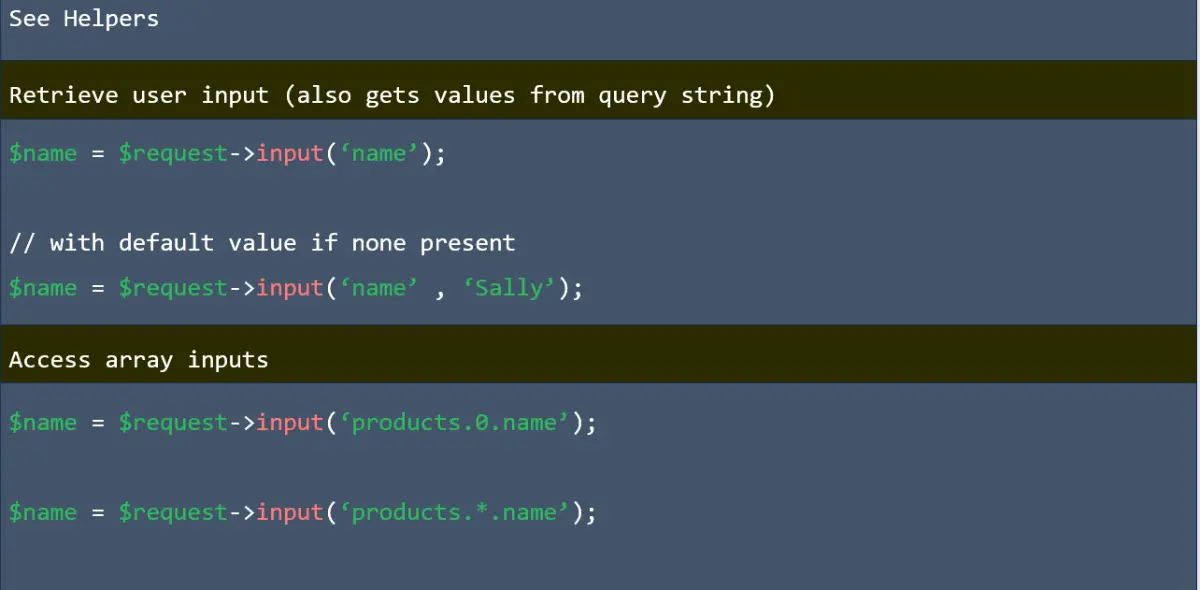
Access array input in laravel

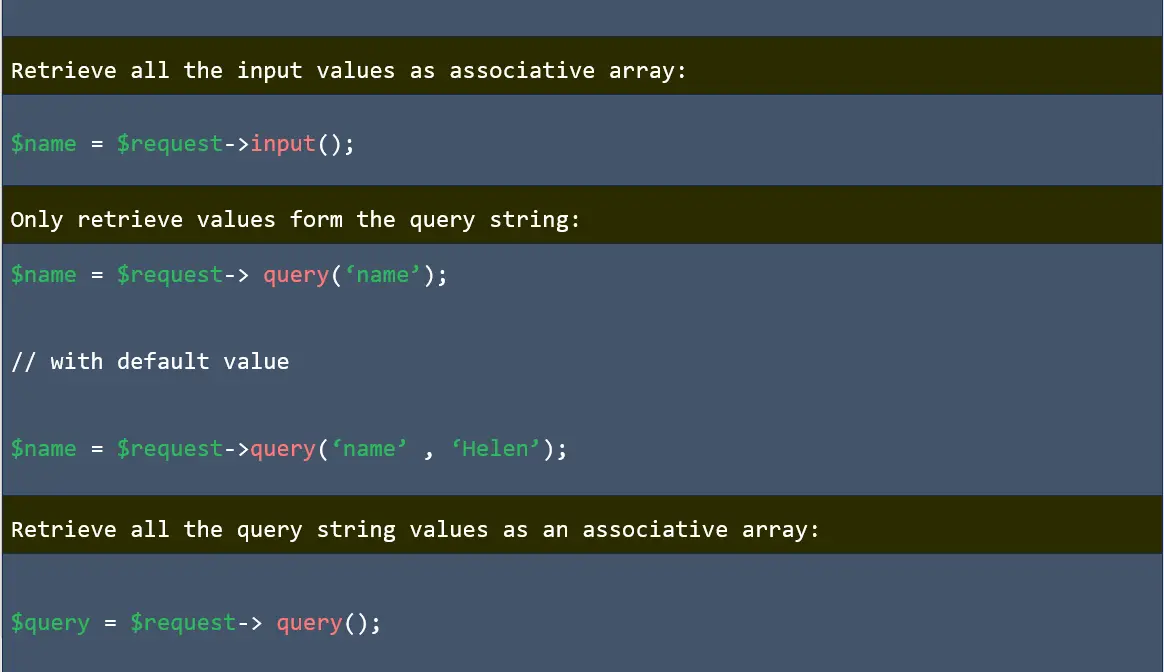
Input value in laravel

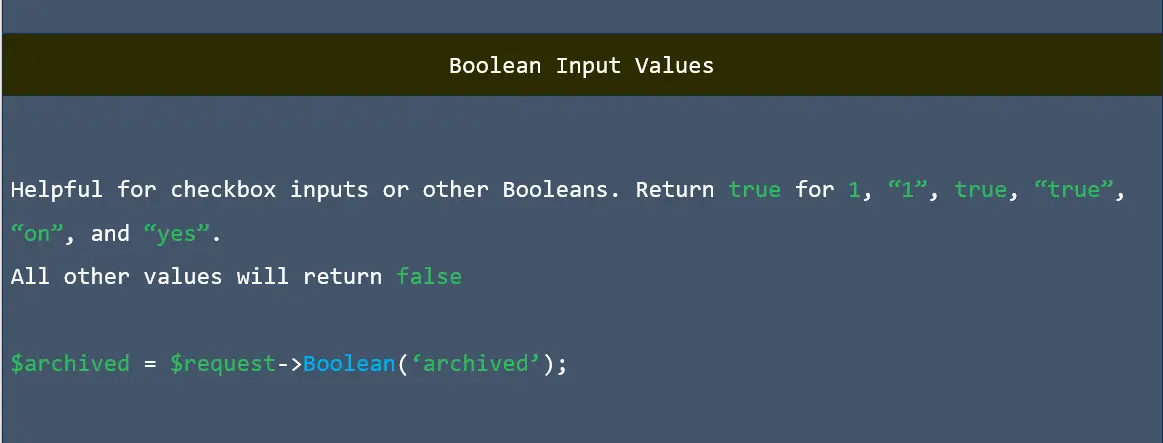
Boolean input value in laravel

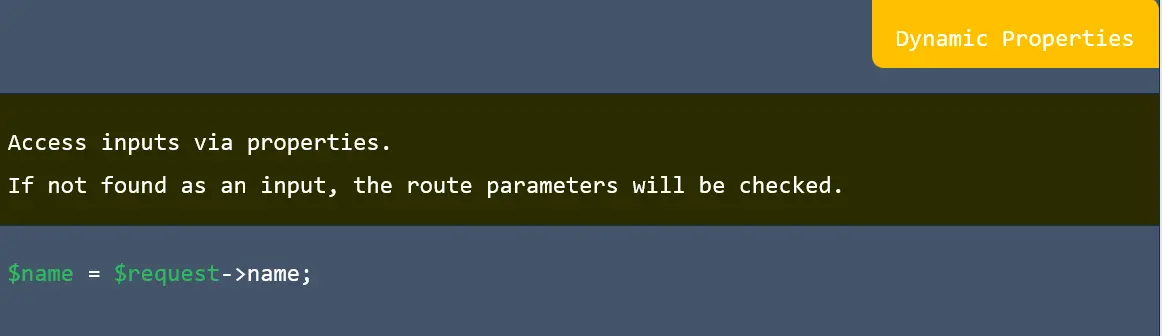
Dynamic properties in laravel

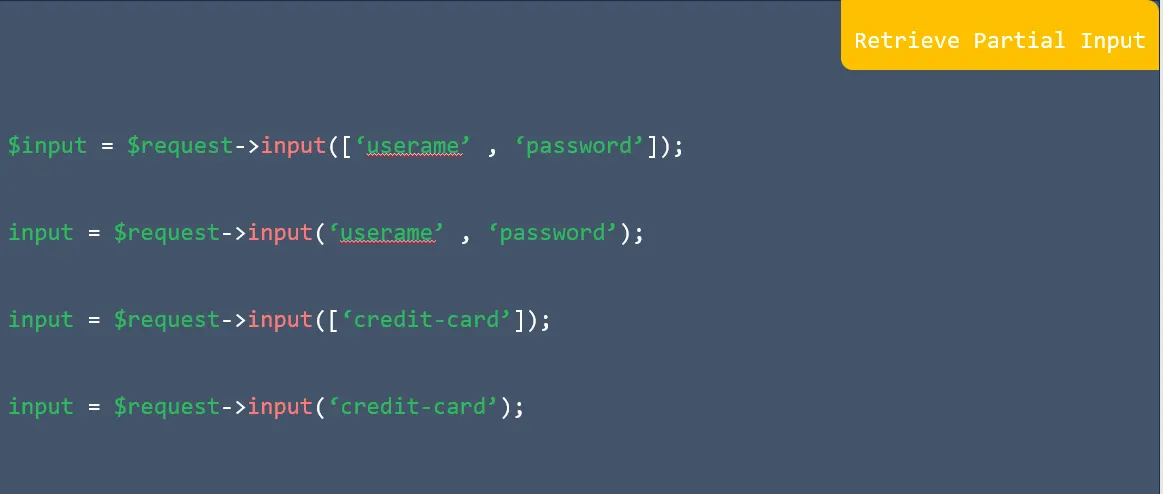
Retrieve partial input in laravel

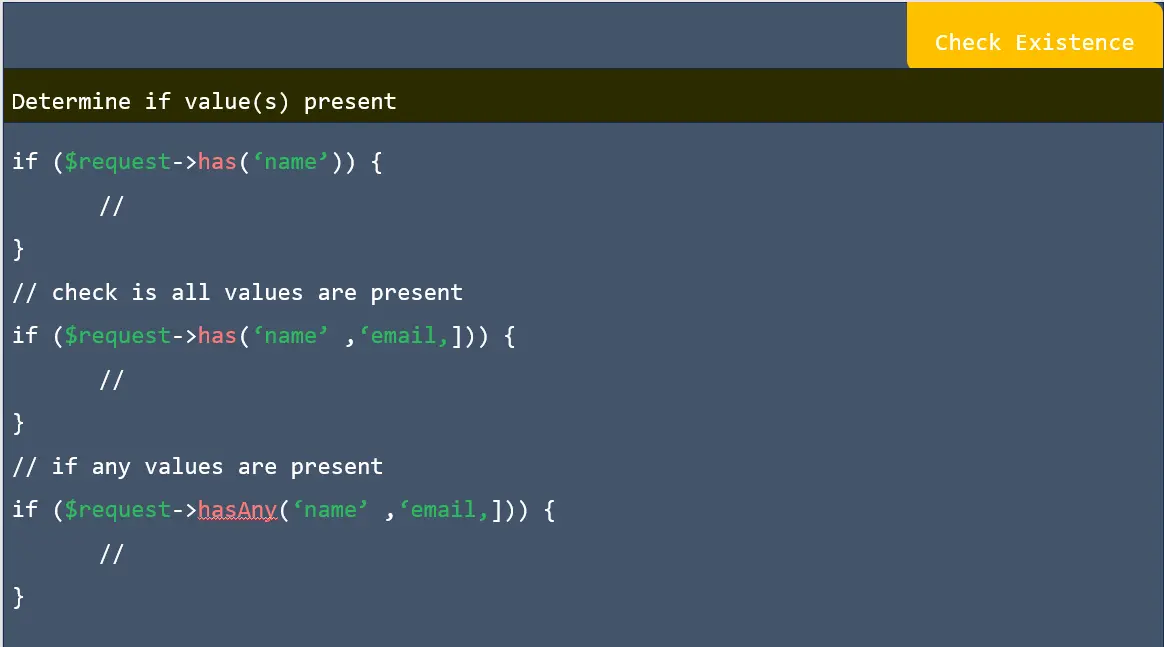
Check existence in laravel

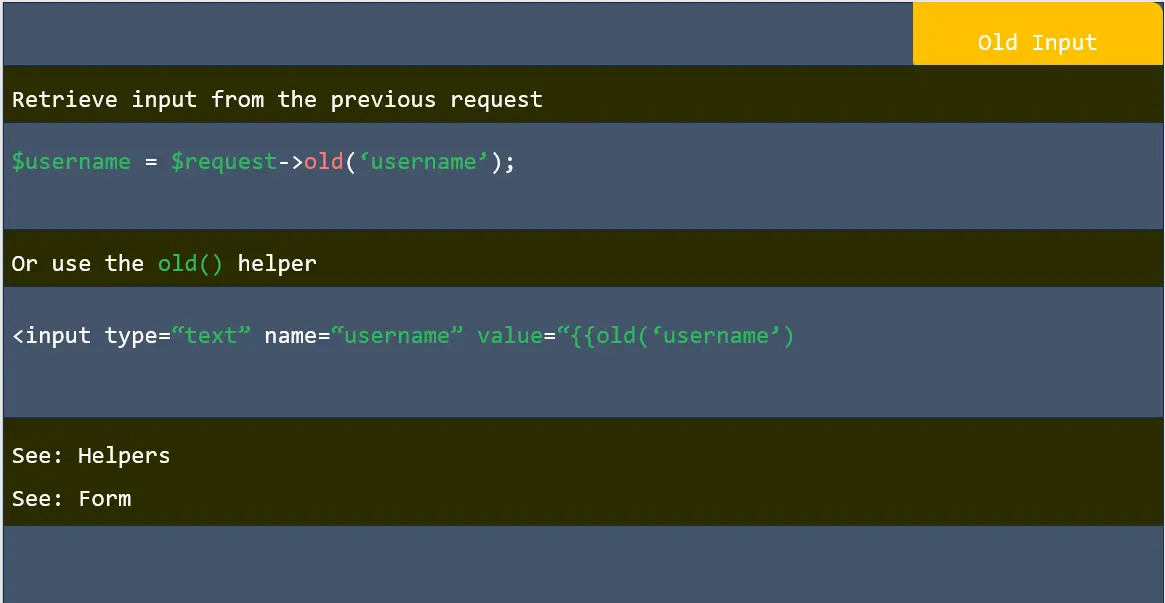
old input in laravel

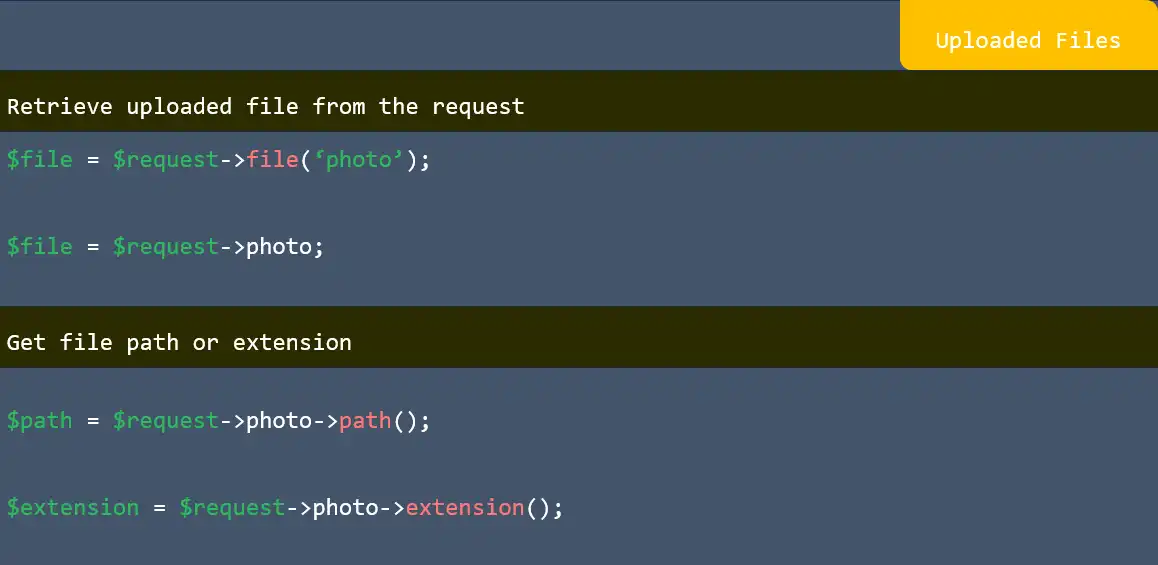
uploaded files in laravel

uploaded files in laravel

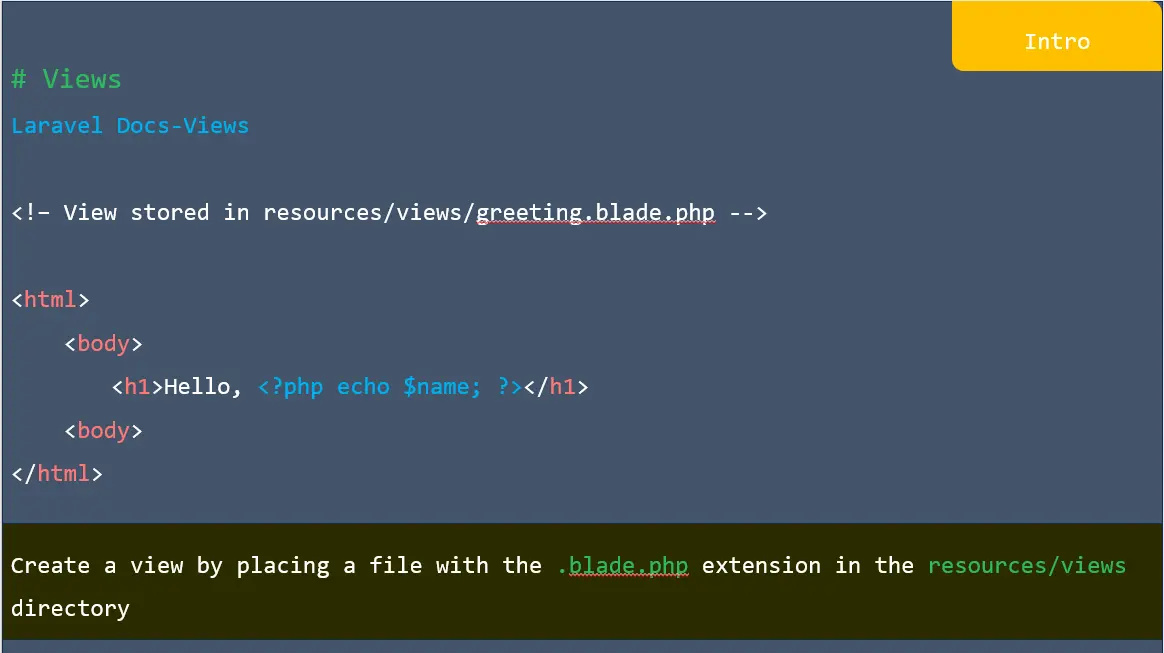
Intro in laravel

Pass data to views in laravel

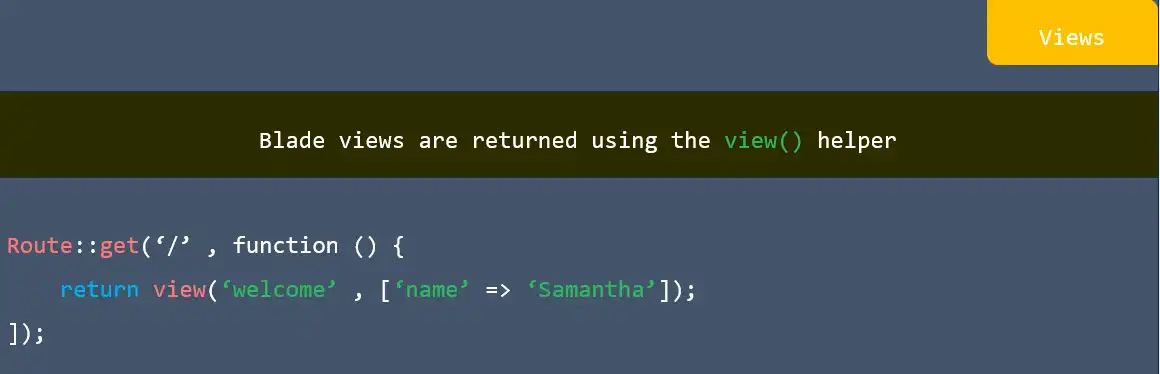
View helper in laravel

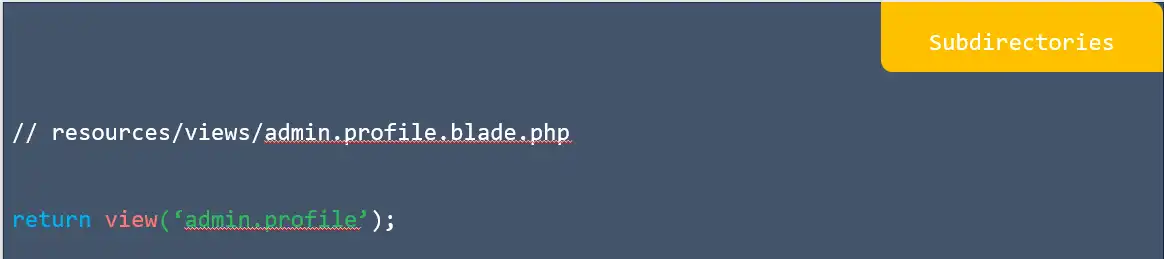
Subdirectories in laravel

Blade templates in laravel

Views in laravel

Comments in laravel

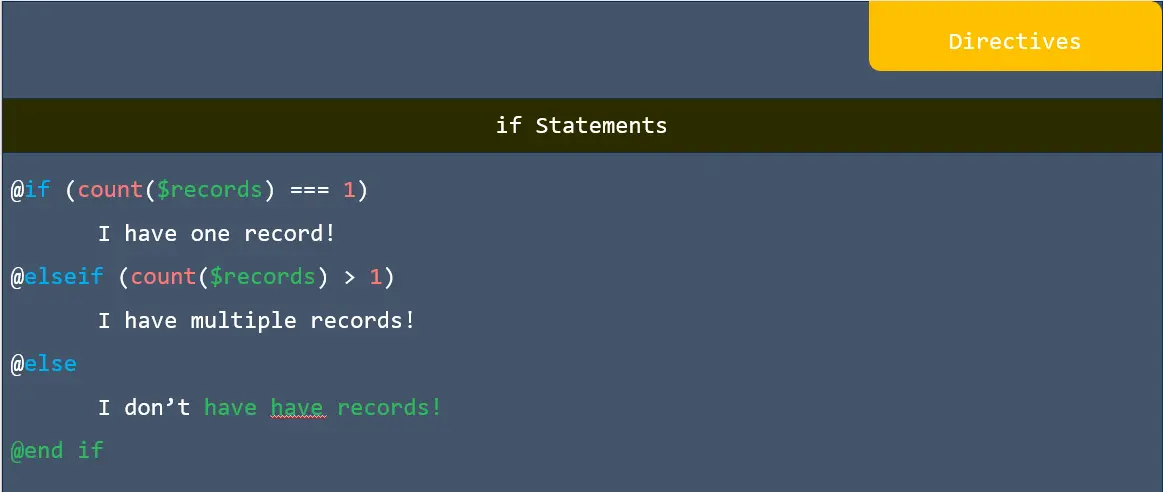
Directives in laravel

Isset & empty in laravel

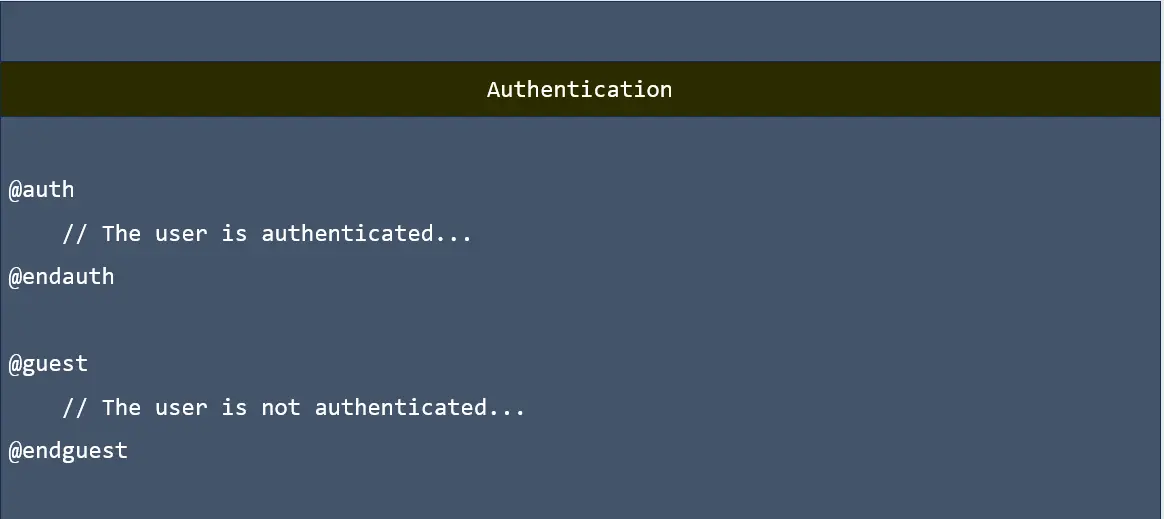
Authentication in laravel

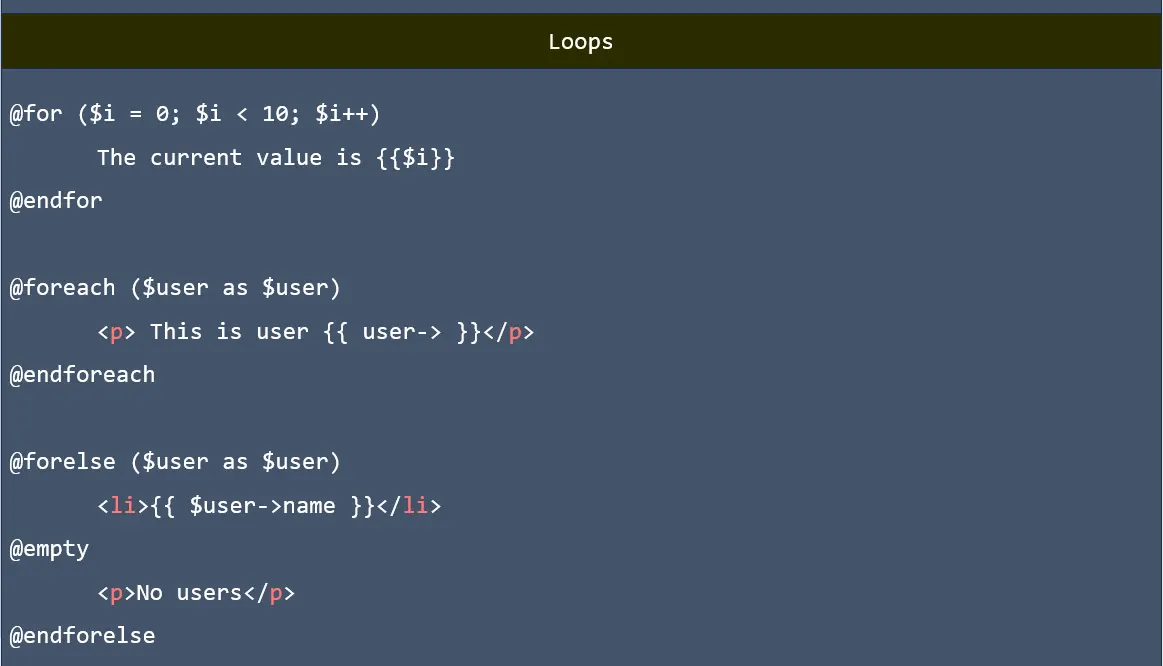
Loops in laravel

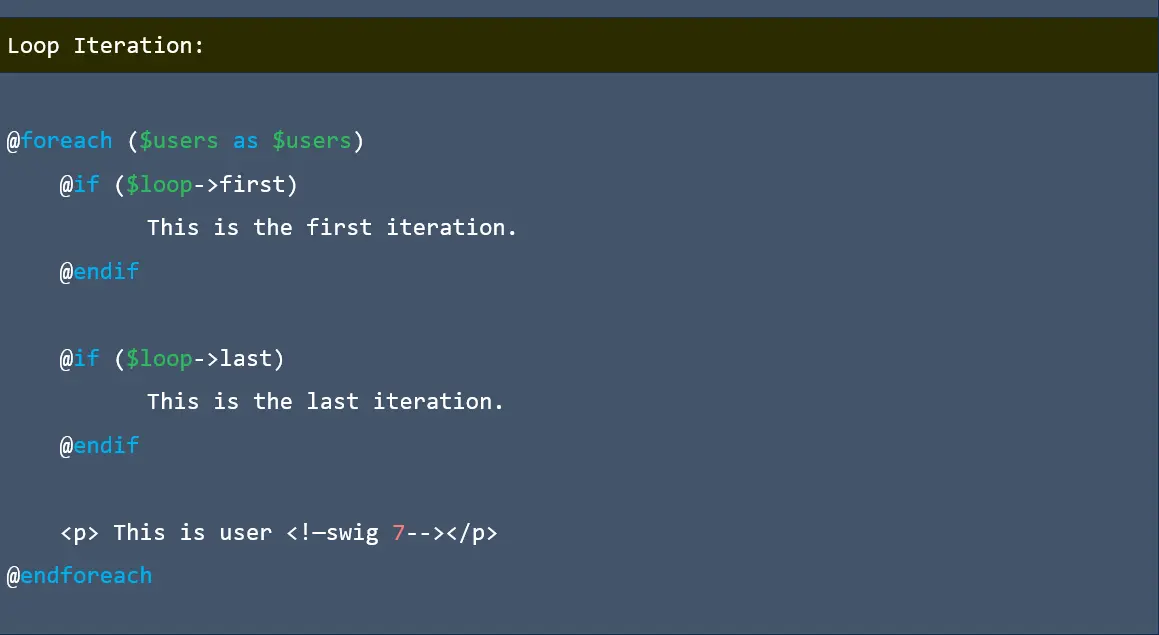
Loop iteration in laravel

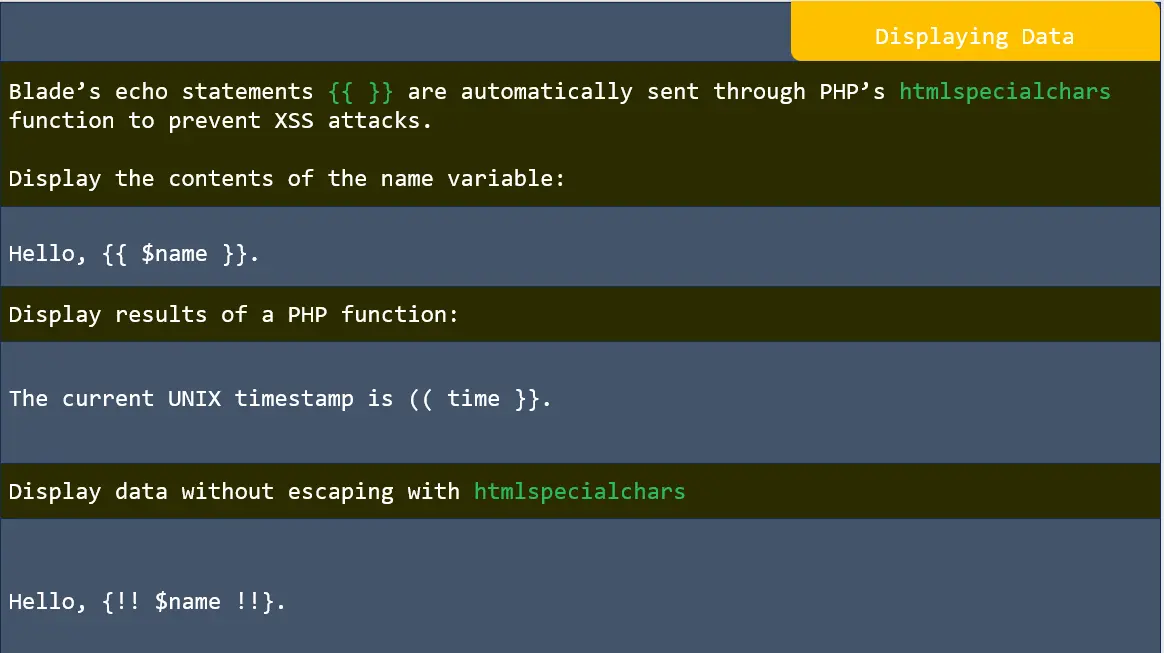
Displaying data in laravel

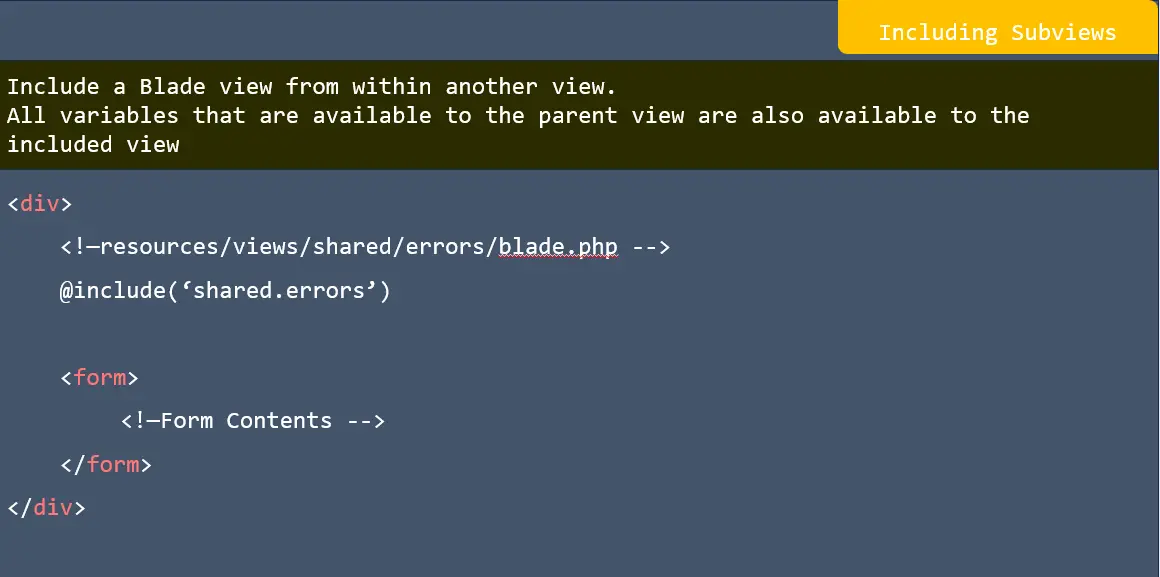
Including subviews in laravel

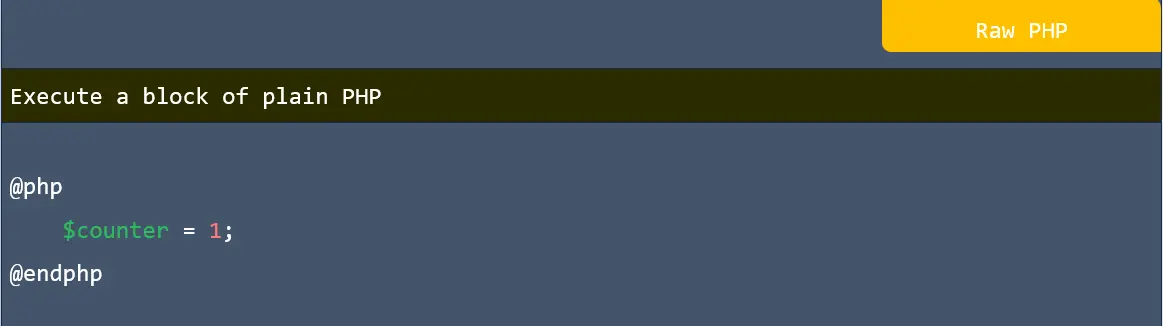
Raw PHP in laravel

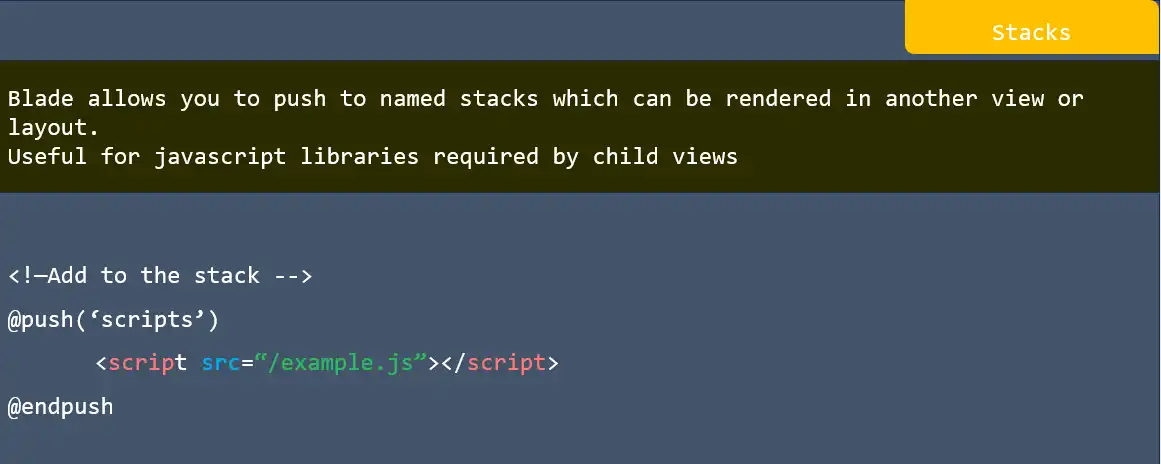
Stacks in laravel

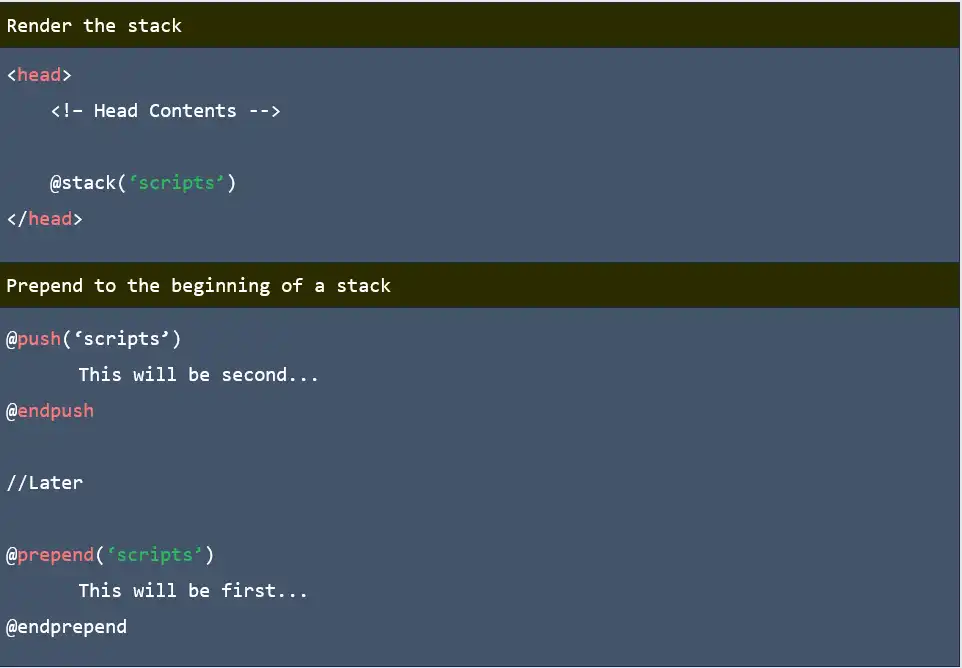
Stacks in laravel

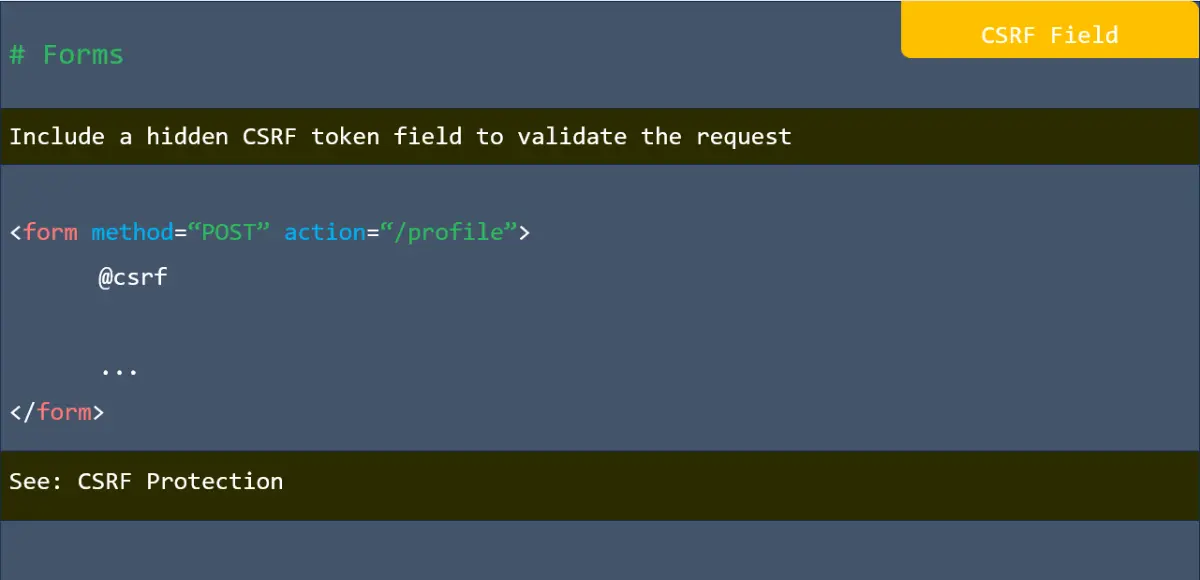
CSRF Field in laravel

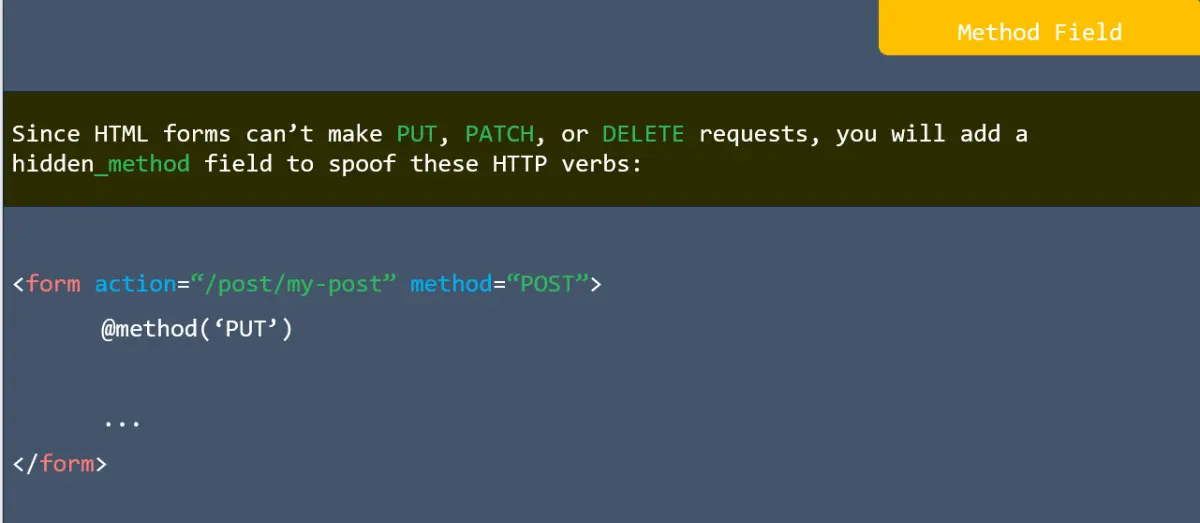
Method field in laravel

Validation error in laravel

Repopulating forms in laravel

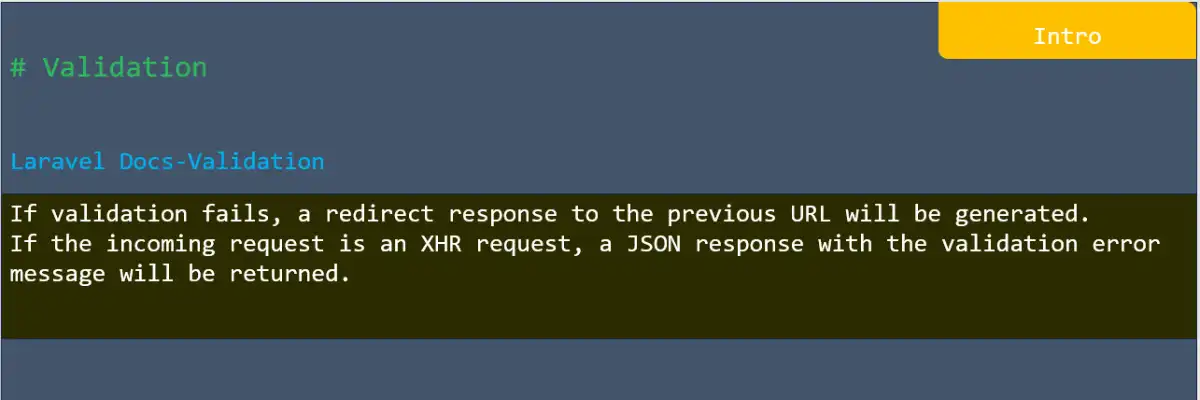
Validation in laravel

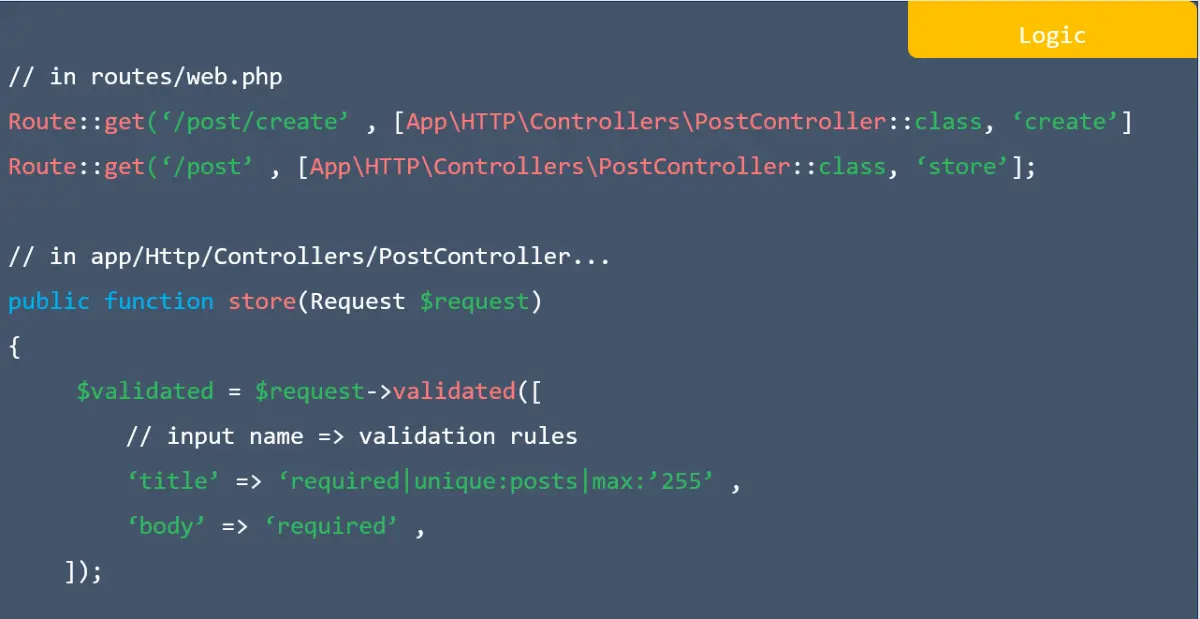
Logic in laravel

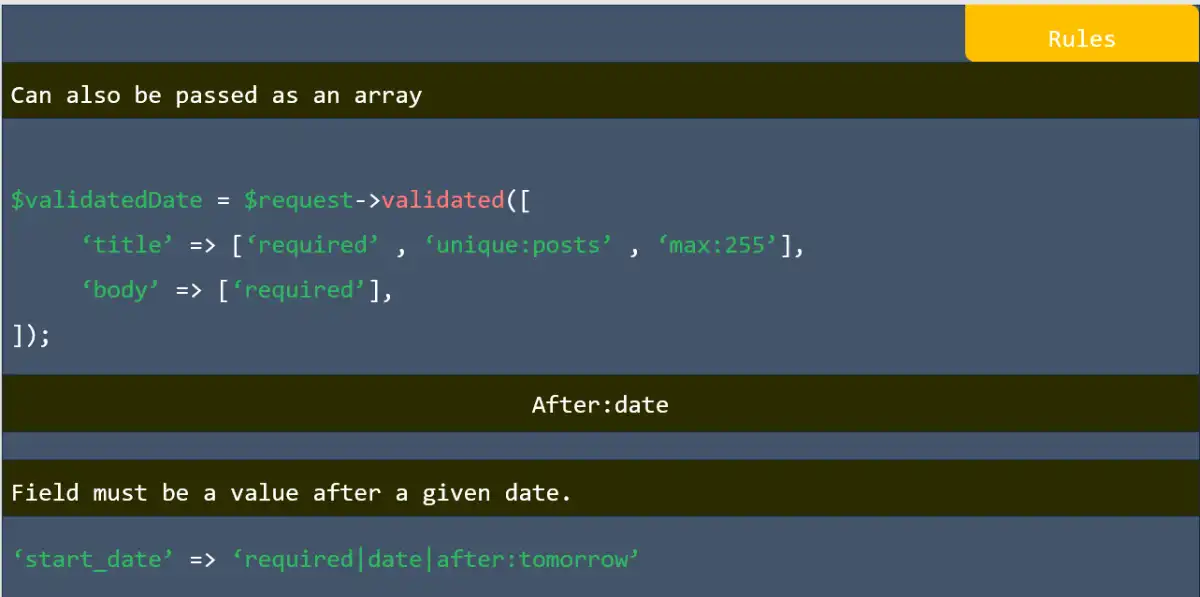
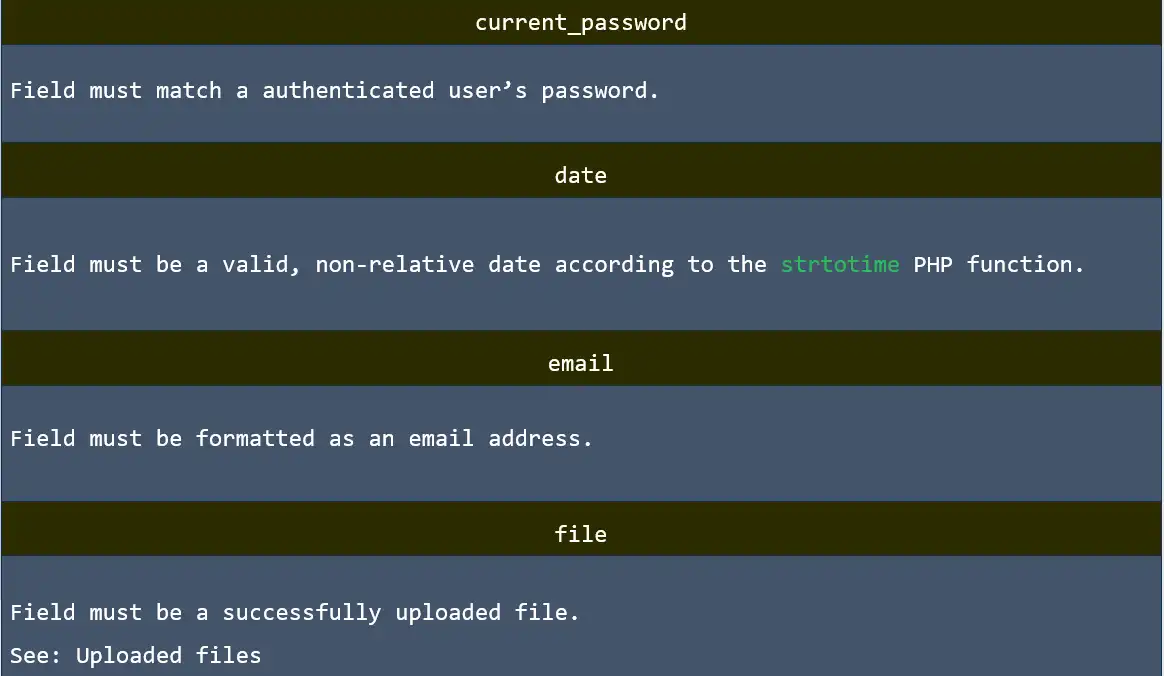
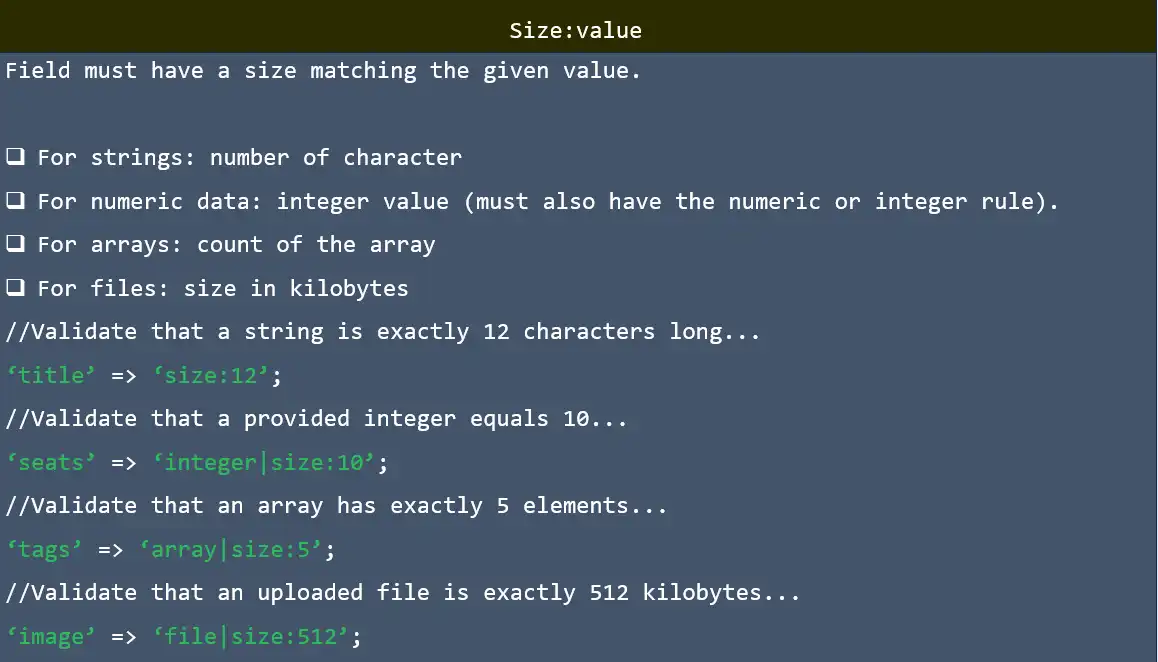
Rules in laravel

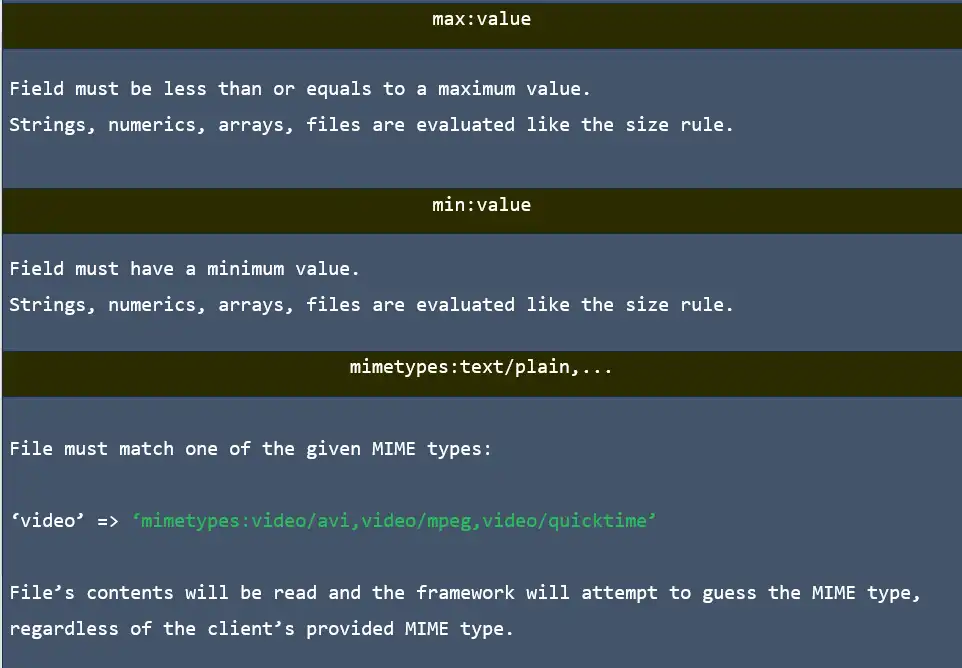
Rules in laravel

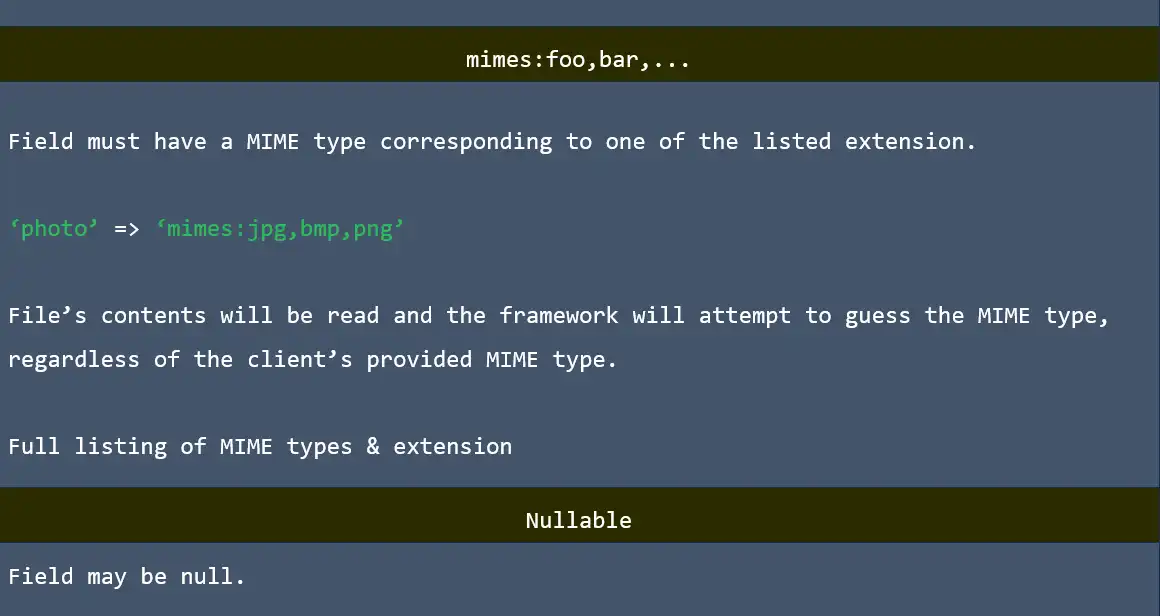
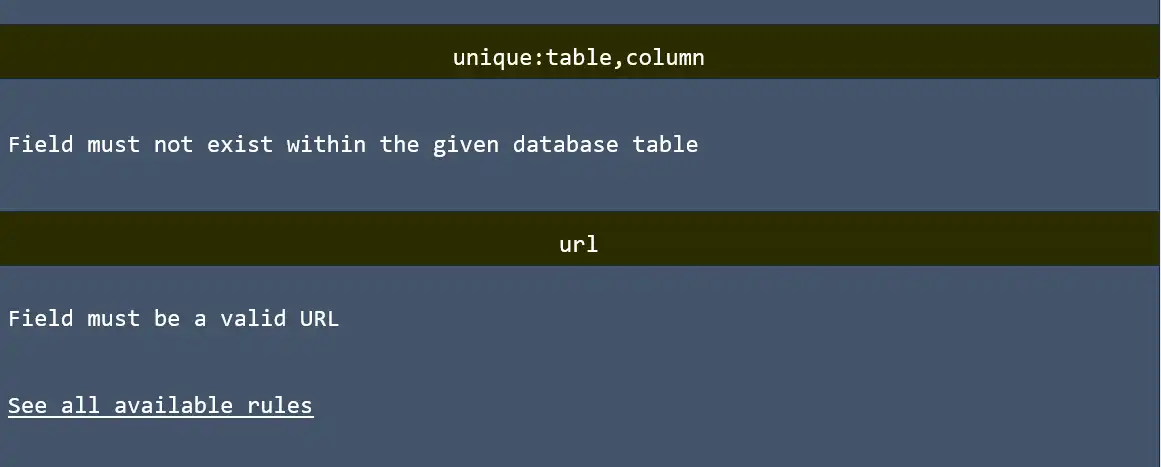
Rules in laravel

Rules in laravel

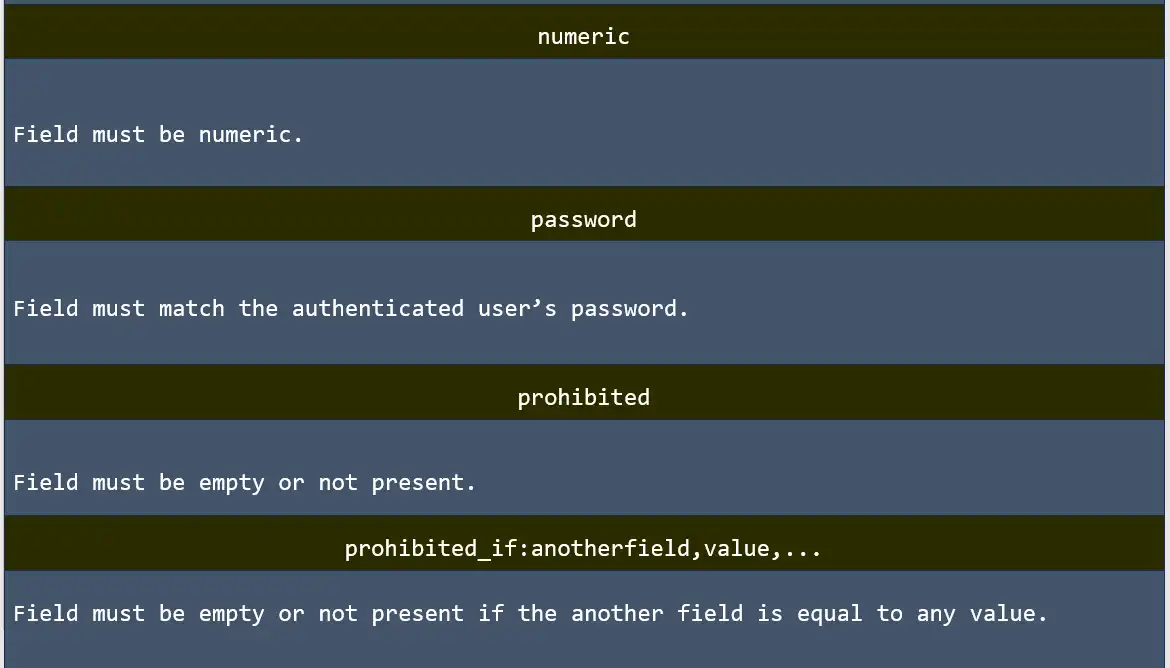
Rules in laravel

Rules in laravel

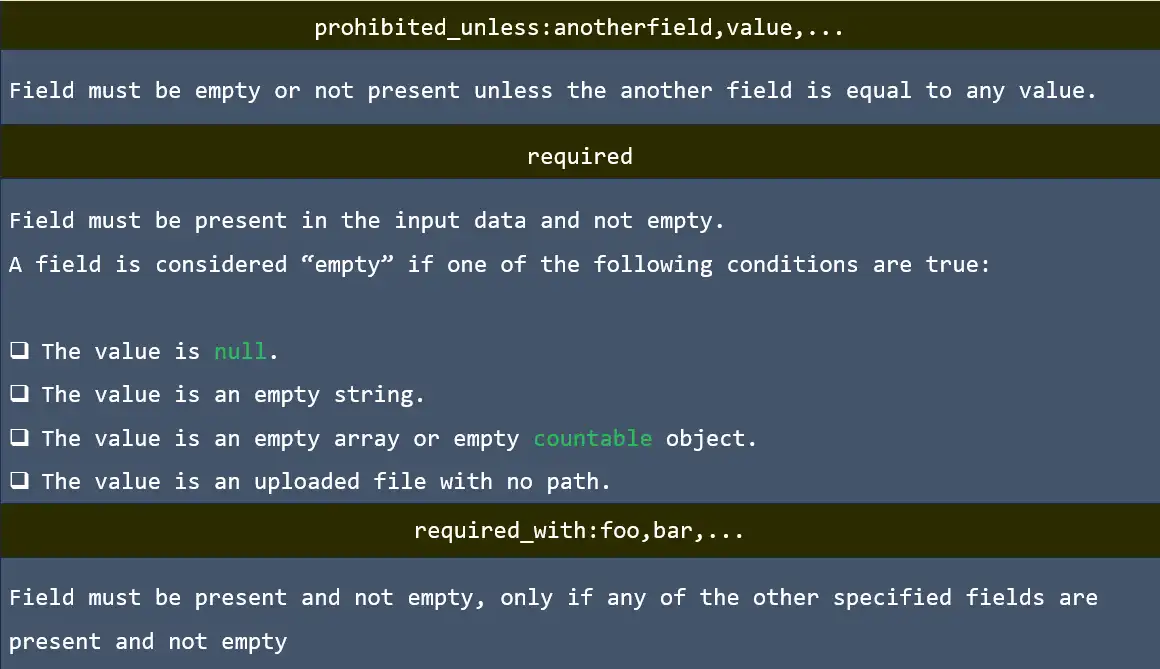
Rules in laravel

Rules in laravel

Rules in laravel

Rules in laravel

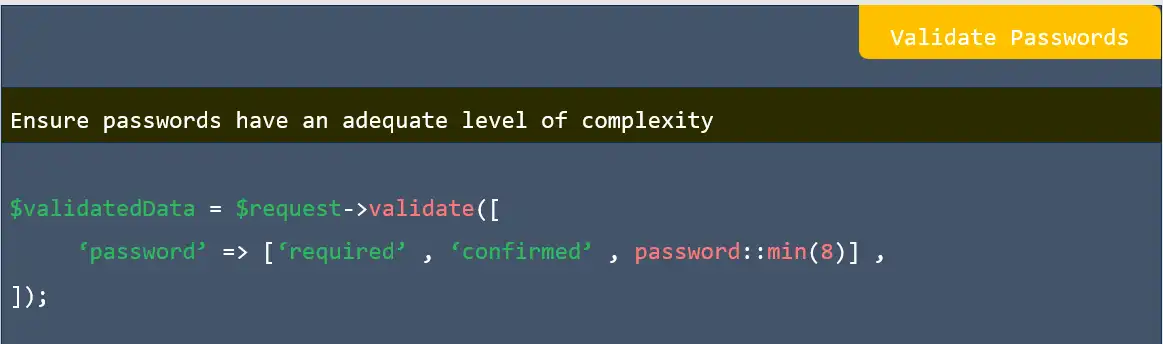
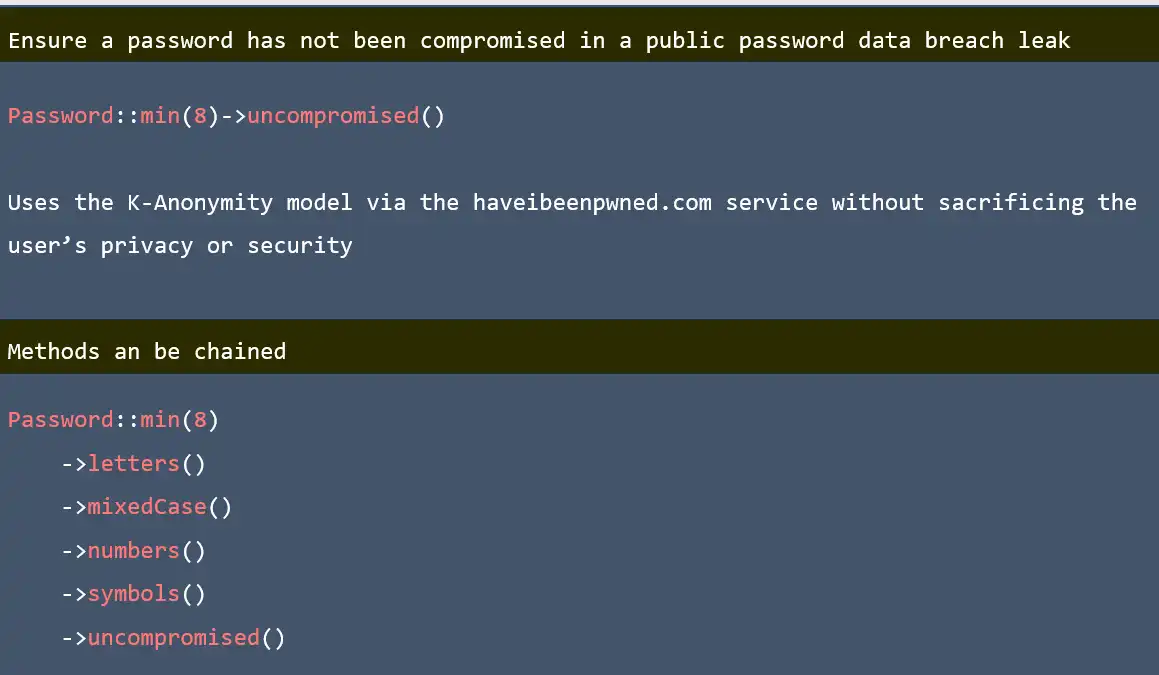
Validate password in laravel

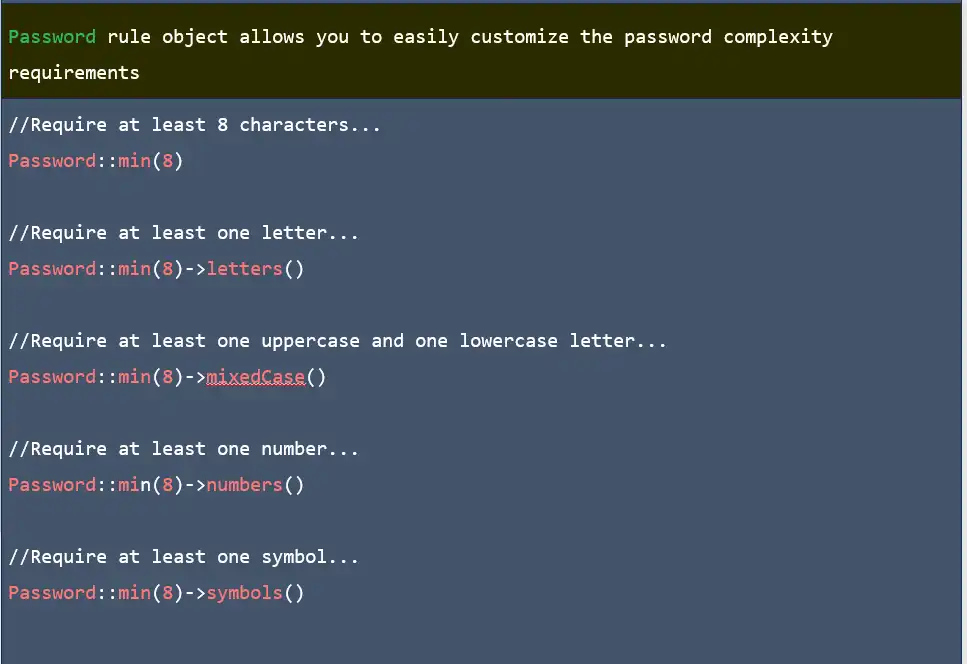
Validate password in laravel 1

Validate password in laravel

Display validation errors in laravel

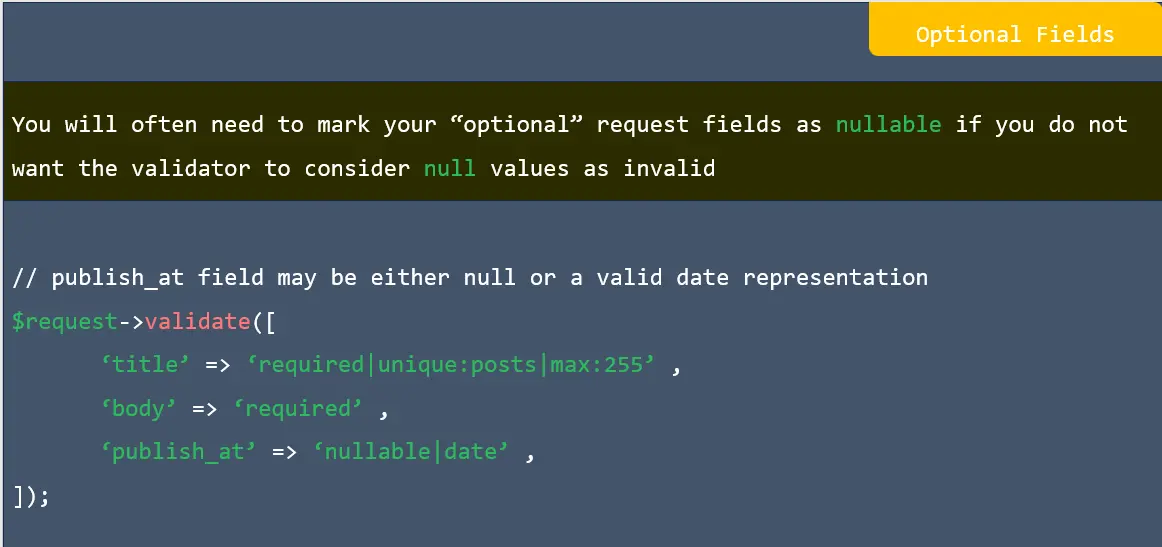
Optional fields in laravel

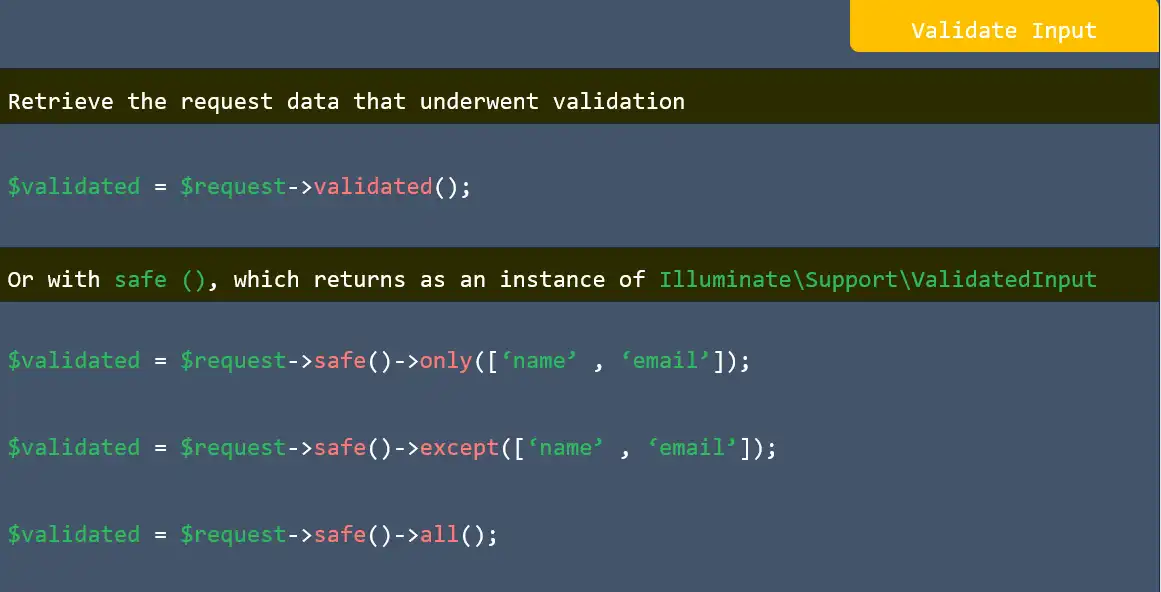
validate input in laravel

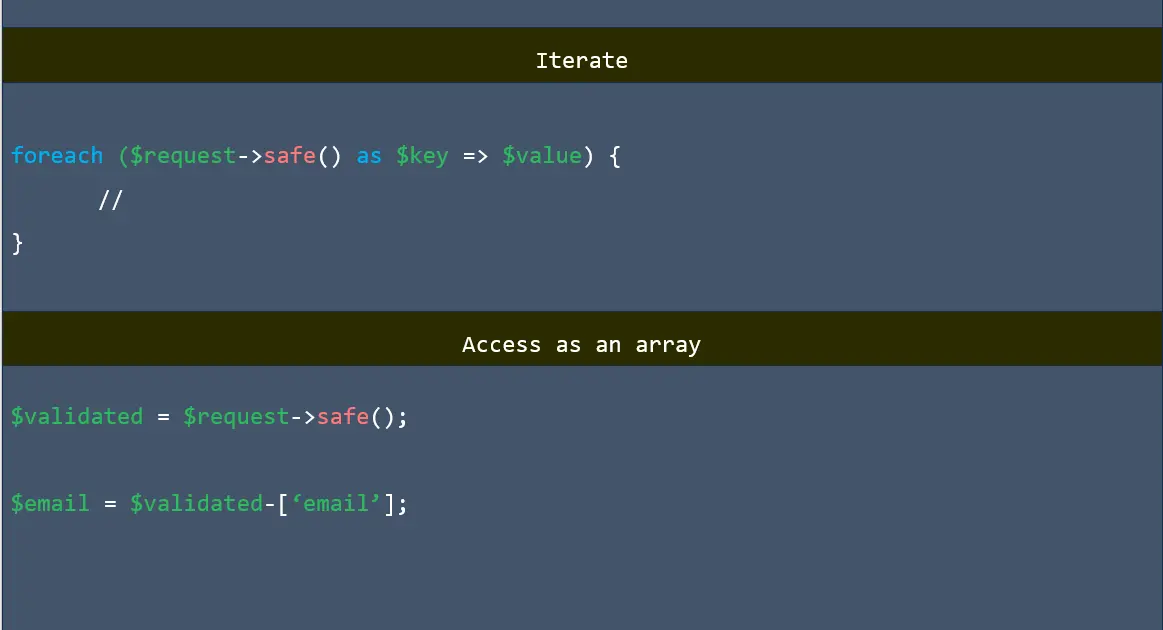
Iterate in laravel

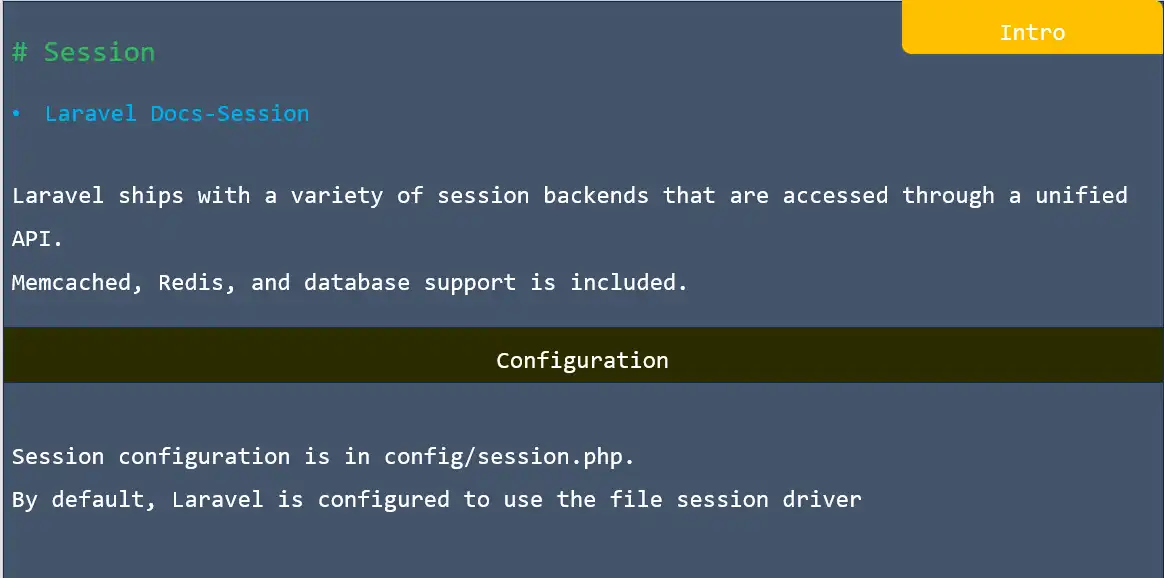
Session in laravel

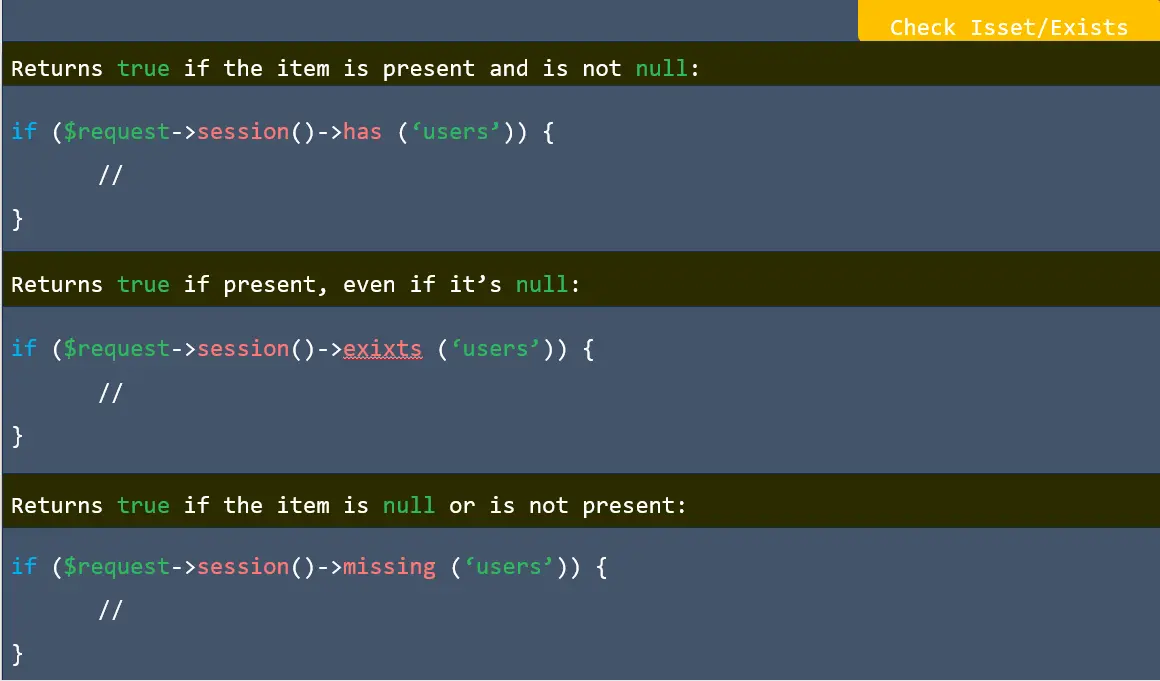
Check isset-exists in laravel

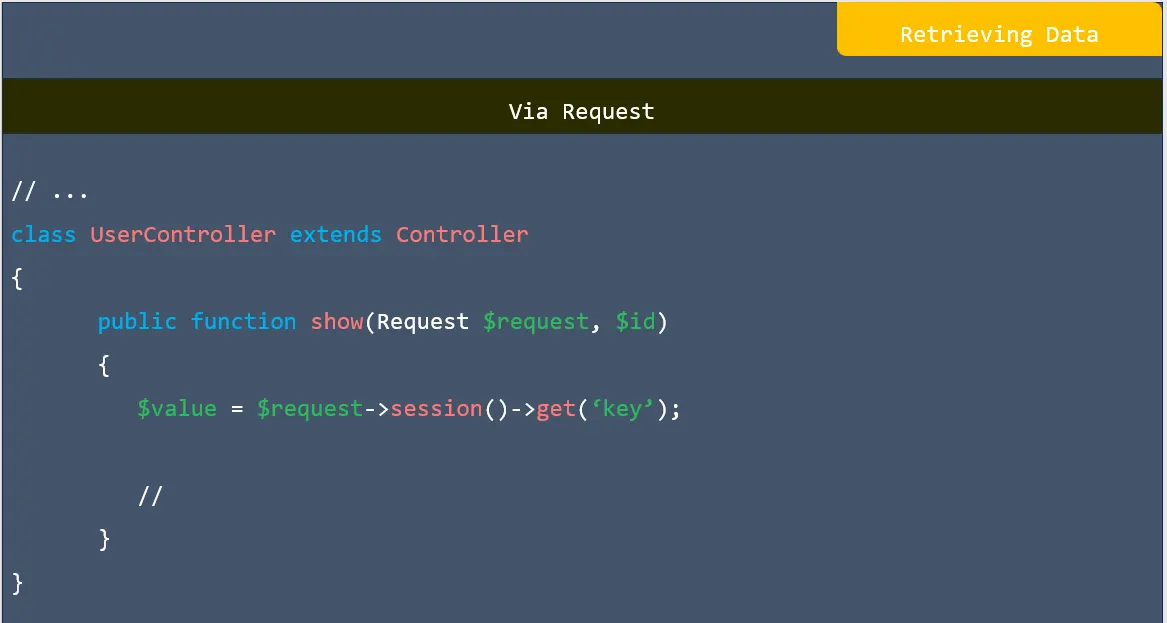
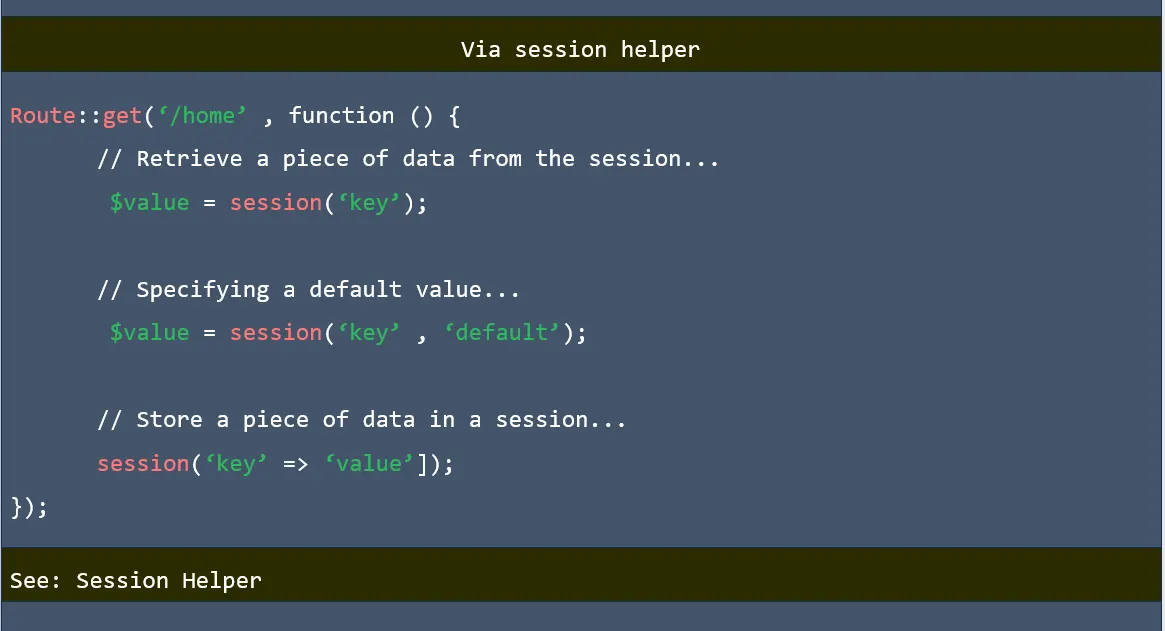
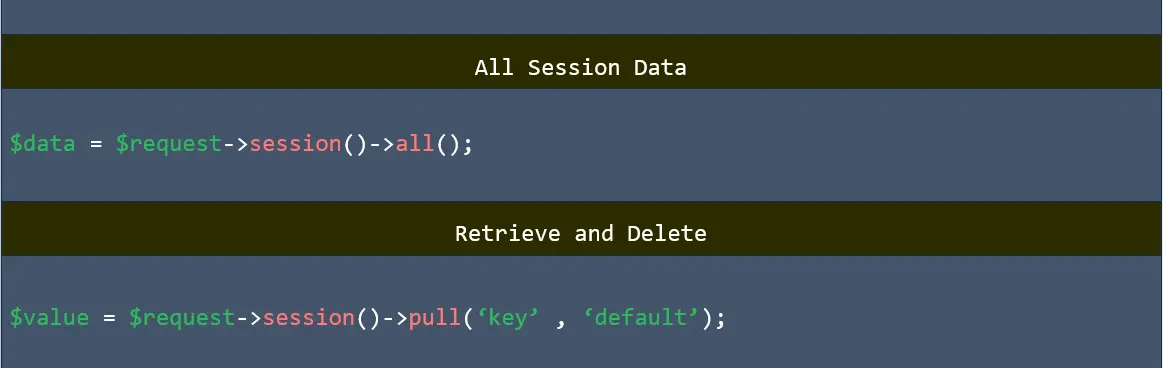
Retrieving data in laravel

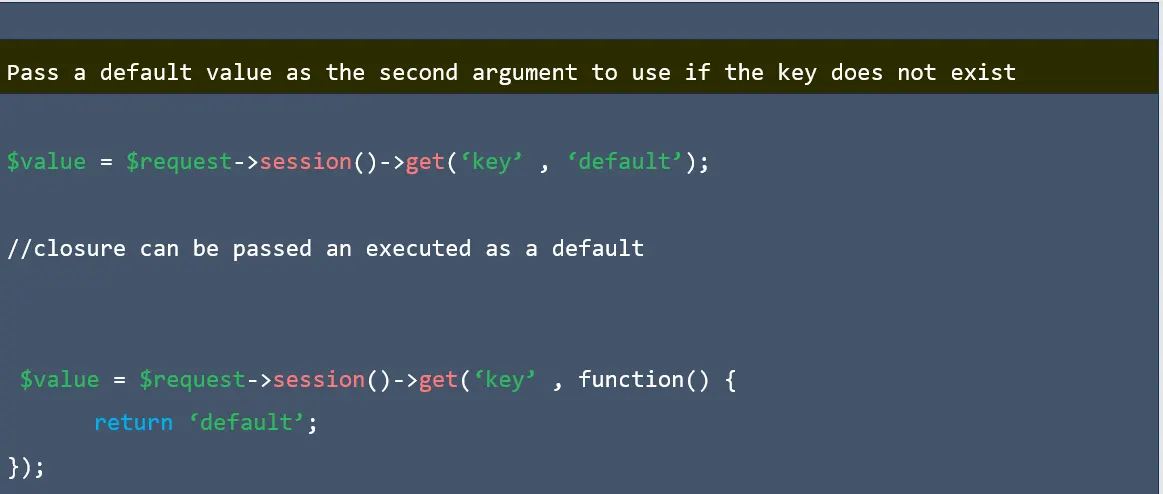
Retrieving data in laravel 1

Retrieving data in laravel 2

Retrieving data in laravel 3

Store data in laravel

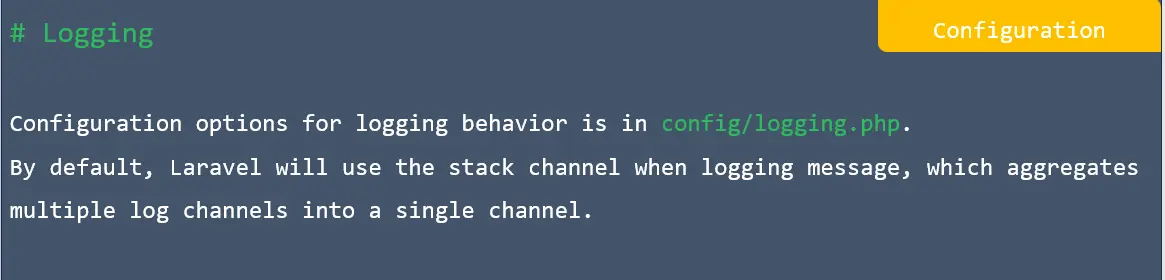
Configuration in laravel

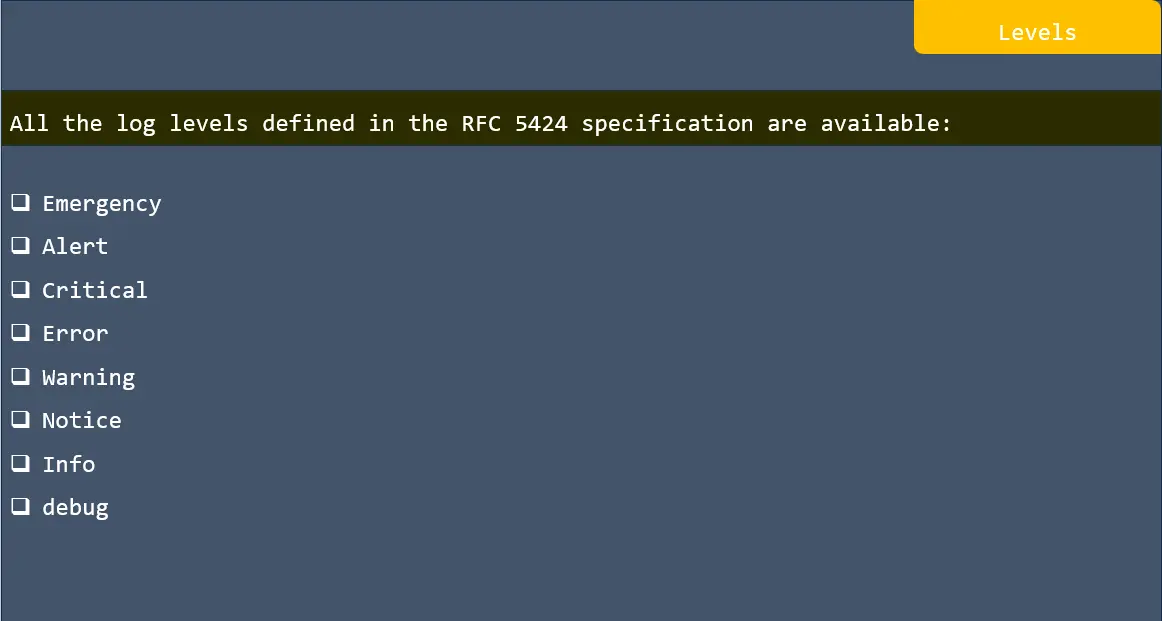
Levels in laravel

Log Facade in laravel

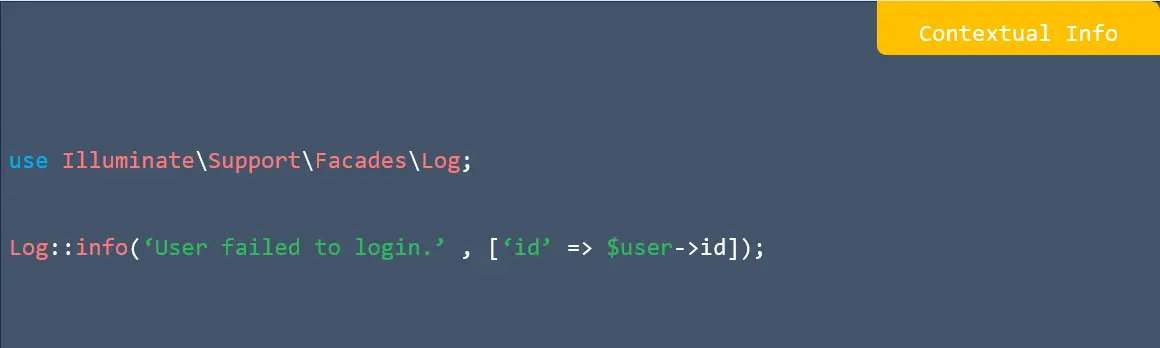
Contextual info in laravel

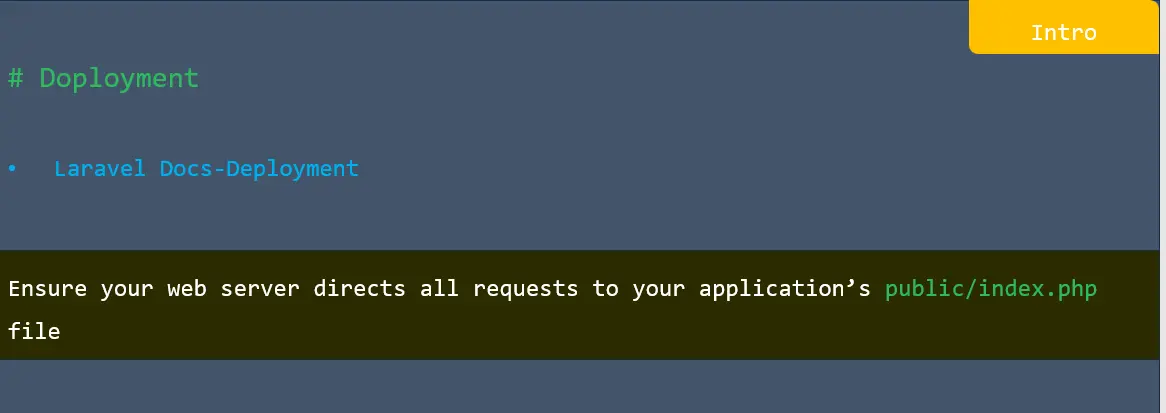
Doployment in laravel

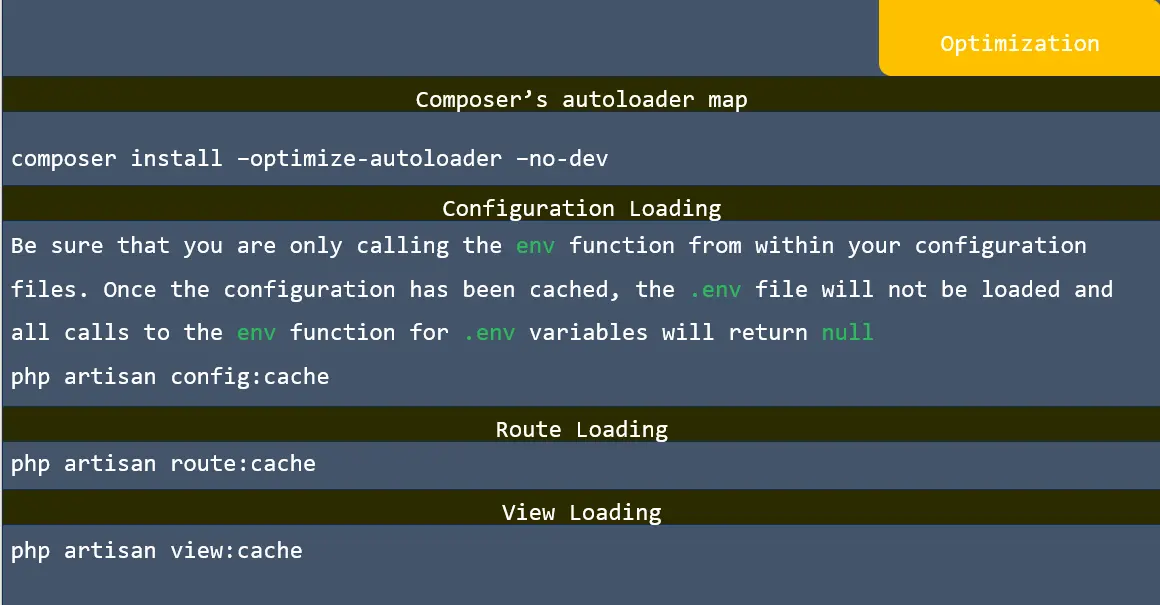
Optimization in laravel

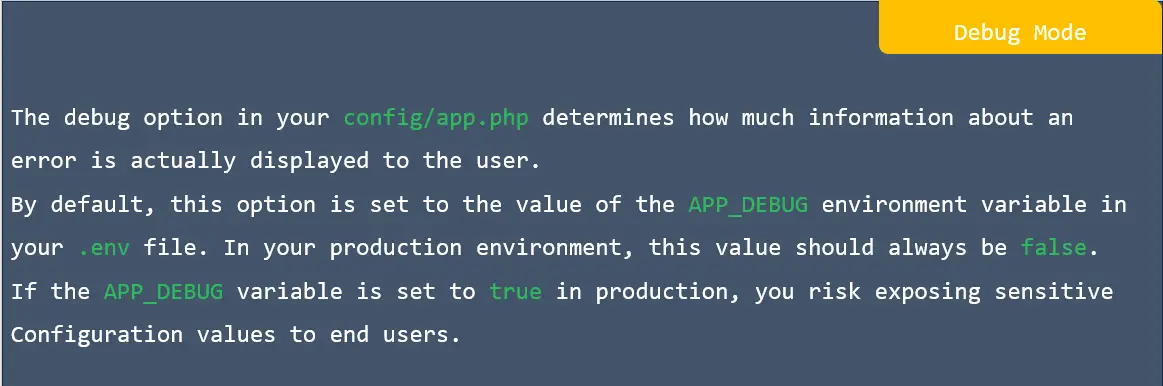
Debug mode in laravel